 by
by In this article, you'll find practical solutions to fix Outlook when it stops working, hangs, freezes, or crashes.
Has it ever happened that you're working in Microsoft Outlook as usual, click a message to read, or perform some simple action you've done hundreds of times before, and suddenly Outlook stops responding? Or maybe it gets stuck on the Processing screen or throws an error saying Outlook is trying to recover your information?
There are many different reasons why Outlook might start misbehaving. This guide will help you identify and troubleshoot the problem. We'll start with quick and simple steps that address the most common causes, then move on to a few deeper fixes if the issue persists.
Note. This guide applies to all recent versions of classic Outlook, including Outlook for Microsoft 365, Outlook 2024, 2021, 2019, 2016, and earlier.
Why is my Outlook not working?
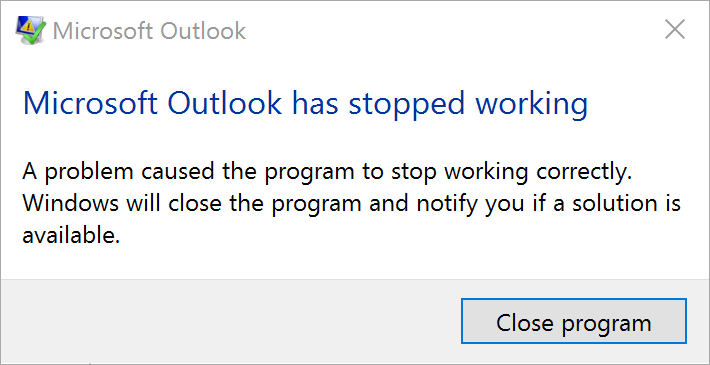
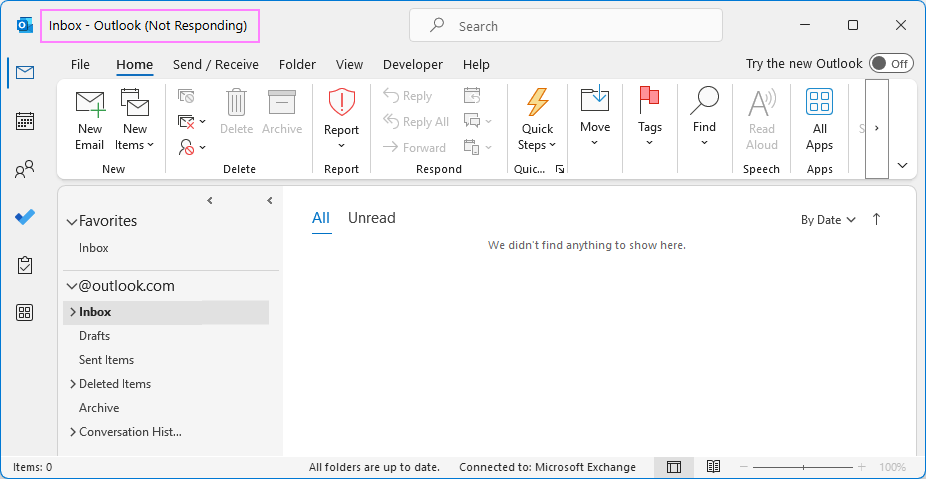
Outlook can stop working, freeze or crash for many different reasons, ranging from minor glitches to critical data file issues. In general, when the app tries to perform a task or complete an operation but can't, it shows the "Microsoft Outlook has stopped working" error or display “Not responding” in the title bar.
Error: Microsoft Outlook has stopped working:
Issue: Outlook not responding:
Most often, the problem comes down to one of the following:
- Too many tasks running. Outlook may hang while sending large attachments, syncing mailboxes, or processing updates in the background.
- Low system resources. If your device is short on memory (RAM), storage space, or processing power, Outlook might take much longer to load or become totally unresponsive during everyday tasks.
- Oversized mailbox. Even on a powerful system, Outlook can slow down if the data file becomes too large. When PST or OST files grow beyond recommended storage limits (50 GB in modern versions), performance problems are very likely.
- Corrupted data files. Damaged Outlook files can prevent the app from loading properly.
- Outdated Outlook or Windows. Older versions may contain bugs or compatibility issues that cause Outlook to freeze.
- Problematic add-ins. Third-party plug-ins may be helpful, but one incompatible add-in can slow Outlook down or cause it to crash, especially after an update.
- Antivirus or firewall interference. Security programs might block Outlook's connection or scan data files too aggressively.
- Network or server problems. If you use Exchange or Microsoft 365, Outlook might stop responding if it cannot connect to the mail server.
- Sudden shutdowns or forced exits. If Outlook or Windows closes unexpectedly, the app may not start properly the next time due to incomplete processes or corrupted files.
Once you have an idea of what's causing the problem, it's much easier to find the right fix. And often, the solution is simpler than it seems. Sometimes, the best thing you could do is just wait, letting Outlook complete its background tasks :)
How to fix Outlook when it stops working
Now that we've covered the main reasons Outlook might freeze or stop responding, let's move on to the solutions.
Make sure Outlook isn't busy
Sometimes Outlook only looks frozen when it's actually working hard in the background – sending a large batch of emails, archiving messages, or synchronizing with your mobile device.
Before assuming something's wrong, check the Outlook status bar for messages like Connecting to mail server or Updating folders. If Outlook is clearly performing some task, don't push it and let it finish the job. Once the operation completes, it usually goes back to normal on its own.
If nothing changes after a while and the app still does not respond, go ahead and try the next step.
Remove hanging Outlook processes
Every now and then, Outlook develops the annoying habit of sticking around even after you've closed it. This happens when one or more OUTLOOK.EXE processes keep running in memory, preventing the app from shutting down properly and not letting us, users, start a new session.
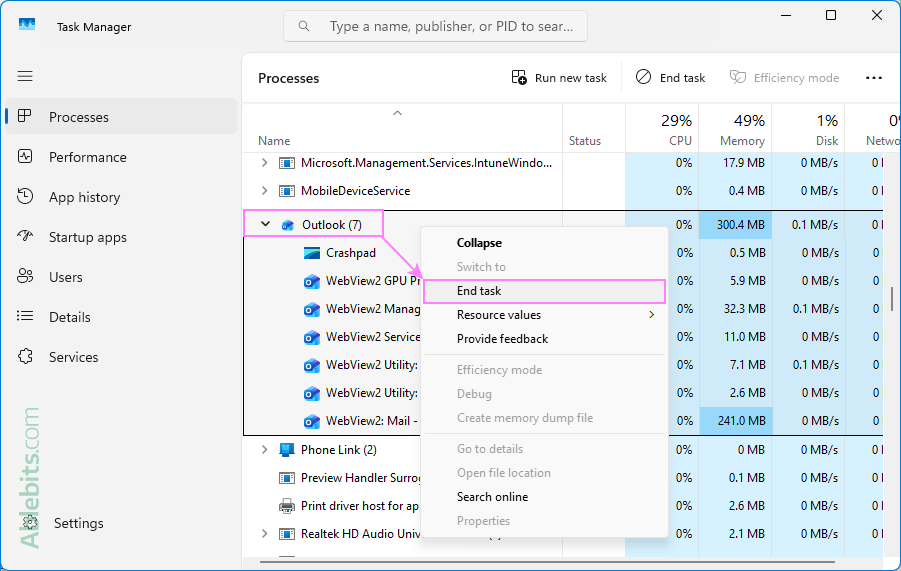
To fix this, terminate any active Outlook processes:
- Open Task Manager by pressing Ctrl + Shift + Esc. Or right-click the taskbar and select Task Manager.
- On the Processes tab, look for any Outlook instances.
- Right-click each one and choose End task from the context menu.
After all Outlook processes are ended, try opening the application again – it should start normally this time.
Restart Outlook and your computer
Sometimes all Outlook needs is a fresh start. Once you've closed any stuck Outlook processes, restart your computer and then launch Outlook again. It's a simple step, but it often does the trick.
Start Outlook in Safe mode
When something goes wrong with Outlook, Microsoft usually recommends starting it in Safe mode. What does it actually mean? Simply that Outlook will be loaded without your add-ins and customizations.
To open Outlook in safe mode, click on its icon holding the Ctrl key, or enter outlook.exe /safe in the Run dialog box. You'll see a message asking you to confirm that you really want to start Outlook in Safe mode, click Yes.
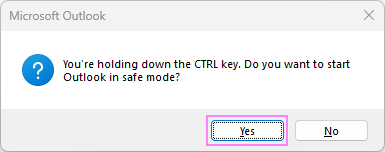
Does this cure the problem? If it does and Outlook starts working properly, then most likely the issue is with one of your add-ins, which leads us to the next step.
Disable your Outlook add-ins
If Outlook was running fine before and only recently started misbehaving, one of your add-ins might be to blame. Turning them off is an easy way to find out which one is causing trouble.
To disable add-ins:
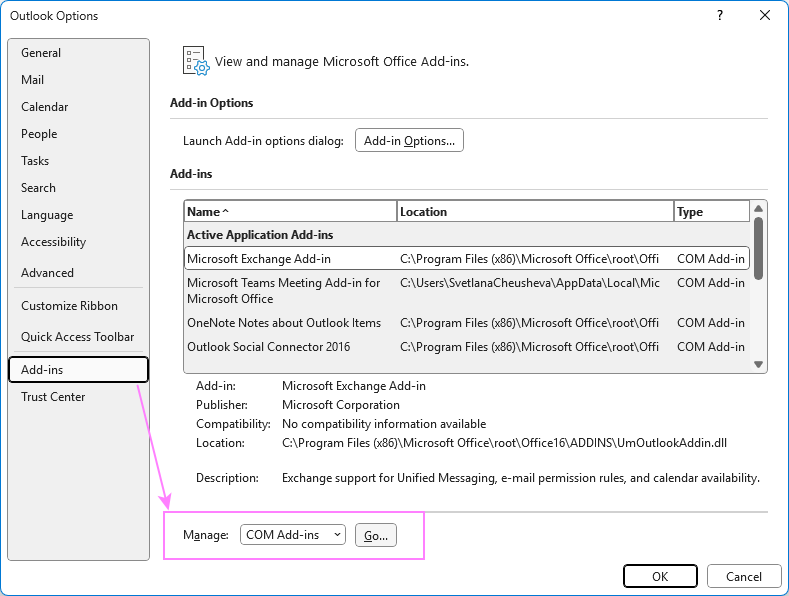
- Go to File > Options > Add-ins.
- At the bottom, select COM Add-ins and click Go.
- Uncheck all add-ins and restart Outlook.
- Re-enable them one by one to identify the problematic one.
Close all open programs and applications
Outlook is one of the most demanding apps in the Microsoft Office suite, and it can use a lot of system resources. Sometimes it stops working simply because there isn't enough memory available to complete an operation. This is more common on older or lower-capacity computers, but even powerful ones can run short on resources from time to time.
To give Outlook the breathing room it needs, close any other programs you are not using at the moment and try again.
Update Outlook and Windows
Outdated software can cause all sorts of issues, from performance slowdowns to compatibility errors. If either Outlook or Windows hasn't been updated in a while, that might be the source of the problem.
Your current Office installation may be out of date because Windows Update is not set to automatically download and install recommended updates on your computer. Installing all available updates (including important, recommended, and optional ones) helps replace old files and patch security vulnerabilities.
To update classic Outlook:
Go to File > Office Account > Update Options > Update Now.
To update Windows 11:
Select Start > Settings > Windows Update > Check for updates.
Once everything is up to date, restart your computer and try launching Outlook again.
For more information, see How to update Outlook.
Reduce mailbox size
As mentioned earlier, Outlook needs a fair amount of system resources to run smoothly. If your mailbox, or even a single folder, has grown very large, that extra size can slow Outlook down or make it unresponsive. There are a few easy ways to lighten the load:
- Permanently delete old emails. Empty your Deleted Items and Junk Email folders to permanently remove items you no longer need.
- Archive older items. Move older emails to an archive file to keep your main mailbox smaller and faster. You can do this manually or set up automatic archiving.
- Organize your mail into subfolders. Keeping thousands of messages in one folder, typically Inbox, can cause delays when switching views or opening emails. And voilà – Outlook is hanging and we are angrily staring at the screen and agitatedly hitting the buttons, which only adds to the trouble. The solution is simple – create a few subfolders and spread messages between them.
- Compact your data file. After deleting or moving items, compact your Outlook data file to reclaim disk space and improve performance.
All in all, a little mailbox cleanup does a lot of good, not just for speed, but for keeping Outlook tidy and pleasant to use.
Check if Outlook is connected to server
Sometimes Outlook isn't the problem at all, but rather the connection behind it. If Outlook can't reach your mail server, it may appear frozen and display messages like Trying to connect..., Disconnected, or Working Offline on the status bar.
Start by checking your internet connection. Try opening any web page in your preferred browser. If it opens normally, the issue might be on the mail server side.
If you use Microsoft 365 or Exchange, visit the Microsoft 365 Service Health Status to see if there are any known outages. For other email providers, check their support or status page for similar information.
If the server status is OK, try restarting Outlook and check if you are connected to the correct account.
Check your antivirus and firewall for conflicts
Sometimes an overly protective or outdated antivirus program can conflict with Outlook or one of its add-ins. When that happens, the antivirus may block certain components and stop Outlook from working properly.
Start by checking whether your antivirus software is up to date. Most reputable vendors make sure their products stay compatible with Microsoft Office, so installing the latest version can often solve the issue.
Next, open your antivirus settings and verify that Outlook and its add-ins are listed as trusted applications. This tells your security software not to interfere with them.
If Outlook is still giving you trouble, try temporarily turning off your antivirus or firewall to see if that makes a difference. If Outlook starts working again, you've found the culprit. In that case, contact the vendor for help or consider switching to another protection program that plays more nicely with Outlook.
Repair Outlook data files
If Outlook keeps freezing or crashing, the problem might be with its data files – the ones that store all your emails, contacts, and calendar items. Over time, these files (.pst and .ost) can get damaged, especially if Outlook hasn't closed properly or your computer shut down unexpectedly.
Luckily, Outlook comes with a built-in Inbox Repair Tool (SCANPST.exe) that can often fix the issue for you. When the repair is complete, reopen Outlook and see if everything's back to normal. If Outlook opens without errors, you're all set! If problems persist, you might need to create a new user profile.
Create a new Outlook profile
If Outlook still isn't working after you've tried the usual fixes, the problem might be with your user profile itself. Your profile stores your account settings that control how Outlook connects to your email servers, where it saves data, and how it displays information. Over time, that profile can become corrupted, especially if Outlook has crashed or been forced to close several times. Creating a fresh one often clears things up completely.
Here's how to do it:
- Close Outlook and check if no Outlook processing are running.
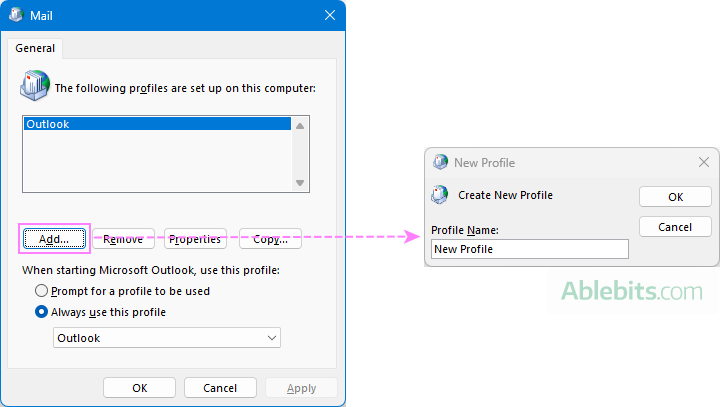
- Open the Control Panel and select Mail > Show Profiles.
- Click Add to create a new profile.
- Enter a name for the new profile and click OK.
- Follow the setup steps to add your email account(s).
- When you're done, select Prompt for a profile to be used and click OK to finish the setup.
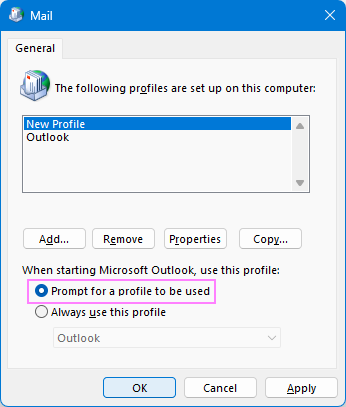
Now start Outlook with your new profile and see if it behaves better. If the issue is resolved, you can remove the old one later using the same Show Profiles dialog.
Repair your Office programs
If none of the above helps, your Outlook installation might be damaged. You can use the built-in option provided by Microsoft to repair Microsoft 365 or Office. This built-in feature automatically fixes broken or missing program files that may be causing the problem. Once the repair is complete, restart your computer and open Outlook to see if everything is working properly. If the problem continues, reinstalling Office may be the final step to try.
That seems to be all! Hopefully these tips help you get Outlook up and working reliably again. If you have any other troubleshooting ideas or fixes that weren't mentioned here, feel free to share them in the comments – they might just help someone else who's stuck with the same issue. Thank you!