 by
by In this article, you'll learn how to create and use an HTML email template in Outlook 365 - 2016 as well as in the new Outlook app.
Creating an HTML email template in Outlook lets you reuse well-designed messages without starting from scratch every time. It helps keep essential elements, such as logos, buttons and legal text, consistent across all your emails.
While Outlook doesn't provide a single "Make HTML template" button, there are working ways to import HTML code into a message or turn an existing email into a reusable template. This tutorial explains each method step-by-step, with tips to avoid common formatting issues.
How to create HTML email template in Outlook
This is the easiest approach if you don't need custom HTML code. It works well for simple layouts like internal updates, seasonal greetings, or personal messages to family and friends, such as anniversary congratulations or event invitations.
Step 1. Design your email
Start by creating a new message in Outlook and design it using the built-in formatting tools:
- Add text, images, and links.
- Include any required attachments.
- Apply basic formatting (fonts, colors, alignment).
- Insert tables if you want a structured layout with columns.
- Add a background image if needed. This option is available in classic Outlook, but it's not supported in the new Outlook and web.
- Set a default Subject, and optionally add placeholders such as [First name], [Date], or [Action Link] so you don't forget what to edit before sending.
As you work, Outlook automatically generates the HTML in the background; no manual coding required.
Step 2. Save the email as a template
Once the email looks right, save it as an .oft template. Depending on your Outlook version:
- Classic Outlook (365 – 2016): Click File > Save As > choose Outlook Template (*.oft), name and save it.
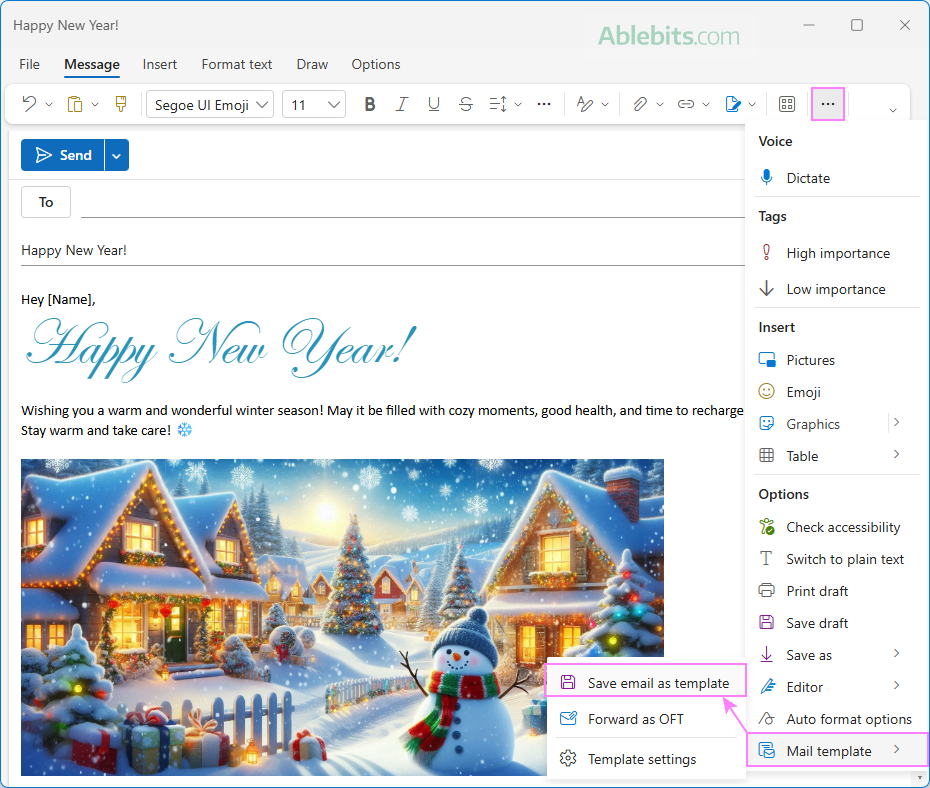
- New Outlook and web: On the Message tab, click More options > Mail template > Save email as template.
Here is an example of a Christmas html email template that you can easily make directly in Outlook:
Step 3. Use the template
To create a new message based on the HTML template:
- Classic Outlook (365 - 2016): Go to the Home tab > New Items > More Items > Choose Form, select User Templates in File System and open your saved template.
- New Outlook and web: On the Home tab, click New > Mail from template.
The template opens as a new email, ready for you to replace the placeholders with actual information and send.
Tip. In classic Outlook, you can also use Stationery, which lets you apply predefined design elements to the body of an email. It's a convenient option for creating custom designs for special occasions such as seasonal greetings, birthdays, or invitations, without building a full HTML template.
Works best for:
- Simple to moderately formatted emails
- Users who prefer designing emails visually rather than working with raw HTML
If you already have an email design, the next section explains how to bring it into Outlook preserving the formatting as much as possible.
Copy an existing HTML design into Outlook email
If you find Outlook's editor limiting, you can design the email in another program, and then copy it into a new Outlook message. Before pasting, make sure your Outlook message is set to HTML format.
Where you can copy HTML design from:
- Microsoft Word. Since Word is the default email editor in classic Outlook, most basic formatting (such as fonts, colors, alignment, and tables) is carried over correctly. Advanced Word features like text boxes, shapes, SmartArt may not render well once pasted into Outlook.
- A web browser or another app. You can also copy your visual email design from another program, email client, or website. Results may vary depending on how complex the HTML and styling are.
How to copy the HTML design into Outlook:
- Copy the content. Select the content on a web page or source application and press Ctrl + C to copy it.
- Paste into Outlook. Paste the copied content into a new Outlook email using the Ctrl + V shortcut.
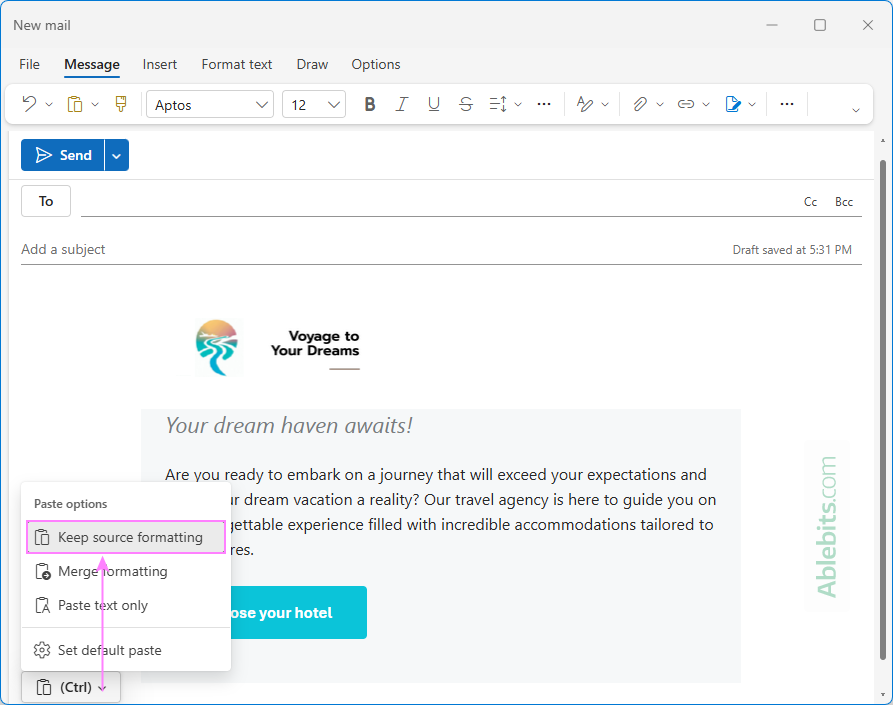
- Keep source formatting. After pasting, a small Paste Options icon with a down arrow appears, letting you control how the pasted data is formatted:
- Click the icon or press the Ctrl key to open the menu.
- Select the Keep Source Formatting option.
- Save as a template. Review spacing, images, and alignment in Outlook itself. Make any required corrections, then save the message as an Outlook template for future use. For full details, see:
This method doesn't always preserve the original design perfectly, as some HTML and CSS features aren't supported in Outlook. However, choosing the Keep Source Formatting option usually preserves the layout and styling as close as possible to the original version.
Works best for:
- Reusing existing designs from documents or web pages.
- Users who want a quick way to bring an existing layout into Outlook and turn it into a template.
If you want to import full html code with inline styles, the next method is a better choice.
How to import HTML template into Outlook
If you already have an HTML email design created outside of Outlook, you can import it and turn it into a reusable message template. This method gives you more control over the layout and formatting, helping preserve the original structure and reducing the risk of layout changes that can occur with simple copy-and-paste.
- Create your HTML file. Prepare your email design using any HTML editor, for example Visual Studio Code or Notepad++, and save the file with an .html extension.
- Open the HTML file in Outlook. To import an HTML file into modern versions of Outlook 365 - 2016, you need to add the classic Attach File feature to the ribbon or Quick Access Toolbar first, and then use the Insert as Text option to place the HTML content into the message body. For detailed instructions, please refer to How to insert HTML into Outlook email.
- Save the email as a template. Once the HTML content is inserted into a message, review the layout and make any final adjustments. Add a subject line and set placeholders if needed, and then save the message as an Outlook template.
This approach is ideal when you need to bring a finished email design into Outlook, without messing up HTML.
Note. HTML files can be opened directly only in the classic Outlook desktop app; this isn't supported in the new app and web. If you plan to use the resulting HTML-based email template in the new Outlook or Outlook online, complete all the steps described above in the classic (legacy) application, and then add the .oft template to new Outlook.
Works best for:
- Newsletters, promotional messages, and other emails built with custom HTML
- Branded or standardized templates created by designers
- Minimizing layout changes that can occur during copying and pasting
How to convert HTML email to Outlook template
If you've received a well-designed message from someone and want to reuse that design in your own communications, you can convert the received message into an Outlook template.
- Save the email as .MSG file. Start by saving the email message to your computer. The exact steps depend on your Outlook version:
- Classic Outlook (365 – 2016): Click File > Save As, choose Outlook Message Format (*.msg), and save it.
- New Outlook and Outlook on the web: Click More options, and then choose Save as or Download (whichever is available) to save the message as an .msg file.
- Open the .MSG file in Outlook. Locate the saved .msg file in File Explorer and open it by double-clicking or dragging it into Outlook. The email opens in a new window as a normal message, with its original formatting preserved.
- Save the email as template. Once the message is open in Outlook, make any necessary changes to the content, then save it as a template.
After saving, you can use the template whenever you need. Before sending, remember to update the subject line, links, and any placeholders so the message fits the new context.
Works best for:
- Turning received HTML emails into your own templates
- Reusing professionally designed or branded emails
Create a shared HTML email template in Outlook
With our Shared Email Templates added to your Outlook, creating an html-based email template is a matter of a few clicks and seconds:
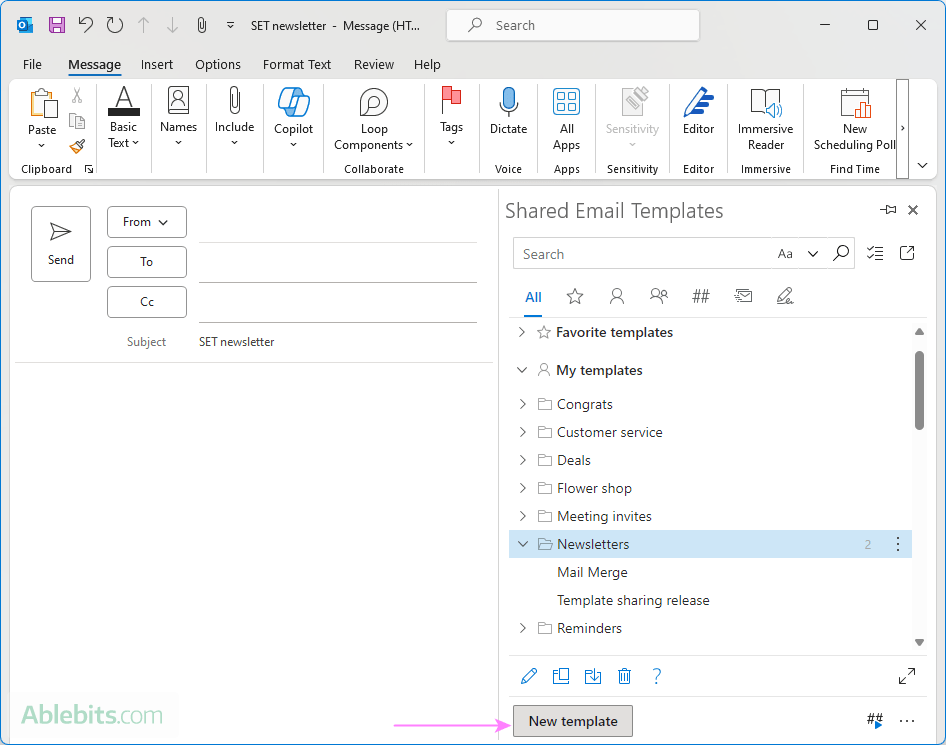
- Create a new template. In the Shared Email Templates pane, select the folder where you want the template to reside and click the New Template button.
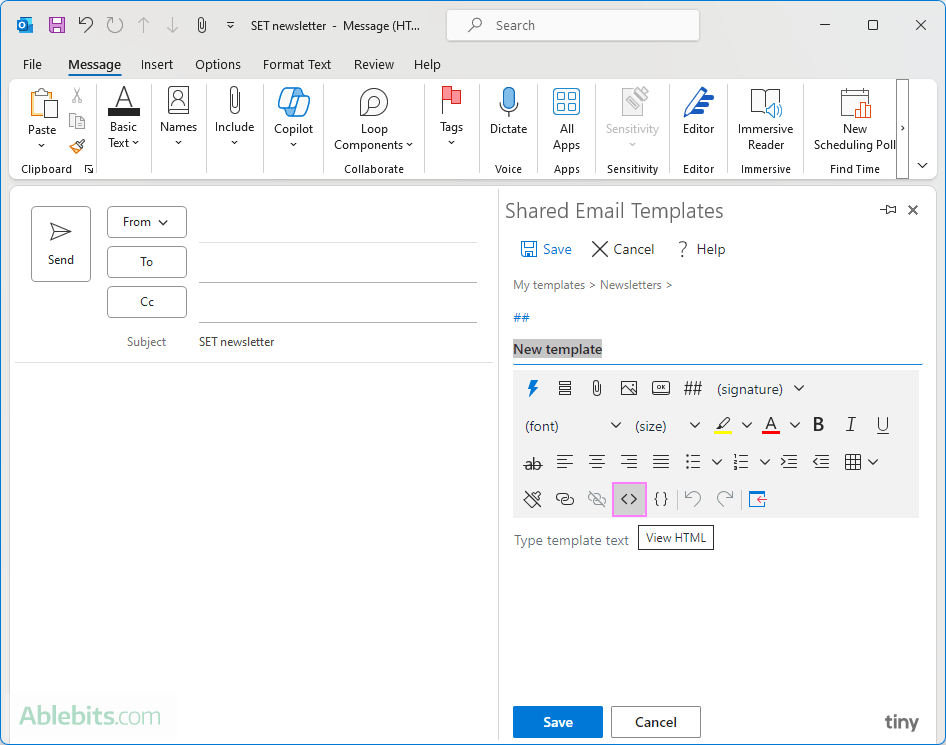
- Open HTML editor. In the template editor, you can use the inbuilt tools to design the template visually. To access the HTML editor, click the View HTML icon.
- Paste HTML code. Copy the HTML code of your email template from Notepad or your preferred editor. Then, paste it into the View HTML window and save the template.

Your beautiful HTML email template is all set! Whenever you need to use it, simply click the Paste button. The template will be inserted into a message instantly, ready to be sent and impress your recipients with its professional and polished look.

Tip. Additionally, you'll get a collection of professionally designed customizable HTML-based templates (8 layouts and 14 color themes), perfectly suited for newsletters and captivating promos.
Wish to give it a try? Download a free evaluation version from Microsoft Marketplace and enjoy its versatility across all Outlook apps and platforms: Windows and Mac, classic and new, desktop and web.
Test your HTML template before regular use
Before using an HTML email template in Outlook regularly, send a few test emails and review them carefully to catch any layout or formatting issues.
- Check the layout in both desktop and web versions of Outlook, as rendering can differ between them.
- Verify that images load correctly, especially if they're hosted online, and check if they display at the intended size.
- Confirm that links open the correct destinations.
- Review fonts and text spacing to make sure they match your design and remain readable.
- Test the email on different screen sizes, including mobile devices, if possible.
- Send the test message to another person or account to see how it appears outside your own setup.
A few minutes of testing helps ensure your HTML template is reliable and the email displays as intended when sent to real recipients.
Practical tips for reusable Outlook HTML templates
A few simple habits can make your Outlook HTML templates easier to maintain, update, and reuse over time.
- Add clear placeholders such as [Name], [Date], or [Link] so it's obvious what needs to be edited before sending.
- Keep a small template checklist at the top of the email (e.g. in the form of an HTML comment) with reminders like Update subject or Verify links.
- Maintain a folder of tested components (buttons, headers, column blocks) that you know work well in Outlook, so you can assemble new templates faster.
- Be mindful of responsiveness. Creating Outlook templates that adapt well to different screen sizes can be difficult, so fixed-width layouts are often more trustworthy. Media queries may help, but their support in Outlook is limited.
- Keep a clean master version of each template and make copies for day-to-day use. This makes it easier to update designs later.
In conclusion, creating HTML email templates in Outlook can feel difficult and restrictive at first, but once you understand its limitations, the process becomes far more manageable. In fact, building effective templates doesn't require advanced coding skills. For many users, designing in the message window or copying from a browser is more than enough. If you need sophisticated layouts, importing HTML and saving it as a template gives you extra flexibility.