 by
by To mail merge with personalized PDF attachments in Gmail, users are usually stuck because native Mail Merge fails with this task. Whether you need to email custom invoices or student report cards, you have to generate and attach unique PDFs for each recipient manually.
In this guide, we'll show you how to automate PDF generation and attachment using Easy Mail Merge, a powerful Google Workspace add-on. You'll learn how to mail merge personalized PDFs directly from Google Docs and Sheets, attach different files to different contacts, and send them through Gmail in minutes. We'll cover real-world use cases, including student grade reports, certificates, and invoices.
Why attach documents in PDF format?
PDF is the dominant format for documents: 82% of businesses have chosen PDF as their primary document storage and sharing format. It has become the default file type for industries like law, education, and healthcare. If we look at the format usage across various spheres more closely, we will see a picture like this:
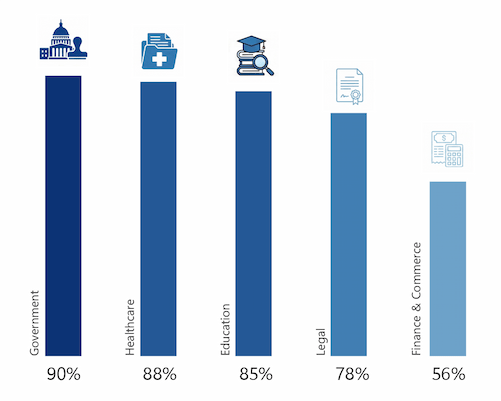
- Government & Healthcare: The public sector and healthcare lead by a huge margin (90%+ and 88%). In these fields, PDF has become the gold standard.
- Education: Around 85% of course materials, academic journals, and digital textbooks have adopted the PDF format.
- Legal: Because of the transition to electronic document management and a high percentage of remote workers, the majority of documents — for example, 78% of digital agreements — are now shared and signed in PDF format.
- Finance & Commerce: Here, we can see that contracts and invoices (32% and 24%) also make up a huge part of PDF usage.
But why PDF? There are real reasons why these numbers are so high:
- Consistent formatting: PDFs embed fonts and layouts so your document looks exactly the same on any device.
- Print-ready: PDFs preserve the layout of your documents when printed on paper.
- Optimized file size: For documents with images and complex formatting, PDFs are often smaller and easier to email.
- Security: PDFs have protection like password and encryption built in. They are also very difficult to alter without leaving obvious traces.
- Ready for digital signatures: PDFs support electronic signatures.
The challenges of mass emailing personalized PDF attachments in Gmail
While sending an identical PDF to 200 recipients is not a problem, it’s almost an impossible task for Gmail users to send personalized PDFs attachments for each of these 200 recipients.
Employees have to manually generate PDFs from Google Docs or Sheets, download them, save them to Google Drive, attach each PDF file to email accordingly, and send to the recipients. Let’s do a rough estimate of how long this will take:
| Task | Time per Email | Time for 200 Emails |
|---|---|---|
| Create a master template in Google Docs or Google Sheets (once) | 300 sec | ~ 5 min |
| Personalize your template with client data and save as PDF | 60 sec | ~200 min |
| Rename the downloaded file & upload it to Google Drive | 60 sec | ~200 min |
| Open Gmail, write an email template (once) | 300 sec | ~ 5 min |
| Type or paste the email address and customize the email body | 30 sec | ~100 min |
| Find and attach the correct PDF file | 60 sec | ~200 min |
| Review and send | 10 sec | ~33 min |
| Total Time | - | ~12 hours (1.5 working days!) |
This means a qualified employee is forced to sacrifice almost a day and a half just to send customized PDFs. And if your client base grows, the load will increase proportionally.
Easy Mail Merge: How to Mail Merge with unique PDF attachments in Gmail
Instead of jumping between windows and matching attachments by hand, you can use the Easy Mail Merge extension to streamline the entire process.
Here's how Easy Mail Merge turns a manual 11-12-hour task into a 20-minute workflow:
| Task | Time |
|---|---|
| Create an invoice template in Google Docs or Google Sheets (once) | 5 min |
| Prepare Google Sheet with client data (once) | 7 min |
| Set up your email template (once) | 5 min |
| Open Easy Mail Merge > link your sheet with client data > add the email template | 1 min |
| Automatically generate and attach personalized PDFs | 1 min |
| Send all 200 emails with customized messages | 1 min |
| Total Time | ~20 minutes |
As you can see, the time savings are enormous. And if you already have your master template and source sheet prepared from the previous month, the entire process takes just 3 minutes! Let's look at how this works in real-world scenarios.
Use Case: Generate and send personalized student grade reports
At the end of a semester, teachers send personalized grade reports or progress updates to each student. With a class of 30 students, this means:
- Generating 30 unique documents with individual grades in PDF format
- Writing 30 personalized emails
- Attaching the correct result PDF to each email
- Sending each one manually
Even with small student groups, it’s a tiring and tedious job. You can use a native mail merge tool (if you have an eligible Google Workspace plan) to automatically personalize your emails to students. But this helps just with one step of the process. To handle the most exhausting tasks you need to utilize third-party extensions: one to generate tailored PDFs and one to send these PDFs to each of the recipients. And to attach them correctly, you'll need to upload each PDF to your Drive and insert the links into your spreadsheet.
But the best option is to use Easy Mail Merge as it can personalize emails, generate and attach unique PDFs, and send them — all within a single workflow. You can copy over entire columns from the gradebook to easily share information with students and their guardians!
To create and automatically send custom grade reports for each student with Easy Mail Merge:
- Put the information specific to each student in a row corresponding to that student's name in Google Sheets.
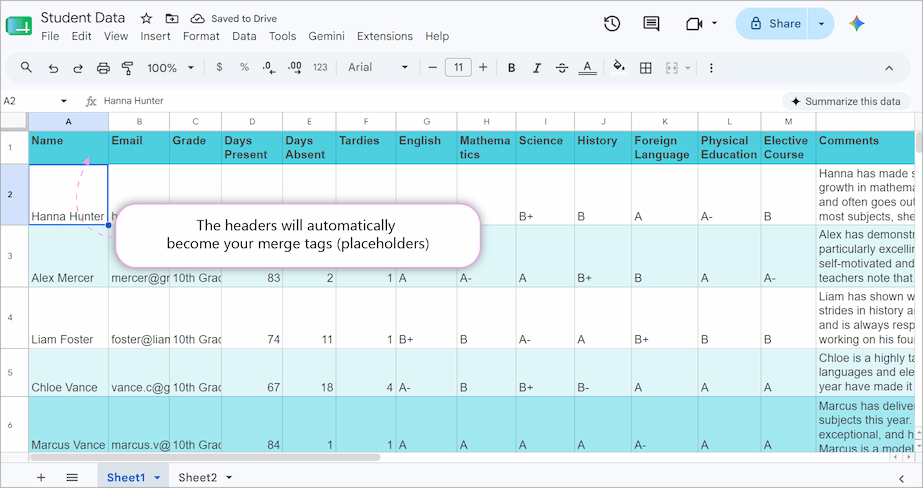
Note: Use one variable per column (e.g., Name, Grade).
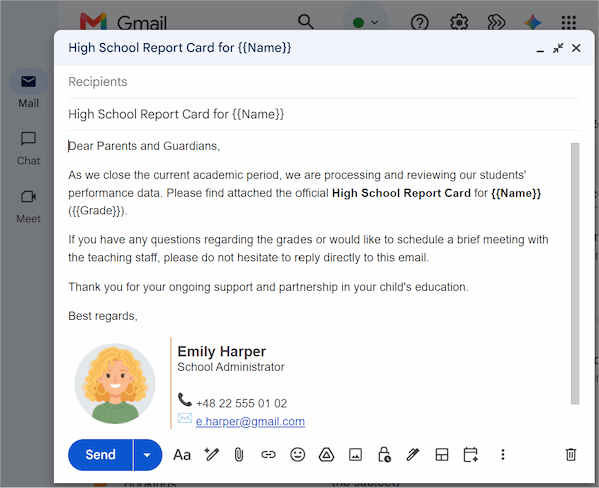
- Write an email draft in Gmail using placeholders like {{Name}} and {{Grade}} that correspond to the header of the column with student information.
- Create a report card template in a separate spreadsheet also with placeholders. You can pull grades, attendance percentage, feedback, and any other information you want to merge into your PDFs.
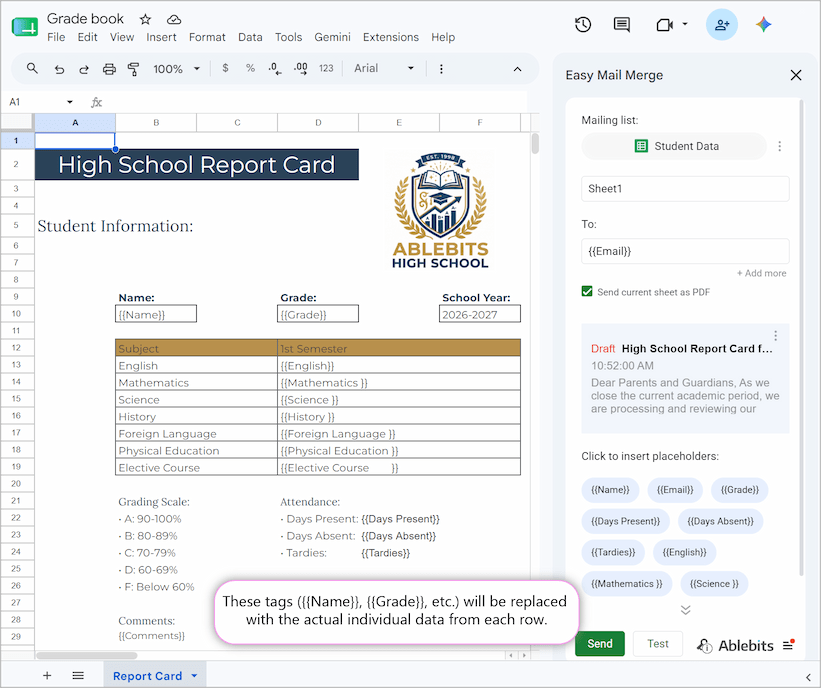
- Easy Mail Merge will automatically pull the data from each column and personalize both the email and the attached PDF for every student.
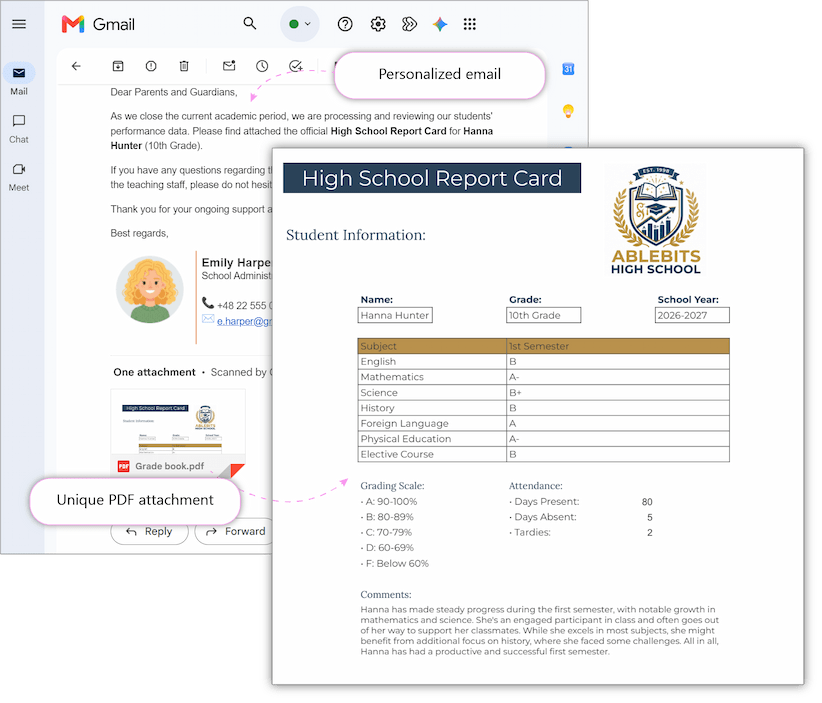
This way, any teacher can send personal emails and PDFs to students and their guardians with grades and comments without hassle.
Use Case: How to bulk email personalized PDF certificates in Gmail
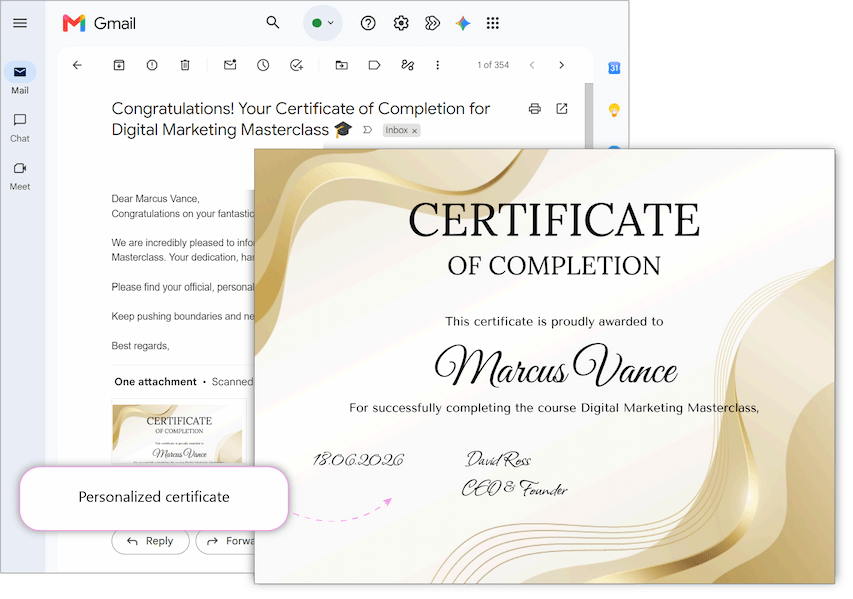
At the conclusion of a training program, webinar, or corporate course, organizers need to send personalized completion certificates to each participant. Easy Mail Merge handles this entire process seamlessly because it allows you to mail merge directly from Google Docs too!
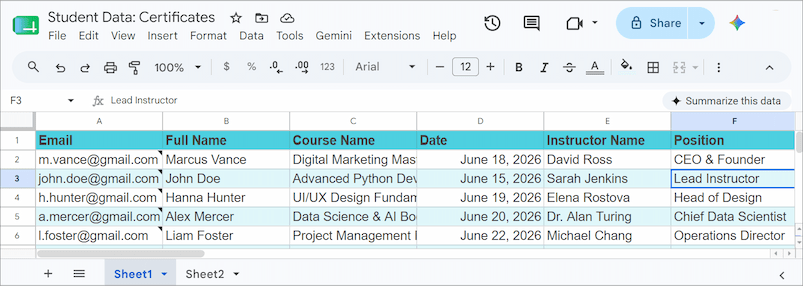
- Set up your data: Put your participants' details in Google Sheets: names, course titles, emails, or anything else you need.
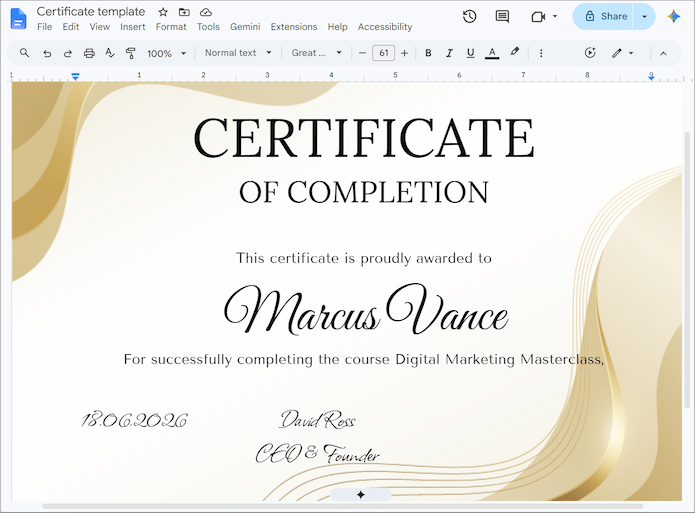
- Design your certificate: Create your certificate in Google Docs. Add logos, borders, signatures.
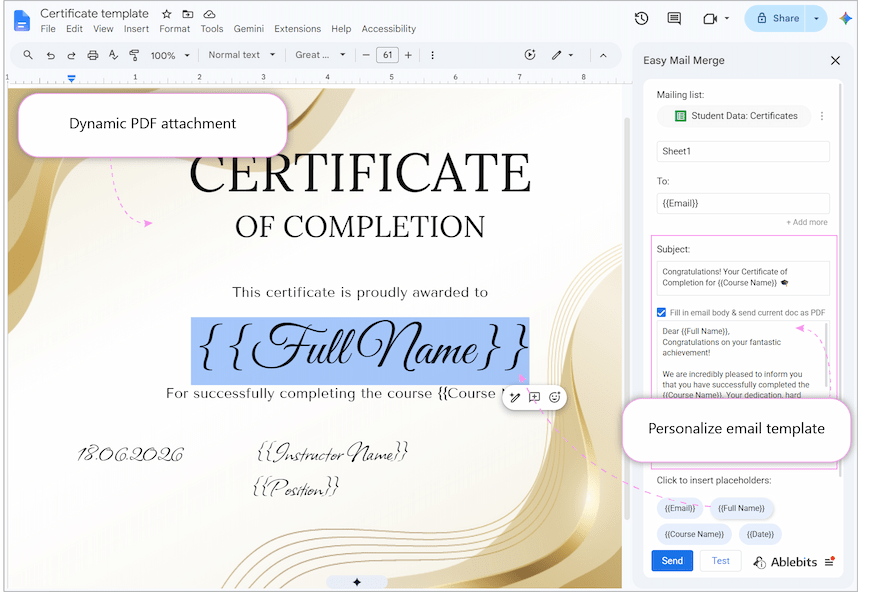
- Connect and configure: Open Easy Mail Merge from Google Docs, link your spreadsheet, and tick the box to send your certificate as a personalized PDF attachment.
- Add personalization: Drop in placeholders like {{Name}} and {{Course}} that correspond to headers from the source Google Sheet where personalized info should go.
- Write your email: Enter or paste your email right in the add-on interface. Use the same placeholders to personalize each message.
- Test and send: Send a test email first to preview the formatting, then hit Send.
Each participant receives their own certificate as a PDF attachment, in a personalized email. And if you already have certificates ready, you can simply store their links in your spreadsheet and attach them to your customized emails as Drive links instead.
Use Case: Merge to PDF for printing/archiving and share PDF invoices as Drive links
In our previous examples, we focused on the most direct path: generating PDFs and instantly sending them to the recipients’ inboxes. But corporate accounting and financial workflows often demand more control.
When managing monthly billing or invoice distribution, you might need to:
- Bulk-create all customer invoices as PDFs first for internal compliance, physical printing, or archiving.
- Distribute them not as files, but as secure cloud links.
With Easy Mail Merge you can split the workflow to match your internal business processes. Instead of processing emails immediately, we will first generate your invoices as standalone documents directly from your billing template:
- Prepare your source data: Fill in the Google Sheets table with the necessary details of your future payers.
- Design your template: Design your invoice layout in a Google Doc or separate Google Sheet using placeholders like {{Invoice ID}} and {{Due Date}}.
- Run Merge to Letter & PDF: Go to Extensions > Easy Mail Merge > Merge to Letter & PDF, connect your source client sheet, and generate personalized PDF invoices.
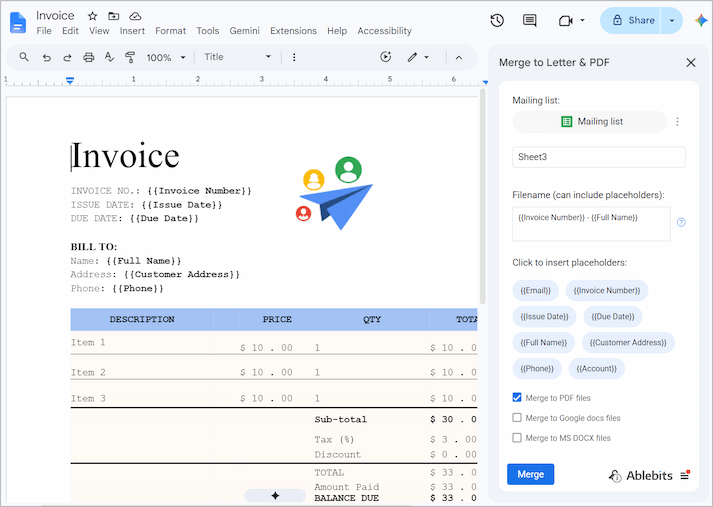
Easy Mail Merge creates customized PDF invoices, and saves them to your Drive. You can now open that folder, select all files, and print them.
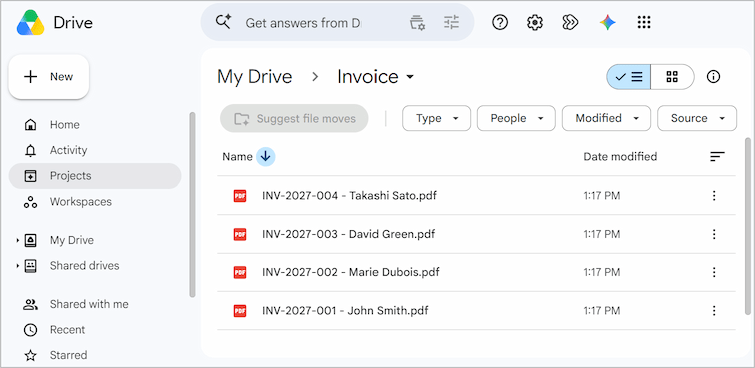
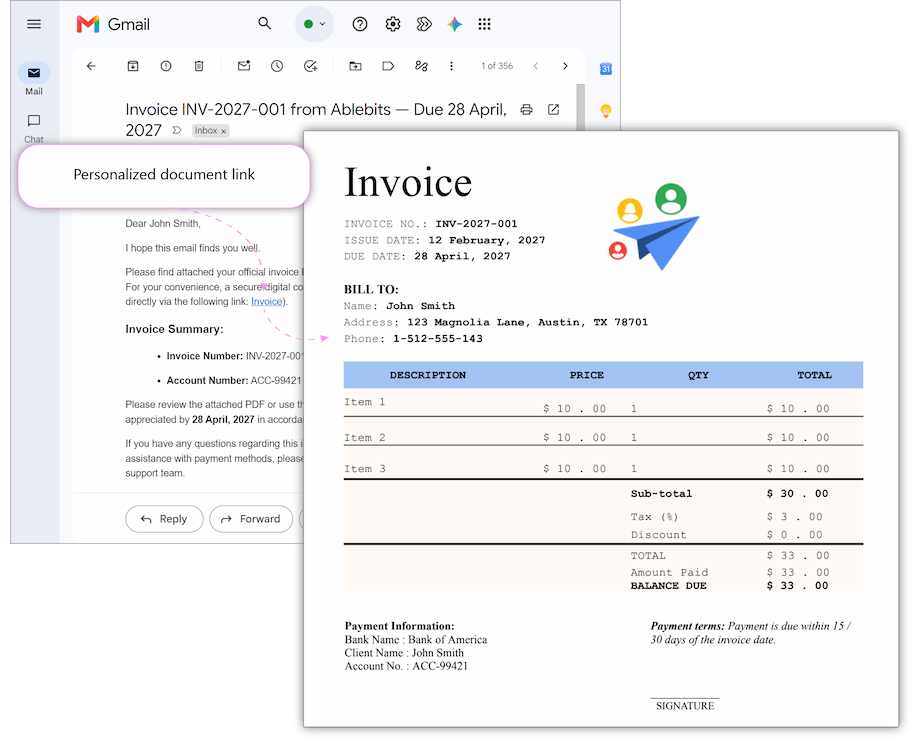
Now that your files are generated and stored in Google Drive, you can send them as personalized links. This is especially useful for large PDFs or when you need to update a document after sending.
- Collect the links: Create a new column in your source Google Sheet called Invoice Link and paste the shareable link to each PDF.
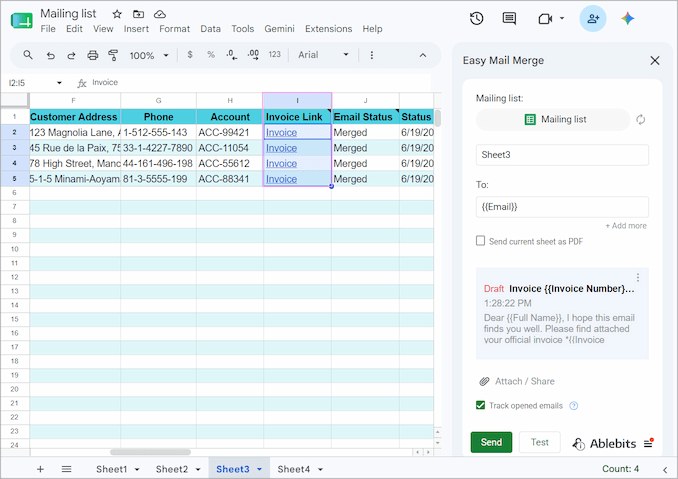
- Add the attachments: In your email template add the placeholder {{Invoice Link}} where you want it to be.
- Deploy via Gmail: Open Easy Mail Merge, select your email template, and hit Send.
Each customer receives a personalized email with a clickable link to view or download their specific invoice from your secure Google Drive.
Best Practices for mail merge with attachments
- Name files clearly: Choose file names that are easy to identify at a glance (for example: Report Card for John Doe.pdf).
- Add context for your attachment: A brief reference to the attached file in the email body makes your message easier to follow.
- Check your data twice: Make sure your mailing list spreadsheet has the right information before you hit send.
- Test before sending: Always send a test email before launching the merge. I've run hundreds of mail merges and I almost always spot something in the test that I want to change.
- Track engagement: Use Easy Mail Merge's tracking feature to monitor open rates.
The best way to master these best practices is to try them out. Install the free trial of Easy Mail Merge and automate your personalized PDF campaigns!
Frequently Asked Questions (FAQ)
What is a PDF mail merge?
A PDF mail merge combines a template document with a data source to automatically generate many personalized PDFs. Instead of editing each file manually, you design your template, connect a Google Sheet data source, and use extensions like Easy Mail Merge to generate one customized PDF per row (for example: a student report card, invoice, certificate, or any other document for each person).
How can I do a Mail Merge into a PDF?
You can perform a PDF mail merge without coding by using an add-on like Easy Mail Merge.
- Prepare Data: Put recipient emails and personalized details into columns in a Google Sheet.
- Create Template: Design your invoice or certificate in a Google Doc or separate Google Sheet using placeholders like {{Name}}.
- Run Automation: Click Extensions > Easy Mail Merge > Merge to Letter & PDF > connect your files and auto-generate unique PDFs.
Tip: If you want to send them immediately, replace step 3 by opening Easy Mail Merge, connecting your files, writing or adding an email message with placeholders, and enabling the tool to auto-generate and send unique emails with PDF attachments via Gmail.
Can I use different attachments for different contacts in the same automation?
Not with native Mail Merge. To mail merge with unique PDF attachments, use Easy Mail Merge.
Can I attach personalized PDFs that are automatically generated in Gmail?
Only with add-ons. The challenge is that most tools handle PDF generation and attachment as separate steps. But Easy Mail Merge lets you generate, personalize, and attach PDFs in a single run.
Can I send links to personalized PDF files instead of attaching them directly?
Not with native mail merge. Also, most mail merge tools either allow only the same attachments for all recipients or send links instead of actual files. Easy Mail Merge lets you attach files either as actual attachments or as shareable links within your emails.
Do email attachments count toward my daily Gmail sending limits?
Attachments don't reduce your daily sending limits, but larger files may slow down the delivery speed.