 by
by In this guide, you will learn how to remove duplicates in Google Sheets using the built-in tool, powerful formulas, pivot tables, and the Remove Duplicates extension. Beyond just deleting records, you’ll also discover how to identify and label duplicates and uniques, as well as how to count and filter them.
While most tutorials only show you how to remove duplicates with basic formulas or the built-in tool, this guide dives deeper. You’ll learn not only how to check and remove duplicates but how to flag, count, and filter them. Whether you need to keep records including or excluding first occurrences, or want to mark the most recent entry instead of the first one — you’ll find answers!
Quick Summary
Remove duplicates using the built-in tool
- Select the range.
- Go to Data > Data cleanup > Remove duplicates.
- Choose whether the range has header rows and which columns to compare.
- Click Remove duplicates.
Formulas in Google Sheets to find or remove duplicates
Create a new column for the formula, paste it into the first row, and drag it down to cover your entire data range.
| If you want to... | Use this formula | What it does |
|---|---|---|
| Find all duplicates including 1st instance | =IF(COUNTIF($A$2:$A, A2) > 1, "Duplicate", "Unique") |
Labels every occurrence of a repeating value in a status column. |
| Mark duplicates only (without 1st instance) | =IF(COUNTIF($A$2:A2, $A2) > 1, "Duplicate", "") |
Leaves the first instance blank and marks only the "extra" copies as "Duplicate." |
| Identify all but the last occurrence | =IF(COUNTIF($A2:$A$10, $A2) > 1, "Duplicate", "") |
Keep the final instance of each record and mark all prior entries as duplicates. |
| Check case-sensitive duplicates | =IF(SUMPRODUCT(--EXACT($A$2:$A, A2)) > 1, "Duplicate", "") |
Distinguishes between different cases (e.g., "Cherry" and "CHERRY"). |
| Find absolute duplicate rows (across 3 columns in this example) | =IF(COUNTIFS($A$2:$A2, $A2, $B$2:$B2, $B2, $C$2:$C2, $C2) > 1, "Duplicate", "") |
Marks a row only if the data matches across all specified columns. |
| Create a deduplicated copy in another range | =UNIQUE(A2:C) |
Extracts only the first occurrence of every row to a new location. |
Pivot tables to clean your data
If you want to summarize your duplicates without using formulas, you can use Pivot Table in Google Sheets:
- Go to Insert > Pivot table.
- Select your data range and choose the location for your pivot table.
- In the Pivot Table Editor, add the column containing duplicates to both the Rows and Values sections.
- Set the Summarize by value to COUNTA (for text) or COUNT (for numeric values) to see how many times each entry repeats.
- In the new column, you’ll see the frequency of each item (greater than 1 is a duplicate).
Remove Duplicates extension
To find duplicates and uniques in Google Sheets automatically and easily manage them:
- Select the range.
- Specify what to find: dupes or uniques.
- Pick the columns.
- Say what to do with the found dupes or uniques (e.g., highlight, remove, export).
Google Sheets native tool to remove duplicates
To remove duplicates with the Google Sheet’s built-in tool:
- Go to Data > Data cleanup tab and click Remove duplicates:

- Specify if your table has a header row and select columns that should be checked for duplicates:

- Click OK, and Google Sheets will find and delete duplicates from your table and say how many unique rows remain:

How to find duplicate cells in Google Sheets
It’s not easy to put your trust in Google Sheets’ logic completely and delete records permanently. Most people prefer to check duplicates before removing them. You can use a duplicate-check formula to mark any dups in the status column.
Tip: If you prefer to highlight your duplicates first, check out this guide.
How to find duplicate records including 1st occurrences
To find uniques and duplicates with the 1st occurrence of each duplicate, use the formula and drag the fill handle to copy it down:
=IF(COUNTIF($A$2:$A, A2) > 1, "Duplicate", "Unique")
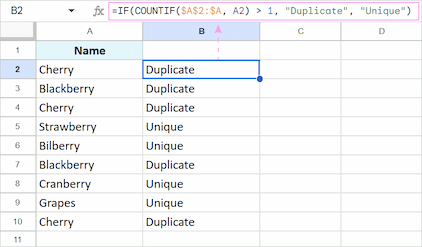
Let's see what happens in this formula:
- First, COUNTIF searches the entire column A for the berry from A2. Once found, it sums them up.
- Then, IF checks this total, and if it's greater than 1, it says Duplicate, otherwise, Unique.
- As you copy the formula down, A2 automatically changes to A3, A4, A5, and so on to check each record against the entire list.
To find & identify only duplicate cells in your Google Sheets data:
=IF(COUNTIF($A$2:$A, A2) > 1, "Duplicate", "")
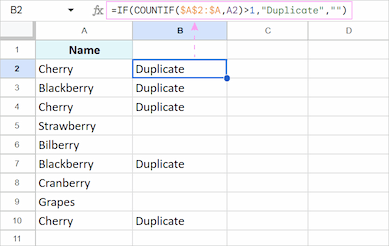
In this version, I’ve removed "Unique" in the formula and used empty quotes "" instead. This makes the "Duplicate" labels more visible.
How to check duplicates in Google Sheets excluding 1st instance
To mark only the 2nd, 3rd, and subsequent occurrences of a record:
=IF(COUNTIF($A$2:$A2, $A2) > 1, "Duplicate", "")
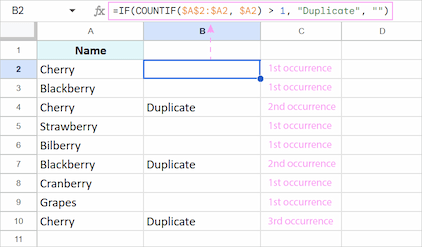
How this formula works:
- Notice the range $A$2:$A2. The first part is absolute, but the second part is relative and free to change. We do it to keep the formula growing: as you copy this formula down to row 10, it becomes
COUNTIF($A$2:$A10, $A10). - With this range, the formula looks only at the current cell and everything above it.
- If it finds the same value in the rows above, it knows this is at least the second time this record has appeared, and marks it as a "Duplicate".
How to remove duplicates but keep last instance
If you want to keep only the very last instance of a record and mark all earlier ones as duplicates, you need to "flip" the range logic.
To do this, enter the following formula in cell B2 and drag it down:
=IF(COUNTIF($A2:$A$10, $A2) > 1, "Duplicate", "")
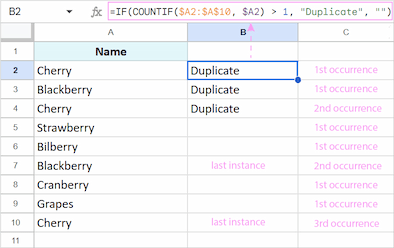
Note: Replace $A$10 with the actual last cell of your data.
How this formula works:
- Notice that the first part of the range is relative, but the end of the range is absolute. As you copy the formula down, the starting point shifts (A3, A4, A5...), but the end always stays at $A$10. This makes the formula look only at the current cell and everything below it.
- If the formula finds the same value in the rows below, it knows this is not the last occurrence yet and marks it as a "Duplicate".
Note: To look for partial matches, you need to use wildcard characters. See how to do it with the COUNTIF formula or download our free add-on Find Fuzzy Matches, which will identify fuzzy matches and remove partial duplicates for you.
How to find case-sensitive duplicates
By default, Google Sheets is case-insensitive — it sees "Cherry" and "CHERRY" as the exact same thing. Unfortunately, if you need to distinguish between them, a simple COUNTIF won't work 😞.
To find duplicates that match the letter case exactly, use the EXACT function inside SUMPRODUCT:
=IF(SUMPRODUCT(--EXACT($A$2:$A, A2)) > 1, "Duplicate", "")
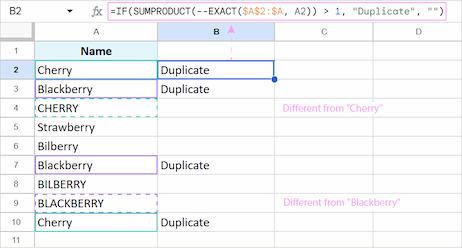
How this works:
- EXACT($A$2:$A, A2): This checks every cell in the range against A2. It returns TRUE only if the letters match perfectly (case included).
- --: This converts TRUE/FALSE into 1/0 so the formula can do the math.
- SUMPRODUCT: It sums up all those 1s. If the total is more than 1, you’ve found a case-sensitive duplicate.
Note: I use SUMPRODUCT instead of SUM because it handles arrays automatically and checks every row in your list one by one. But you can also use SUM if you wrap it in ARRAYFORMULA like this:
=IF(ARRAYFORMULA(SUM(--EXACT($A$2:$A, A2))) > 1, "Duplicate", "")
How to search duplicates in entire rows in Google Sheets
Similarly, you can mark absolute duplicate rows — rows where all records in all columns appear several times in the table. Use COUNTIFS — it scans each column for its first value and counts only those rows where all 3 records in all 3 columns repeat themselves.
To check for absolute duplicates across multiple columns (all occurrences including the 1st one):
=IF(COUNTIFS($A$2:$A2, $A2, $B$2:$B2, $B2, $C$2:$C2, $C2) > 1, "Duplicate", "")
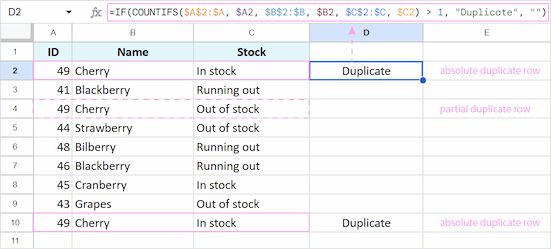
Now this table has only 2 dupes. Even though cherry occurs 3 times in a table, only two of them have all 3 columns identical.
Note: The formula only checks the columns you actually include. If your data has five columns but you only specify three, the result will treat rows as duplicates based only on those three columns — even if the other two columns are different.
To search for absolute duplicate rows without 1st occurrences:
=IF(COUNTIFS($A$2:$A2, $A2, $B$2:$B2, $B2, $C$2:$C2, $C2) > 1, "Duplicate", "")
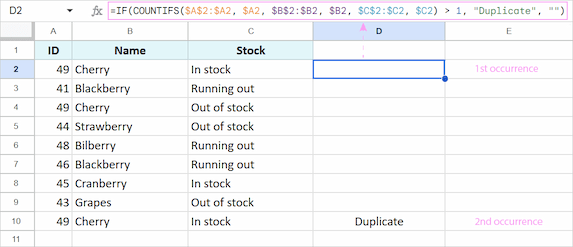
As you can see, to mark only the 2nd and subsequent occurrences, I refer to the first cells of the table instead of the entire column.
Tip. If you are using Microsoft Excel, the following examples might be helpful: How to find duplicates in Excel.
How to count duplicates in Google Sheets
To identify all duplicates with their 1st occurrences in Google Sheets and check the total number of each value:
=COUNTIF($A$2:$A, $A2)
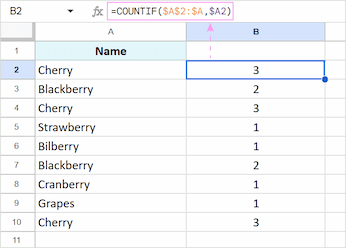
Tip: To make this formula handle each row in the column automatically, wrap everything in ArrayFormula and change $A2 to a full range ($A2:$A). Thus, you won't need to copy the formula down:
=ArrayFormula(COUNTIF($A$2:$A, $A2:$A))
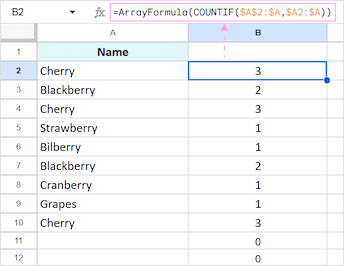
Since ArrayFormula will check empty cells as well, you can ignore them by limiting the range to your specific records: =ArrayFormula(COUNTIF($A$2:$A$10, $A2:$A10)). Alternatively, you can use this dynamic variant that automatically ignores empty rows:
=ARRAYFORMULA(IF(A2:A="",, COUNTIF(A2:A, A2:A))).
To track the order of occurrences of each item, use the following formula:
=COUNTIF($A$2:$A2, $A2)
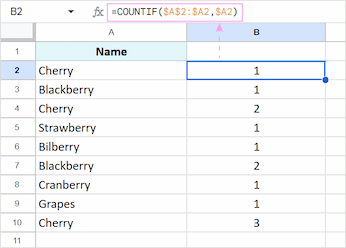
As you can see, I changed the range from the entire column ($A$2:$A) to just one cell ($A$2:$A2) to number each occurrence of an item.
You can count duplicate rows the same way. But in this case, COUNTIFS will suit you better:
=COUNTIFS($A$2:$A, $A2, $B$2:$B, $B2, $C$2:$C, $C2)
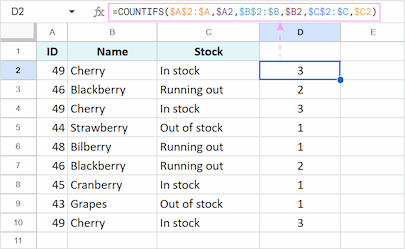
In this example, I listed every column of the table instead of one to count the occurrences of duplicated rows.
Tip: There's another way to calculate duplicates: use a Pivot table (in this case, no formulas are needed).
How to filter out duplicates in Google Sheets
Once you’ve marked your duplicates with a formula — such as the one that flags only repeat entries as "Duplicate" while skipping the first — you don’t have to delete them immediately. You can simply hide them using a filter.
To filter duplicates in Google Sheets:
- Select the table you've processed using one of the methods above.
- Go to Data > Create a filter.
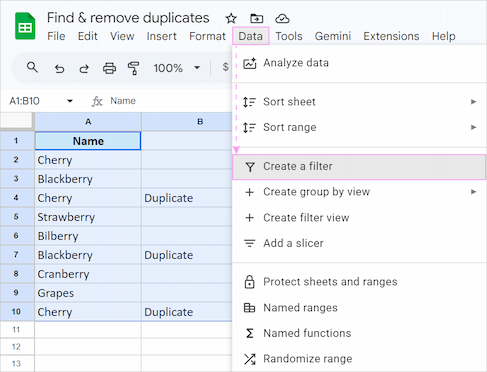
- Click the Filter icon at the top of your "Status" column.
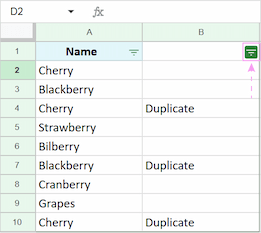
- Uncheck "Duplicate" and click OK.
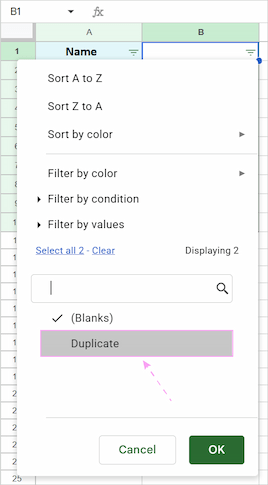
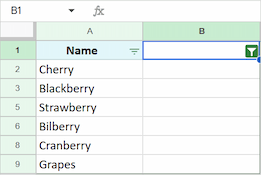
You will get a clean view of unique values only, without deleting any records.
Tip: If you prefer using colors instead of a status column, you can also highlight duplicates and then filter by color using the same filter menu.
How to remove duplicates using the UNIQUE function
If you don't need to "mark" anything and just want a clean copy of your data elsewhere, UNIQUE is the fastest method in Google Sheets.
To delete duplicate rows, keep the 1st occurrences:
=UNIQUE(A1:C10)

This small formula returns all unique rows and all 1st occurrences ignoring 2nd, 3rd, etc.
On the other hand, you may want to get only the "real" unique rows. By "real" I mean those that don't reoccur — not even once. So what do you do?
Let's take a moment and look through all UNIQUE arguments:
- range — is the data you want to process.
- [by_column] — tells whether you check for completely matching rows or cells in individual columns. If it's columns, enter TRUE. If it's rows, enter FALSE or just skip the argument.
- [exactly_once] — this one tells the function to delete not only duplicates in Google Sheets but also their 1st entries. Or, in other words, return only records with no duplicates whatsoever. For that, you put TRUE, otherwise FALSE or skip the argument.
That last argument is your leverage here.
To remove duplicate rows in Google Sheets, even the 1st occurrences, skip the second argument in the formula but add the third:
=UNIQUE(A1:C10,,TRUE)
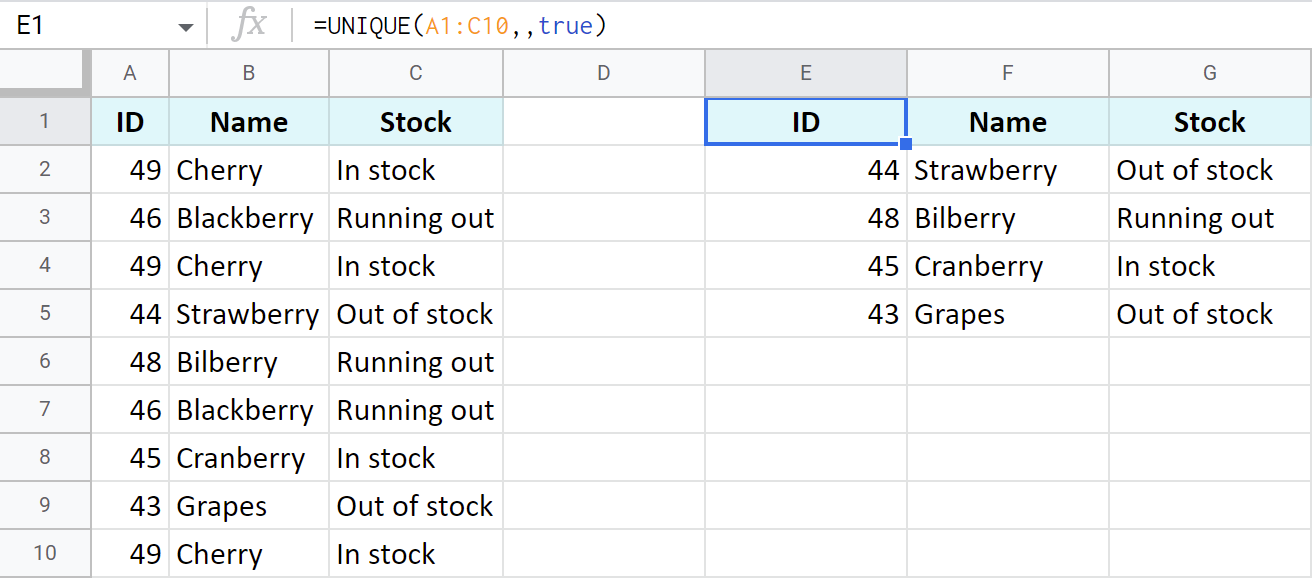
See how the table on the right is much shorter? It's because Google Sheets UNIQUE found and removed duplicate rows as well as their 1st occurrences from the original table. Only unique rows remain now.
Identify duplicates in Google Sheets with Pivot table
Google Sheets offers some other instruments to find duplicates.
Take Pivot table for example. It will sort of turn your data around and display it another way — without dupes! And it doesn't affect your original table. The latter works as a reference while the result is on a separate tab.
How Pivot table counts duplicates in Google Sheets
- Go to Insert > Pivot table, specify your data range and a place for the pivot table:

- In the pivot table editor, add a column with your duplicates (Name in my example) for Rows and for Values.
If your column contains numeric records, pick COUNT as a summary function for Values to count duplicates in Google Sheets. If you have text, select COUNTA instead:

If you do everything correctly, the pivot table will feature each item from your list and get you the number of times it appears there:

As you can see, this pivot table shows that only blackberry and cherry reoccur in my data set.
Remove duplicates in Google Sheets using Pivot table
To delete duplicates using the pivot table, you need to add the rest of your columns (2 in my example) as Rows for your pivot table:

You'll see the table with duplicate rows yet numbers will tell which of them reoccur in the original dataset:

Tip. If you don't need the numbers anymore, just close the Values box in the Pivot table by pressing the corresponding icon at its upper-right corner:

This is what your pivot table will look like eventually:

No duplicates, no extra calculations. Just unique records sorted out in one table.
Remove Duplicates add-on for Google Sheets
If you want to skip the complexity of formulas and the limitations of built-in tools, the Remove Duplicates add-on is the most powerful and efficient solution available.
Inside this toolkit, you'll have the Find duplicate or unique rows add-on. It offers 7 different ways to handle duplicates. And it doesn't just speed up the whole process — it knows how to automate it entirely.
Resides in your Google Sheets. Once you install it from the Google Workspace Marketplace, it will appear under the Extensions:

User-friendly process. As the standard Google Sheets tool, it also lets you select the range and columns to process but more elegantly 😊
All settings fall into 4 user-friendly steps:
- Select your range: Pick any table or custom range you want to scan.
- Define the search: Find duplicates or unique values (with or without their 1st occurrences) and decide whether to keep the first or the last record.
- Specify columns to search: Choose the columns to compare.
- Choose the action: Highlight, delete, or copy the results to a new location.
Directions all the way. You can even peek at special pictures within the tool so it's always clear what to do:
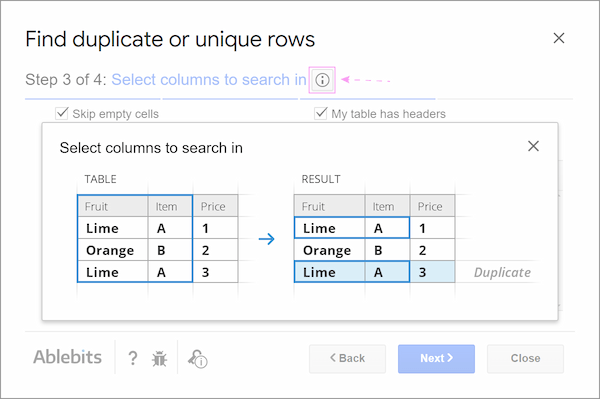
What's the point, you may think? Well, unlike the standard tool, this Remove Duplicates offers so much more for your Google Sheets:
- highlight duplicates in Google Sheets
- delete duplicate rows completely
- add a label as a status column
- copy or move the results to a new sheet/spreadsheet
- clear found values from cells

Just pick whatever way suits you best, select the options and let the add-on do the job.
Click the button below to install Remove Duplicates add-on for Google Sheets.
Video: How to remove duplicates in Google Sheets
Aside from this tool, this collection brings 5 more tools to find and remove duplicates in Google Sheets. This video will introduce them to you:
Make Google Sheets remove duplicates automatically
As icing on the cake, you will be able to save all the settings into scenarios and run them later on any table with just a click.
Or — even better — schedule those scenarios to kickstart automatically at a certain time daily:

Your presence is not necessary, and the add-on will delete duplicates automatically even when the file is closed or you're offline. To learn more about it, please visit this detailed tutorial.
Video: Remove Duplicates in Google Sheets automatically: by schedule
I encourage you to install Remove Duplicates from the Google Sheets store and poke around it.
You'll see how easily your Google Sheets will find duplicates, and remove or highlight duplicates and uniques without formulas in just a few clicks.
FAQ
Why doesn't Google Sheets recognize my duplicates?
This is usually caused by "hidden" differences. Check for extra spaces and hidden characters. Use the TRIM function to fix this, or the Remove Duplicates add-on for better results.
Can I automatically highlight duplicates?
Yes, you can do this using Conditional Formatting. Check out our dedicated guide on highlighting duplicates in Google Sheets.
Can I find duplicates across two different Google Sheets?
The built-in tools and standard formulas like COUNTIF only work within a single spreadsheet. To compare two different files, you would need to:
- Use the IMPORTRANGE function to bring data from the second sheet into your current one.
- Use a professional add-on like Remove Duplicates, which has a dedicated "Compare sheets for duplicates" feature.
Spreadsheet with formula examples
Find & remove duplicates in Google Sheets (make yourself a copy to practice)