 by
by In this guide, you will learn how to create a dropdown list in Google Sheets using several methods: from simple manual entry to dynamic lists that pull data from other sheets or even separate files via the IMPORTRANGE function. You’ll also find out how to use, edit, or remove your created dropdown menus.
Today, we are going to investigate all the dropdown basics in Google Sheets, from initial creation to advanced settings and removal. We will also explore how to customize your dropdowns with colors, set up multi-select mode, and add interactive calendar pickers for date columns. Learn more about Google Sheets and dropdown chips with us! 😊
What is a dropdown in Google Sheets?
Dropdowns in Google Sheets (or, as they are now officially called in the Google interface, "Dropdown Chips") are a powerful feature that makes data entry faster, more consistent, and less prone to errors.
With dropdowns, you can easily scan documents, set up input with default values, and even set rules that either warn the user or strictly reject invalid data. Why might this be useful? For example, if one person types "In Progress" and another types "In-Progress," formulas and pivot tables will break. Dropdowns prevent such errors, ensuring everyone uses the exact same terms.
Moreover, Google Sheets dropdown lists can help you group items for later analysis and color your task progress for easier tracking. You can even set them up so that the second dropdown changes based on what you picked in the first for faster form filling (we will cover this advanced technique, known as dependent dropdowns, in one of our upcoming articles).
How to create a dropdown list in Google Sheets
You don’t have to be an expert to make a dropdown list in Google Sheets nowadays, as the process is quite intuitive. In this chapter, I’ll walk you through the most common ways to set it up 🤗.
How to add a dropdown in Google Sheets with preset values
Suppose you’re using Google Sheets to track project tasks. In this example, each task moves through four distinct stages: Stack, In Progress, Done, and Published. Instead of typing these statuses manually each time, you can add a dropdown list with the predefined status options, making it easier to update your tracker.
To add a basic dropdown, follow these steps:
- Select the cells or column where you want your statuses to appear.
- Go to Insert > Dropdown.
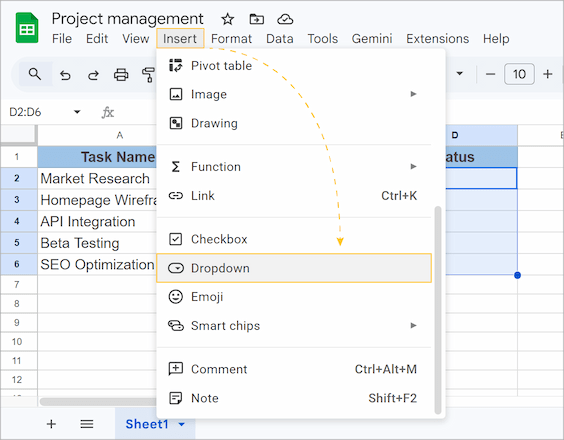
- The Data Validation rules panel will open on the right. Type your dropdown values directly into the option fields (for our example, enter Stack in the "Option 1" field and In Progress in the "Option 2" field).
- To add additional dropdown values, click Add another item (e.g., for Done and Published statuses).
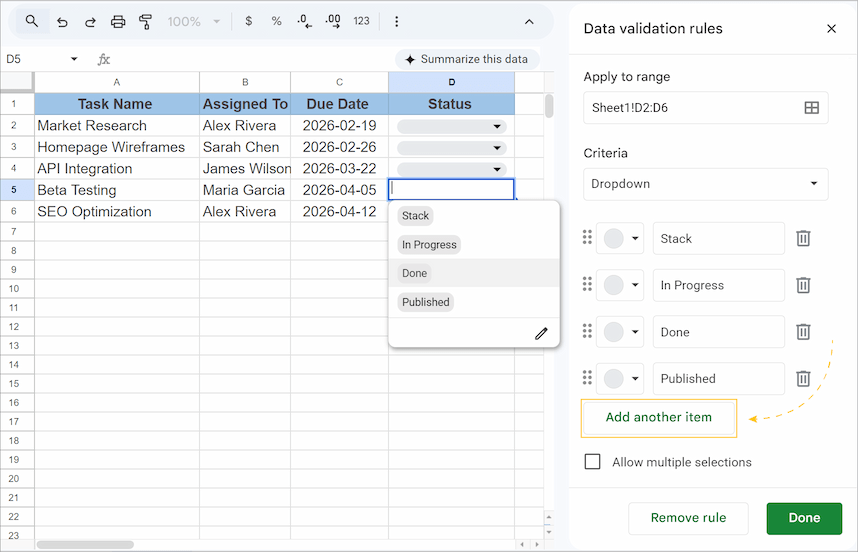
- Click Done.
Dropdown chips will appear in the previously selected cells or column.
How to insert a dropdown list from a range or another sheet: dynamic dropdown in Google Sheets
If your list of items is long, or if you want the Google Sheets dynamic dropdown to update automatically when you edit a list elsewhere, it’s best to create a dropdown from a predefined range.
Follow these steps to create a Google Sheets dynamic dropdown from a range:
- Highlight the cells where you want the dropdown to appear.
- Go to Insert > Dropdown. The Data Validation rules panel will open on the right.
- Under Criteria, change the selection from the default "Dropdown" to "Dropdown (from a range)".
- Enter the targeted range manually in the field below, or click the Select data range icon (the small grid icon) in the input box and choose the cells on your sheet that contain your list items.
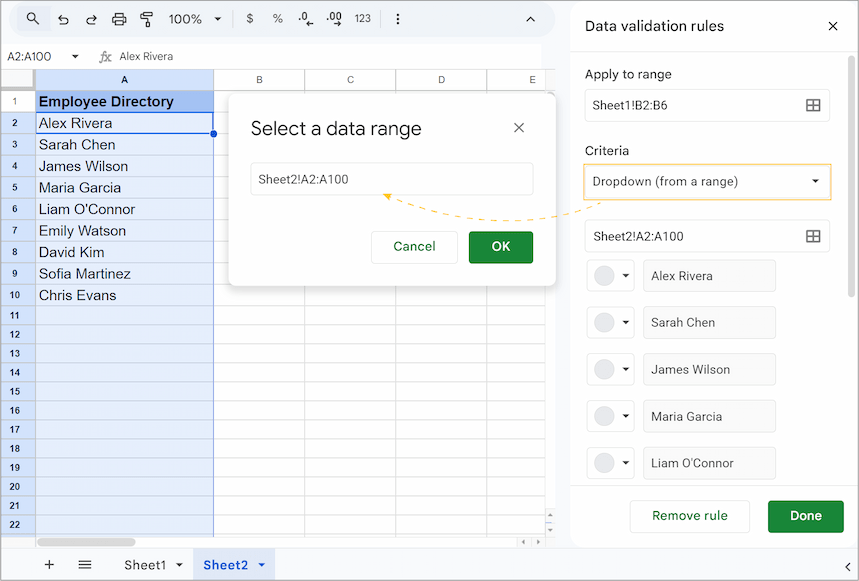
- In the pop-up, click OK. The items from your range will be populated in the sidebar.
- Click Done.
Note: You can even create a dropdown from another sheet by navigating to that tab and selecting the range there. Google Sheets will automatically add the sheet name to the range. Or write down the range starting with the target sheet, e.g., Sheet2!A2:A100.
Tip: Include extra empty cells in your range (e.g., A2:A100 even if you only have 80 items now). These empty cells won’t show up in your dropdown list until you actually type something in them. This is a great way to make your dropdown automatically update as your list grows 😉.
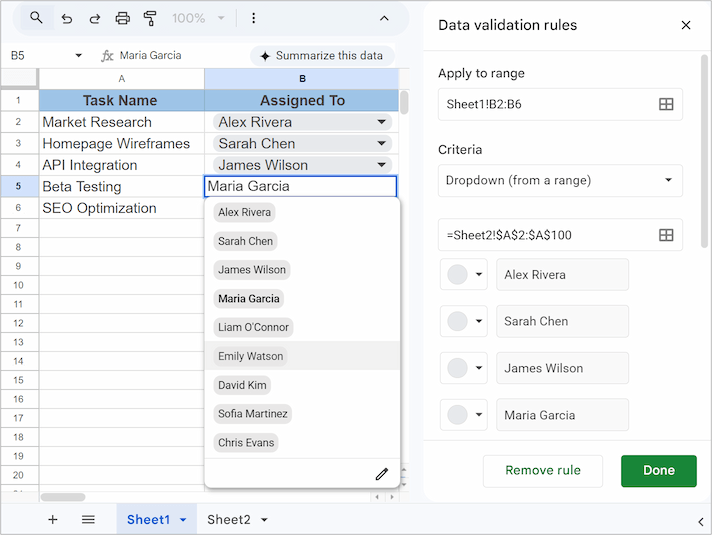
Now, any change to your source cells will instantly update all your dropdown chips, making them dynamic.
How to make a Google Sheet dropdown from a named range
To create a dropdown from a named range, follow this instruction:
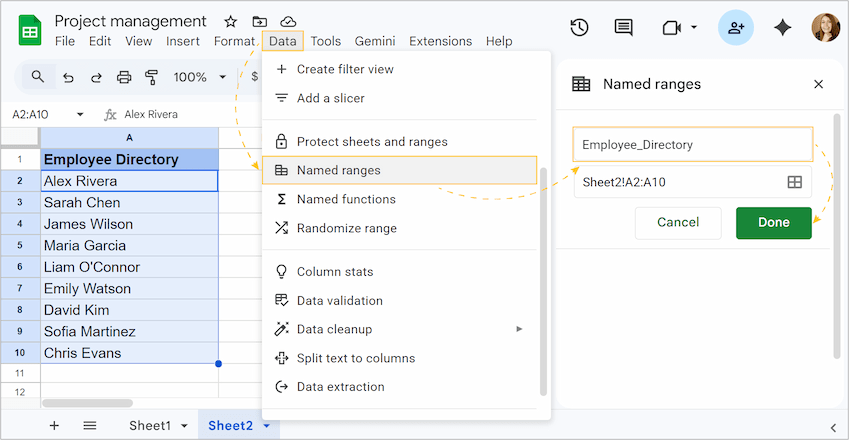
- Select the list of items you want to appear in your dropdown.
- Go to the top menu and select Data > Named ranges.
- In the panel on the right, type a name of your range and click Done.
- Select the cells where you want your dropdowns to appear.
- Go again to Insert > Dropdown.
- In the Data Validation rules panel, under Criteria, select Dropdown (from a range).
- Instead of clicking the grid icon to highlight cells, simply type the equals sign followed by your range name into the box.
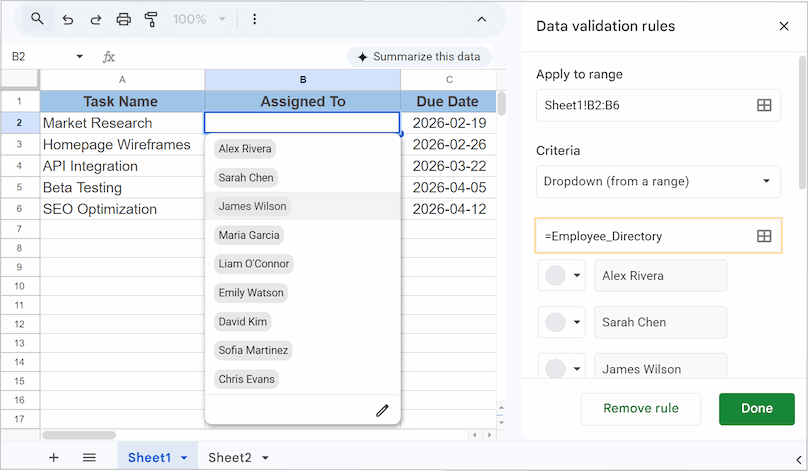
- Click Done.
Note: Range names can't contain any spaces or punctuation.
How to create a Google Sheets dropdown from another spreadsheet
By now, you've learned how to pull dropdown options from one or different sheets within the same file. But what if your source data lives in a completely separate Google Sheets file? Unfortunately, in Google Sheets you cannot directly link to another spreadsheet file in the dropdown settings. To make it work, you’ll need to use the IMPORTRANGE function.
To set up a dropdown from another file, follow these steps:
- In your current spreadsheet, create a new tab.
- On the new tab, insert the IMPORTRANGE function to pull the list from the external file.
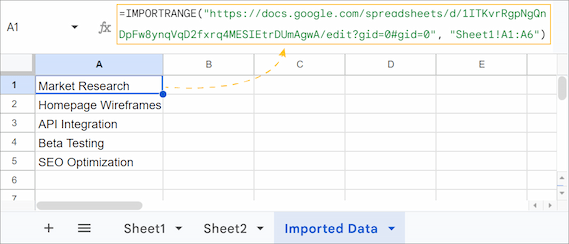
=IMPORTRANGE("spreadsheet_url", "Sheet1!A1:A6"), where:- "spreadsheet_url" is the URL or the ID of the source Google Sheet.
- "Sheet1!A1:A6" is the name of the sheet and the specific range of cells to point to your list items.
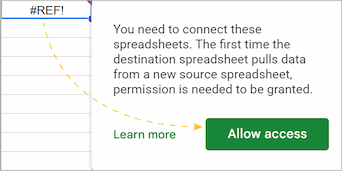
- If it’s your first time linking these files, click the cell with the formula and select Allow Access.
- Go again to Insert > Dropdown.
- In the Data Validation rules panel, under Criteria, choose "Dropdown (from a range)".
- Select the range from your newly created tab where the imported data is located (type it manually or use the Select data range icon).
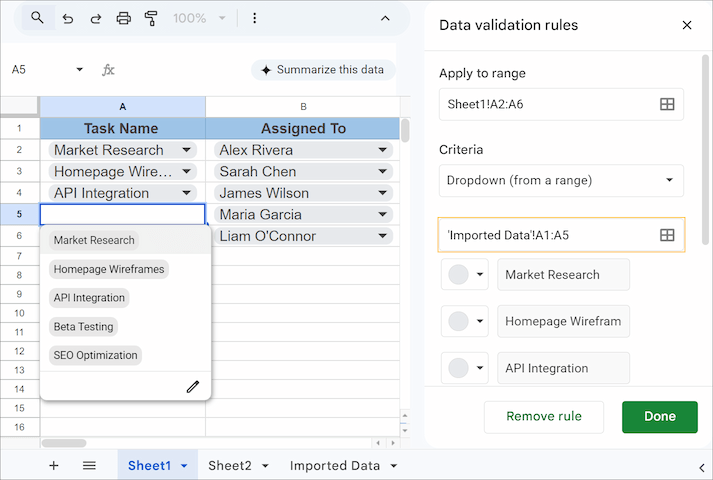
Any time you update the master list in the source file, the IMPORTRANGE function will automatically pull those changes into your current file, which in turn updates your dropdown options.
How to set up and use dropdowns in Google Sheets
Once you’ve created your dropdowns, you likely noticed that the Data Validation rules panel has some more settings options to customize your dropdowns. So, what are all those options for? Let's explore the key settings and see how adjusting them impacts the dropdown's appearance and usage.
How to change dropdown color in Google Sheets
One of the most useful features of the dropdown settings is color-coding. When you assign a color to a dropdown option, it makes your spreadsheet more readable and visually organized. This helps to quickly scan and interpret your data.
To assign a color to an option:
- In the Data Validation rules panel, click the small circle palette icon next to the option you want to format.
- Choose from preset colors or click Customize to create your own palette.
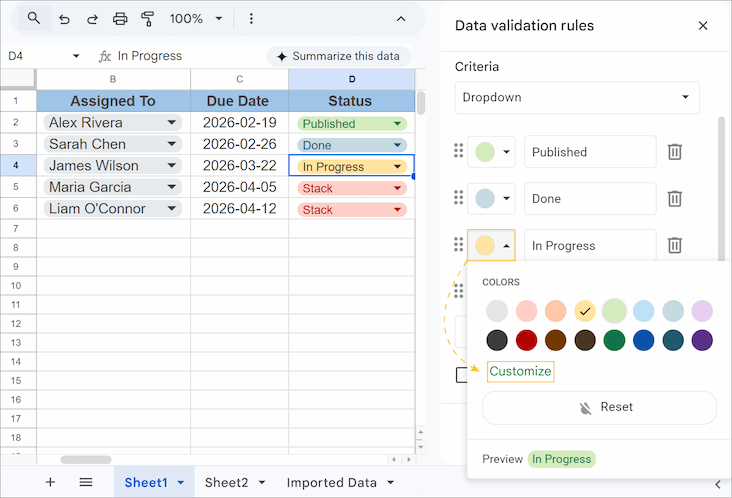
- Assign a color to each of the options as you wish.
- Click Done.
All dropdown chips will update their color according to the selected option.
Tip: If you want your dropdown to act as a pure visual indicator without showing any text, you can create a monochromatic effect. For a detailed walkthrough, check out our guide on how to create a color-coded dropdown list.
How to add items to your dropdown
In Google Sheets, you can easily expand your dropdown list whenever needed:
- For manual lists: In the sidebar, click Add another item at the bottom of your list and type the new value.
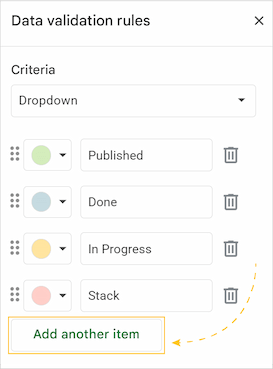
- For range-based lists: Simply type a new value into the source cells or column on your sheet.
Note: Check that the source range in the Criteria section covers your new entries. If you added data in a new row, the range should include it.
How to rename or move an item in the dropdown list
When you create a dropdown, the items appear in the order you entered them. Sometimes, you might need to rename an item to better reflect your data without having to delete and recreate it. To rename an option, click directly on the option text you want to change within the Data Validation rules sidebar and type the new name.
Other times, you might need to change the order of items if your most commonly selected options are buried at the bottom of the list. Moving items helps you prioritize the most frequently used ones or group related options together.
To rearrange items in the list:
- In the sidebar, find the six-dot icon to the left of your dropdown option.
- Click and drag this icon up or down to change its position in the menu.
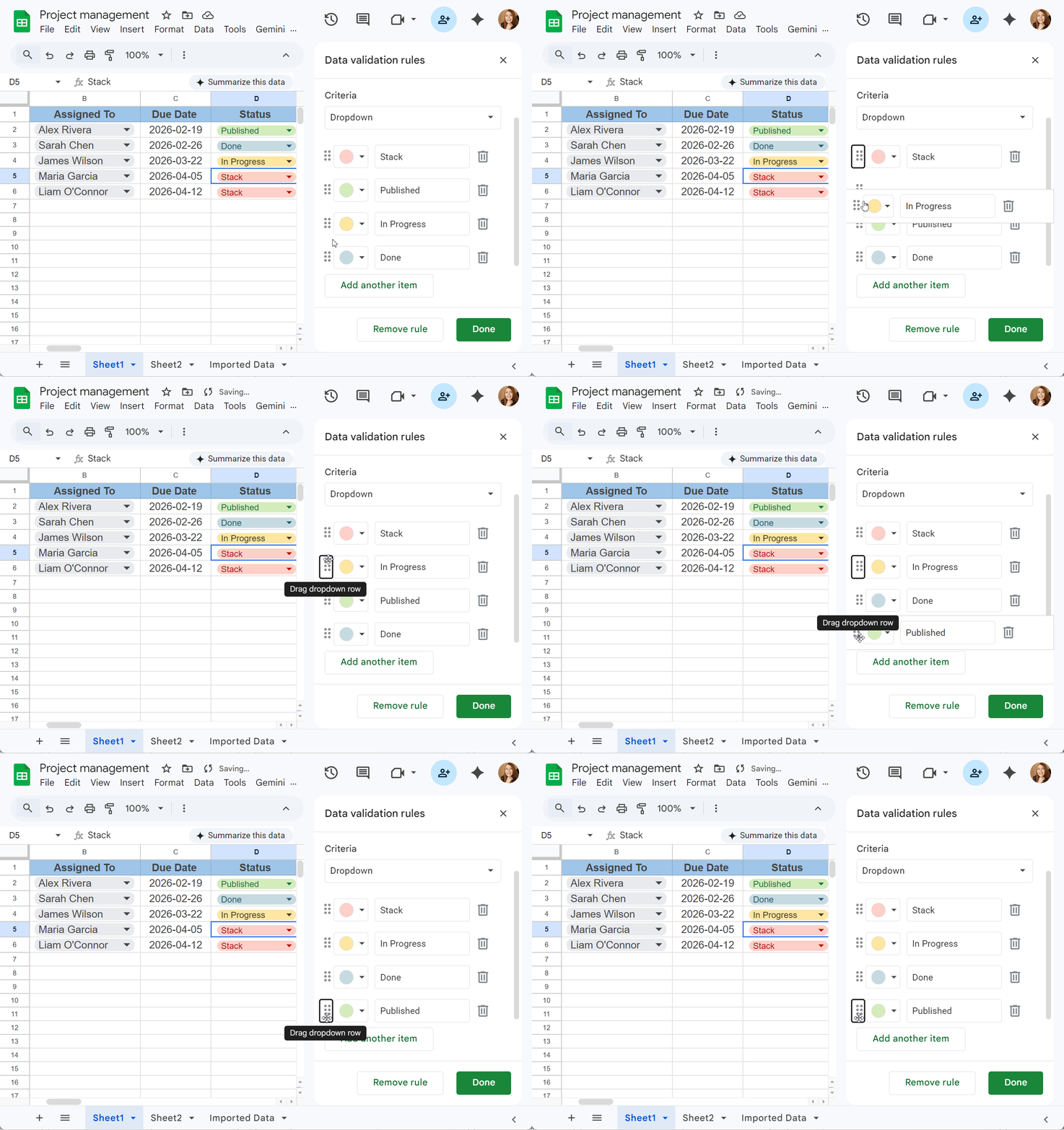
- Click Done.
Your dropdown menu will show the items in the new order the exact moment you change it.
Google Sheets: selecting multiple items from a dropdown
Sometimes one item in the dropdown isn’t enough, and you may need a multi-select dropdown.
Follow these steps to enable multiple selections:
- In the Data Validation rules sidebar, check the box next to Allow multiple selections option.
- Click Done.
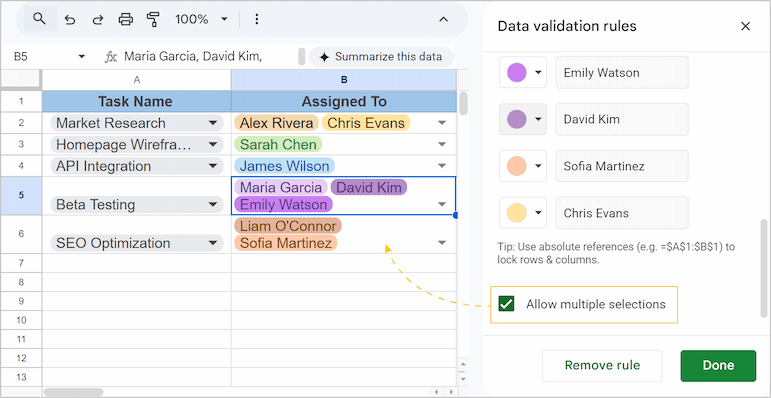
Now, when you click the cell, you can select an item, and the menu stays open so you can click another. Each selection appears as an individual dropdown chip within the same cell for ease of use. In case, if you need to remove one of the selections, simply click again on that specific chip.
How to handle invalid data in your dropdown
To prevent incorrect entries in your dropdown cells, you can set up validation rules that either warn users or block invalid input.
- In the Data Validation rules panel, click Advanced options and find the If the data is invalid section.
- Select your action:
- Show a warning: allows users to enter any value but flags the cell with a red warning triangle at the corner.
- Reject the input: prevents users from entering anything that's not in your dropdown list and shows an error message.
Tip: You can write a custom error message to guide users if needed.
- Click Done.
How to add help text to a dropdown cell
If your dropdown options aren’t self-explanatory, or you want to provide additional guidance to anyone using your spreadsheet, you can add help text:
- In the Data Validation rules panel, click Advanced options.
- Check the box next to Show help text for a selected cell.
- Enter your instruction or hint into the text field.
- Click Done.
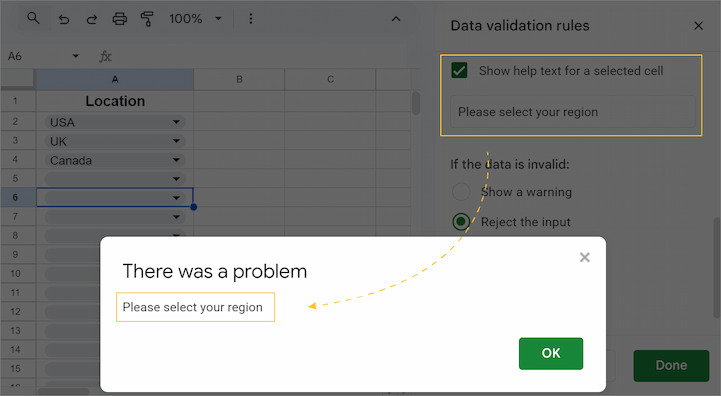
Now, if someone tries to enter a value that isn't in your list, Google Sheets will display your custom help text within the error message, clearly explaining what went wrong and how to fix it.
How to change the dropdown display style
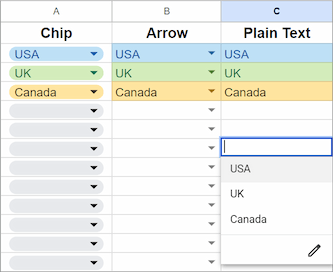
Google Sheets offers three ways to show your options. In the sidebar, click Advanced options and look for Display style:
- Chip: The modern, oval button look.
- Arrow: The classic dropdown look with a small triangle.
- Plain text: No visual indicator until you double-click the cell.
Apply dropdown to entire column and set default value
To apply your dropdown list to an entire column so that every new row automatically inherits the same validation rules, simply click and drag the fill handle (the small blue square at the bottom-right of the cell) of your created dropdown down the column.
In case you need every new row to start with a specific status, select that value from the dropdown in your first cell before dragging the fill handle. This copies both the dropdown logic and the selected status to all subsequent cells.
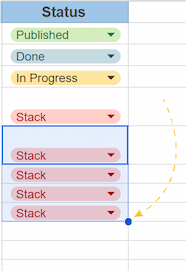
Note: While dragging is the fastest way, you can always go back to the Data Validation sidebar and manually edit the Apply to range field (e.g., change B2:B6 to B2:B). This way, the dropdown automatically appears in every new row you add in the future without needing to drag it again.
How to add calendar dropdown in Google Sheets
Adding a calendar dropdown is a great way to ensure dates are entered in a consistent format and to avoid manual typing errors.
To add a calendar dropdown, follow these instructions:
- Select the cells or column where you want the calendar to appear.
- Go to Data > Data Validation. The Data Validation rules panel will open on the right.
- In the sidebar, click the dropdown menu under Criteria and select "Is valid date".
- Click Done.
Note: If there are other rules applied, click +Add rule.
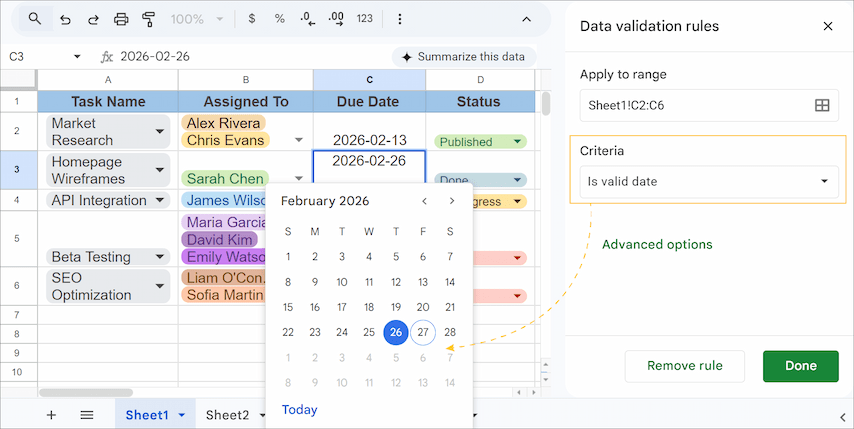
Once the rule is applied, simply double-click any of the selected cells. A mini-calendar will pop up, allowing you to pick a date with one click.
If you want to be even more specific (for example, preventing users from picking a date in the past), you can customize the criteria further. For example, select "Date is after" to allow only future dates to pick from.
How to edit, reset or remove dropdowns in Google Sheets
Once your dropdown is set up, you can easily modify its options or remove it entirely.
How to edit dropdown in Google Sheets
- Click any cell containing the dropdown.
- Click the pencil icon that appears in the bottom-right corner of the cell. This opens the Data Validation rules sidebar.
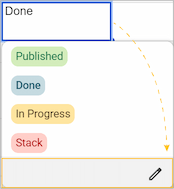
In the sidebar, you can add new items, rename existing ones, change colors, rearrange the order, etc.
How to remove or clear a selection
- If you no longer need a dropdown in your spreadsheet, just click Remove rule at the bottom of the sidebar. This removes the dropdown functionality from the cells.
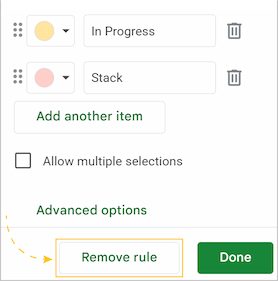
- If you just want to empty a cell without breaking the dropdown, simply click the cell and press Backspace or Delete. The dropdown chip will disappear, but the dropdown menu remains available for future use.
How to manage multiple dropdowns at once
If your spreadsheet has several different dropdown rules, you can see them all in one place:
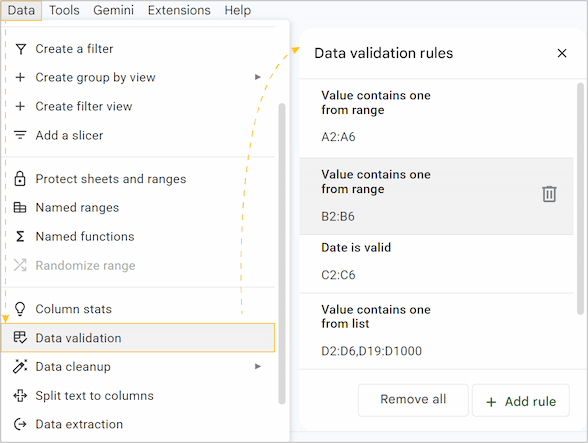
- Go to Data > Data Validation.
- A sidebar will open listing every rule in your current sheet.
- Click a rule to edit it, or click the trash can icon next to a rule to delete it from the entire range.
FAQ
What are dropdown chips?
Dropdown chips are the modern visual style for dropdown menus in Google Sheets. Instead of plain text, each selected option is enclosed in a colored, rounded oval (a "chip").
How to convert to dropdown chips in Google Sheets?
If your dropdowns still look like old-fashioned arrows or plain text, you can easily convert them to the modern chip style. Simply open the editor and pick the "Chip" option.
Can you have multiple dropdowns in one cell?
Technically, a cell can only have one Data Validation rule (one dropdown menu). However, with the Allow multiple selections feature, that single dropdown allows you to pick several different values inside one cell.
Can I search through a long dropdown list?
Yes! Click the dropdown and start typing. Google Sheets will automatically filter your dropdown options to show matching items.
Can I use checkboxes with dropdowns?
Also yes: checkboxes are a separate data validation type, but you can mix both in your spreadsheet.
If I share my sheet, will others see the dropdowns?
Yes, of course. Dropdowns are part of the sheet itself, not your personal settings. Anyone with edit access can use them. Viewers can see and select options but can't modify the rules.