 by
by In this guide, you’ll learn how to add, edit, remove, and reorder your labels. You will also discover a workaround for exporting your label structure, learn how to apply labels manually and with filters, how to color them, and search within your mailbox.
Gmail labels are the core tool for organizing your inbox effectively. They allow you to tag emails with multiple categories, making it easy to track projects, prioritize tasks, and quickly find messages. If you want to turn your mailbox into a structured system, this guide is for you! 🙂
What are labels in Gmail?
Gmail allows you to add up to 5,000 labels, color-code, name as you like, and nest them to create a structured filing system. With the help of labels, your emails can be easily sorted, organized, and located later.
As soon as you create a label, it will appear in Gmail's sidebar along with the built-in labels like Sent and Unread. Click that label, and you’ll see all messages grouped under that tag.
To mark your incoming messages with a label, you can either manually apply it or set up filters so Gmail will do it automatically. In fact, you can get a powerful tool for managing your emails with well-tuned rules and some careful label organization 🪄.
Difference between categories, folders and labels in Gmail
Gmail labels vs folders
Let's answer the most frequent questions on the topic right away:
- "Does Gmail have folders or just labels?" — Nope, no folders, only labels.
- "Are labels in Gmail the same as folders?" — Similar, but not the same.
So what’s the difference?
In Gmail, labels serve almost as folders, but have an important difference — one email can be assigned to several labels simultaneously. It’s a huge improvement compared to folders, as choosing which folder to move a message to is no longer necessary. One email can be marked, for example, as Urgent, Unread and Waiting for response at the same time.
Gmail categories vs labels
Another common question is: "What about those tabs like Primary, Social, and Promotions? Are they labels?"
Technically, yes, but they function differently. Categories are Google’s built-in sorting system tags.
There are five fixed categories in Gmail:
- Primary: for conversations and important messages.
- Promotions: for newsletters and any marketing emails.
- Social: for network notifications.
- Updates: for automated messages like receipts and bills.
- Forums: for emails from online forums.
Tip: Some categories are missing? You can turn on (or off) any of the categories if your inbox type is set to Default. To do it, go to Settings > See all Settings > Inbox tab > Categories section. Here, you can check the boxes next to the needed tabs. Don’t forget to save the changes at the bottom of the page.
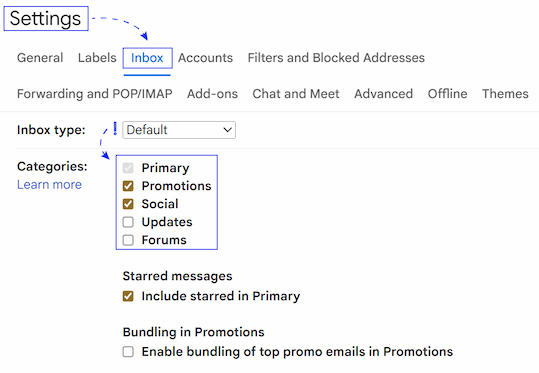
All your incoming emails are sorted according to the current categories automatically. Even though you can move them from tab to tab, you can't create your own categories. With labels, it's quite the opposite: you make and organize them as you wish.
In short, Categories are like the pre-installed sorting machine, while Labels are your personal filing system.
How to manage labels in Gmail
How to create labels in Gmail
To set up a new label, follow these steps:
- Go to Gmail.
- On the sidebar, scroll to the Labels section.
- Click the plus icon next to Labels.

- Enter a name for your label in the pop-up window.
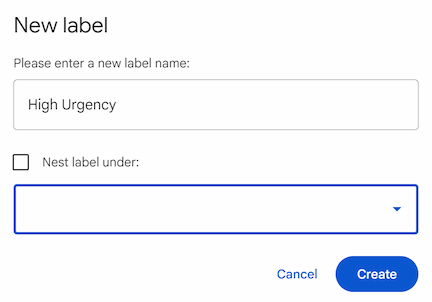
Tip: Check the box next to Nest label under to place your label inside another and choose the parent label.
- Click Create.
Another way to create your own label is right from an email:
- Open the message.
- Click the Labels icon on the top panel.
- Select Create new.

- Type a name in the pop-up and click Create.
One more option to add labels is to use the Settings menu:
- In Gmail, go to Settings > See all settings > Labels tab.
- Here you’ll see all the existing labels and their settings.
Tip: You can edit any of them right there if needed.
- Click Create new label.
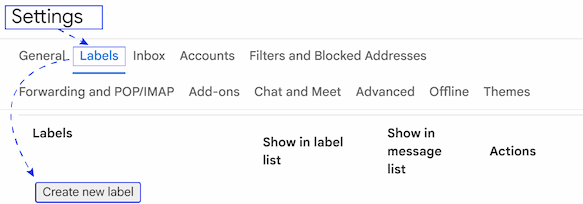
- Enter the name and click Create.
That’s it! As you can see, there is nothing particularly difficult in making labels 😉.
How to edit labels in Gmail: rename or move the label
In Gmail, you can easily modify existing labels whenever needed.
Note: Renaming or moving a label won't delete any emails. The new name will simply appear on all messages that had the old label.
To edit your labels, follow these steps:
- Open Gmail in a browser (you can't edit labels from the Gmail app).
- Hover over the target label and click the three-dots next to it.
- Select Edit from the dropdown menu.
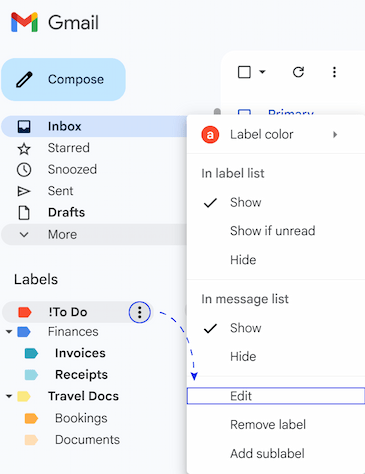
- The pop-up will appear where you can rename your label or move it to another parent label.
- Click Save.
You can also manage your labels through the main Settings menu. If you need to review or edit several labels at once, this is especially helpful.
- Go to Settings > See all settings > Labels tab.
- Scroll down to the Labels section to find the one you want to change.
- Click Edit in the Actions column.
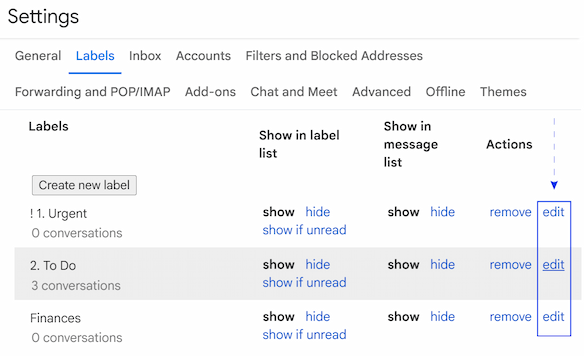
- Update the name or nesting options in the pop-up window and click Save.
After you edit the label, all emails tagged with it will update automatically.
How to delete labels in Gmail
If you don’t need the label anymore, you can remove it also through the three-dot menu.
It’s important to know that after removing the tag, it simply disappears from the messages. The emails themselves stay safe in your "All Mail" archive or other labels they might have.
To remove the label, you’ll need to:
- Go to Gmail.
- Hover the mouse over the irrelevant label in the sidebar and click the three-dots.
- Select Remove label.
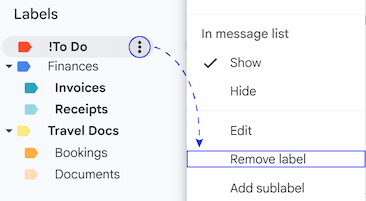
Note: If you delete a parent label, all its sublabels will also be deleted.
Tip: You can also remove labels via Settings > See all settings > Labels. Find the label in the list and click Remove in the Actions column.
How to hide labels in Gmail
Sometimes you delete labels just to better navigate through the sidebar. But you know what? You don’t have to do it, as you may keep a whole bunch of labels and have only a few of them on the sidebar. Just hide those you don’t need.
To hide a label from the sidebar, set this up:
- Again, go to Gmail and hover over the label you want to hide.
- Click the three-dots icon.
- In the dropdown menu under the In label list section, select Hide.
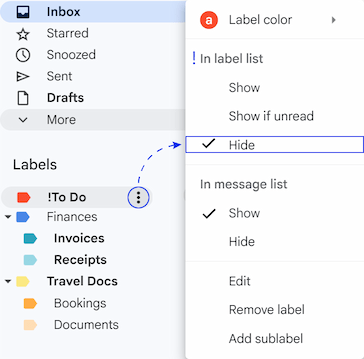
Where did it go? The label is still in your sidebar, but moved to the More section at the very bottom.
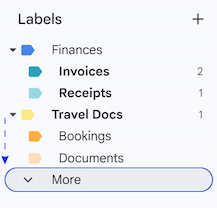
You can drag it back up anytime, or simply repeat the steps above and select Show if you change your mind.
Tip: You can select the Show if unread option instead of Hide. It may be more convenient as the label stays hidden under the More section, but automatically pops up the moment a new message with that tag arrives.
There is one more setting in that menu that you may have already noticed: In message list. It differs from the In label list section, as it’s not related to the sidebar. This setting controls the colored tags that appear next to the subject lines in your inbox.
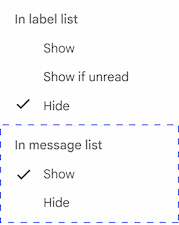
- Show: You’ll see the label tag on the email. By default, it’s turned on for easy visual scanning through your inbox.
- Hide: With this setting, the tag becomes invisible in your inbox view. Technically, the tagged emails are still labeled and searchable, but your inbox looks cleaner.
To change this, simply go to the same three dots menu for any label and check Hide under the In message list section.
How to reorder Gmail labels
If you try to drag and drop your labels to change their order in the sidebar, you'll see it doesn't work 😞.
Gmail automatically sorts all labels alphabetically. However, you can easily bypass the rule by using numbers or special symbols.
Since Gmail sorts symbols and numbers before letters, you can rename your labels like this:
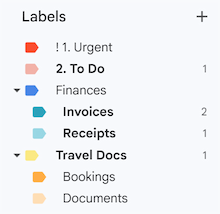
The label will instantly jump to the top of your list, right above the standard alphabetical ones.
How to export Gmail label structure (names tags)
I'll start right away by saying that in Gmail everything is not so simple with export and import labels. As labels were created for your personal use and act as the way to organize your mailbox, there are no native options to export, import or share your label structure. But you can try to bypass this restriction by using Google Takeout.
- Go to takeout.google.com.
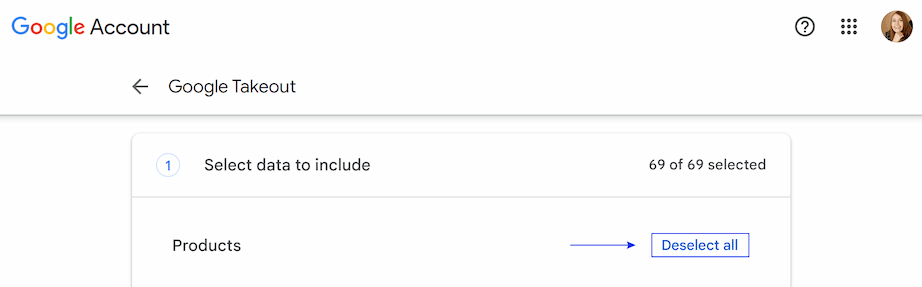
- Scroll down to products and click Deselect all.
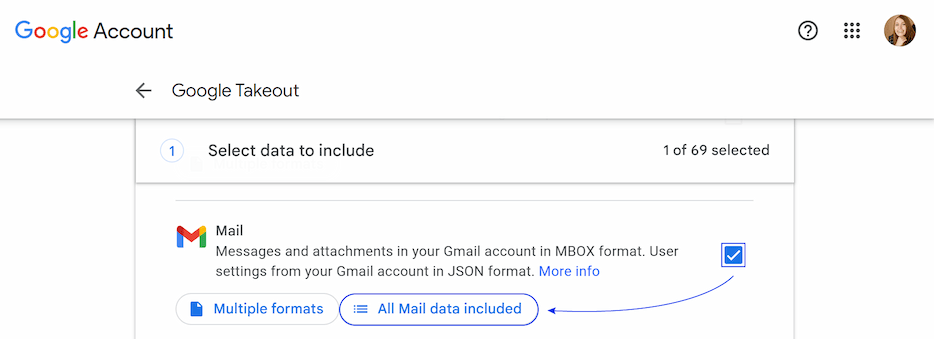
- Find Mail down on the list. Check the box next to it and select All Mail data included.
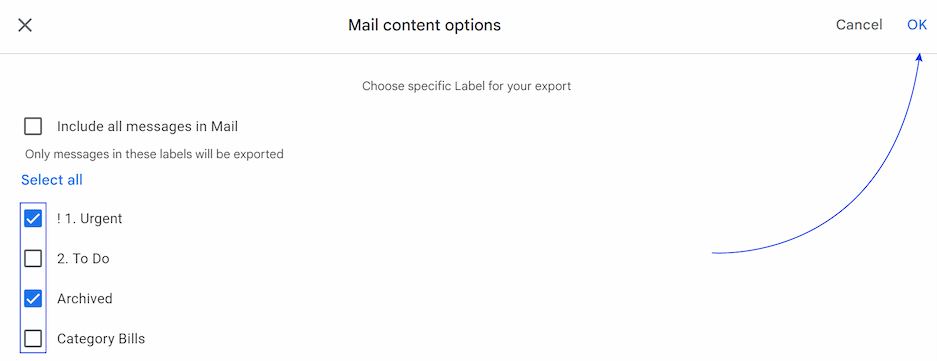
- The pop-up with mail content options will appear. Uncheck Include all messages in Mail, choose the specific labels for your export, and click OK.
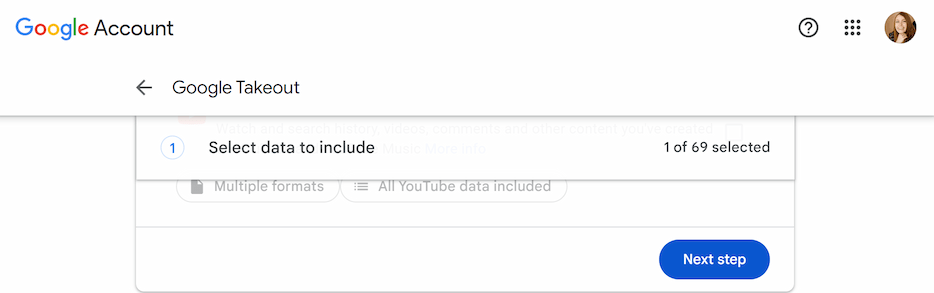
- Click Next step at the very bottom of the page.
- On the next window choose your file type, delivery method, and file size, then click Create export.
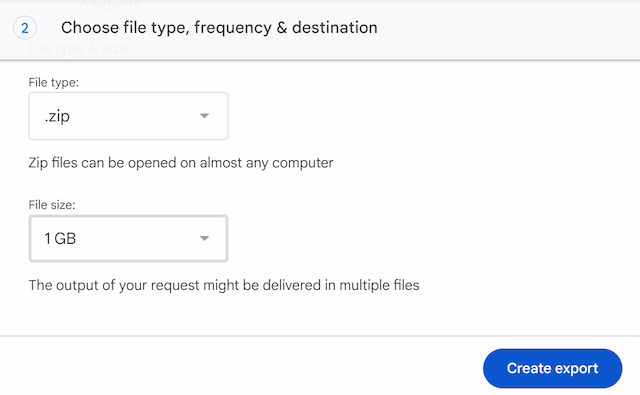
Each label's messages will be exported as a separate file (typically an MBOX file), which can be imported into another email program to create folders named after the labels.
Note: Please keep in mind that Gmail does not have a native tool to import the exported MBOX files. You will need to use a desktop email client to sync these emails back to a Gmail account.
How to apply labels to emails in Gmail
Now that you have your labels set up, it's time to apply them to your emails. You can do it yourself or let Gmail do it for you. In this chapter, we’ll look through manual methods.
Drag and drop
This method is the easiest one. All you have to do is to grab a label from the sidebar and drag it onto an email, or vice versa — grab an email and drop it onto a label. It works both ways.

Use a toolbar
If you want to apply a label to one email:
- Open the message.
- Click Labels in the toolbar.
- Check the box next to the label you want to apply and click Apply.

Tip: You can select several labels at once.
In case you want to apply labels to several messages in bulk, first select the checkboxes next to the emails and repeat the steps above.
When you apply a label, it appears as a colored tag right next to the email's subject line.
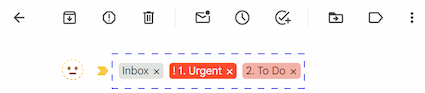
Here you can see the main difference between folders and labels in action. Even though you applied a label, the email hasn't moved. It now exists in two places: under the new label and still in your Inbox.
How to automatically apply a label to emails
Manual tagging works well, but it becomes a hamster wheel if you receive more than 20 messages each day. Thankfully, Gmail allows you to create rules that will automatically sort your emails.
With filters, the label you select will be automatically applied to any incoming message according to your rule. For example, you could set up a filter where booking confirmations go directly to Travel Docs and any email with "Invoice" in the subject line is automatically tagged with your Finances/Invoices label.
You can even combine this with Skip the Inbox (Archive it) to have those emails file themselves away, completely bypassing your main inbox.
To make your filter automatically apply a label to emails, you must set your filters correctly:
- Start creating a filter in any preferred way.
- Set your criteria, for example, you can write in the Subject or Has the words fields "Invoice", and click Create filter.
- On the action list check the box next to Apply the label:.
- Choose an existing label from the dropdown menu or select New label... to create one right from the filter settings.
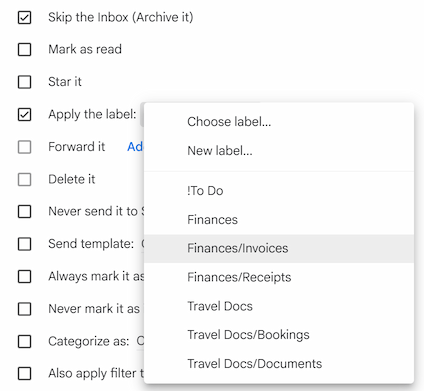
Tip: You can check Also apply filter to matching conversations to add the label to all existing emails that match your criteria.
- Click Create filter to save.
From now on, all your emails with invoices will go to the Finances/Invoices label without manual sorting!
Note: If you have several filters and each one has Apply the label as an action, then all the labels for all the matching filters will be applied to the email.
How to add labels to outgoing emails
Did you know you can label an email while you are writing it? This way there would be no need to find and tag it later.
To label an email before sending:
- Open Gmail, click Compose and start to write a new email.
- Click the three-dots icon in the bottom-right corner.
- Hover over Label and select the label you want to apply.
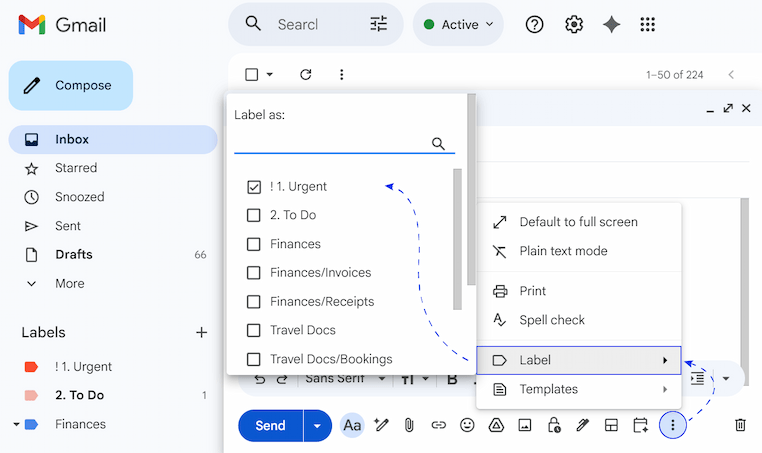
It’s important to understand that the recipient won't see the label you applied. This option is made only for your filing system convenience. As soon as you hit send, a copy of the message will be filed under the chosen label in your account.
How to organize Gmail labels efficiently
Although labels can help organize your inbox, if you use too many of them, your sidebar may get just as disorganized as your inbox. You need a proper structure to keep them useful. Let’s learn the most common strategies to organize your labels efficiently.
Create nested labels (Sublabels)
You can organize all your labels using a hierarchical structure rather than a long list.
For example:
- Parent label: Finance
- Sublabels: Finance/Invoices, Finance/Receipts.
To create a hierarchy in labels, do the following:
- Create a new label (or edit an existing one).
- Check the box Nest label under and choose the parent category.
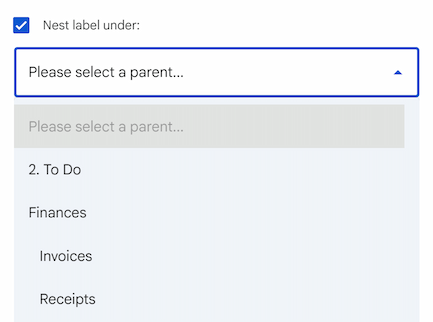
Another way to add sublabels:
- Hover over a parent label and click the three-dots menu.
- In the dropdown, select Add sublabel.
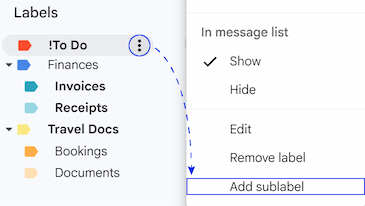
When not in use, you can now hide all of the sub-items by collapsing the parent label.
Colored labels in Gmail
Gmail allows you to color-code your labels.
Tip: Use colored labels in Gmail to signal urgency. For example, mark To-Do in red.
To change label colors, you’ll need to:
- Go to Gmail.
- Click the three dots next to the label name and select Label color.
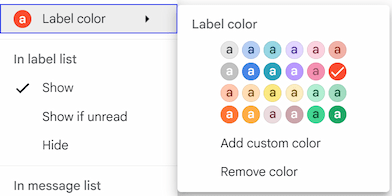
- Select the color you need. You can even add a custom color by clicking Add custom color if you want to.
Remove inbox label in Gmail
Technically, Inbox is just a system label. To clean up your inbox, you simply need to remove the Inbox tag. This takes the email out of your main view, but keeps it safely stored under your custom label. There are several ways to accomplish this in Gmail.
You can use the Move to button to add a label and remove the email from the Inbox:
- In your inbox, select the target email(s).
- Click the Move to icon in the toolbar.

- Choose your target label.
The email gets your chosen label and disappears from the Inbox.
If you have already labeled an email but it is still cluttering your view, follow these steps:
- Open the email.
- Look at the tags next to the subject line. You will see your Inbox label.
- Click the X on the Inbox label.

The email is archived and can be found only under its custom label or in All Mail.
How to search by labels in Gmail
Once your emails are labeled, finding them is instant. Whenever you need the emails under a specific tag, just click the label name in your left sidebar. Gmail will filter your view to show only messages with that tag.
You can also use the Gmail search bar with special operators:
- Go to the Search bar.
- Type
label:and the name of your label likelabel:finances. - Combine it with other operators such as
label:finances has:attachmentto find only finance emails that have files attached.

- Type
label:finances label:urgentto find emails that have both labels applied.
This is much faster than clicking through multiple folders.
I’ve tried to capture all important information about labels in Gmail. If something is missing, write a comment and I’ll try to answer. Hope this guide was helpful for you! 😊
FAQ
Does deleting a label delete the emails inside?
No, it doesn’t. When you remove a label, actually, you only delete the tag. The emails themselves remain safe. You find them in All Mail or under other labels (if they had any). To delete all the labeled emails you need to select them and click Delete in the toolbar.
How to add contacts to a label in Gmail?
You cannot add contacts to an email label. To group people for mailing lists, you must use Google Contacts and create a Label there.
How to share a Gmail label with someone?
Unfortunately, you can’t do it in Gmail, as there is no native Shared Folder feature like in Outlook. Labels are your own filing system and private to your account. However, if you need this for teamwork, you can use third-party add-ons.
Why is Gmail's label list not showing all letters (or labels)?
A label in the sidebar is probably hidden if you can't see it. Click More at the bottom of the sidebar. You can also check the visibility setting: go to Settings > See all settings > Labels. Ensure the labels you want to see are set to Show (not Show if unread or Hide). And clear browser cache and cookies, if everything is set right but still not working.