 by
by Do you often share videos by email and wish they looked a bit nicer than a plain link? The tutorial shows how to embed OneDrive videos directly in messages, insert clickable YouTube thumbnails, and ensure recipients can actually watch them.
A picture may be worth a thousand words, but sometimes a two-minute video explains everything much better. If you want to include a video in an Outlook email, you might expect to simply drop it into the message and press Send. Unfortunately, Microsoft Outlook does not work quite that way. The good news is that embedding videos in Outlook messages is still possible once you know the available options.
How to embed a video in Outlook email
The ideal scenario is simple: you paste a video link into an email, and Outlook automatically turns into a playable video right inside the message, so recipients can watch it without leaving their inbox.
Well, this is exactly how it works in modern Outlook versions. The catch, as usual, is that a few requirements must be met.
Requirements
- Supported in the new Outlook and Outlook on the web.
- Available for Microsoft 365 work and school accounts.
- Works only with videos stored on Microsoft cloud platforms such as OneDrive and SharePoint.
- The video must be shared with the recipients before you send an email.
- Recipients can watch the video directly in the message only in the new Outlook or Outlook on the web. In classic Outlook and third-party mail clients, the video appears as a link that opens in the default browser when clicked.
Steps to embed a video in Outlook emails
Now, let's walk through the process step by step. To embed a video in an Outlook email, here's what you need to do:
- Upload your video to OneDrive or SharePoint.
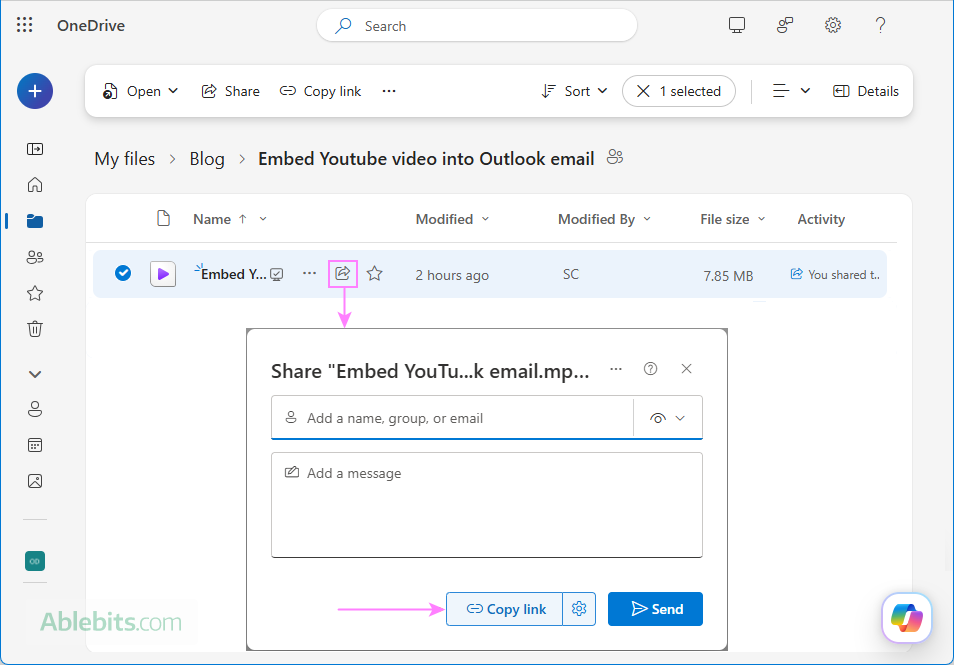
- Share the video with the intended recipients. For this, click the Share button next to the video file, and then:
- To share with specific people, enter their names or email addresses.
- To make the video available to anyone in your organization, click Copy link.
- Keep the default Can view permission.
- In the new Outlook app or Outlook on the web, create a new email message.
- Paste the video's sharing link directly into the message body where you want the video to appear.
- In a moment, Outlook automatically converts the link into an embedded video player.
- Complete your message and send it as usual.
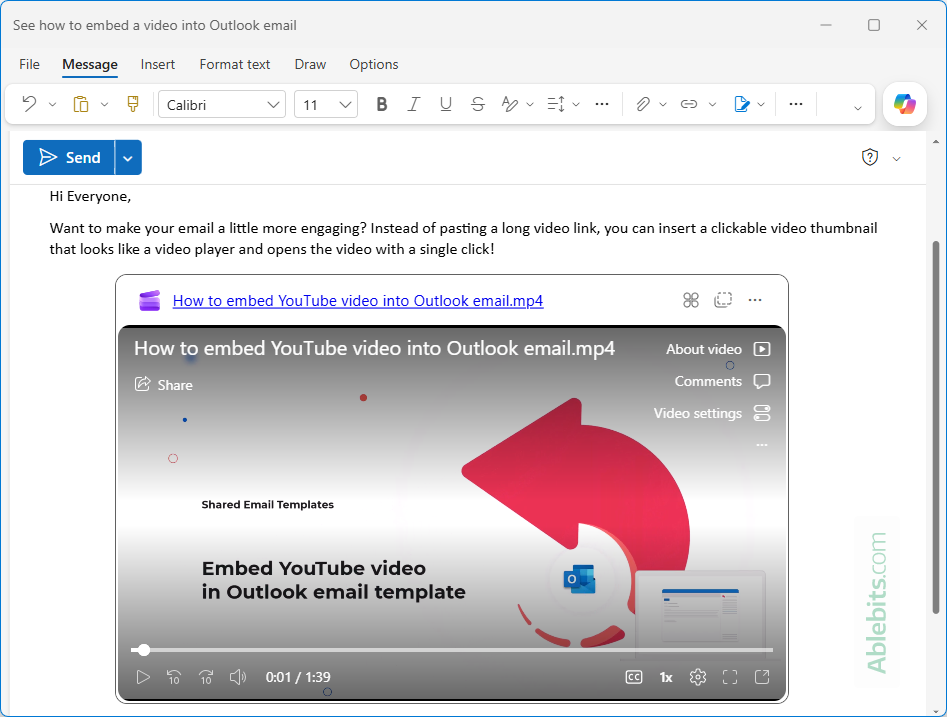
And that's all there is to it! No html coding, no special add-ins, no headache. Just a few clicks, one link, and your video is ready to play right in the email 😊
Tip. If you send videos often, you can create a separate OneDrive folder for them and share this folder. Any videos you place into that folder will automatically inherit its permissions, saving you the trouble of sharing each individual video file. To dig a little deeper, see How to share files securely with OneDrive.
Managing embedded videos in Outlook
Before you start sending video-rich messages, let's look at a few useful details: which links Outlook can convert into playable videos, how access permissions work, and how to control the way the video is displayed.
Supported video links
The embedded video feature works only with video files stored in OneDrive or SharePoint. Two types of video links are supported:
- Sharing links generated through OneDrive or SharePoint. If your OneDrive folders are synced to your computer, these can be also copied from File Explorer.
- Direct video URLs copied from the browser's address bar while viewing the video on its Clipchamp playback page.
While both link types can display the video in Outlook, we recommend using sharing links whenever possible, as they propagate the right access permissions and reduce the chance of recipients running into access problems.
Note. If the video file is not shared, only owner will have access to the video.
Who can send embedded videos in Outlook emails
Embedded videos are enabled by default for Microsoft 365 enterprise users. Depending on your organization's policies, however, an administrator may:
- Restrict the feature to selected users or groups (via Admin policies for Loop components).
- Disable it entirely for all users (through Microsoft 365 cloud policies).
If the embedded video feature does not work for you, it's possible that your administrator has limited or disabled access.
How to control who can watch embedded videos
Whether email recipients can view the video depends entirely on the sharing permissions assigned to the underlying OneDrive or SharePoint video file.
You can check and adjust the video's access directly from the message. Here is how:
- Create a new message in the new Outlook or Outlook on the web. Keep composing the email inline, and do not pop it out into a separate window, as this feature is currently unavailable there.
- Embed the video as described above.
- Right-click the video title (or Clipchamp link) above the embedded player.
- In the context menu, select the first item, which displays the current sharing permissions (for example, People in your organization with this link can view).
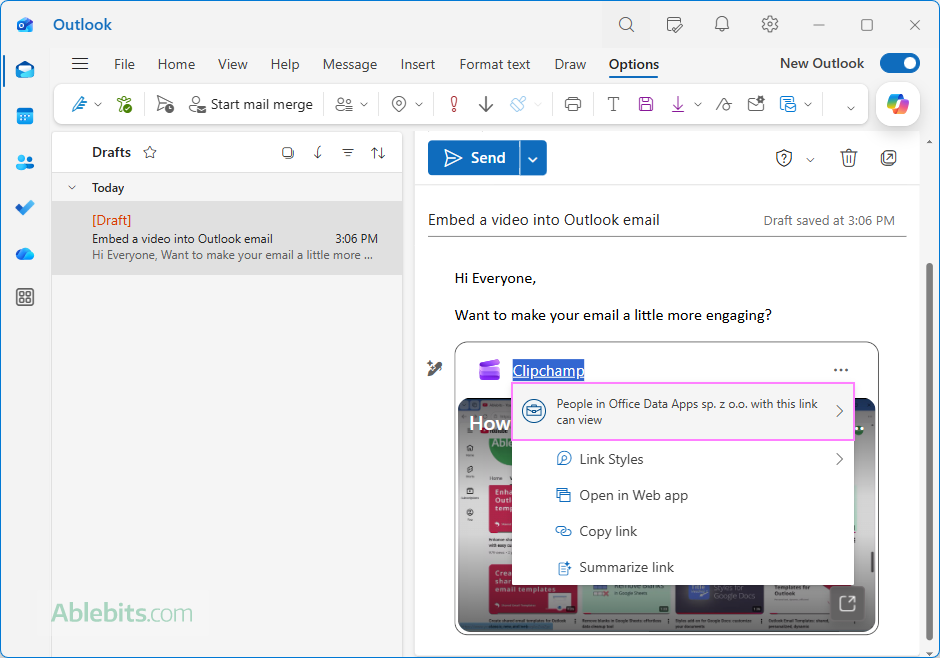
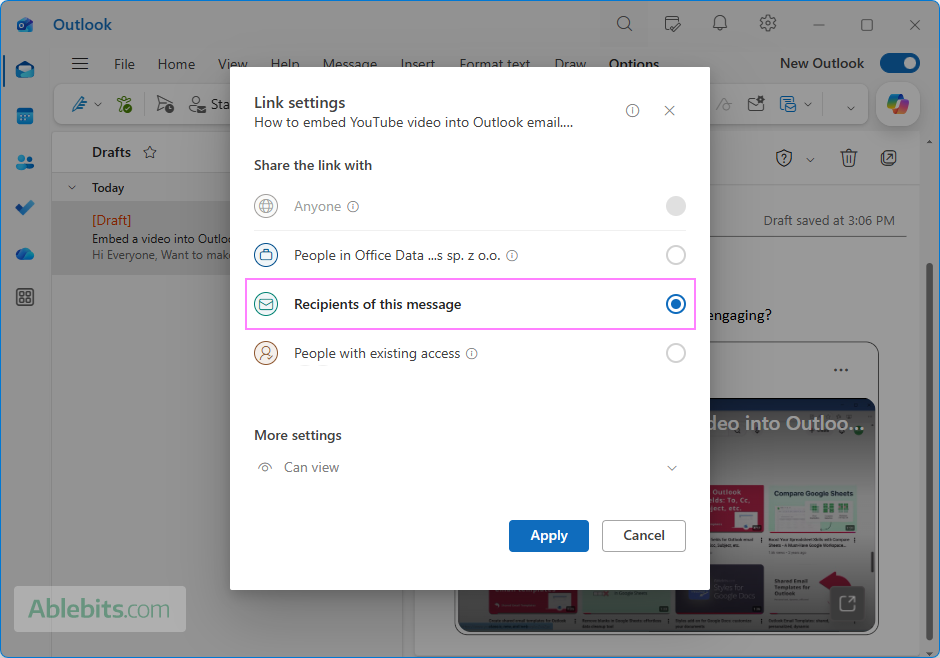
- In the Link settings window, review and configure the sharing permissions as you want. When done, click Apply to save your changes.
- Anyone – anyone with the link can access the video.
- People in your organization – only users within your organization can view the video.
- Recipients of this message – grants access only to the recipients of this email.
- People with existing access – only users who already have permission to the file can view it.
- Under More settings, choose the level of access: view, edit, or can't download (can watch the video but not download it).
Change the embedded video player back to the link
By default, a supported video link in a message is automatically transformed into an embedded video player. If you prefer to show a standard hyperlink instead, you can change the display style for that particular message.
To switch an embedded video back to a link:
- Right-click the video title displayed above the embedded player.
- From the context menu, select Link styles.
- Choose one of these options:
- Embedded (default) – displays the video as an embedded player.
- Link – displays only the video link.
You can switch between the two styles at any time while composing the message.
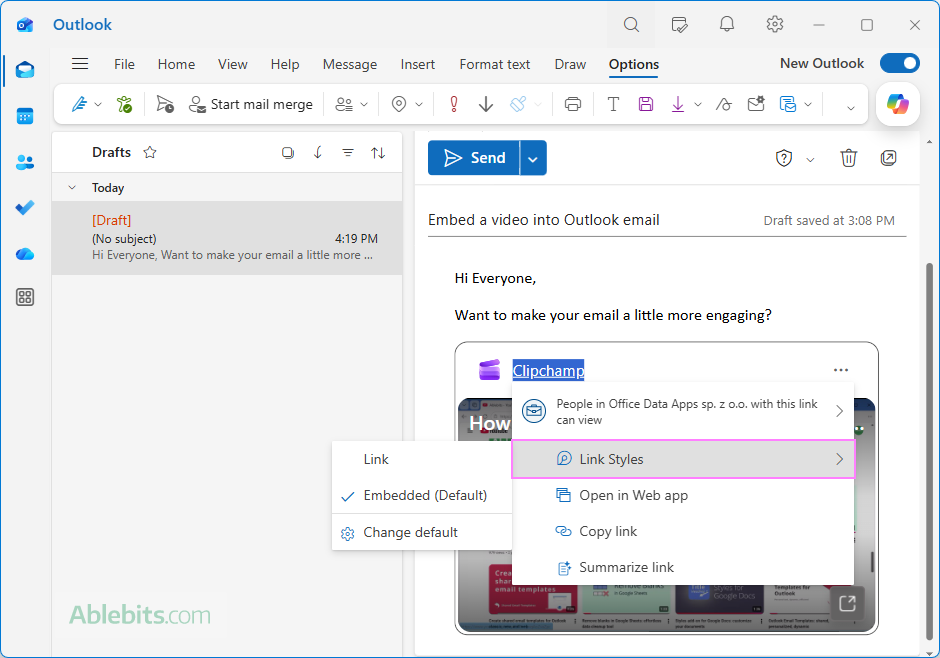
Tip. To change this behavior for all future emails, click Change default, and then choose your preferred option under the Loop component display section.
Does embedding a video increase the message size?
No. The video itself stays on OneDrive or SharePoint and is never added to the email as an attachment. An embedded video player is just a smart preview that connects to the original video file in the cloud and displays it within the message.
So, whether the video is 10 MB or 10 GB, the email size remains virtually unchanged.
How to embed YouTube video in Outlook email
The previous method is quick and convenient, but it only works for emails within your organization and videos stored on Microsoft cloud services. In all other cases, Outlook (like most email clients) does not allow direct video embedding for security reasons.
So, if you want to email a product demo to partners, a training video to customers, or that clip everyone in the office is talking about to friends, you'll need a different approach.
Fortunately, there is a simple workaround. Instead of embedding a video player directly in the email, you can create a clickable thumbnail that looks like a video. When clicked, it takes the recipient to YouTube or another online platform where the video is hosted.
This method works for all recipients in any Outlook version, including classic Outlook 365 - 2016, the new app, Outlook on the web, and other mail apps.
To add a clickable YouTube video thumbnail to an Outlook email, follow these steps:
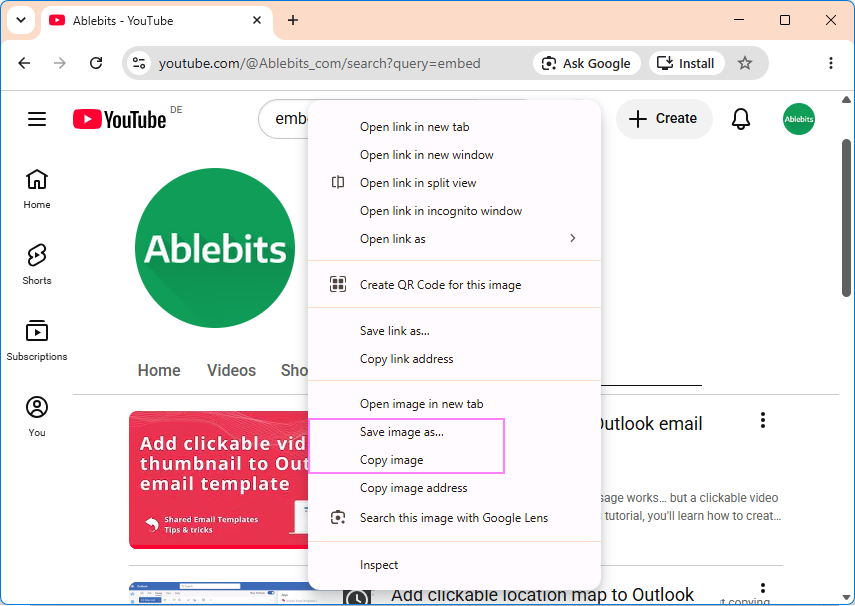
- Get a video thumbnail. Go to YouTube and locate the video you want to share. Right-click the thumbnail image and choose one of these options:
- Copy image to paste it directly into your email.
- Save image to save the thumbnail to your computer for future use.
Alternatively, you can take a screenshot from the video using Windows' Snipping Tool or any other screenshot tool available.
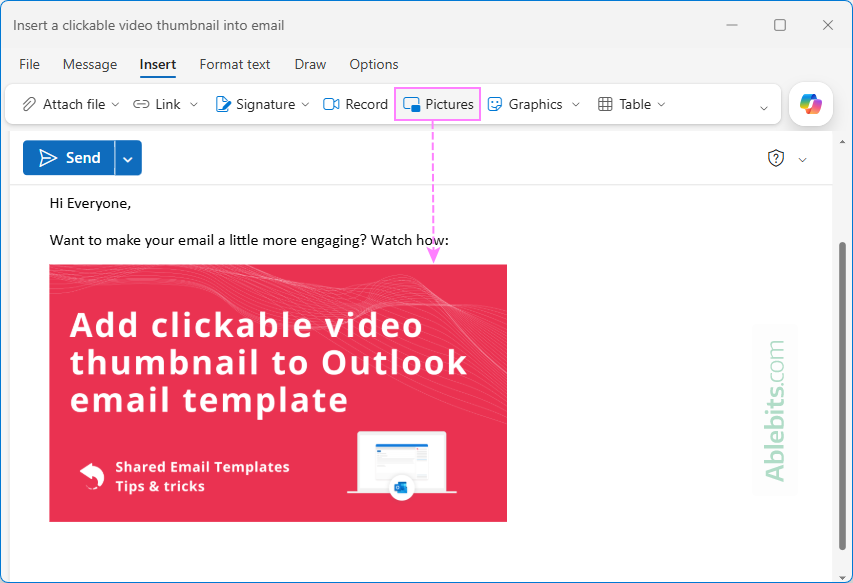
- Insert the thumbnail into email. Create a new Outlook message and insert the thumbnail image where appropriate:
- If copied to clipboard, press Ctrl + V to paste it in the message body.
- If saved to the computer, go to the Insert tab > Pictures and select the saved thumbnail image.
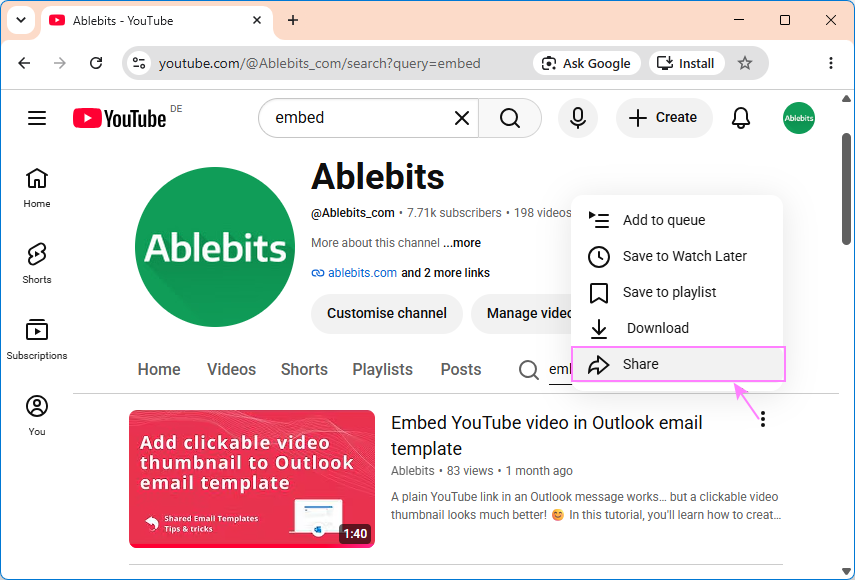
- Copy the video link. On YouTube, click the three dots under the video and choose Share, then copy the displayed video URL.
- Link the thumbnail to the video. Select the thumbnail image in your email and click Link on the Picture format tab (or use the Ctrl + K shortcut). Paste the YouTube link in the Web address (URL) box and click OK.
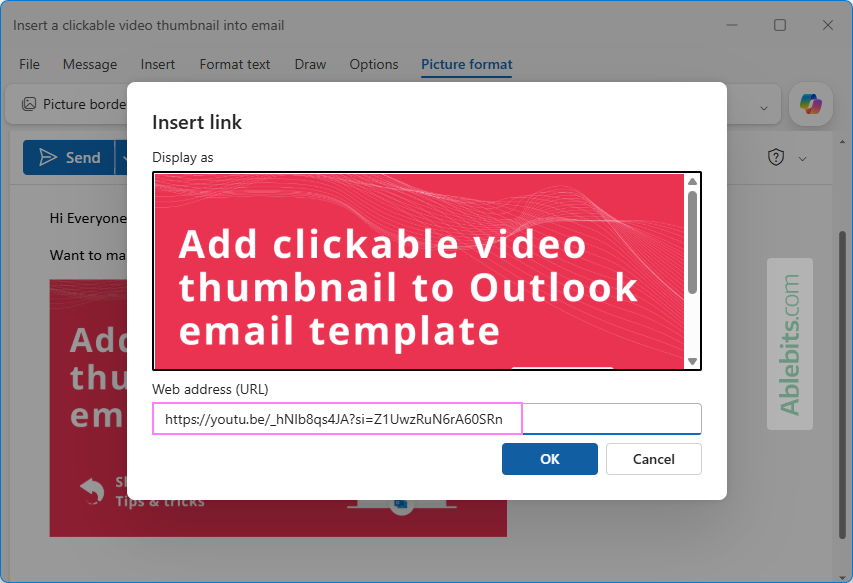
That's it. When recipients click the thumbnail in the message, the video opens on YouTube and begins playing.
Tip. The same technique works with videos hosted on Vimeo, Microsoft Stream, Wistia, and other platforms.
What's next? Save your video email as Outlook template
If you plan to send the same video to multiple recipients or reuse the email in the future, consider saving it as an Outlook template. This works equally well for messages containing embedded videos and clickable video thumbnails.
- Save email as template in Outlook 365 – 2016: click File > Save As, and select Outlook Template (.oft)*.
- Save message as template in new Outlook and web: click More options (three dots) > My Templates > Save as template.
If you're already using our Shared Email Templates, here's a handy trick for frequent video senders. The short demo below shows how to insert YouTube videos in your Outlook templates just as easily as text and images.
Video not playing? Watch it directly on YouTube.
As you've seen, adding videos to Outlook emails doesn't require any special tools or technical tricks. A few clicks are usually all it takes. Just remember to check the sharing permissions before sending, because a video that nobody can open is worse than no video at all 😊