 by
by In this guide, you’ll learn how to add signatures in Gmail, edit them as needed, and either remove them from a specific email or delete them entirely. You'll also discover how to create several signatures and switch between them.
Adding a signature in Gmail is a great way to personalize your communication. However, setting it up can seem a little tricky. That’s why this guide is here to help. I’ll walk you through every step: whether you need several signatures for different audiences or just one clean footer, I have you covered! Read on to learn all the basics of working with Gmail signatures 😉.
What is an email signature in Gmail?
A signature block in email is a personalized short section of text, images, or links that's automatically added to the end of outgoing messages as a footer.
A detail as small as a professional email signature does a surprising amount of work behind the scenes. Its main purpose, of course, is to provide relevant information about who you are and how to reach you. But with a properly structured signature block, you can achieve many other implicit goals:
- Make a professional impression
- Increase your reading and response rates
- Add credibility
- Boost brand awareness
- Drive traffic to your social media accounts
How does a signature work in Gmail? In Gmail, you first create or paste a previously designed signature in the settings and save it for future use. Then, you can easily insert it while composing a new email. You can also set default ones, create multiple signatures, format them as you like, and control when each signature appears.
You may have a funny custom Gmail signature with punchy quotes for personal use and several work signatures. For example, if you’re a freelancer or a job seeker, you can create a business signature for email with your headshot, LinkedIn profile, and links to your projects or portfolio.
You may also work within a sales team or HR department, and may need a separate professional signature with your job title, a department name, and direct phone lines. Or perhaps you'd like to use your signature to introduce your company? In this case, it’s important to use a standardized format, include a brand logo in your signature, or even add legal disclaimers.
What is an auto signature in Gmail? An automatic signature is a Gmail feature that adds your pre-written signature block to every message you compose without manual effort. This feature makes it possible to even append different signatures to new emails and replies/forwards. Moreover, you can update or change them whenever needed.
How to add a signature in Gmail
To set a signature in Gmail, follow these simple steps:
- Open Gmail in your web browser.
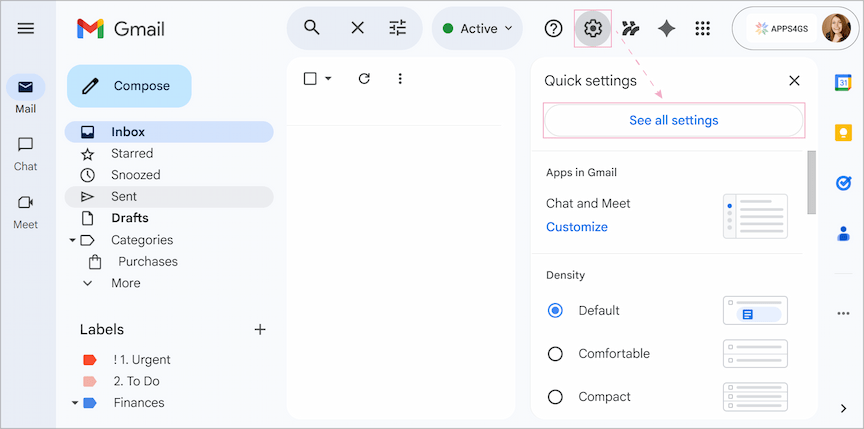
- In the top right corner, click the Settings (gear icon) and select See all settings.
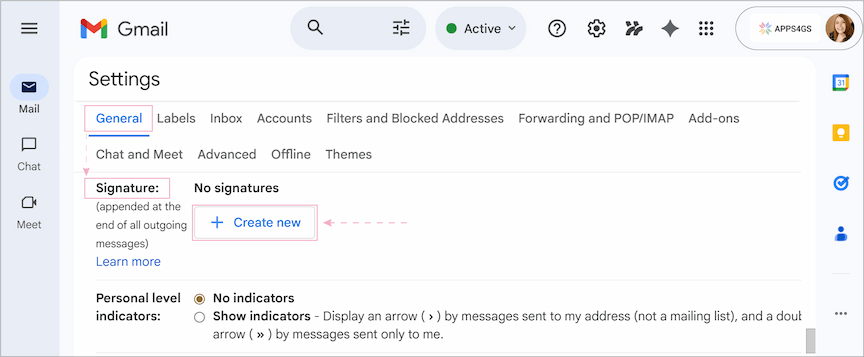
- On the General tab, scroll to the Signature section.
- Click the + Create new button.
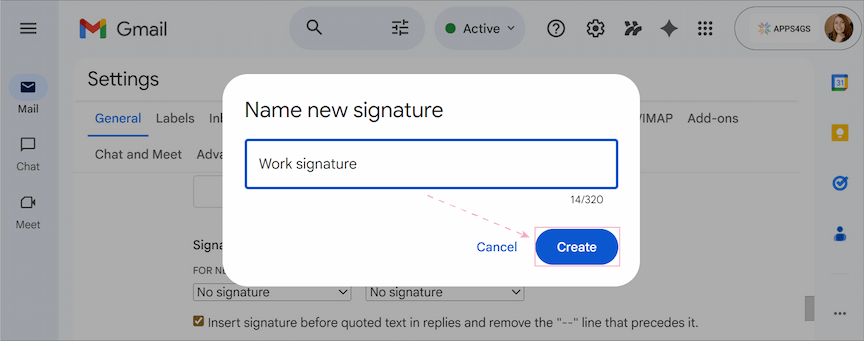
- In the pop-up window, enter the name of your new signature and hit Create.
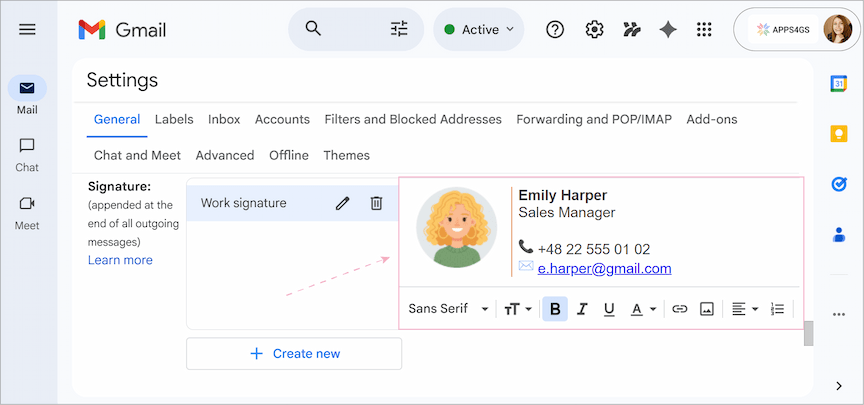
- An editor will appear. Type the content of your signature block in the box on the right. Use the formatting bar to change the font, add links, or insert pictures. You can put up to 10,000 characters.
Tip: The character limit is also applied to your image. Try resizing it if you go over the limit.
Note: Want to learn how to create professional or personal Gmail signatures with photos, social media icons, and custom links? Stick around! In my next article, I'll walk you through the entire process step by step 😎.
- Once your signature is ready, scroll to the very bottom of the page and click the Save Changes button.
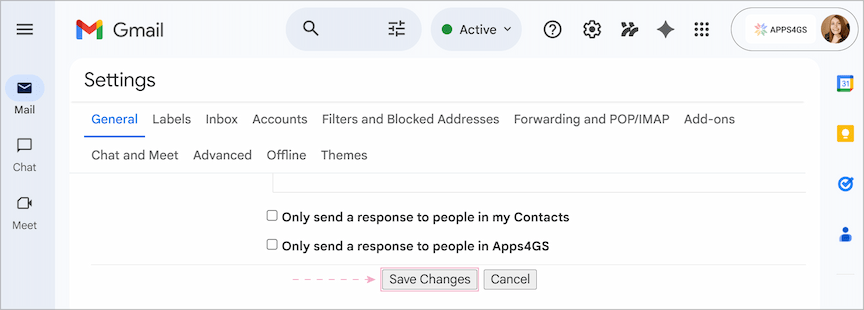
That's it – your signature is ready to use.
To create additional signatures, simply follow all the previous steps and click the + Create new button again in the Signature settings.
You can make longer and shorter versions of your signature or a whole library of different footers. Create as many signature blocks as you like and simply switch between them when needed. Using multiple signatures in Gmail is the best way to keep your communication professional yet context-aware.
How to insert or change your signature in Gmail
You’ve created and saved one or several signatures (perhaps even a small library of them 📚) but how do you insert them into your email or swap them when needed? In Gmail, you can manually insert or switch to any of your pre-written signatures right from the compose window.
To insert or switch between your signature blocks:
- In Gmail, open a new message or a reply/forward.
- Click the Pen icon at the bottom of the compose window.
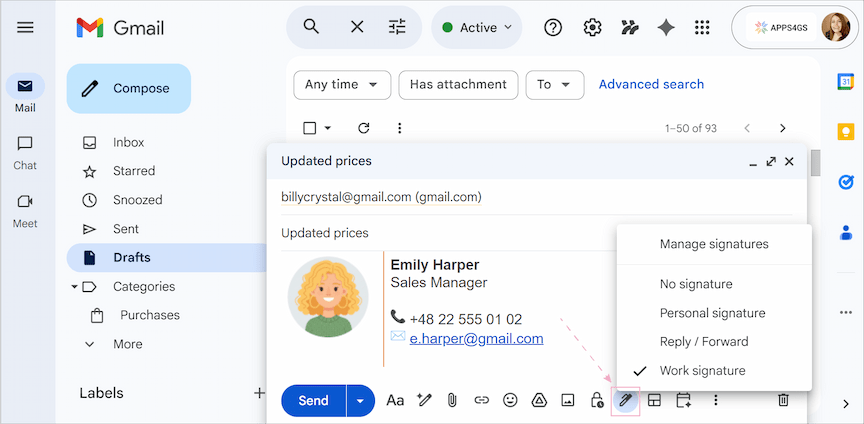
- Select the desired signature by clicking on it. It will automatically appear in your email.
Tip: If you misclicked and selected the wrong signature, you don’t need to delete it manually. Simply click the Pen icon again and select a different one.
Note: The Pen icon also gives you access to the signature settings. So, you can easily create a new one if you need to. Just click the Pen icon > Manage signatures, and the settings will open immediately.
How to set up signatures in Gmail for replies/forwards: auto signature
If you want your signature to appear automatically when you write a new email or follow up on a thread, you need to configure your signature defaults. There is no need to create new signatures from scratch if you already have any – you just need to tell Gmail when to use them.
To add an auto signature in Gmail, you'll need to set your signature defaults:
- Go back to Settings > See all settings.
- On the General tab, scroll down to the Signature defaults section.
- Under the For new emails use and On reply/forward use options, click the drop-downs and select the preferred signature for each of them.
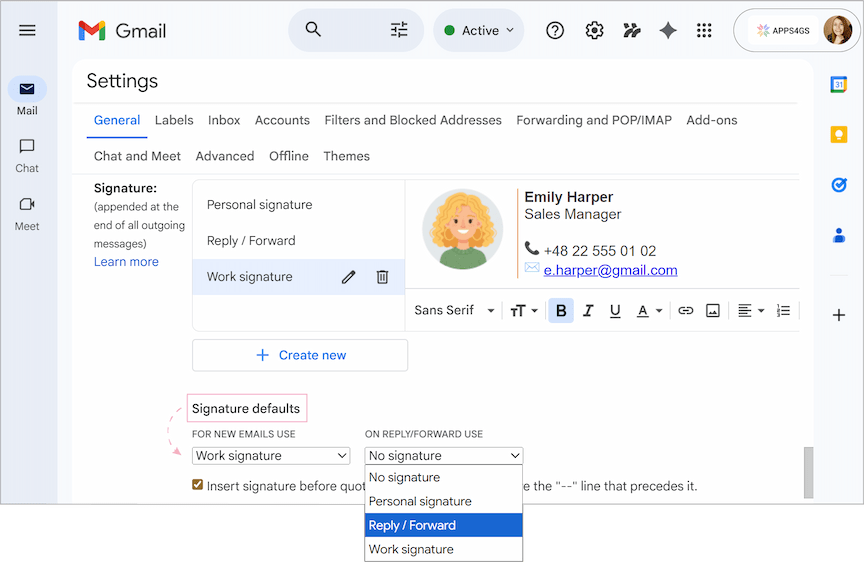
Tip: Check the box that says: "Insert signature before quoted text in replies and remove the "--" line that precedes it." to place your signature directly below your reply text rather than at the bottom of the thread.
- Scroll down and click Save Changes.
Now you have a fully functional Gmail automatic signature for every interaction ✍️.
Tip: You can even have different default signatures to different Gmail accounts if you use the "Send mail as" feature.
How to edit and update your Gmail signature
Your contact details aren’t permanent and evolve as time goes by – you may change your phone number, your job, or social media accounts. Or perhaps you just feel like your signature could use a modern makeover. Let’s see how to update your signatures.
To edit an existing signature, follow these steps:
- Open Gmail and go to Settings > See all settings.
- On the General tab, scroll down to the Signature section.
- Click on the signature name you wish to update.
- Use the editor box to edit your Gmail signature.
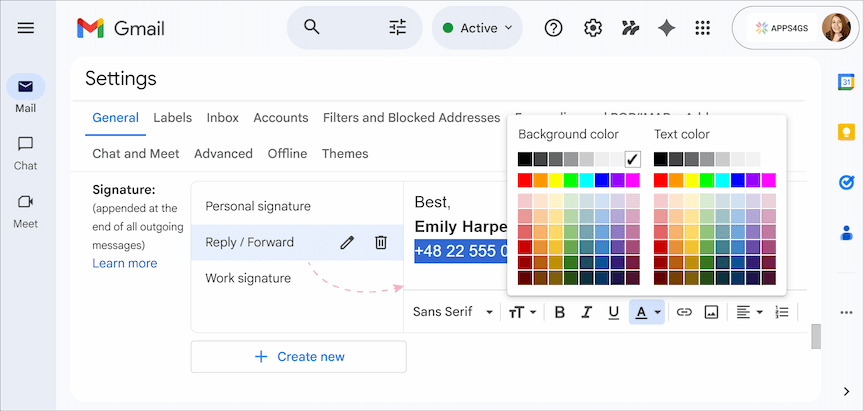
Note: If you want to change the name of the signature itself, click the Pencil icon and type a new name in the pop-up.
- Scroll to the bottom of the page and click Save Changes.
How to remove a signature from Gmail
Maybe you just don’t need a signature for certain emails, or want to completely delete an old signature from a former job – whatever the reason, Gmail has solutions 🙌.
How to remove a Gmail signature from an email
You can disable your signature for a single email if you don't need it just this once:
- While composing your message, click the Pen icon in the message box toolbar.
- Select the No signature option.
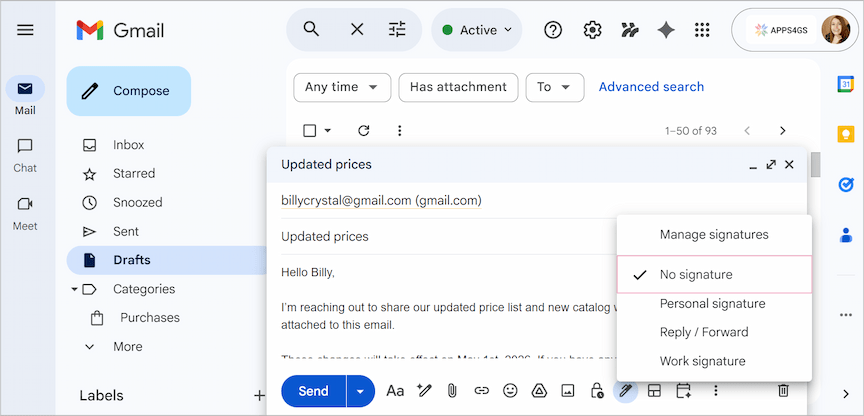
Your signature will only be removed from this specific message.
How to fully delete a signature from Gmail
If you no longer need your signature, you can remove it completely:
- Open Gmail > Settings > See all settings > General tab > Signature section.
- Find the name of the signature you want to remove and click the Trash icon next to it.
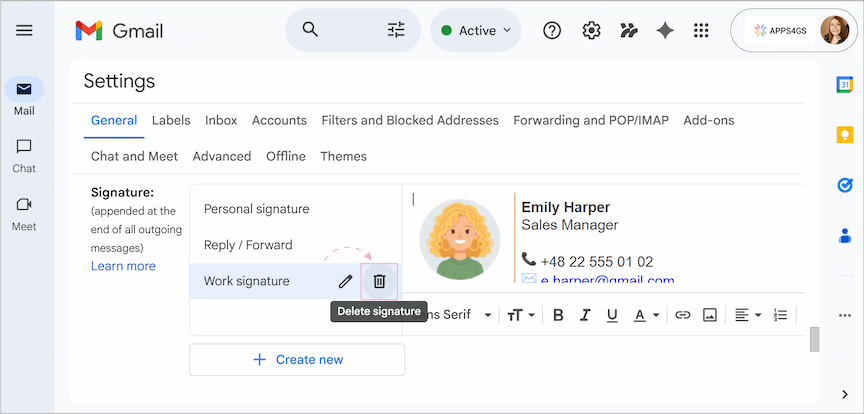
- In the pop-up window, confirm the deletion.
Note: Your deleted signature cannot be recovered, so make sure to copy any crucial links or text.
- Click Save Changes at the bottom of the page to complete the removal.
How to remove automatic signatures in Gmail
Maybe you're perfectly happy with your signatures just the way they are, but you want to stop them from showing up automatically.
To turn off auto signatures:
- Return to Gmail > Settings > See all settings > General tab > Signature section.
- Scroll down to the Signature defaults.
- Under the For new emails use and On reply/forward use options, select No signature from the drop-downs.
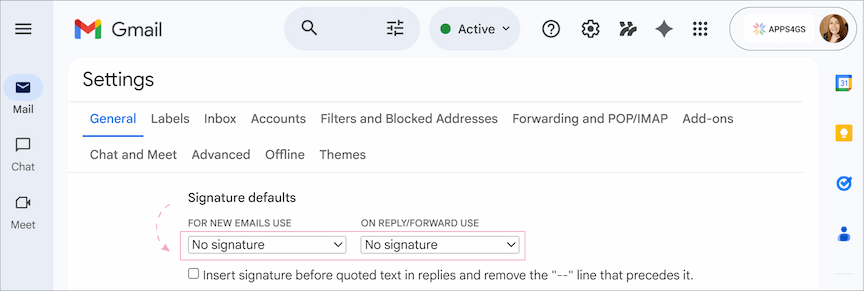
- Don’t forget to click Save Changes.
All of your pre-written signatures stay saved, but Gmail will no longer automatically add them.
I hope you found this article useful and that you already have several professional signatures added to your Gmail account! If you’ve got any questions, just drop them in the comments – I’ll be sure to get back to you 😊.
FAQ
Can I have multiple signatures in Gmail?
Yes, you can. Gmail allows you to have different signatures for different purposes and change them accordingly. Moreover, there is also a possibility to assign multiple signatures to various Gmail accounts managed from one inbox (if you have several).
How do I see my signature in Gmail?
There is no special folder where you can check all your signatures in Gmail. All your signatures are saved directly to the Gmail settings. So, if you need to see them, go to Gmail > Settings > See all settings > General > Signature section.
Does Gmail automatically add signatures?
Yes. You just need to configure Gmail default settings correctly to have auto signatures.
Why is my Gmail signature not showing up?
Most likely, after adding your signature in the settings, you forgot to click Save changes. It’s a common oversight, because this setting is hidden at the very bottom of the page and is easy to miss. Also, if you want it to appear automatically, you should assign your signature in the Signature defaults section first.
Does Gmail have signature templates?
Unfortunately, no. But you can try our great tool, Shared Email Templates & Signatures, where you can find pre-designed professional layouts and customize them as you like.
Why does my signature have a double dash above it?
Gmail adds these dashes by default to separate your message from your signature. To remove them, go to Settings and check the box that says: "Insert signature before quoted text in replies and remove the "--" line that precedes it."