 by
by The article explains how to use the Outlook Poll feature to make, send, and view polls and surveys in your emails, with clear steps for Outlook classic, new and web.
Collecting feedback from your co-workers or clients doesn't have to involve extra tools or special forms. Outlook includes built-in options that let you quickly create polls and surveys inside your emails, so you can send your questions and get responses without leaving the mailbox.
Outlook Poll
Outlook's built-in Poll feature lets you add a poll, survey, and quiz directly into an email, without any additional setup. You can create a simple poll in seconds by adding a question right into the message body and allowing recipients to select a single answer or multiple options.
Voting
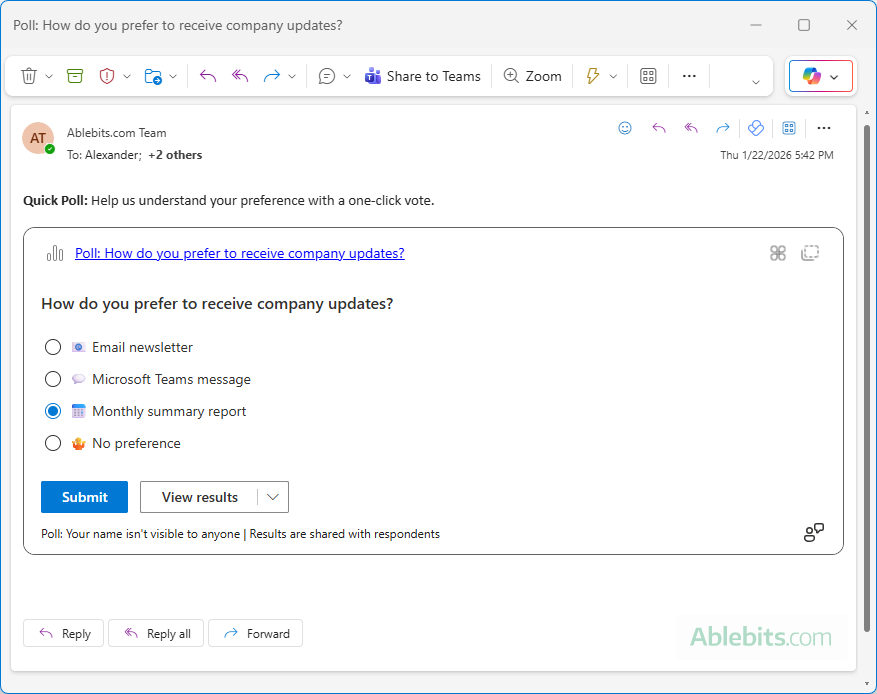
After you send the email, recipients can respond in just a click. They can vote within the email itself or open the poll in a browser by clicking the included link.
Results
Polls created in Outlook emails are powered by Microsoft Forms, which collects and manages responses automatically as votes are submitted. Outlook stays connected to Forms and updates the results in real time.
You can view a live summary of responses in the poll card embedded into the Outlook email. For more detailed insights or individual responses, open the poll in Microsoft Forms and review the results there.
In which Outlook versions is Poll option available?
The Poll feature is available in the following versions:
- Microsoft 365
- Outlook 2016 – 2024
- New Outlook app
- Outlook on the web
Currently, Outlook polls are supported only for Microsoft 365 work or school accounts. They are not available for personal Outlook.com accounts or for third-party email accounts such as Gmail or Yahoo.
How to create a poll in Outlook
To quickly create a poll inside an Outlook email, follow the steps below.
Step 1: Add a poll to Outlook email
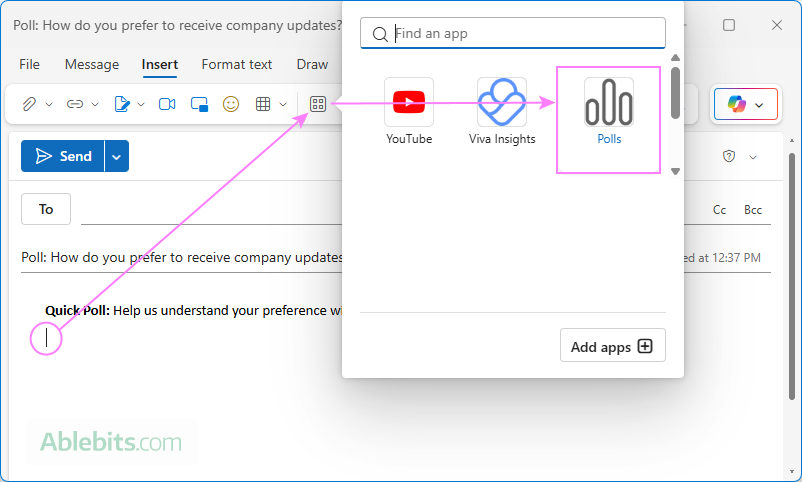
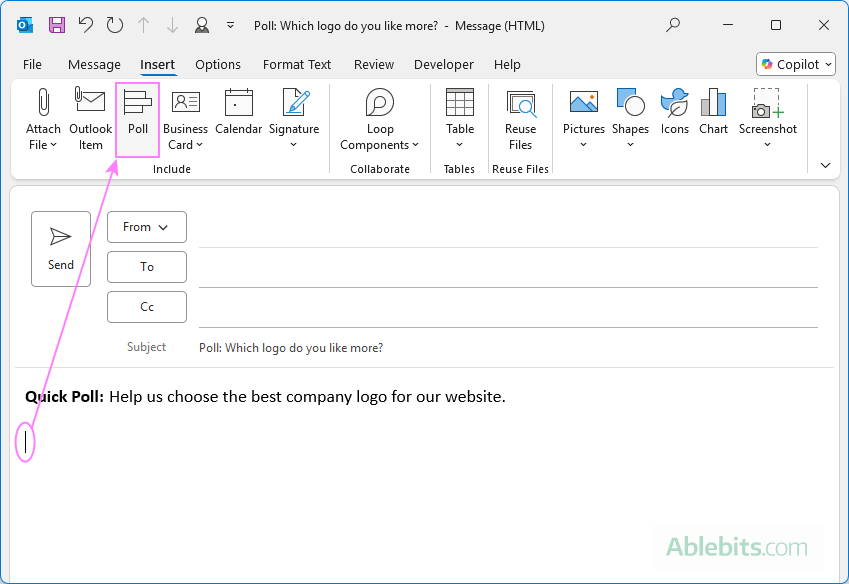
Start by creating a new message and placing your cursor where you want the poll to appear. Depending on the Outlook version you are using, proceed in this way:
- In new Outlook and web: On the Message or Insert tab, click Apps and select Polls.
- In classic Outlook (365 – 2016): On the Insert tab, click Poll. Alternatively, go to the Options tab > Use Voting Buttons > Poll.
Step 2: Set up your poll
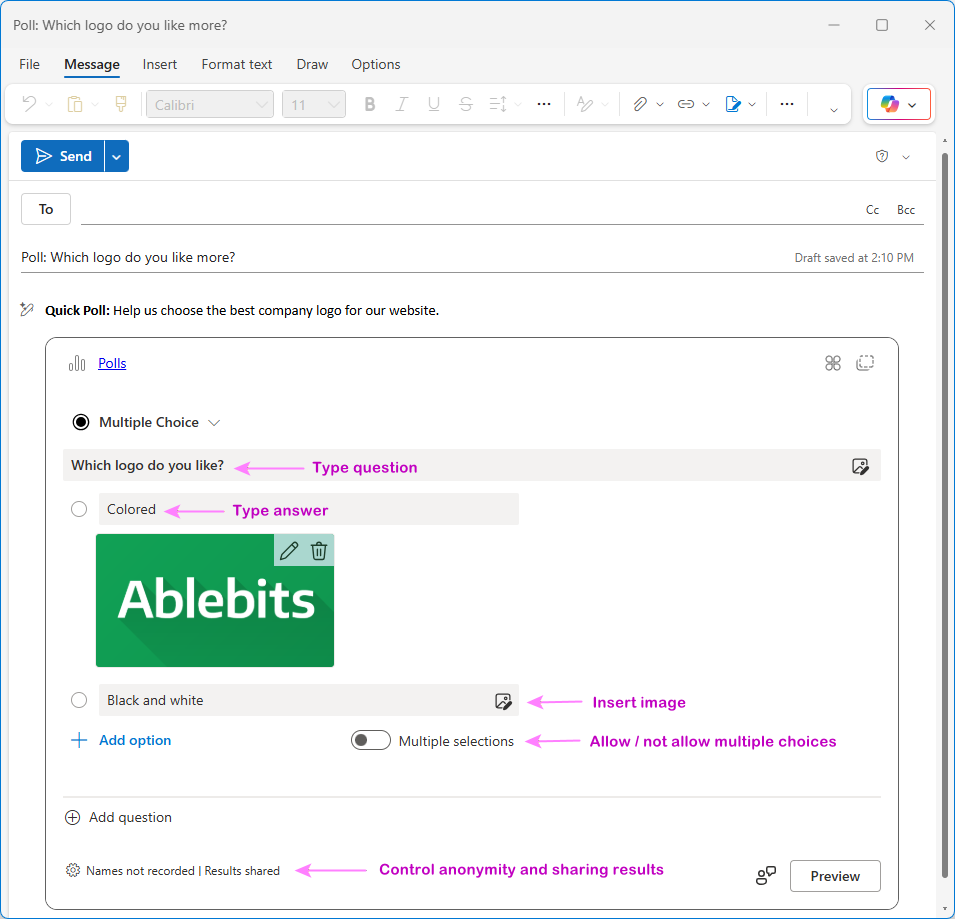
Once the Poll form appears in your email, you can start writing your questions and answers.
- Type your first question and two answer options in the displayed fields.
- To include more answers, click + Add option.
- To add more questions, click + Add question.
- To use pictures in addition to text, click the Insert media button next to a question or option and choose an image from your computer.
- Decide whether recipients can select one or several answers by turning the Multiple selections toggle on or off.
By default, responses are anonymous and results are shared with all participants. To change this, click the Settings (gear) icon at the bottom of the poll form and choose the desired options:
- Record names of respondents (visible only to the poll creator)
- Share aggregated results with respondents
Step 3: Preview
Click the Preview button in the lower right corner to see how the poll looks in your message.
Step 4: Send
When everything looks good, send the email as usual.
Tip. If you want more styling, customization, and reporting features for your polls and surveys, consider using Microsoft Forms. You can start from a ready-made template or use Copilot to help you write questions and structure your form.
How to create a survey in Outlook
The main difference between a poll and a survey is the depth of feedback they collect. Polls are typically used for a single, quick question, while surveys include multiple questions and are designed to gather more detailed insights.
With this in mind, you can create a survey in Outlook using the same built-in Polls feature demonstrated in the previous section. Instead of limiting the form to one question, you add as many questions as you want. To do this:
- Insert the poll form into an email.
- Write the first question and answers.
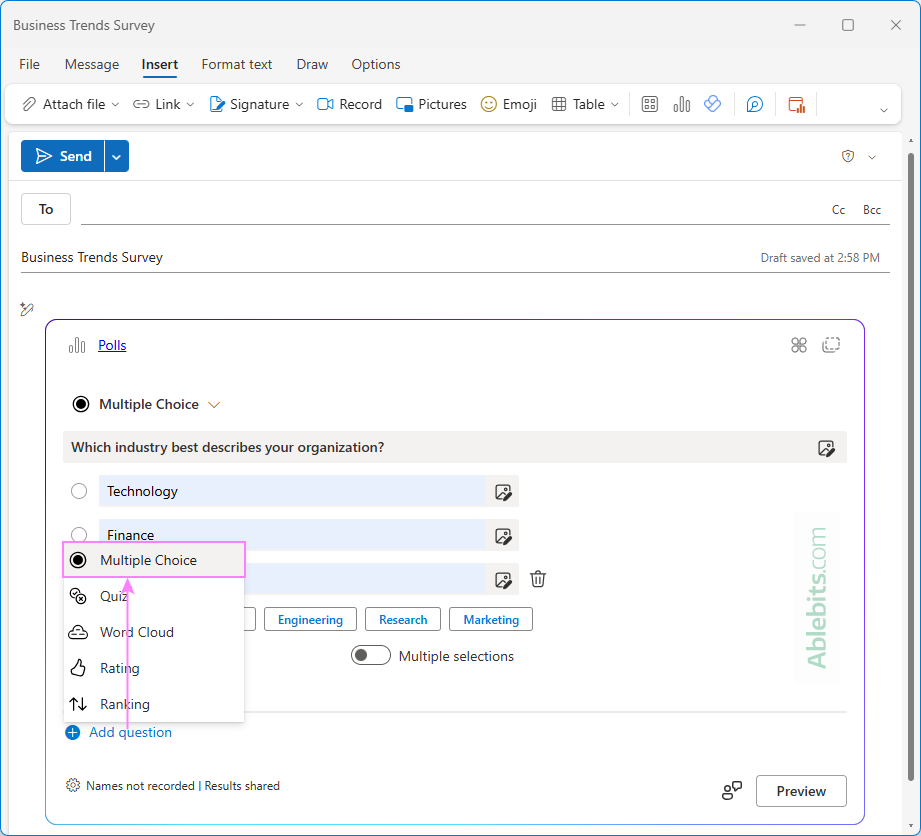
- For each additional question, click + Add question and then choose the type that best fits your goal:
- Multiple choice – ideal for quick, structured answers
- Word cloud – useful for collecting short ideas or keywords
- Rating – allows respondents to rate items on a scale of up to five levels, using symbols such as stars, thumbs up, numbers, etc.
- Ranking – lets respondents order options based on their preference or priority
You can mix question types and adjust answer options, depending on the type of feedback you need.
How to make a quiz in Outlook
Quizzes can be used to quickly test knowledge with right/wrong answers or simply add a fun, interactive element to an email. In business environment, they're also useful for understanding employee career interests or checking awareness of company policies.
Outlook's built-in Polls feature enables you to create quizzes in an email using the same tools you'd use for polls or surveys.
To add a quiz to an Outlook message, the steps are:
- Insert the Poll form into a new email.
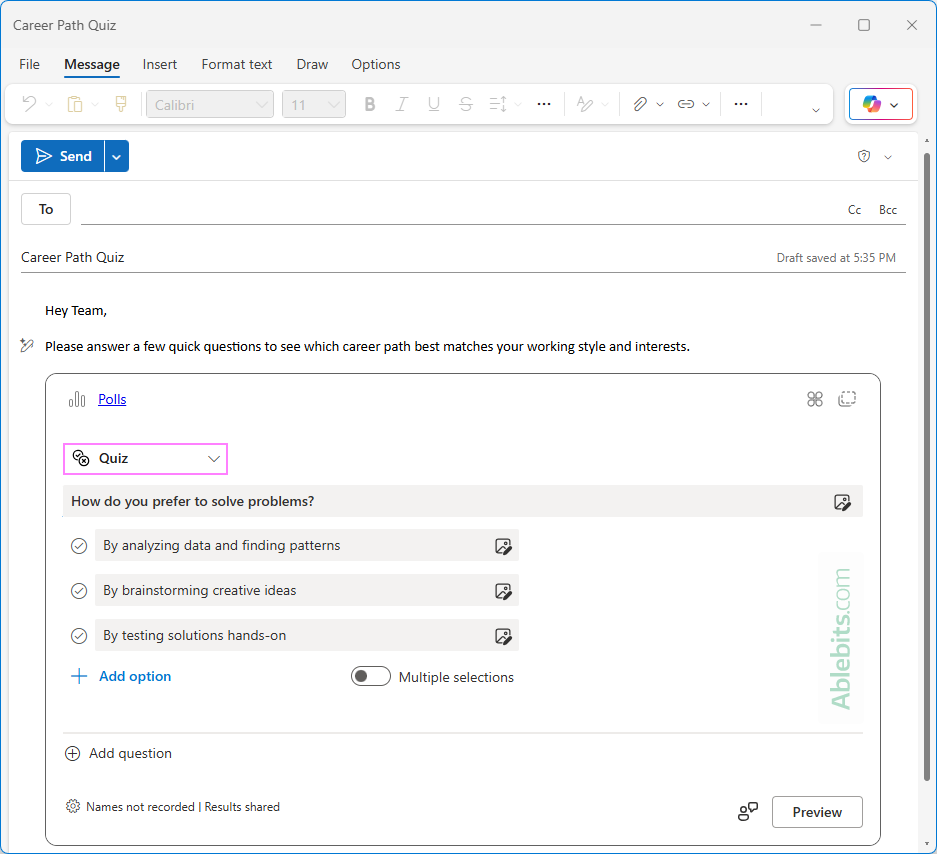
- In the upper-left corner of the poll form, open the drop-down menu and select Quiz.
- Type the first question for your quiz and add the possible answer options.
- Use + Add question to include additional quiz questions as needed.
Once the email is sent, recipients can answer the quiz from the message or in a browser, and you can review responses in real time as they come in.
How recipients respond to Outlook poll
How recipients see and vote in an Outlook poll depends on the account type and email client they are using. There are two possible scenarios:
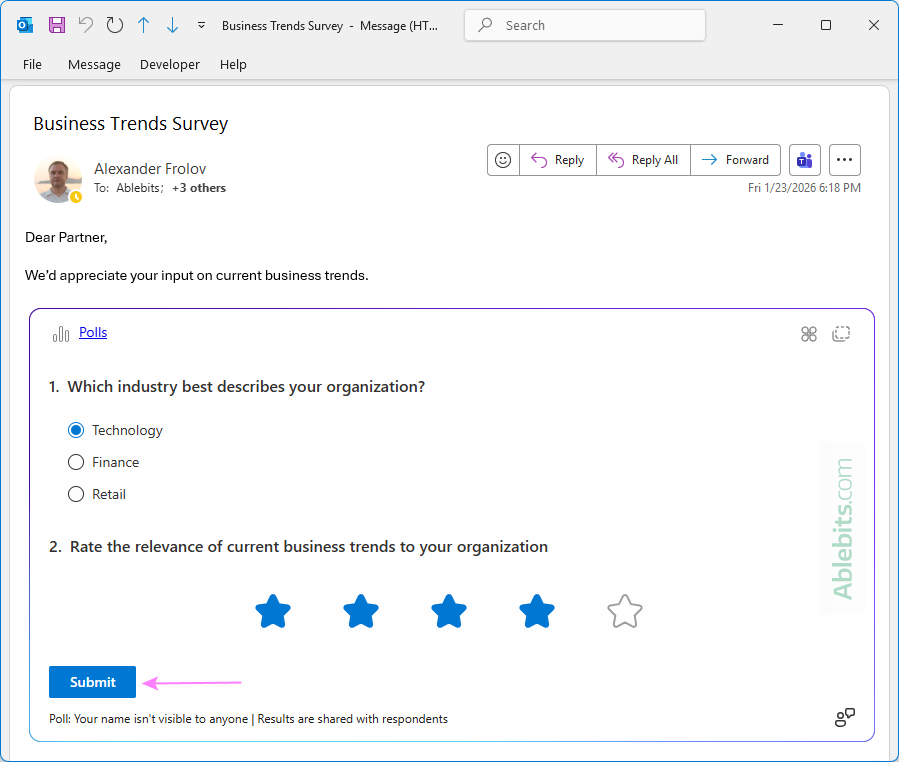
- The poll appears in the body of the email as an actionable message, allowing recipients to select responses and submit their vote directly from the email.
- The message includes a link that opens the poll in a web browser. See why a poll is not showing in an email.
Recipients who use Outlook with a Microsoft 365 work or school account typically see the poll embedded in the email and can respond right there.
How to view poll results in Outlook
Outlook makes it easy to view poll results, whether you are responding to someone's poll or managing the one you created. What you see depends on your role and the poll settings.
How poll respondents can see the results
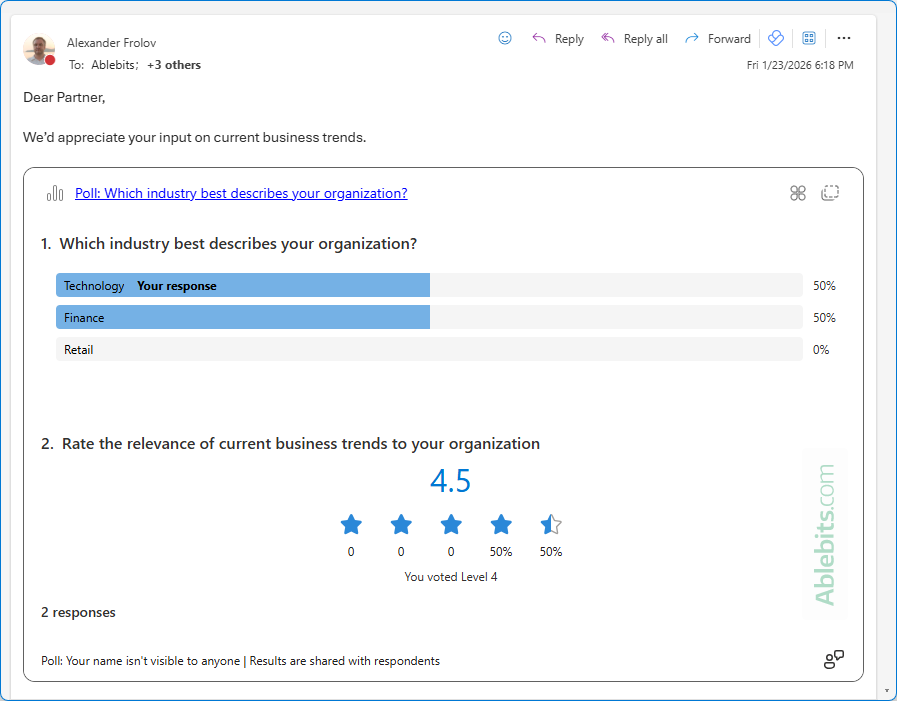
After answering questions and clicking Submit, respondents may see the poll results immediately, if the poll creator has enabled the option to share results. The results appear in the email poll card, showing how others have voted so far.
How poll creator can view results
To view results of a poll you created and sent out:
- Go to the Sent Items folder in your Outlook.
- Open the email that contains the poll.
- The current results are displayed in the poll card within the message.
If you are both the poll creator and a recipient
If you included yourself as a recipient and haven't voted yet:
- Open the poll message from the Sent Items folder.
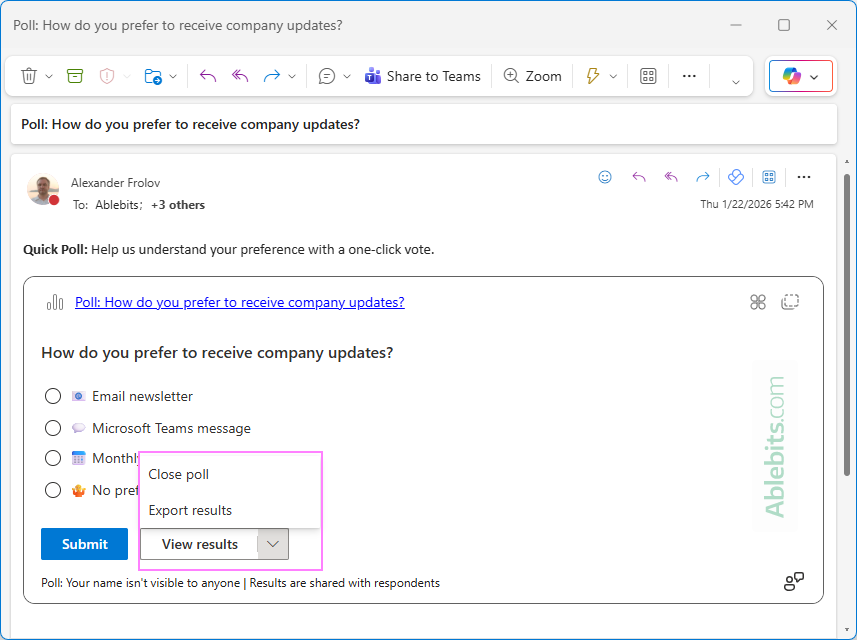
- At the bottom of the email, open the drop-down menu and choose one of the following options:
- View results – see the responses collected so far directly in the poll card in Outlook.
- Export results – download the results to an Excel file.
Note. If your survey includes word cloud questions, the results are shown as extracted keywords only. To view full text responses, select Export results and review the data in an Excel file.
Tip. You can also view results of all your polls and surveys in one place on the My forms tab on forms.office.com.
How to see who voted in Outlook poll
Only the poll creator can see who voted and only if the Record names of respondents option was enabled when the poll or survey was created.
In Outlook itself, respondent names are not displayed. To see who submitted each response, you need to open the poll in Microsoft Forms.
- Log in to Microsoft Forms.
- Open the My forms tab.
- Select the poll or survey you want to review.
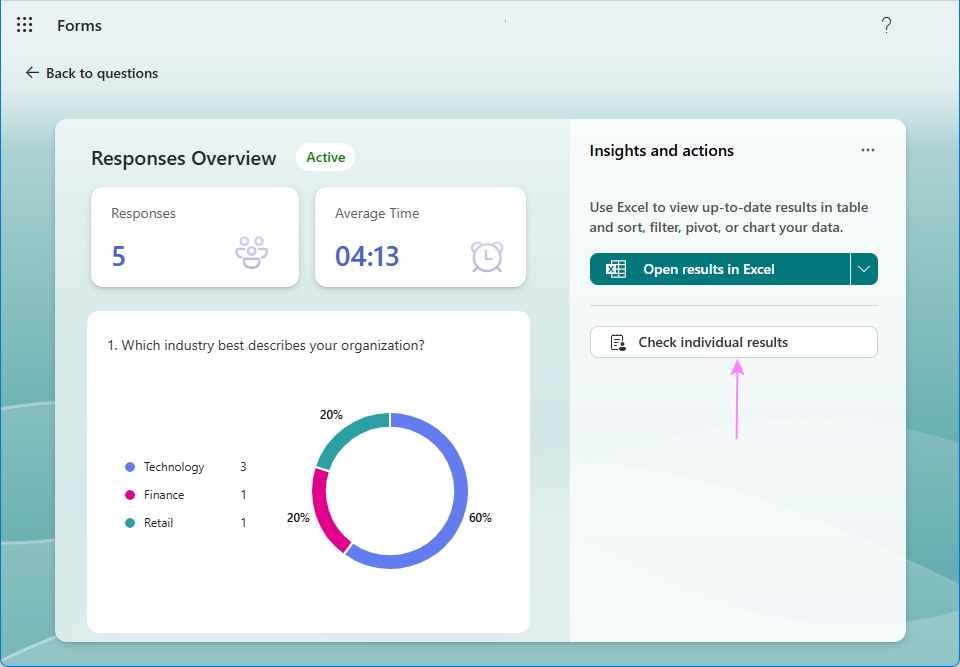
- In the upper-right corner, click View results.
- In the right pane, select Check individual results.
From there, you can see each response along with the name of the respondent.
How to close a poll in Outlook
When you no longer need to collect responses, you can close a poll to prevent further voting.
To close a poll in Outlook:
- Go to the Sent Items folder.
- Find and open the email that contains the poll.
- At the bottom of the poll card in the message, click Close poll.
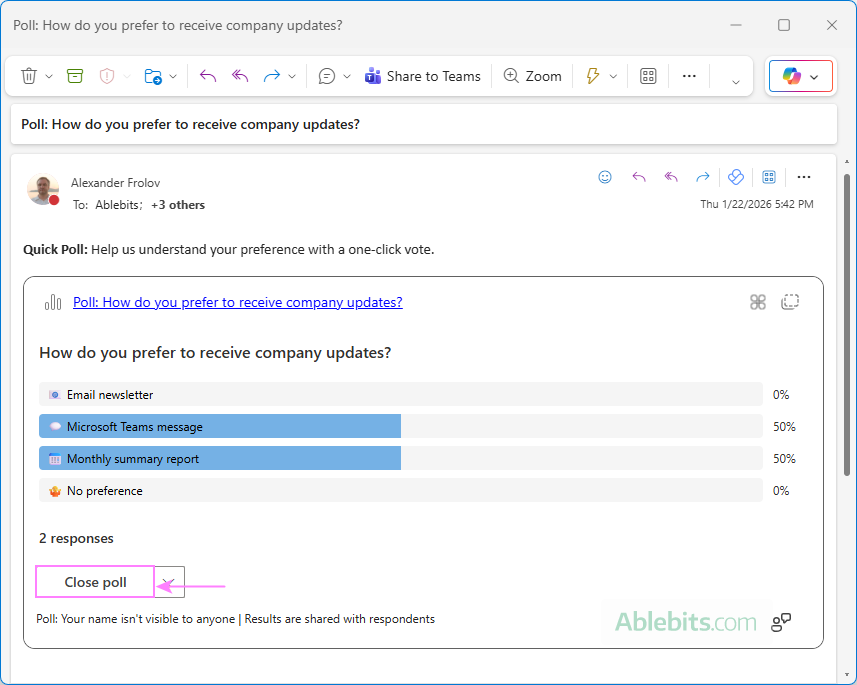
Once the poll is closed, recipients will no longer be able to submit responses, but you can still view the results.
Why is Outlook poll not showing in an email?
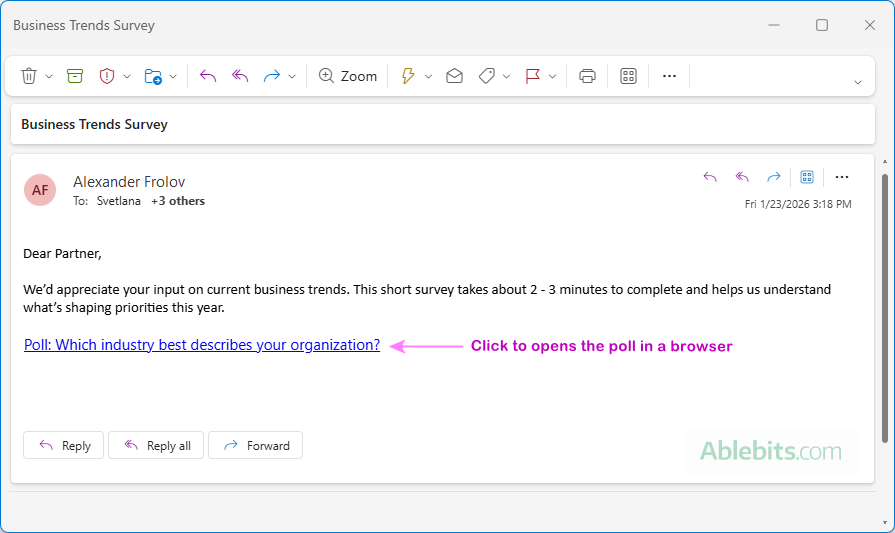
Sometimes, recipients may only see a link instead of the poll itself. This can happen for several reasons:
- The recipient opens a message in an email client other than Outlook.
- The recipient is using a personal Microsoft account such as Outlook.com or a third-party email account like Gmail or Yahoo linked in Outlook.
- The poll is too long, for example, the title is lengthy or there are many questions and answer options.
- The poll includes very large images, which prevent it from displaying in an email.
Even when the poll doesn't appear in the message, recipients can still open the link and vote in their browser.
Poll option missing in Outlook
If you don't see the Poll button in Outlook, it's usually related to your Outlook version and account type. Try the troubleshooting checks below to identify and fix the issue.
Confirm your Outlook version
Make sure you are using a supported Outlook version. Older or unsupported versions may not show the Poll function. Installing the latest Outlook updates can often resolve this issue.
Check your account type
The Poll feature is available only for Microsoft 365 work or school accounts. If you're signed in with a personal Outlook.com account or a third-party account, the Poll option won't be available.
Restart Outlook
In classic Outlook, the Poll button may sometimes disappear from the ribbon after switching between accounts that don't support it, such as Outlook.com or Gmail. Even after switching back to a Microsoft 365 business account, the button may be unavailable. In this case, a simple restart of Outlook usually restores the Poll function.
Look in the right place
Depending on your Outlook application, Polls may be located under:
- New Outlook and web: Message tab > Apps > Polls.
- Classic Outlook 365 – 2016: Insert tab > Poll.
Tip. If the Poll button is still missing in Outlook, you can create your poll in Microsoft Forms and share the link in an email.
In conclusion, sometimes all it takes is one question. Outlook's polling tools make it easy to ask, answer, and view results, without long reply chains. Give it a try in your next email and see how quickly responses roll in.