 by
by This article focuses on using the built-in Newsletters feature in the new Outlook and web, with step-by-step guidance on creating, editing, and publishing. It also covers shared email newsletter templates and alternative options for Outlook 365 - 2016.
Sending a newsletter is a simple way to stay in touch with clients, colleagues, or community members. With the new Outlook app and Outlook on the web, you can now create and send well-structured updates, reports, and other internal communications right where you already work, without any extra tools.
Newsletters in new Outlook and Outlook on the web
The new Outlook app and the online version now include a built-in feature that lets you create professional, ready-to-send email newsletters within Outlook. You can use templates, include images and videos, add different sections, headings, bullet lists, and tables to organize your content. Predefined layouts help you put a newsletter together quickly and with minimal effort.
Newsletters are integrated into Outlook alongside email, calendar, and other modules, so users can find and subscribe to them directly from their Outlook application.
Outlook Newsletter structure
Newsletters in the new Outlook are organized into four main parts:
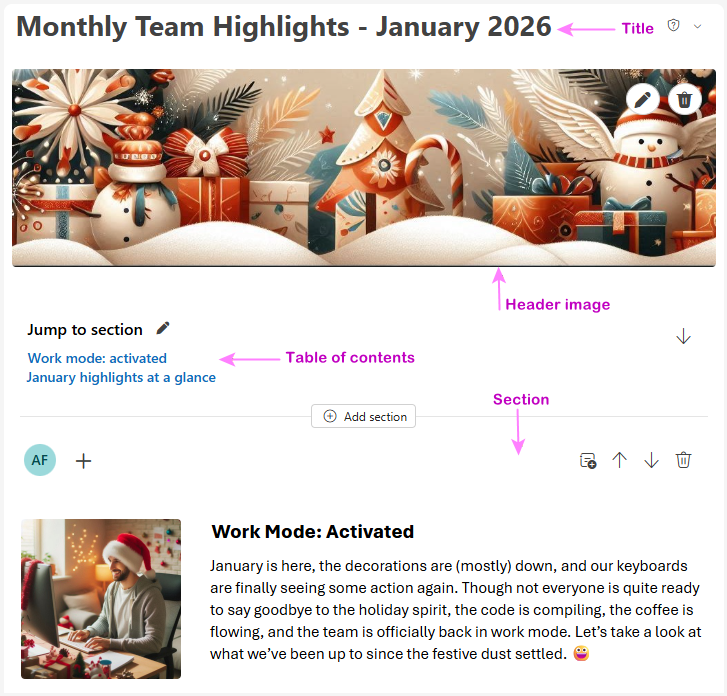
- Title. It is the main heading of the newsletter edition. This appears at the top and identifies the specific issue.
- Header image. By default, the header image from the newsletter series is used, which is displayed at a default width of 704 px with a 16:9 aspect ratio. You can replace it with a different image or remove entirely.
- Sections. These are building blocks of your newsletter. Each edition can have one or several sections that contain different types of content such as text blocks, images, or videos. Multiple contributors can work on the same section.
- Table of contents (optional). Provides an outline, helping readers navigate longer editions more easily.
Advantages
Outlook Newsletters offers several useful features that make it a convenient option for internal email newsletters.
- Integrated into Outlook. Newsletters are managed entirely inside Outlook, so there's no need to use a separate app or web service.
- Newsletter templates. Outlook provides several built-in templates that give you a solid starting point, even if you don't have design skills. You can also save newsletters you create as custom templates and reuse them for future editions.
- Team collaboration. You can create editions together with colleagues to review content, make edits, and finalize the edition as a team.
- Reader engagement. Readers can react to the newsletter or its individual sections (for example, by giving a thumbs-up) and they can leave comments to share feedback.
- Basic analytics. Newsletter authors have access to basic analytics showing how many recipients opened the newsletter and how many reactions or comments it received.
Limitations
While Outlook Newsletters looks promising, it does have several important limitations that can affect how and where it can be used.
- Available only in the new Outlook app and Outlook on the web; not supported in classic Outlook.
- Requires a Microsoft 365 subscription.
- Designed for internal communications only; newsletters cannot be sent to external recipients.
- Provides only basic analytics and does not include advanced features found in dedicated email marketing tools, such as audience segmentation, A/B testing, click-through tracking, etc.
In short, Outlook Newsletters is not intended to replace CRM or email marketing platforms. It serves a different purpose: sharing internal updates within an organization from Outlook.
Enable access to Outlook Newsletters
Outlook Newsletters is an optional feature that must be enabled before use. Access to the feature is controlled by your organization's administrator through mailbox policies. In particular, the admin sets the OutlookNewslettersAccessLevel property, which defines the level of access to Outlook Newsletters, to one of these values: ReadWrite, ReadOnly, or NoAccess (default).
Additionally, two more properties can be configured:
- OutlookNewslettersReactions – Enables or disables the engagement features that allow recipients to react to newsletters and add comments.
- OutlookNewslettersShowMore – Enables or disables recommendations included in the footer of a published newsletter.
For full details, please refer to Microsoft documentation.
Once your admin has enabled Outlook Newsletters for your mailbox, you can start creating and sending your email newsletters right away. The sections below walk you through the process from start to finish.
How to create a newsletter in new Outlook
In the new Outlook, newsletters are created as a series that can include multiple editions over time. You start by setting up the series, including its name, visibility, and ownership.
The steps are:
- In the new Outlook navigation bar, click Newsletters. In Outlook on the web, you can access the feature by opening outlook.office.com/newsletters.
- On the Home tab, click the Create newsletter button. A setup form opens where you define the common elements for the series.
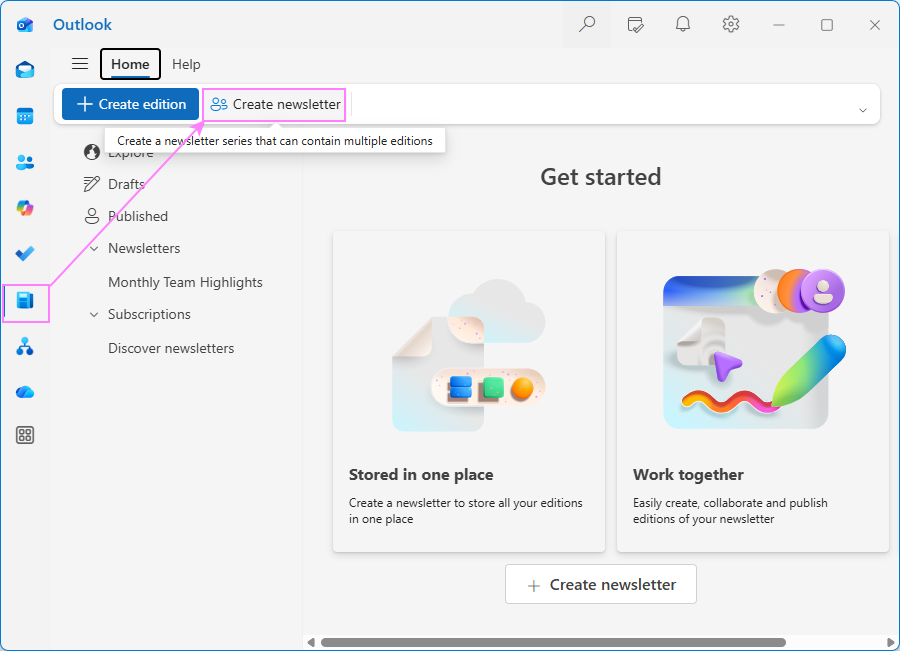
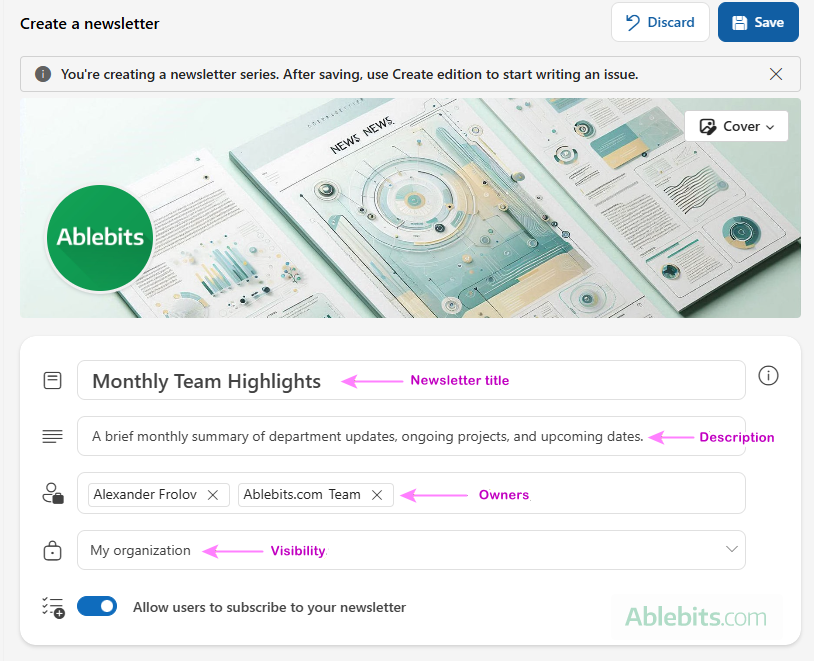
- Enter a title. It appears in the header of every edition and in recommendations and search results within Outlook.
- Optionally, add a short description to explain the purpose of the newsletter.
- Add additional owners. Each newsletter must have at least two owners and can include up to 100 co-owners. Co-owners have the same permissions as the original creator, including access to analytics, subscriber lists, and data export.
- Choose the visibility setting:
- My organization – Anyone in your organization can view and subscribe.
- Unlisted – Any user with a direct link can access and subscribe.
- Private - Only invited users can access; subscriptions are not available.
- Customize the header image and logo to personalize the newsletter. You can select from stock images or upload your own.
- Turn the subscription toggle on or off to allow or prevent users from subscribing.
- When all is done, click Save.
How to create a newsletter edition in Outlook
Once you've created at least one newsletter series, you can start drafting individual editions.
- On the Home tab in Newsletters, click Create edition.
- Choose a template. Depending on your needs, you can select one of the following options:
- Blank template – Start designing your newsletter from scratch.
- Built-in template – Use a ready-made layout as a starting point.
- Custom template – Reuse a template you've saved previously.
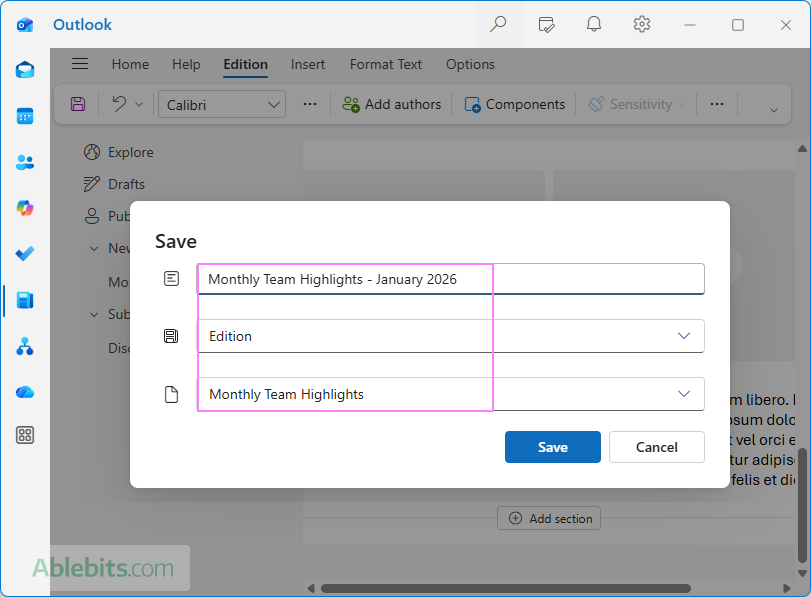
- In the Save dialog that appears:
- Enter a title for the edition.
- From the Type dropdown, select Edition.
- From the Newsletter dropdown, choose the series where this edition should be saved.
- Click Save to create the draft.
At this point, your edition is available as a draft. If you selected a blank template, the draft will be empty. If you chose a built-in or custom template, it will include prefilled sections. You can now open the editor and start adding your content.
How to make Outlook newsletter template
If you plan to publish newsletters regularly, you can save time by designing the layout once and reusing it as a template.
In the new Outlook, newsletter templates work similarly to editions, but they can't be published. Templates also don't support inviting authors or contributors.
To create a custom newsletter template, carry out these steps:
- In Newsletters, on the Home tab, click Create edition.
- Choose a template with a layout closest to what you want to use.
- In the Save dialog, do this:
- Enter a title for the template.
- From the Type dropdown, select Template.
- Select the newsletter series to associate with the template.
- Click the Save button.
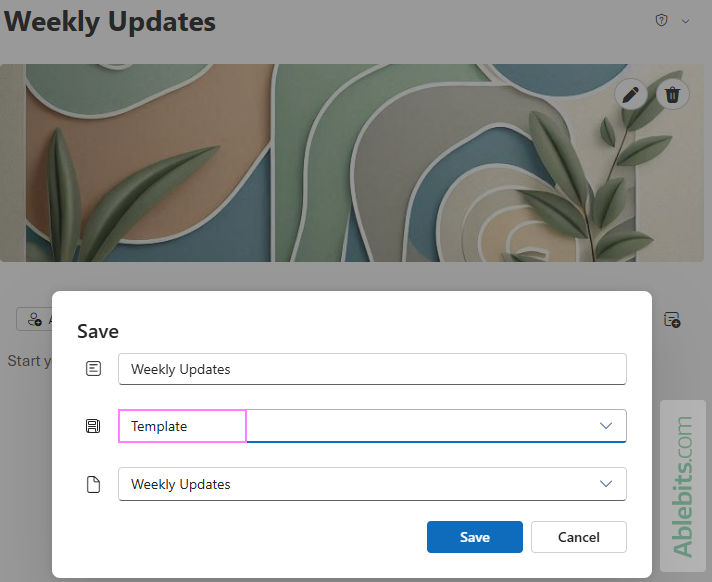
Now, your custom template appears alongside the inbuilt templates. You can edit it just like a newsletter edition: add components, images, text blocks, etc.
Custom templates are linked to a specific series, allowing only the owners of that newsletter to reuse them when creating new editions.
How to edit an Outlook newsletter
After creating a newsletter edition, you can open it in the editor to add content, adjust the layout, and collaborate with others.
- In the left pane of the Newsletters module, select Drafts.
- Find the draft you want to work on and click Edit.
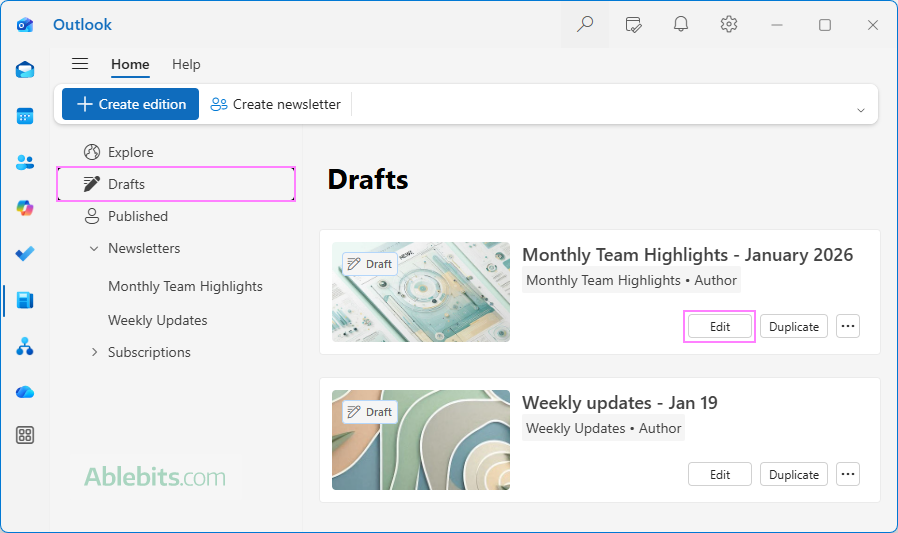
The newsletter editor opens, allowing you to start writing, insert images, and organize sections. As you work, the changes are saved automatically.
Manage newsletter sections
Each Outlook newsletter is made up of one or more sections, which you can customize, reorder, or remove as needed.
- To add a new section, click the Add section button, and then select the desired components.
- To change the order of sections in your newsletter, use the up and down arrows.
- To remove a section, click the trash bin icon.
Removed sections aren't permanently deleted right away. You can find them under the Deleted sections toggle near the top of the editor and select Restore section to bring them back.
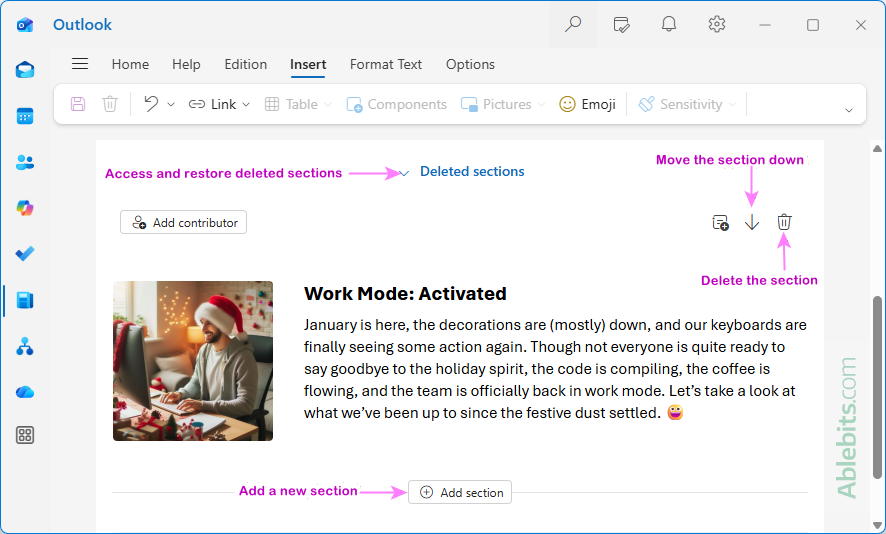
Add or remove section components
Components are pre-designed layout elements that can be added to different sections of your newsletter to enrich the content. Four types are available: Text & Image, Images, Styled Quote and People.
To add a component:
- In the target section, place the cursor where you want the component to appear.
- On the ribbon, go to Edition tab and click Components.
- In the Components pane, choose the element you want to add.
When creating a new section, you can also click Add component at the bottom of the section.
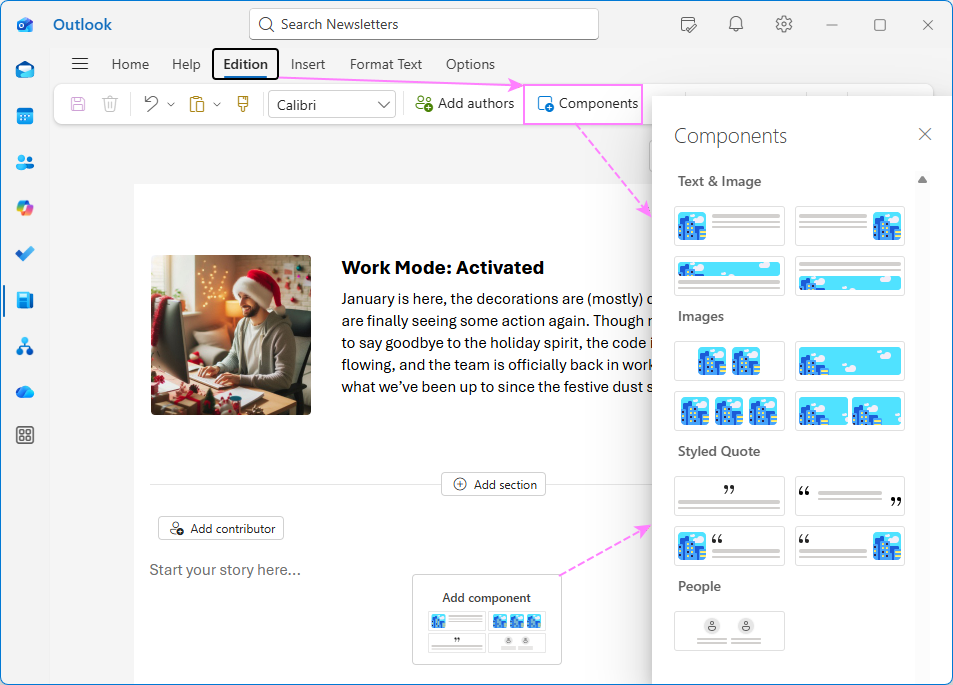
To delete a component:
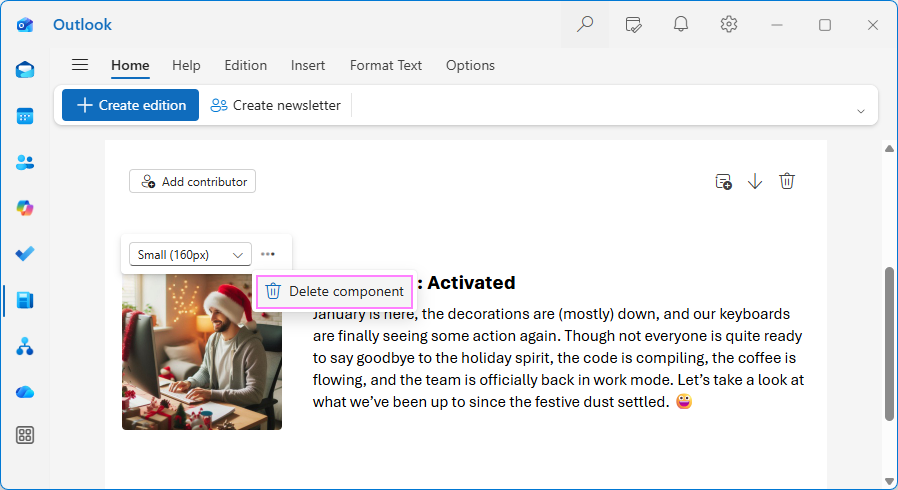
- Hover over the component in the editor.
- Click the three-dots in the upper-left corner and select Delete component.
Manage pictures
This section explains how to insert and update pictures in your Outlook newsletter.
Add an image
To add a new picture to the email newsletter:
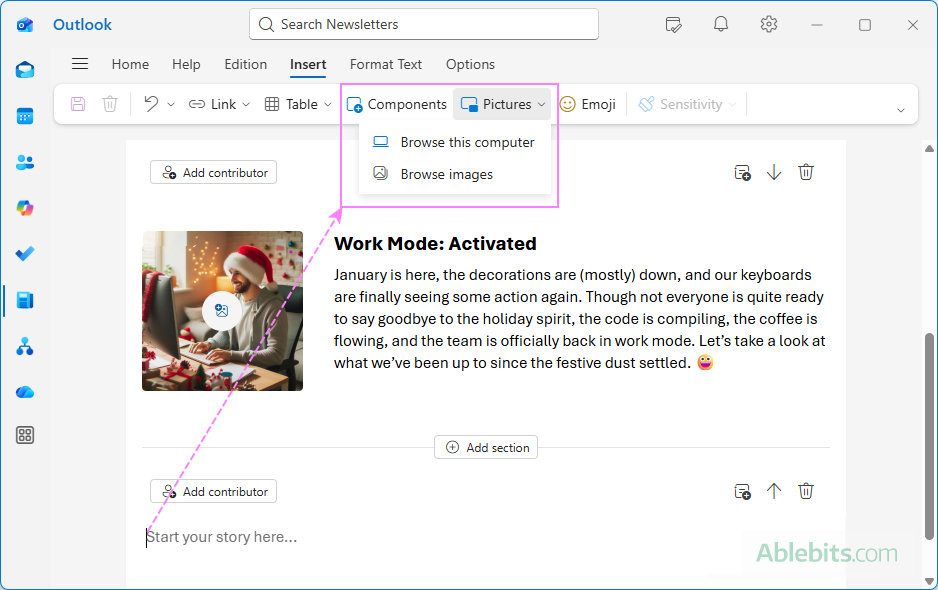
- Place the cursor where you want the image.
- Go to the Insert tab and select Pictures.
- Choose one of the following options:
- Browse this computer to upload an image from your device.
- Browse images to search and select a stock image.
You can also copy an image from another location using Ctrl + C and paste it into the newsletter from the clipboard using Ctrl + V.
Replace an image
Click the Edit button in the current image or its placeholder, and then upload a visual from your computer to replace it.
Edit an image
Select the image in the newsletter to access the Picture Format tab. From there, you can add borders and shadows, crop, rotate, or resize the image, add alternative text, and more.
Delete an image
To remove an image, select it and press the Delete on your keyboard.
Note that preset images that are part of certain layout components can't be removed, only replaced.
Edit text elements
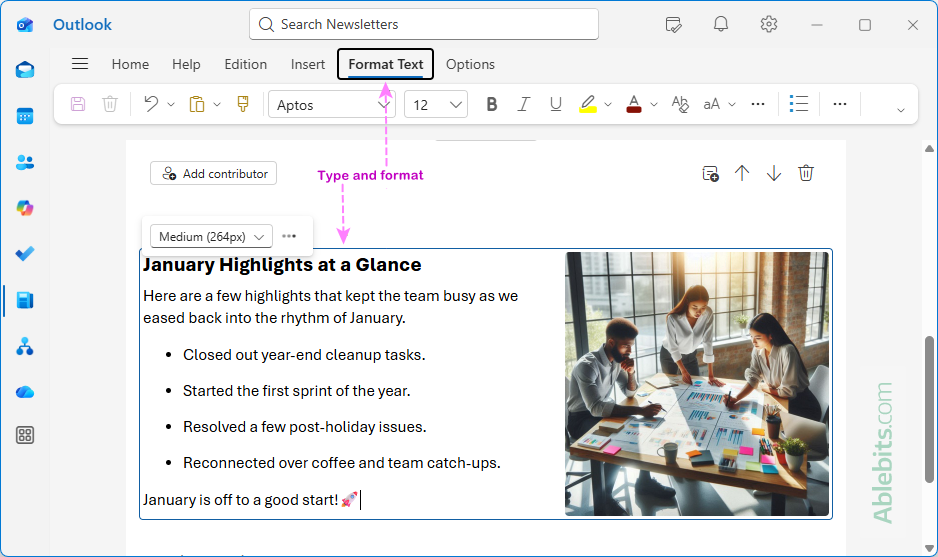
Editing text in a newsletter is straightforward. To change any text element, including headings and section paragraphs, click right into the text and start typing.
Use the options on the Format Text tab to adjust the appearance of your content. You can change font styles and sizes, apply bold or italics, adjust alignment, and use bullet lists to make sections easier to read.
Insert hyperlinks, tables, emojis
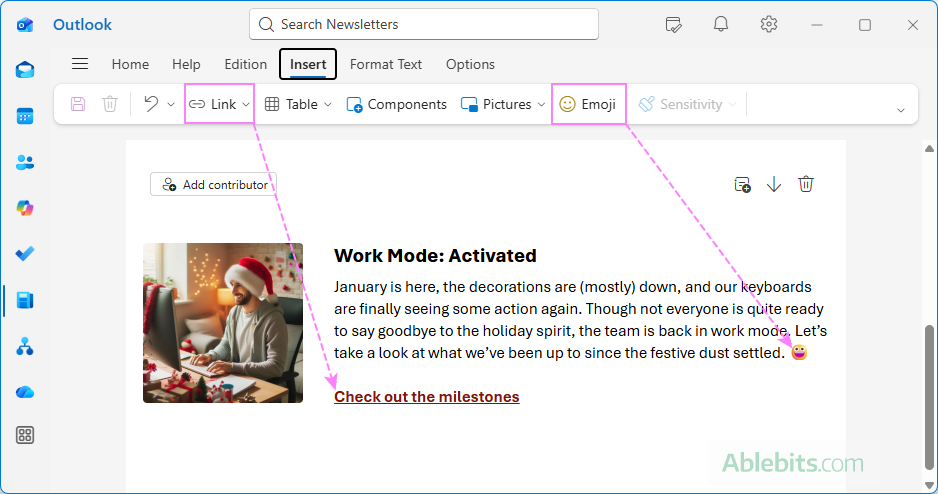
You can add different content elements and control their formatting using the ribbon in the newsletter editor:
- Use the Insert tab to add images, links, tables, and emojis.
- Use the Format tab to change the visual appearance of text elements.
Keep in mind that images and tables can't be inserted or edited inside preset components. If these options appear grayed out on the ribbon, place your cursor outside any existing component in the newsletter draft, then insert the element.
Tip. To make sure your newsletter content is accessible and appropriate for all readers, use the Accessibility and Sensitivity tools on the Options tab.
Include a table of contents in the newsletter
You can add a table of contents to help readers jump directly to the sections they're most interested in.
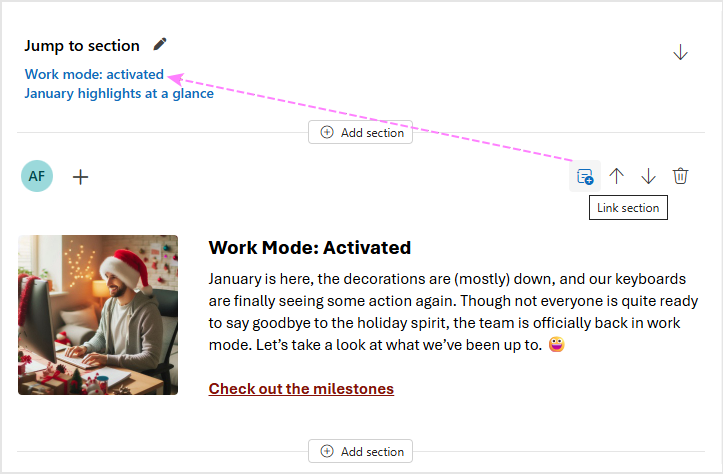
- In the newsletter editor, click the Link section button in the upper-right corner of a specific section.
- Enter the text you want to appear in the table of contents. This can match the section heading or you can use a different label.
Only the sections you link this way appear in the table of contents. You can edit it later by clicking the pencil icon.
Collaborate on Outlook newsletter
Outlook Newsletters supports two collaboration roles: co-authors and contributors.
Co-authors can edit and send newsletter editions. To add a co-author, click the icon next to your profile picture above the title or use the Add authors button on the Edition tab of the ribbon. Each edition can have up to 25 co-authors.
Contributors can edit only specific sections. To invite one, click Add contributor at the top left of a section. Each section allows up to 30 contributors.
Co-authors and contributors receive an email invitation, and they can find their assigned editions under Drafts in the newsletter navigation panel.
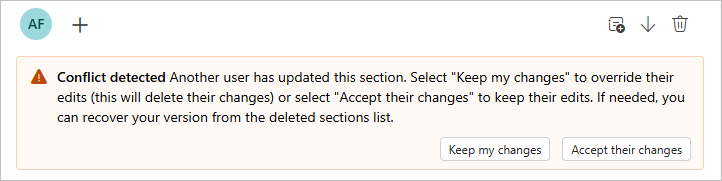
Outlook Newsletters doesn't support real-time collaboration or version history. If multiple users edit the same section at the same time, the second person will see a conflict message. You can then choose to: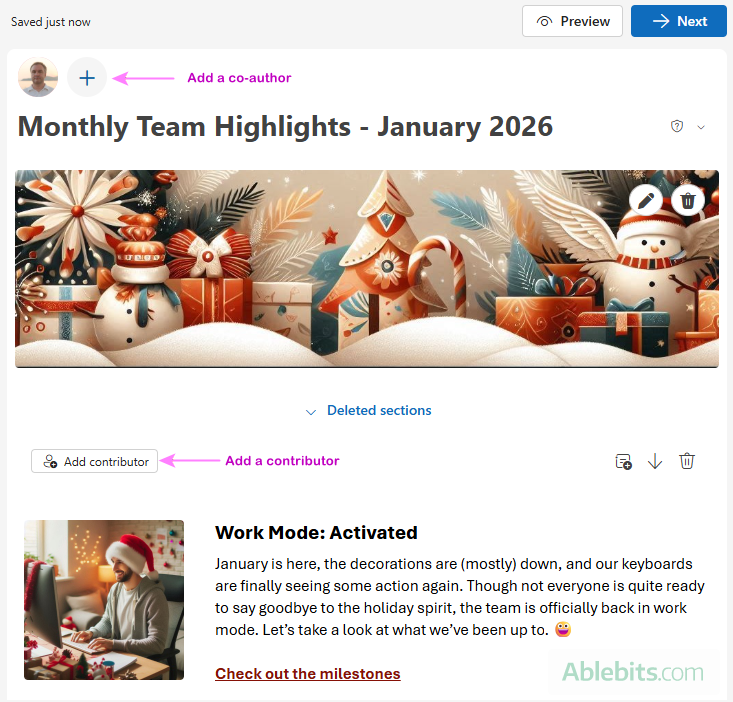
Resolving editing conflicts
Preview a newsletter in Outlook
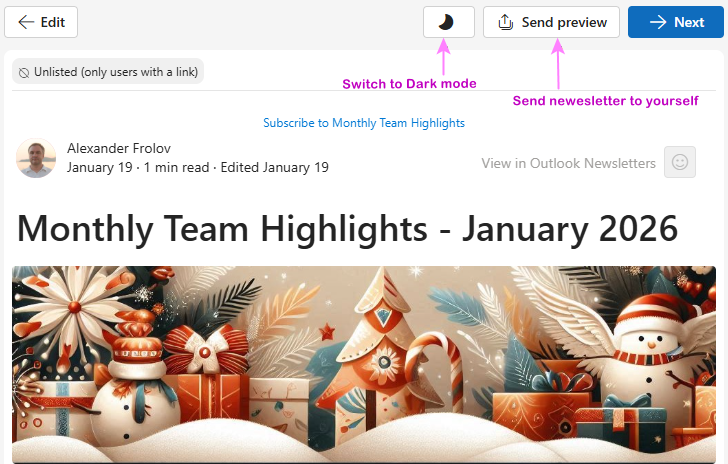
To see how your newsletter edition looks in its current state, click Preview at the top of the editor.
In preview mode, you can click Send preview to email a copy to yourself. This lets you check how the newsletter appears in classic Outlook, Outlook mobile, and other email clients.
To view the newsletter in dark mode, turn on the Switch to Dark mode toggle.
When you're ready to continue editing, click Edit in the upper-left corner to exit preview mode.
Send a newsletter in Outlook
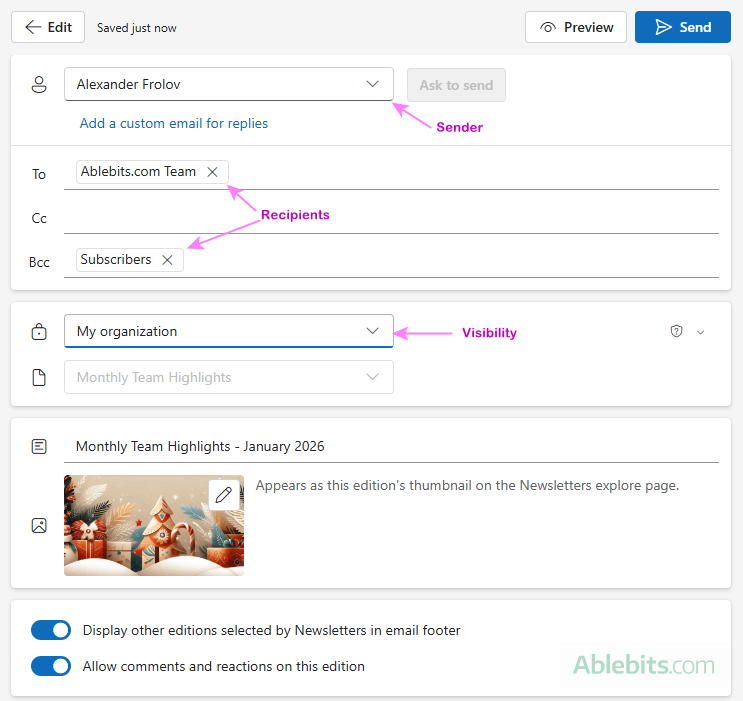
When your edition is ready, click Next in the upper-right corner of the editor and configure the following settings.
- Sender. By default, the edition is sent by the primary author. If you have permission, you can send on behalf of another user or ask a co-author to send the edition.
- Recipients. Add recipients to the To, CC, and BCC lines. Newsletter subscribers are included in BCC automatically. Recipient limits depend on your organization's sending policies. Distribution lists count as a single recipient. External recipients aren't supported and are removed before sending.
- Visibility. An edition can have more restricted visibility than its parent series.
- Unlisted editions are accessible only by direct link and don't appear on the Explore page.
- Private editions are visible only to selected recipients and newsletter owners.
Click Send in the upper-right corner to publish the edition and deliver it to the selected recipients.
Manage published newsletters
After a newsletter edition is published, you can still edit and manage it.
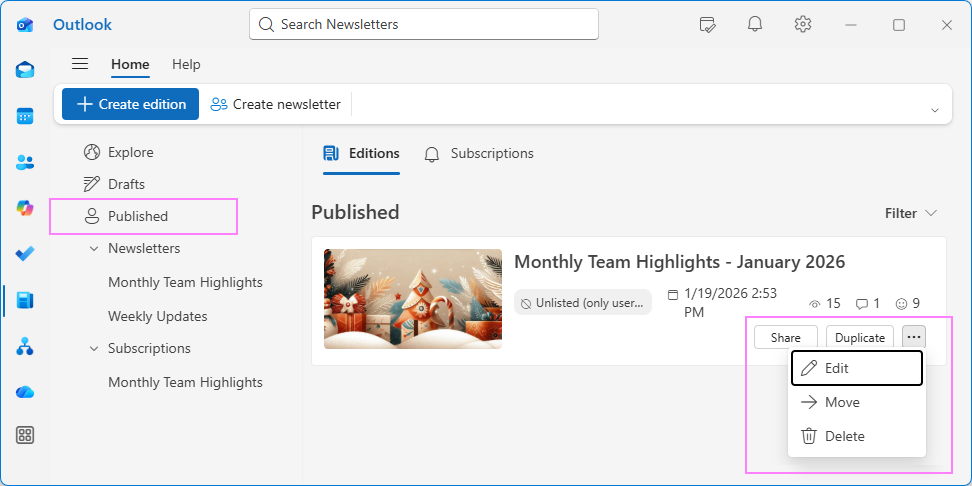
- In the Newsletters module, select Published in the left pane.
- Locate the edition you want to manage.
- Click the three-dot menu in the lower-right corner of the edition card and choose an action:
- Edit – Make changes and optionally re-send the edition.
- Move – Move the edition to a different series without re-sending it.
- Delete – Remove the edition.
To restore a deleted edition, switch to the Deleted tab in the Newsletters view and select Restore for a certain edition.
View newsletter analytics in Outlook
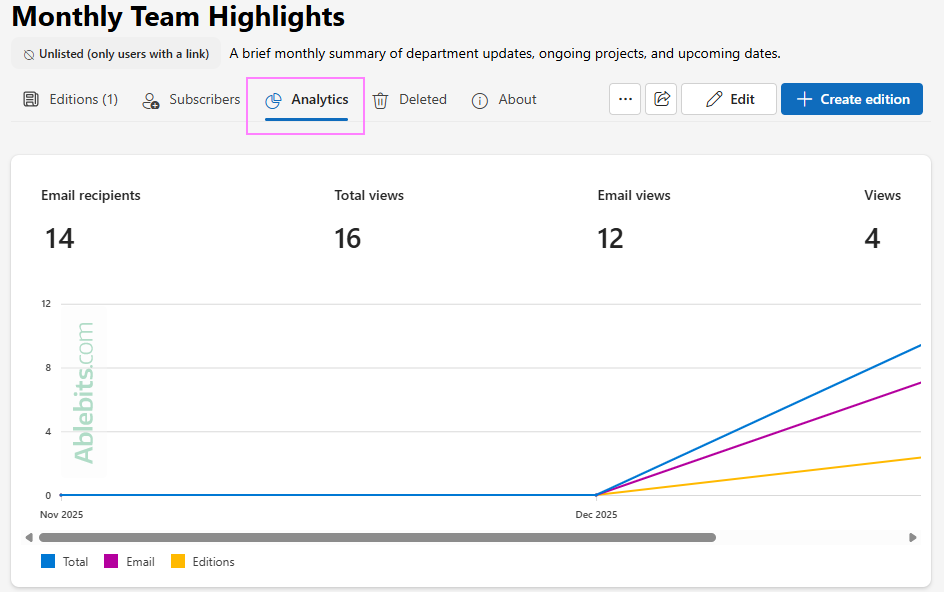
To view analytics for a newsletter or its specific edition, select it under Published, and then navigate to the Analytics tab.
The analytics provide basic insights, including:
- Views – How many times the newsletter series or a given edition was opened.
- Reader engagement – The number of reactions and comments received.
These metrics give a simple overview of how readers are interacting with your newsletters.
Explore newsletters in Outlook
To discover other newsletters in your organization, select Explore from the left menu. From there, you can browse available newsletters and subscribe to those that interest you.
The Explore page includes:
- Featured editions – Published editions ranked by reader engagement.
- New newsletters – Recently created newsletters.
Note. Newsletters with visibility set to Unlisted or Private don't appear on the Explore page.
How to make a newsletter in classic Outlook (365 – 2016)
The classic Outlook desktop app doesn't include the Newsletters feature. However, where there's a will, there's a way. Here are a few practical workarounds to create and send newsletters in Outlook using templates.
Outlook newsletter templates. Many third-party websites and services offer newsletter templates as .oft files. You can import these templates into Outlook desktop, customize the content, and use them for your email newsletters.
Newsletter templates from Word. You can download newsletter templates as .docx files or design your own in Microsoft Word. Once ready, copy it into Outlook and save as an email template. See how to copy content into Outlook keeping formatting and layout close to the original design.
HTML newsletter templates. If you've created a newsletter using an HTML editor, you can import the HTML code directly into an Outlook email. This gives you max control over layout and styling, especially for sophisticated designs.
If none of the above solutions works for you, try professionally designed email newsletter templates, adaptive and fully customizable, that are provided by Shared Email Templates described in the next section.
Shared newsletter templates for Outlook 365 – 2019, new app and web
If you are looking for responsive newsletter designs that work the same way everywhere, Shared Email Templates is a handy option.
Compared to the inbuilt new Outlook Newsletters, it has a number of key advantages:
- Works across all modern Outlook versions and platforms. Create a newsletter once and use it in Outlook on Windows and Mac, classic and new, desktop and web.
- No recipient limits. Send newsletters to any internal or external recipients without restrictions.
- Built-in personalization. Automatically insert recipient names into the greeting line or wherever you want in the message body, add personalized links or attachments, and more.
- Mail Merge on board. Send newsletters as regular emails or as part of an Outlook Mail Merge campaign using Excel mailing lists. You can also schedule delivery and get basic statistics.
- Custom HTML support. Design visually in the editor, fine-tune the HTML if needed, or import your own HTML code.
- Easy sharing. Share your newsletter templates with colleagues so everyone can use the same designs.
How to make a newsletter for Outlook using template
Using shared email newsletter templates is as simple as these 4 steps:
- Choose one of the predefined layouts and color themes.
- Customize the template by replacing placeholder text, images, and links. Adjust the structure and formatting if needed.
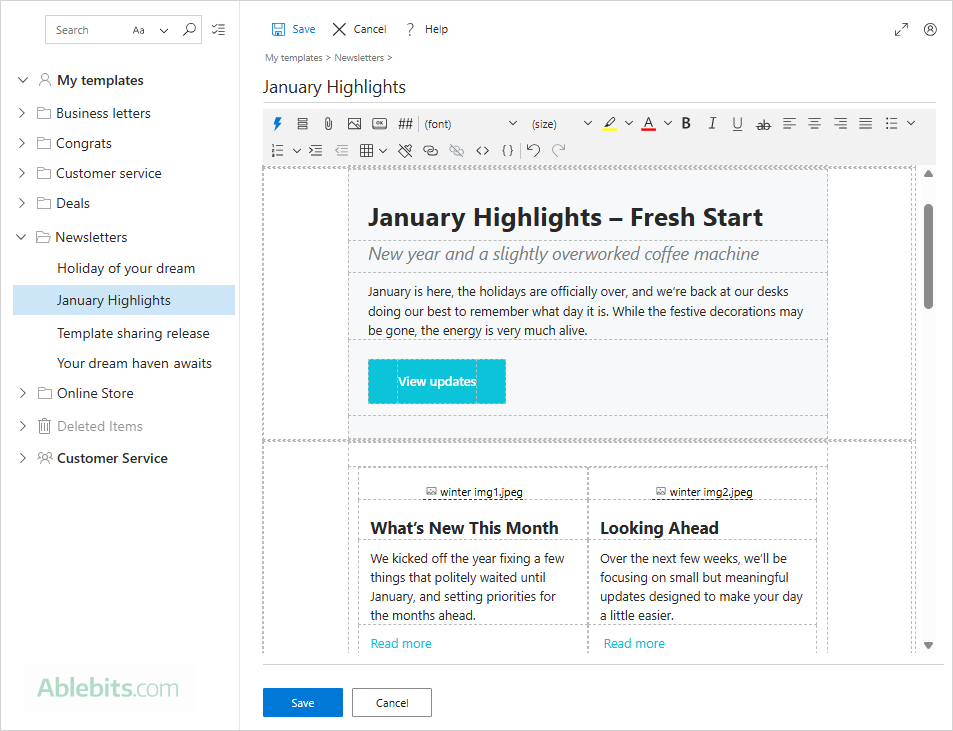
- Personalize the content for each recipient using merge fields.
- Insert the newsletter into an Outlook email with a click, review and send it.
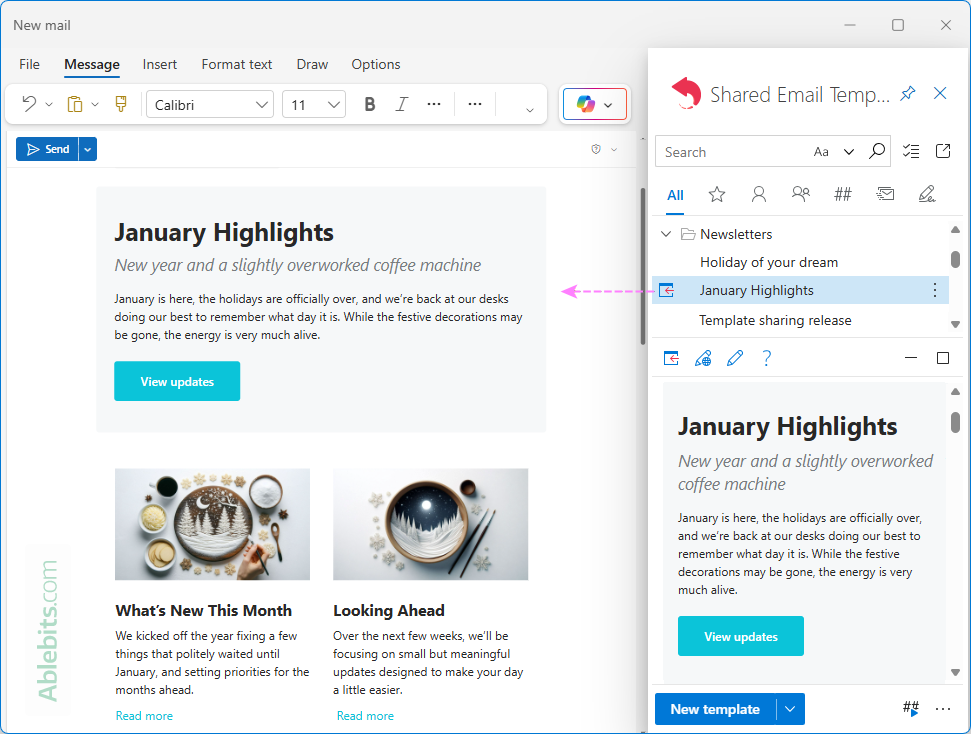
It's a simple, flexible approach that works well when you need responsiveness and personalization.
To learn more, see Outlook Mail Merge templates or download the free version from Microsoft Marketplace and test it in your own Outlook.
That's how to make and send newsletters in Outlook. There's no single "right" way, just use the option that fits your needs best 😊