 by
by This guide explains the most common reasons why Outlook is not opening and provides clear, practical solutions to get it running again. The fixes work for any version, from Microsoft 365 to Outlook 2016.
A few articles ago we discussed what can be done when Outlook is freezing and not responding. Today, let's see how you can fix and prevent an even worse scenario when your Outlook does not open at all.
Why won't Outlook open?
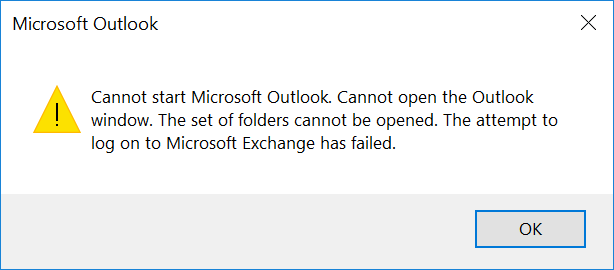
The main symptom of this problem is obvious and easily recognizable: you click Outlook's icon, an hourglass appears and is hanging for a while, and then you get the "Cannot start Microsoft Outlook" error.
Outlook usually fails to start when something prevents it from loading your profile or data files. Typical causes include:
- A damaged Outlook profile
- Corrupted PST data file
- A broken navigation pane configuration file
- Outlook running invisibly in the background
- Issues with the Outlook installation
- Conflicts with third-party add-ins
- Outdated versions of Outlook or Windows
Whatever the reason is, the outcome is the same - you cannot open the app because of this error: "Cannot start Microsoft Outlook. Cannot open the Outlook window. The set of folders cannot be opened."
How to resolve Outlook not opening problems
Now that you know what causes issues on Outlook startup, let's see how we can get them fixed. Below you will find the troubleshooting steps for the most common problems that prevent Outlook from opening, listed in order of frequency and efficiency.
Fix 1. Check if Outlook is already running
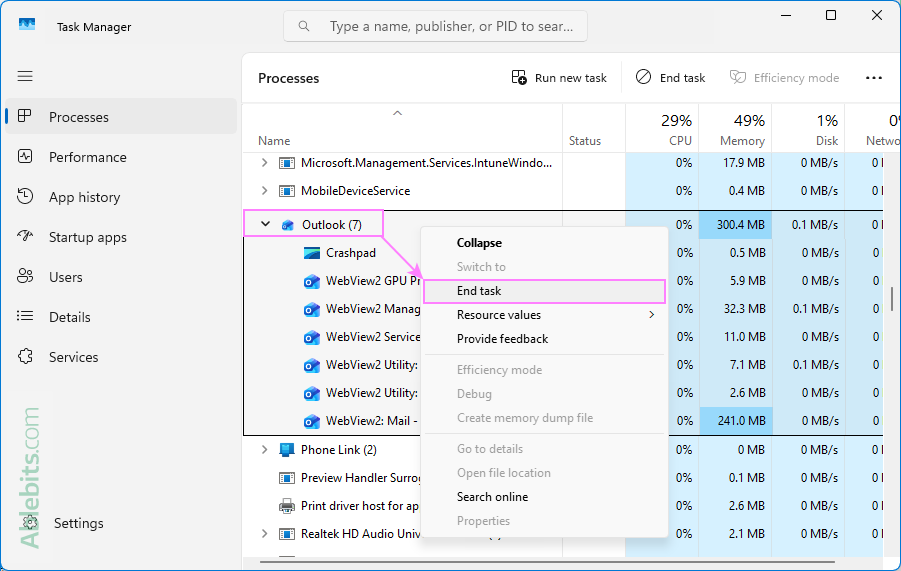
Before trying anything else, confirm that no Outlook processes are running in the background, preventing the app from starting anew.
- Press Ctrl + Shift + Esc to open Task Manager. Or right-click the taskbar and select Task Manager.
- Under Processes, look for Outlook items.
- If you see any, right-click it and choose End task.
- Try launching Outlook again.
If Outlook crashed silently earlier, this simple step often brings it back.
Fix 2: Start Outlook in Safe mode
Starting Outlook in safe mode actually means loading the app without any add-ins or custom settings. It's a quick way to check if a faulty plug-in or customization is interfering when Outlook tries to open.
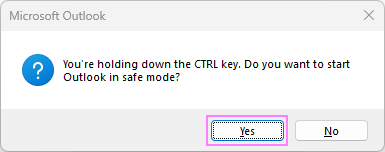
To run Outlook in safe mode, click on its icon in the Start menu or Windows taskbar while holding the Ctrl key. In a pop-up window that appears, click Yes to confirm.
Another way is to use the following command in the Run dialog: outlook /safe. If prompted, select your default Outlook profile and click OK to open it.
If Outlook starts fine in safe mode, one of your add-ins is likely to be the problem. Try to disable the add-ins one at a time to detect which one is causing the issue.
Fix 3: Install latest Outlook updates
Outdated builds of Outlook can sometimes cause startup issues, especially if a recent patch addressed a bug that affects how the app loads. A quick update may be all you need to get Outlook working again without further troubleshooting.
For detailed information, see how to update Outlook.
Also, keep in mind that support for Office 2016 and Office 2019 clients connecting to Microsoft 365 services ended in 2023. Microsoft has stated that these versions won't be intentionally blocked, but they are no longer tested with new Microsoft 365 services. As a result, users may encounter unpredictable connection problems, reduced performance, or features that no longer work as expected.
Fix 4. Reset Navigation Pane configuration file
The Navigation pane (the left-hand panel where you access Mail, Calendar, People, and Tasks) relies on a small XML file that stores its settings. When this file becomes corrupted, Outlook may fail to start. A noticeable sign of corruption is when the file shows a size of 0 KB in its folder. No one knows the exact reason why this happens, but all versions of Outlook from 2010 to Microsoft 365 may be affected.
Resetting the file usually resolves the problem without affecting your mailbox data. Here's how to do it:
- Press Win + R to open the Run dialog.
- Type the following command: outlook.exe /resetnavpane
- Press Enter or click OK.
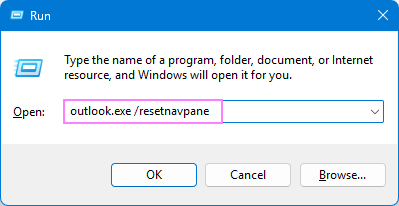
This command resets the navigation pane settings for your default Outlook profile if you have more than one. If no default profile is set, Outlook is expected to prompt you to choose one before the reset takes place.
Note. For the commend to work, be sure to type a space between outlook.exe and /resetnavpane.
Delete Navigation pane file
If the reset command doesn't fix the issue, you can delete the XML file. Outlook will recreate it automatically the next time it starts.
- Open the folder that contains the navigation pane file. For this, you can either:
- Go to:
C:\Users\<username>\AppData\Roaming\Microsoft\Outlook\profile_name.xml - Quickly access it by entering this path in File Explorer:
%appdata%\Microsoft\Outlook
- Go to:
- Locate the .xml file that has the same name as your Outlook profile and delete it.
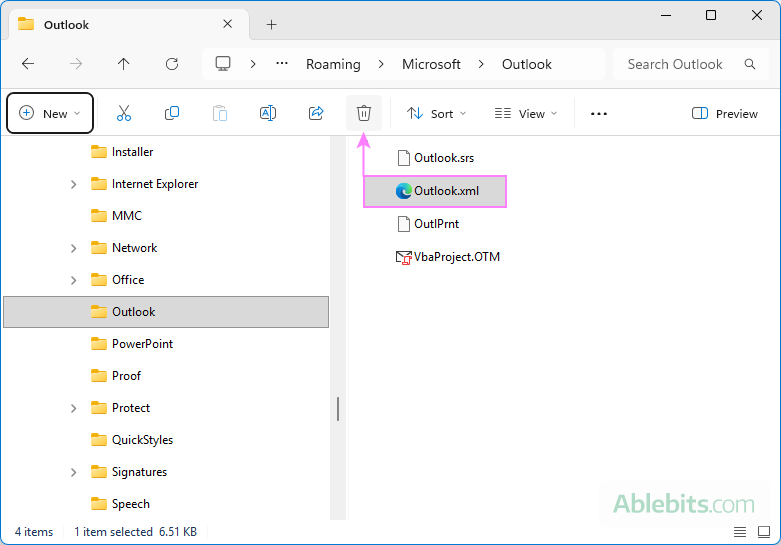
Note.Try the reset command first. Deleting the XML file is the last resort if other options don't work.
Fix 5. Repair Outlook data file (.pst)
A damaged PST file is a frequent reason Outlook won't launch. Corruption can occur after an interrupted update, a system crash, or issues with your drive. When the data file can't be read properly, Outlook may stop at startup.
Microsoft provides a built-in tool called SCANPST.EXE that can diagnose and repair problems with .pst and .ost files. Follow the instructions in the Repairing Outlook Data Files guide, let the tool run a full scan, and complete the repair process. Once it's done, try opening Outlook again. If it launches normally, you are all set and do need the rest of the troubleshooting steps :)
Tip. If your account uses an .ost file (Exchange or IMAP), you can delete the OST instead of repairing it. Outlook will recreate it automatically the next time it starts.
Fix 6. Change the default Outlook account
If you have more than one account set up in Outlook, startup issues can occur when the program can't access the default PST file. The file itself may be perfectly fine, just temporarily unavailable. For example, when the file is stored on a network share or in a cloud folder like OneDrive that can't be reached at the moment. It can also happen if the PST file was moved or deleted. When Outlook can't locate the primary data file, it may refuse to open.
If this sounds like your situation, switching the default account (and consequently the default data file) can help. Here is how to do this without opening Outlook:
- Go to Control Panel > Mail.
- In the Mail Setup window, select Data Files… .
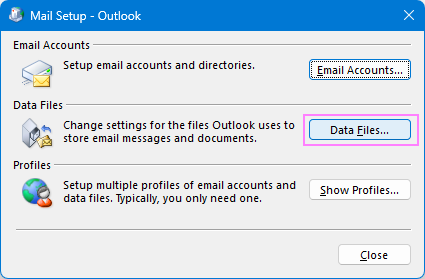
- In the Account Settings window, choose another account that has a valid data file and click Set as Default.
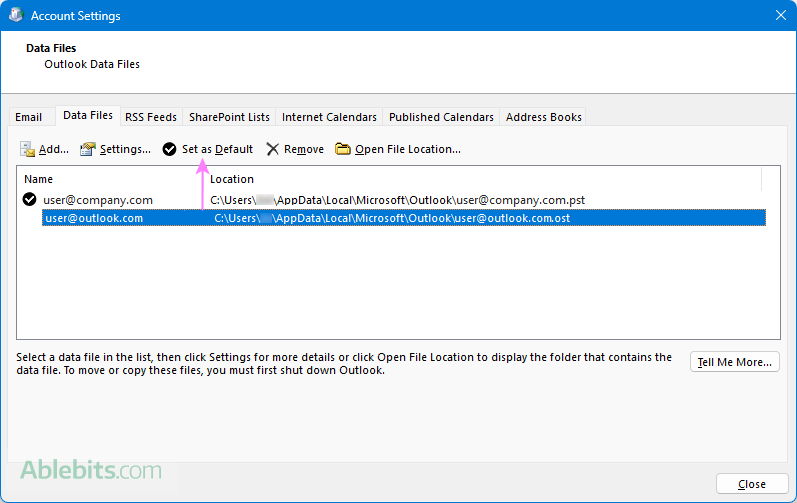
Once the default account is changed, try starting Outlook again. If the original data file becomes available later, you can switch back at any time.
Fix 7. Repair Microsoft 365 or Office
If Outlook's program files are damaged or incomplete, repairing the installation usually resolves the issue. Here is a quick way to do this:
- Navigate to Settings > Apps > Installed apps.
- Find Microsoft Office or Microsoft 365 in the list.
- Click the 3-dots to the right of the app and select Modify.
- Pick Quick Repair first. Once the repair finishes, restart your computer and try opening Outlook again.
- If Outlook still won't open, try Online Repair.
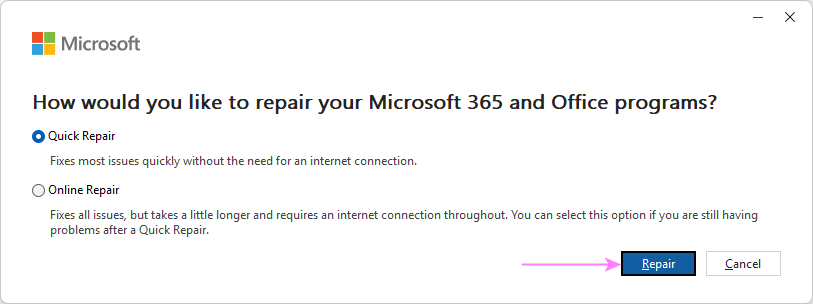
For more details, see How to repair Outlook 365 – 2013.
Fix 8. Create a new Outlook profile
If neither repairing the data file nor fixing the Microsoft 365 installation helps, the problem may lie in your Outlook profile.
Opening Outlook with a new profile can help you determine whether the original one is corrupted. The steps are:
- Create a new profile. Go to Control Panel > Mail > Show Profiles > Add. Enter a name for the new profile and click OK.
- Add a single account. Follow the prompts to add your email account. If possible, start with an Exchange-based account as it syncs with the server and usually avoids issues related to local Outlook data files.
- Choose to be prompted for a profile. After the profile is created, enable Prompt for a profile to be used, then click OK.
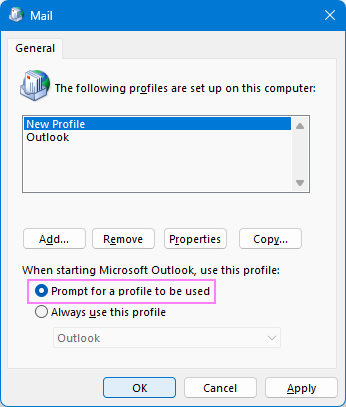
- Test Outlook. Launch Outlook with the new profile. If it opens normally, you can begin adding your other accounts.
- Import data. If you have a POP3 account, you can try importing emails and other data from your old PST file.
Note. If the original PST file is severely damaged and repair attempts weren't successful, you may see this error message again: "Cannot start Microsoft Outlook. The set of folders cannot be opened." In that case, the only way is to use the new profile without bringing data from the corrupted data file.
For more information, see how to create a new Outlook profile.
How to fix startup issues with the new Outlook app
If you are using the new Outlook for Windows and it won't open, the underlying causes differ from the classic desktop version. The new app doesn't rely on local .pst or .ost files, so issues related to corrupted data files don't apply here.
To troubleshoot the new Outlook not opening:
- Check for hanging processes in Task Manager and end any stuck Outlook instances.
- Restart the computer to clear temporary glitches.
- Update the new Outlook so it receives the latest fixes.
- Repair or reset the new Outlook app using Windows Settings if it still refuses to open.
These steps address the most common reasons when the new Outlook fails to start.
Additional tips
Below are a few more ideas can help you pinpoint what's preventing Outlook from opening:
- Temporarily disable antivirus email scanning. Some security tools interfere with Outlook's startup, especially if they scan data files.
- Check free disk space. Low storage can cause Outlook to pause or fail when loading accounts.
- Disconnect external devices. Occasionally, issues with mapped network drives or external storage paths referenced by Outlook can block startup.
- Look for error codes. If Outlook shows a specific error code, note it down, and then research for a targeted fix on the web.
These small checks often reveal overlooked problems and can save you time before moving on to more advanced troubleshooting.
Hopefully one of the solutions described in this article has helped you get your Outlook opening again. If you've found another fix that worked for you, feel free to share it in the comments. Your experience might help someone else facing the same problem. Thank you for reading!