 by
by Find out how to delegate tasks in Outlook and monitor their progress without constant follow-ups.
Have you ever sent an email that says "Can you take care of this?" to someone and then wondered a few days later if anything actually happened? Obviously, emails are easy to ignore, especially when they look like everything else in the inbox. Creating and assigning a formal task can add structure to the chaos. Instead of hoping your message doesn't get buried, you can delegate tasks to other people with a due date, status, completion percentage, and a much better chance of getting done.
How to assign a task in Outlook
When creating a task in the classic Outlook app, you can assign it to a specific person right away. Here's how to do it:
- On the Outlook navigation bar, select Tasks.
- Create a task by clicking the New Task button on the ribbon or using the Ctrl + Shift + K keyboard shortcut.
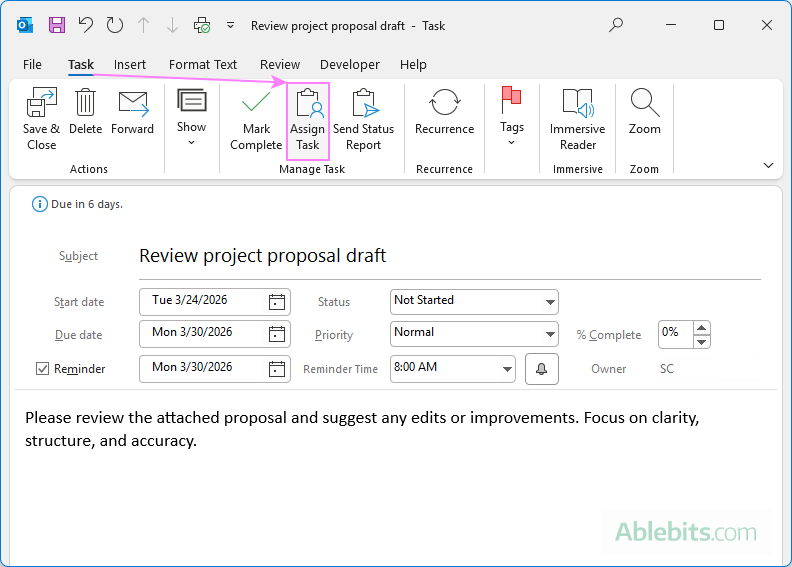
- On the Task tab, in the Manage task group, click Assign Task.
- Enter the email address or the name of the person responsible in the To box.
- Fill in other fields such as Subject, Start date, Due date, Status and Priority.
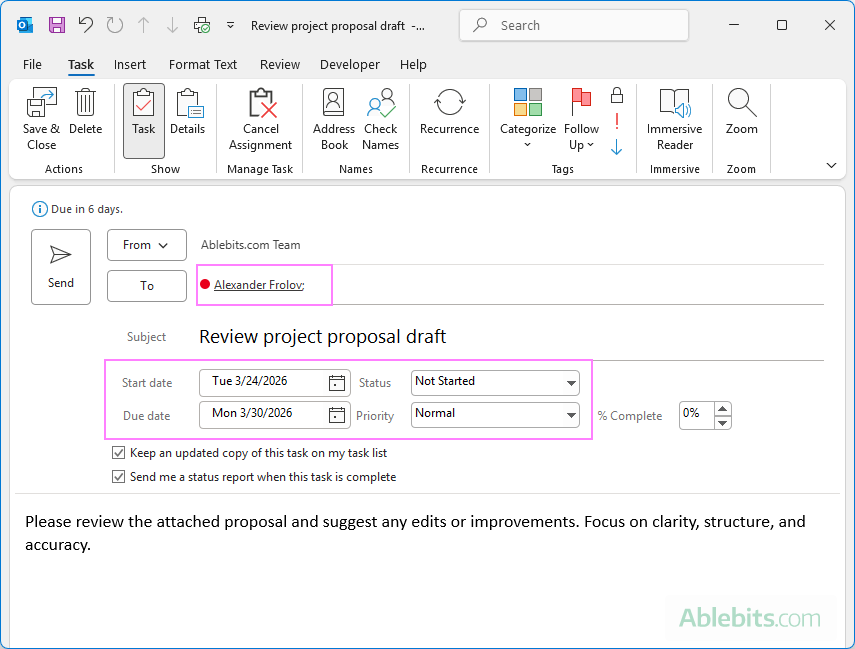
- Choose additional options:
- Keep an updated copy of this task on my task list – lets you track progress from your own task list.
- Send me a status report when this task is complete – notifies you when the task is marked as finished.
- Click Send.
Once sent, the recipient will receive the task assignment and can accept or decline it. After accepting, it is automatically added to their Outlook tasks, and the recipient becomes the task owner. Any updates they make can be shared with you, depending on the options you selected.
How to assign an existing Outlook task to other people
If you've already created a task and later decide to delegate it to someone else, you don't need to start over. Outlook lets you assign an existing task in just a couple of quick ways.
Method 1: Use the right-click menu
This is the fastest way to delegate an existing task in Outlook.
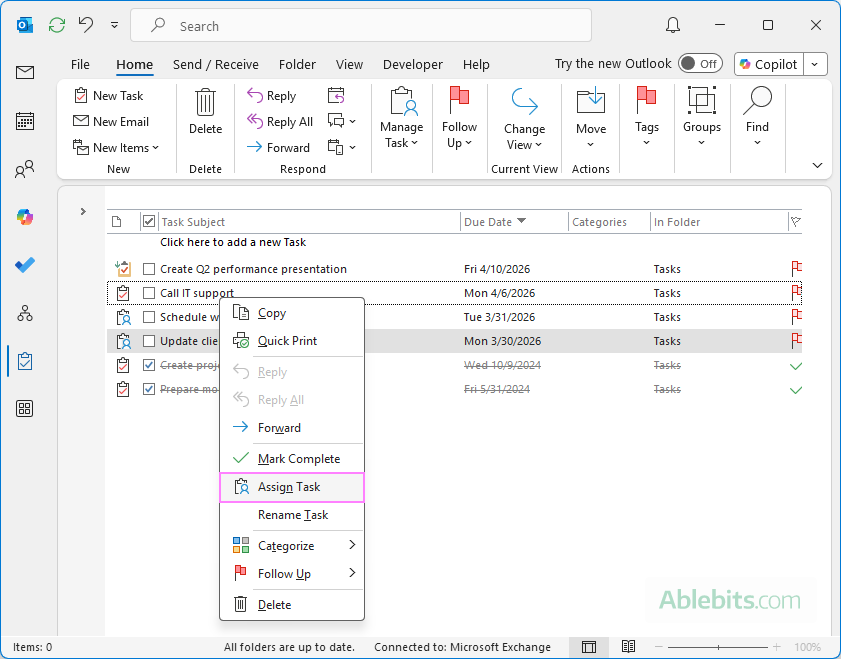
- In the list of tasks, right-click the one of interest, and choose Assign Task from the context menu.
- In the task window, enter the recipient's email address in the To field and click Send.
Method 2: Open and edit the task
This way is one click longer but still very fast :)
- Double-click the task to open it.
- In the window that opens, click Assign Task.
- Enter the recipient's email address in the To field and send the task.
Assigning a recurring task in Outlook
If you regularly ask someone to handle the same task, like sending a weekly report or updating a file, here's no need to create it from scratch each time. Outlook lets you set up a recurring task, so it repeats automatically on the schedule you choose.
How to set up and assign a recurring task:
- Create a new task or open an existing one.
- On the Task tab, click Recurrence.
- In the dialog box that appears, choose how often the task should repeat (daily, weekly, monthly, etc.) and set the timing details, such as the start and end date.
- Then assign the task as usual.
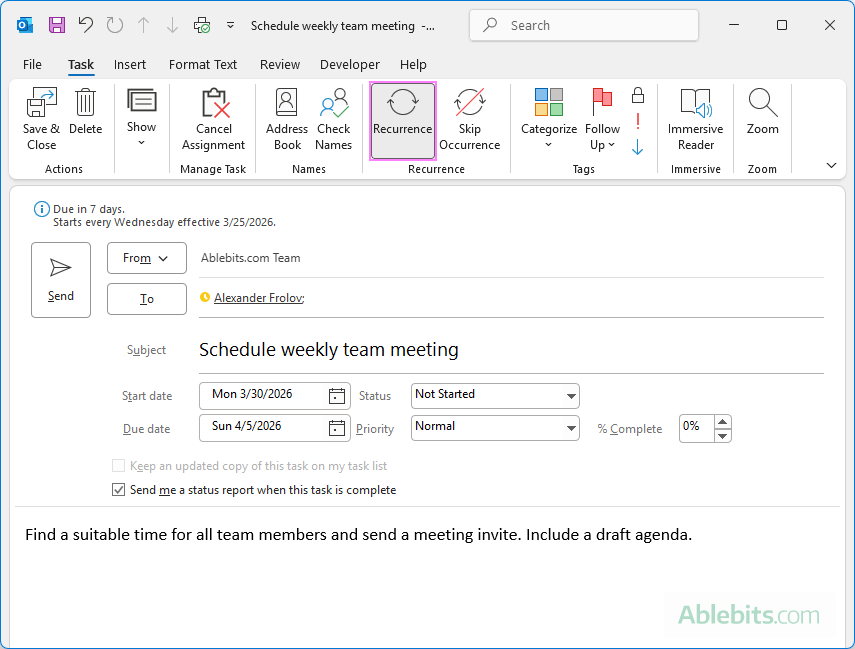
Once set, the task will repeat according to your schedule. In the recipient's task list, it will appear as a single item.
Notes:
- Your copy doesn't track progress. If you assign a recurring task to someone else, a copy stays in your task list, but it won't reflect updates or completion status.
- Completion notifications still work. If you select the Send me a status report when this task is complete option, you'll receive a notification for each completed occurrence of the task.
Assigning Outlook tasks to multiple people
Outlook does not support assigning a single task to multiple people at once. A task can only be assigned to one person, as Outlook is designed to track progress and status for a single owner.
If you need several people to work on the same project, a better approach is to break it into smaller portions and delegate a separate task to each user.
Practical ways to handle this:
- Split the task into parts. Divide the work into logical steps and assign each one individually. For example:
- "Collect sales data" assigned to Alex
- "Analyze results" assigned to Maria
- "Prepare presentation" assigned to John
- Assign identical tasks separately. If multiple people need to do the same thing, create and assign the task to each person individually. For example, assign "Complete compliance training" to each team member as a separate task.
Tip. If you often manage tasks involving multiple people, consider using Microsoft Planner for better collaboration. Outlook tasks work best when there's a single owner.
How to accept or decline an assigned task in Outlook
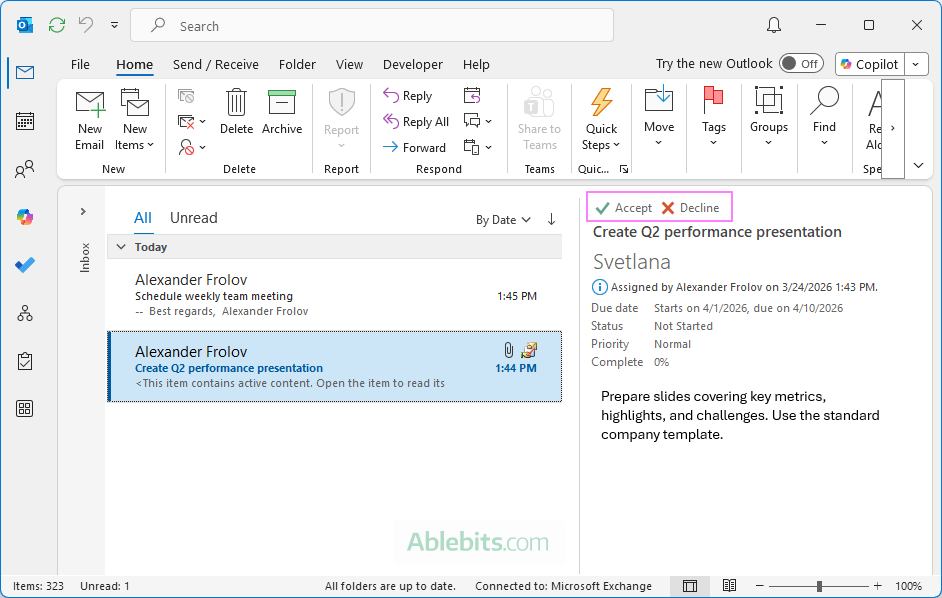
When someone assigns a task to you in Outlook, it arrives in your inbox as a regular email, marked with a task assignment icon. From there, you can quickly accept or decline it.
- In your inbox, select the task assignment message.
- In the preview pane, at the top of the message, click Accept or Decline, depending on your decision.
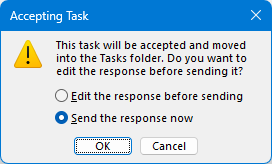
- A dialog box will ask how you'd like to reply to the request. Choose one of the following options:
- Edit the response before sending – add a note or comment.
- Send the response now – reply without adding a custom message.
- Click OK to send your response.
What happens next:
- A response is sent automatically to the person who delegated the task to you.
- If accepted, the task is added to your Tasks list.
- You can update its status as you work on it or re-assign it to someone else using the Assign button.
Note. Tasks assigned from Outlook for Windows need to be accepted or declined in the Outlook for Windows app.
How to track Outlook tasks assigned to other people
Once you start allocating tasks, you'll want an easy way to check what's in progress and what's already done. Outlook makes this easy with a dedicated view for assigned tasks.
Follow these steps:
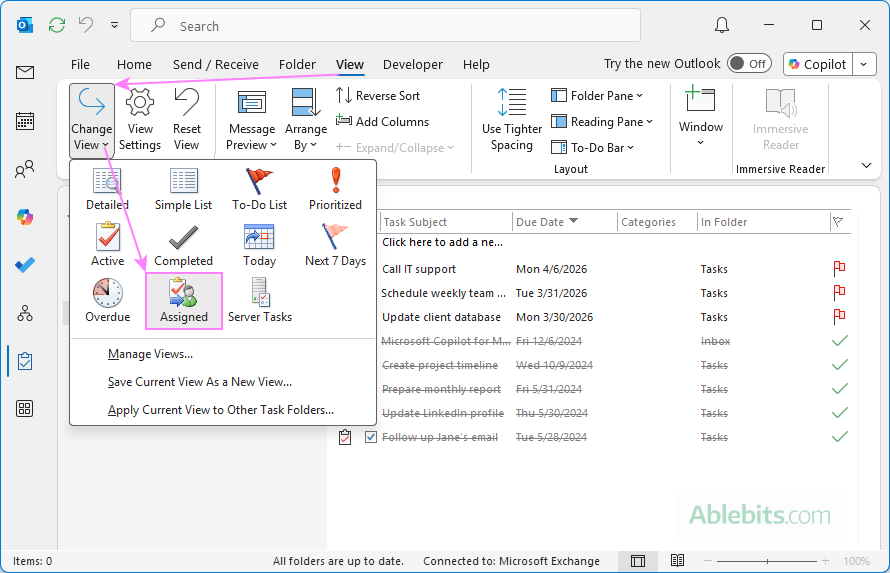
- On the Outlook navigation bar, select Tasks.
- Go to the View tab and select Change View > Assigned.
- You'll see a list of tasks committed to others, along with useful details such as priority, status, due date, owner (the person responsible for the task), percent complete, etc.
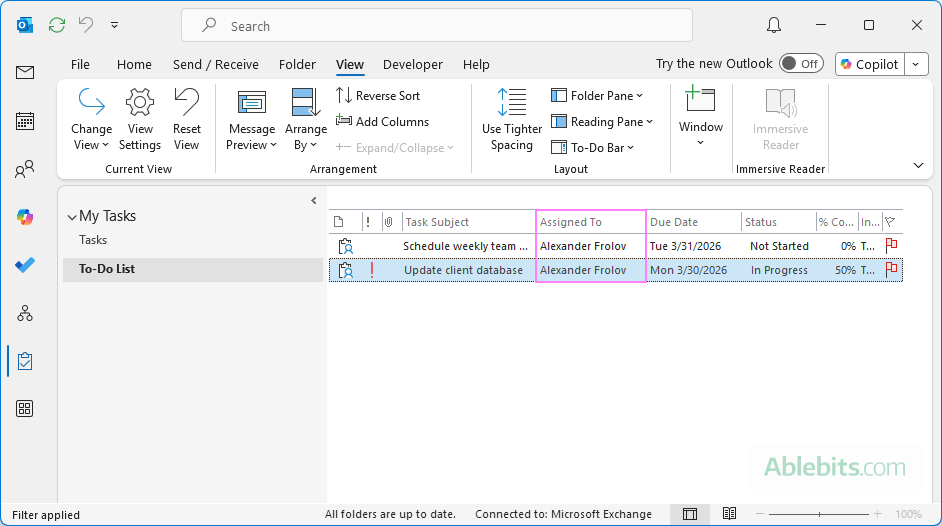
Tip. If needed, you can customize the view by adding or removing columns to display the information that matters most.
Assigned tasks are missing in Outlook
If Outlook is not showing any of the tasks you've assigned, the setting that controls whether delegated tasks remain visible in your own list may be turned off.
How to enable assigned task tracking in Outlook:
- Navigate to File > Options > Tasks
- Under Task options, select the Keep my task list updated with copies of tasks I assign to other people box.
Once this option is turned on, any new tasks you assign will automatically stay in your Outlook list.
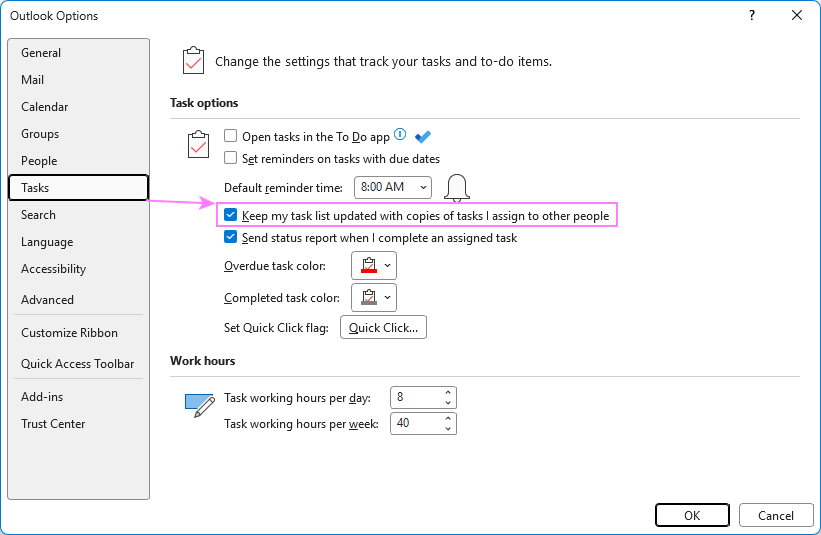
Note. This setting only applies to tasks you assign going forward. The ones sent before enabling it won't appear in your list, so you'll need to track those separately.
While Outlook's task assignment feature is not perfect, it's a reliable way to turn requests into trackable actions. Fewer reminders, clearer ownership, and less guesswork make it well worth trying out 😊