 by
by Learn how to turn Outlook tasks into calendar events, so you can view them alongside your meetings and appointments and manage everything in one place.
You may have the most detailed task list in the world, but if your calendar is already full, when exactly are you planning to do it all? If your Outlook tasks and calendar feel like two separate worlds that rarely talk to each other, it might be time to introduce them. Bringing tasks to your Outlook calendar gives them a better chance of getting done, and planning your day becomes a lot more realistic :)
How to add tasks to Outlook calendar
Let's start with how this works in classic Outlook (365 – 2016). There are two simple ways to add a task to your calendar, depending on whether you prefer speed or a more visual approach.
Method 1: Drag a task to Calendar in Navigation pane
This is the fastest way to turn an Outlook task into a scheduled calendar event.
- In the Outlook navigation pane, switch to Tasks.
- Click the task you want to add, drag it onto the Calendar icon in the navigation pane, and release the mouse button.
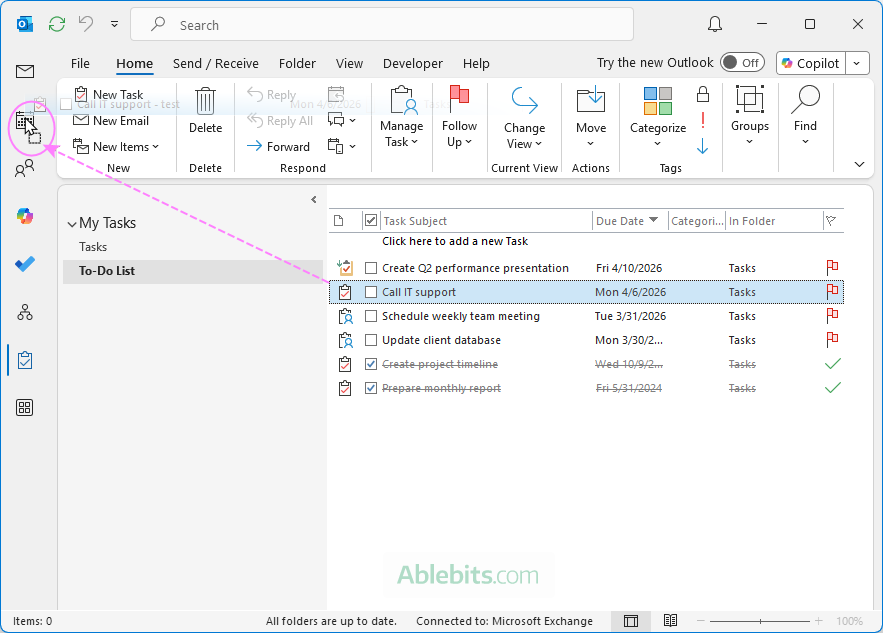
- Outlook will automatically create a new appointment based on the task.
- Adjust the start and end date/time as needed. By default, it's set to the current date.
- Click Save & Close.
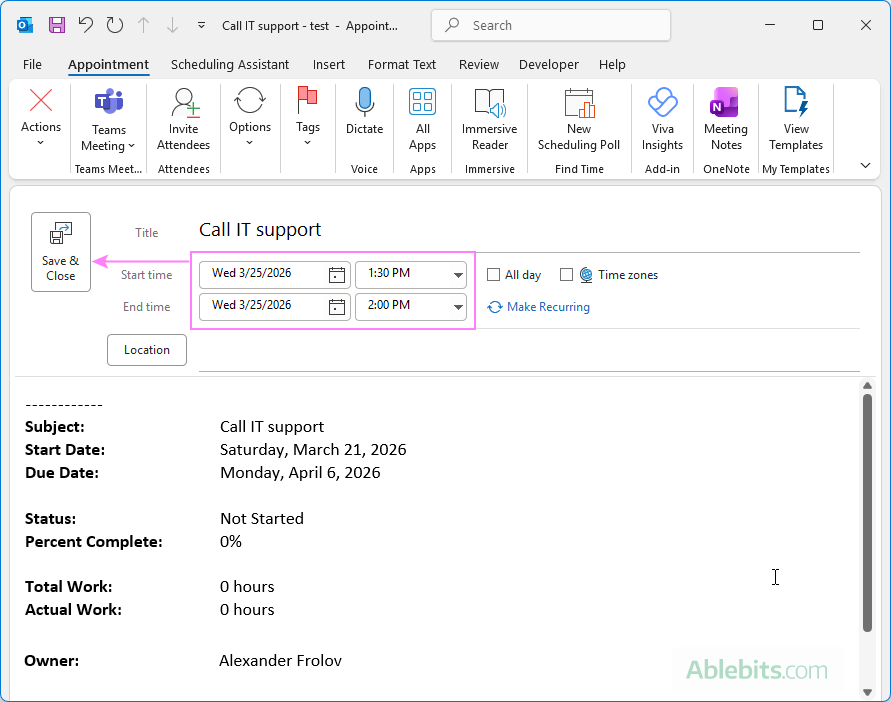
As a result, a new appointment is created from the selected task and added to the Outlook calendar.
Note. Once the appointment is created, it becomes a separate item, which is not linked to the original task. This means that any changes you make to the task, e.g. marking it as completed, will not be reflected in the calendar entry.
Method 2: Drag a task from To-Do bar to Outlook calendar
This method is not immediately obvious because it requires a quick bit of setup, namely, turning on the To-Do Bar. Once it is visible, many users find this method very convenient, as it shows tasks alongside the calendar, giving you a clearer picture of your workload while scheduling.
- In Outlook, switch to Calendar.
- Open the To-Do Bar in a separate pane, which is usually hidden by default. For this:
- Go to the View tab.
- In the Layout group, click To-Do Bar > Tasks.
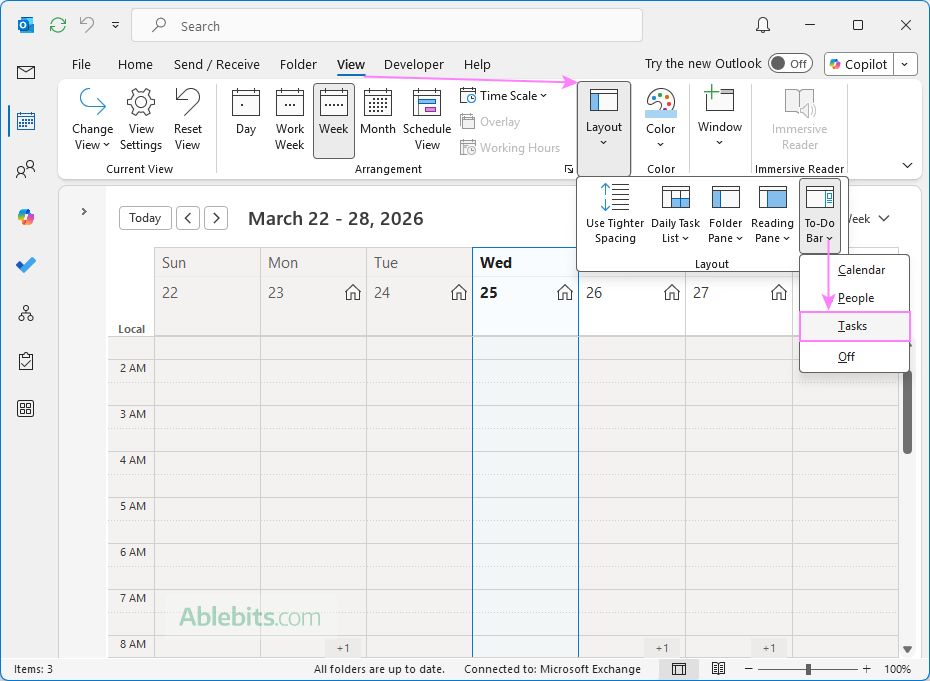
The To-Do pane will open on the right side of the calendar, showing your complete task list.
- Drag a task from the To-Do Bar onto a specific day and time in the calendar grid.
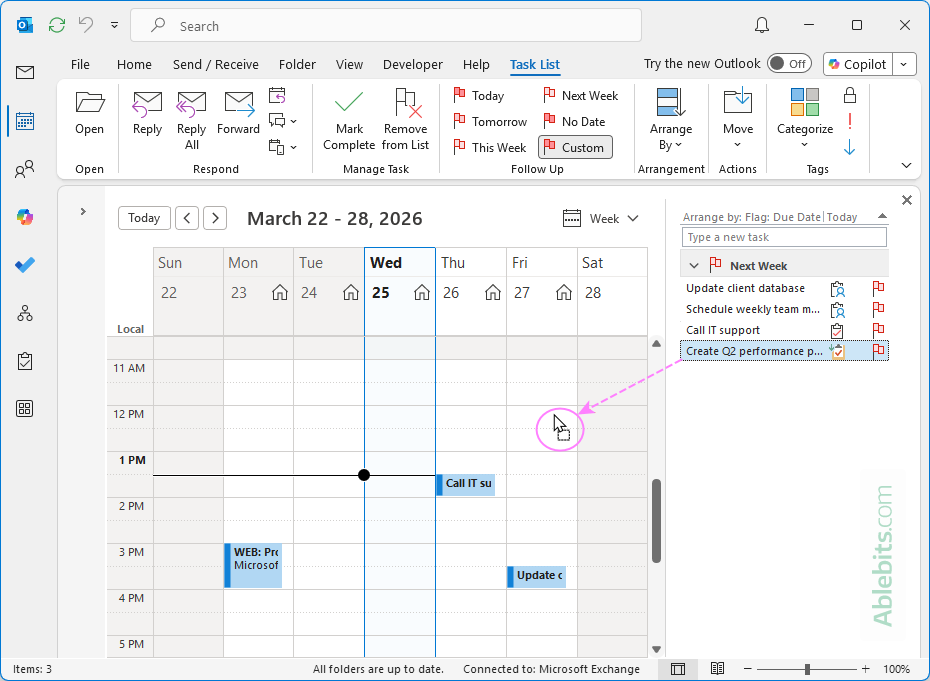
That's it! A new calendar event is created from your task right away.
This method is especially helpful for adding multiple tasks to the calendar, at it lets you see the already scheduled events and choose the most suitable time slot for each task.
Tip. When your calendar is in month view, Outlook creates an all-day event from the dragged task. In day or week view, the event is placed in the exact time slot where you drop it. To adjust an all-day event, double-click it to open, clear the All day event checkbox, and set the desired start and end time.
How to add a task to calendar in new Outlook and web
In the new Outlook as well as in Outlook on the web, tasks are managed through the Microsoft To Do app. To create a calendar event from a task, simply drag it to your calendar. Here's how to do it step-by-step.
- Open the new Outlook or web app.
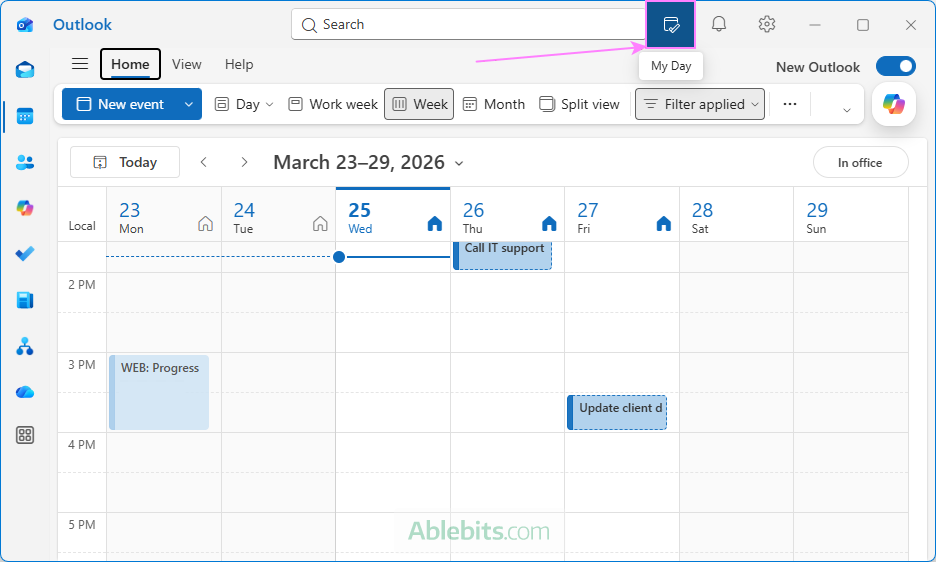
- Click the My Day icon in the upper-right corner of the Outlook window to open the My Day pane.
- In the My Day pane, switch the To Do tab to see your task list.
- Drag the target task directly onto your calendar at the desired date and time.
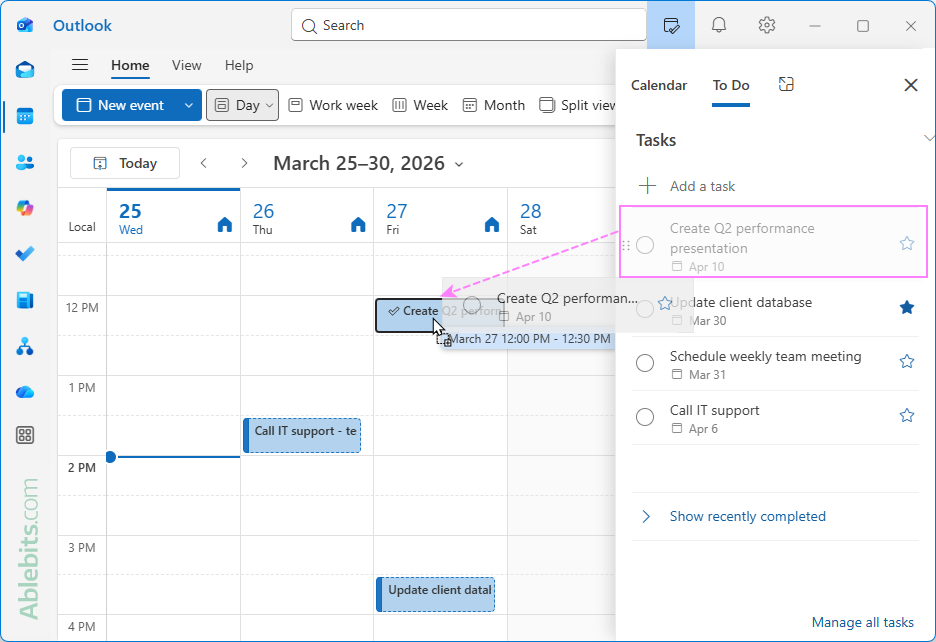
Done. Your task is now added as a calendar event.
Tip. When opening My Day for the first time, Outlook may display an animation showing how to drag tasks. To display your actual task list, click Manage all tasks at the bottom of the pane.
Note. Tasks and calendar events are synced across Outlook classic, new, and web for the same account. So, anything you add in one Outlook app will appear in the others as well.
How to view tasks in Outlook calendar
Tasks do not appear on the calendar grid automatically in any Outlook version, whether you use traditional tasks in classic Outlook or To-Do in the new Outlook and web app.
The reason is simple: tasks don't have a specific time assigned to them, unlike meetings or appointments. Since the calendar is time-based, Outlook has nothing to place on the schedule.
If you want to see tasks in your calendar, you'll need to add them manually as calendar events, as shown in the methods above. Once added, they appear just like regular appointments, which they actually become at that point.
In conclusion: adding tasks to your Outlook calendar helps bridge the gap between planning and actually getting things done. You don't have to schedule every single task, but giving your important ones a spot on the calendar makes them slightly harder to ignore 😊