Shared Email Templates & Signatures for Gmail
Create user accounts and invite colleagues
To start collaborating with your team, you first need to add your colleagues as users to your Shared Email Templates company account. Depending on your organization's setup and the number of people you want to add, you can choose the most convenient method below.
How to create user accounts manually
Being an admin of a company or team account, you can create a user account by following these steps:
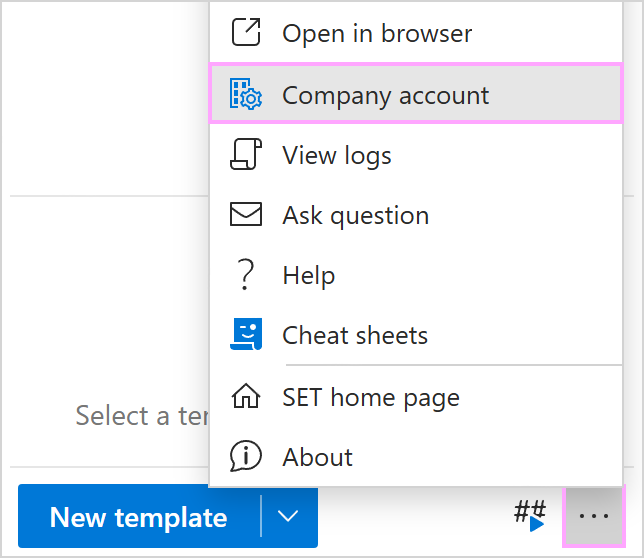
- On the More menu on the Shared Email Templates sidebar in your Gmail, select Manage account.

- In the Shared Email Templates app, go to the Users section and select Create User.

- A sidebar with the form to be filled in will appear.

Fill in the Account section. For the email address, enter either the user's Google Workspace or personal Google account email address.
Tip. You can also use Google Workspace Directory to look for users' details. Just click this icon:

-
Click the Subscription key box to assign a key to the user.

A dialog showing a list of available subscription keys will appear so that you can select the necessary key.
Tip. If you have recently bought a subscription and want to add the key associated with it to the list, go to Account Details and select Add Key.

- To let the user join the necessary team(s) right away, click the Add to Team button.

In the Add to Team dialog, select a team, choose a role that the user is supposed to take on there (User or Editor), and then click Add.

- When you're done with the Create user form, click the Create button.

As soon as you create the user account, the user will receive a notification email inviting them to sign in to their Shared Email Templates account with their Google account.
Note. When trying to sign in to their account for the first time, the user will be requested to accept the Shared Email Templates Terms of Use and Privacy Policy.

How to import users from Google Workspace Directory
Note. You must have available licenses to import users.
Note. You'll need Google Workspace admin rights to complete this process.
- In the Shared Email Templates sidebar in your Gmail, go to the More menu and choose Manage account.

- In the Shared Email Templates app, go to the Users section and select Import users.

- Choose Google Workspace Directory and click Import.

- Log in to your Google Workspace account when prompted.
- A list of permissions requested by Shared Email Templates will appear. Click Continue to accept and proceed.
- In the Import users dialog, select the teammates you'd like to add to your company or team account.
Note. If you added some users to your account previously, they will be absent from the list of users shown in the dialog.
If you want to change a subscription key that was assigned automatically, use either Assign key (for individual users) or Assign key to selected users (for several people). When you're ready, click Import.

- After importing, you'll see a summary dialog showing how many rows have been processed and how many users have been imported successfully. Click OK to finish.

If something goes wrong, the resulting pop up will show error details. For example, an error will occur if your colleague already has a Shared Email Templates account and therefore can't be added to yours.

To see a full error description, hover your cursor over it.

Tip. Hit the Copy icon at the bottom left corner of the resulting window to copy the importing results to the clipboard and paste them later to Google Sheets, for example, to analyze or process further.

How to import users from a Google Workspace Directory group
Note. You must have available licenses to import users.
Note. You'll need Google Workspace admin rights to complete this process.
- In the Shared Email Templates sidebar in your Gmail, go to the More menu and choose Manage account.
- In the Shared Email Templates app, go to the Users section and select Import users.
- Choose Google Workspace Directory group and click Import.

- Log in to your Google Workspace account when prompted.
- A list of permissions requested by Shared Email Templates will appear. Click Continue to accept and proceed.
- Select a group and click Next.
- In the Import users dialog, select group members and hit Import.
Note. If you've already added some users previously, they won't appear in this list.
If you want to change a subscription key that was assigned automatically, use either Assign key (for individual users) or Assign key to selected users (for several people). When you're ready, click Import.
- After importing, you'll see a summary dialog showing how many rows have been processed and how many users have been imported successfully. Click OK to finish.
If something goes wrong, the resulting pop up will show error details. For example, an error will occur if your colleague already has a Shared Email Templates account and therefore can't be added to yours.
To see a full error description, hover your cursor over it.
Tip. Hit the Copy icon at the bottom left corner of the resulting window to copy the importing results to the clipboard and paste them later to Google Sheets, for example, to analyze or process further.
How to export users' records
If you're an admin of a Shared Email Templates company or team account, you can export your users' records.
- On the Shared Email Templates pane in Outlook or Gmail, open the More menu and select Company account.
-
In the Shared Email Templates app that will open in your default browser, right-click Users and select Export users.

In a .csv file that will be downloaded to your device, you'll find all your users' email addresses, names, subscription keys, and teams.
Please contact us here