 by
by This guide explains how to email big files in Outlook, which problems may prevent them from being delivered, and how to resolve them.
Microsoft Outlook has an attachment limit from 20 MB to 150 MB depending on a version. While this is plenty of room for text documents or basic spreadsheets, it becomes a bottleneck when you need to send video files, massive datasets, or graphic-heavy presentations.
Fortunately, you do not need to slice your files into tiny pieces or send a string of separate emails. Here are the most effective ways to send large files through Outlook:
Send large files through Outlook using OneDrive
The easiest way to send a file that's too big for a regular Outlook attachment is to upload it to OneDrive and include a link in your message. This keeps the message size small and also lets you control whether people can view or edit the file.
OneDrive and SharePoint support individual files up to 250 GB. This limit applies to both personal and business accounts, although your available storage and any restrictions set by your organization still apply.
Outlook.com has a 2 GB limit for each individual OneDrive file attached from Outlook.
If you make any changes to the file after sending the email, the recipients will still be able to see them, as the link always points to the latest version stored in OneDrive.
The exact steps depend on which Outlook version you use and whether the file is already stored in OneDrive or is still on your computer.
Note. Before sending your email, check the file's sharing permissions to make sure the recipients can open it.
Email a big file as OneDrive link in Outlook 365 – 2016
In classic Outlook, you can either select a file that's already in OneDrive or attach a local file first and upload it to OneDrive from the message.
Attach OneDrive files as links
If the file is already in OneDrive, here is how to attach it to an email:
- On the Message tab, in the Include group, click Attach File > Browse Web Locations > OneDrive.
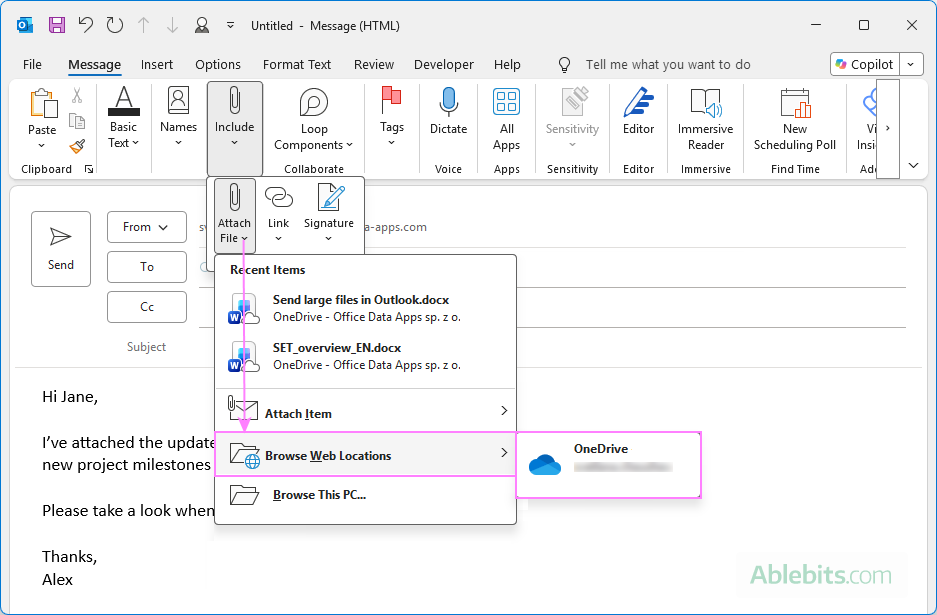
- Locate and select the big file you want to send.
- When prompted, choose Share link.
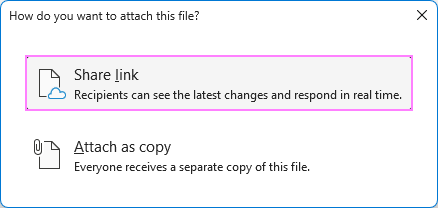
Outlook will insert the OneDrive links into your email body. The recipient simply clicks the link to view or download the file directly from OneDrive, bypassing email size limits.
Turn email attachment into OneDrive link
Outlook 365 – 2016 also lets you convert a regular attachment into a OneDrive link. Here's how to do it:
- Attach the local file as usual. On the Message tab, select Attach File > Browse This PC, and choose the file you want to send.
- In the message, click the arrow next to the attachment and choose Upload > OneDrive.
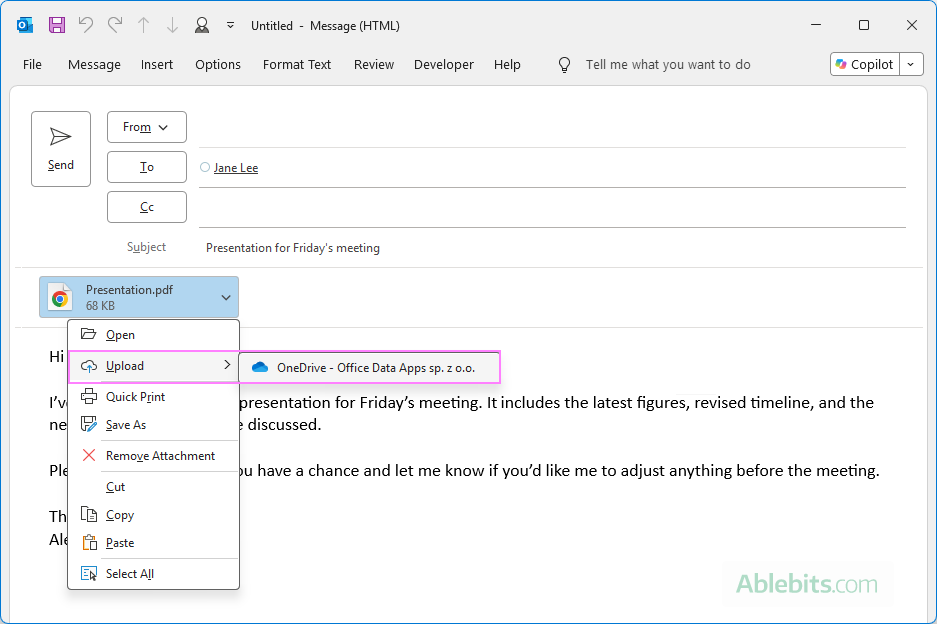
- Outlook uploads the file to the Attachments folder on your OneDrive and replaces the regular attachment with a cloud link.
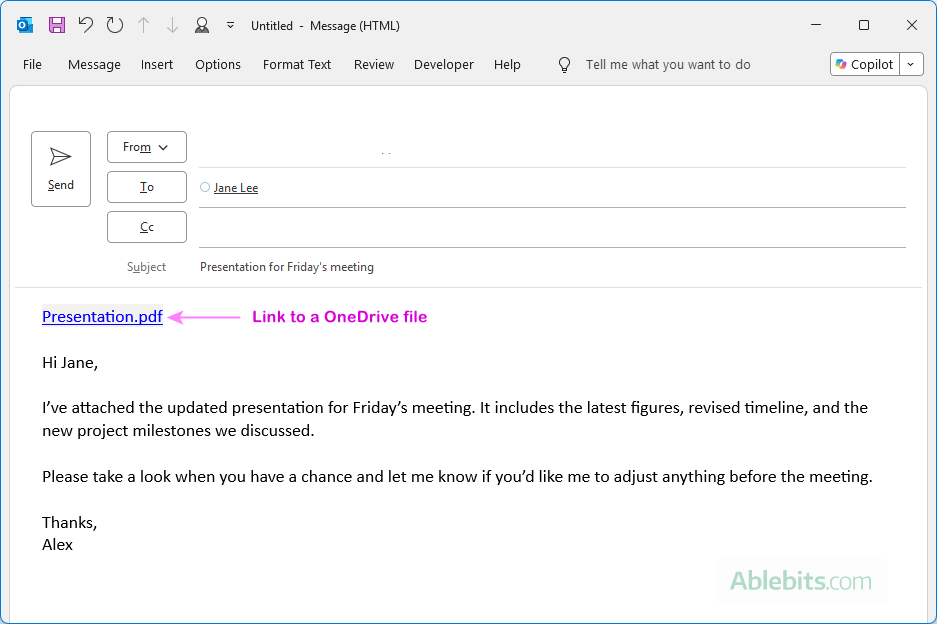
Send heavy files as OneDrive links in new Outlook and web
New Outlook and Outlook on the web also provide two ways to send large files through OneDrive. The menus look slightly different than in classic Outlook, but the idea is the same: send a link instead of attaching the full file.
Email large files directly from OneDrive
If your files are already in OneDrive, include their cloud links in the body of your email:
- In the message you are composing, click Attach File > OneDrive.
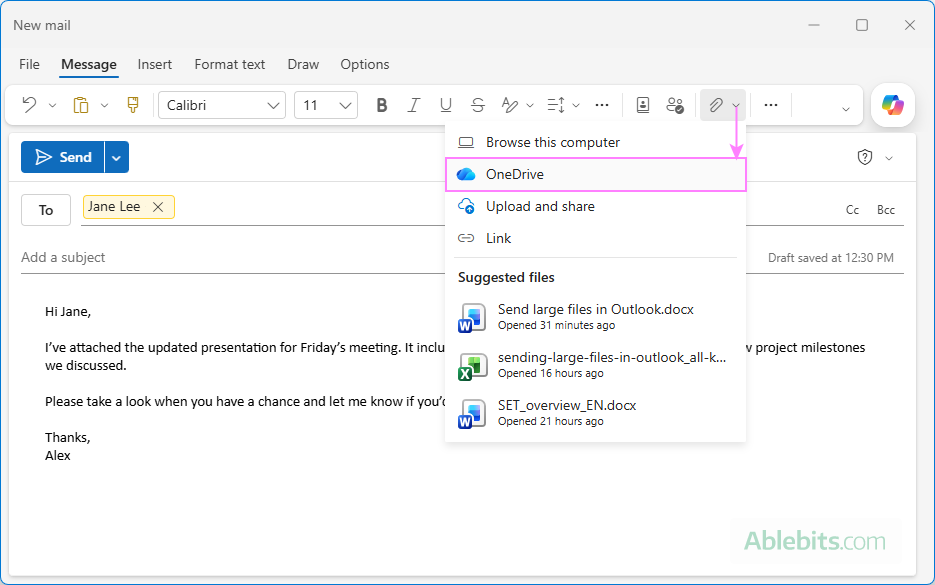
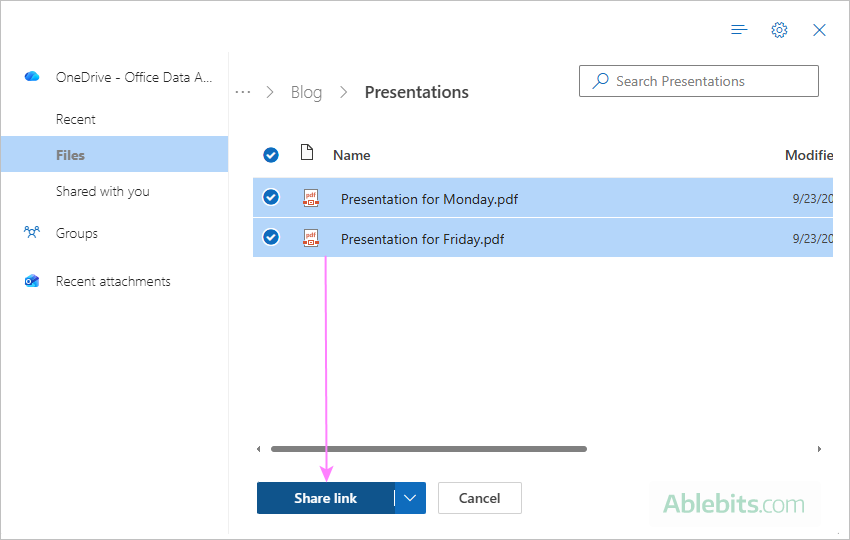
- Locate and select one or more files you want to send.
- Click Share link to add them to your message as OneDrive links.
Upload local attachment to OneDrive
If the file is still on your computer, you can attach a local file first and then move it to OneDrive right from the message.
- On the ribbon, select Attach File > Browse this computer, and choose the file you want to send.
- Click the arrow next to the attachment and choose Upload to OneDrive.
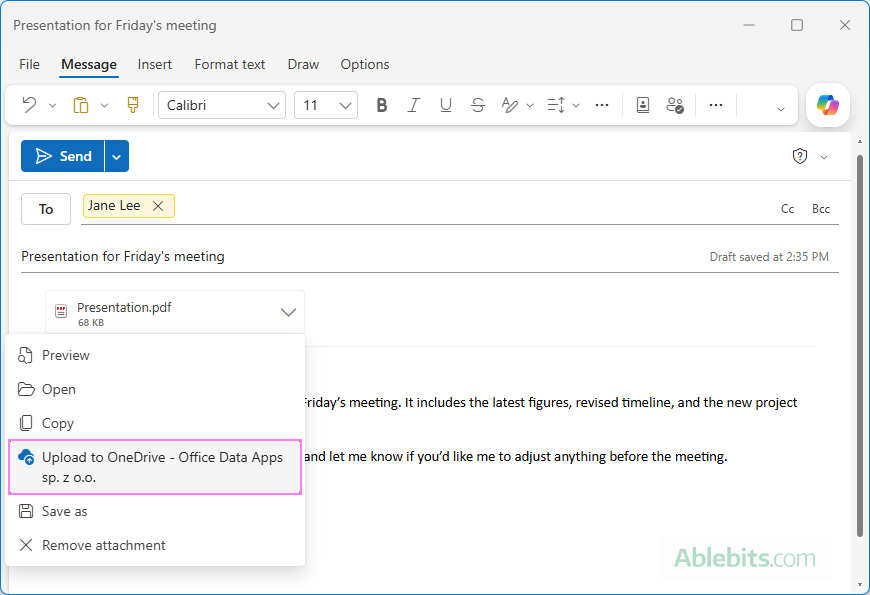
- Once uploaded, the regular attachment is replaced with a OneDrive link.
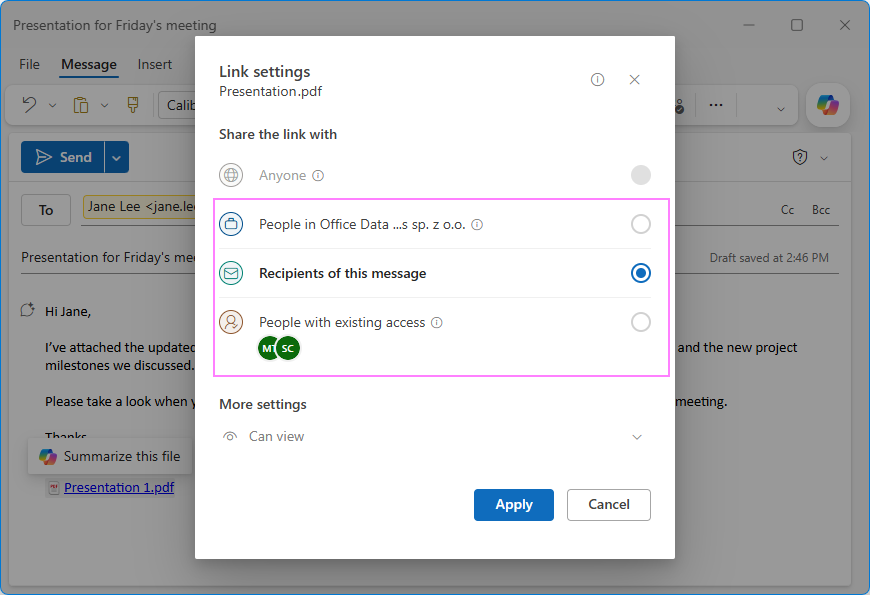
- Click the file link to open its options and review the current access permissions.
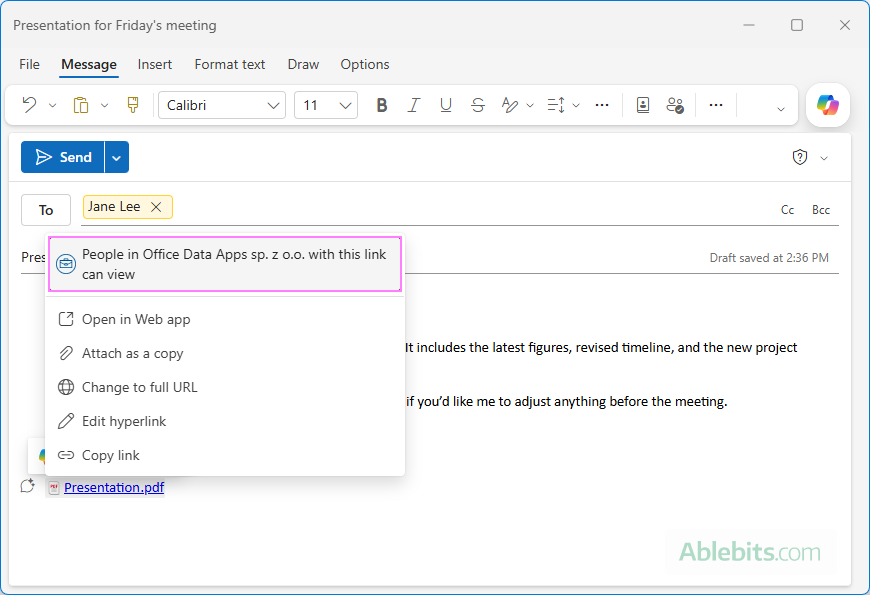
- New Outlook and Outlook on the web let you change access to the file directly from an email. For this, click the current permission setting, and then choose one of the available options. Depending on your Microsoft 365 configuration, you may be able to limit access to people in your organization, only the recipients of this message, or users who already have access. You can also choose whether they can edit, view, or download the file.
Email sharable file links using third-party cloud services
If you do not use OneDrive or are emailing files to external users, third-party cloud storage services such as Google Drive, Dropbox, iCloud, or WeTransfer are a good alternative.
The basic steps are the same:
- Upload your heavy file to your preferred cloud storage.
- Generate a shareable link.
- Double-check your sharing permissions to ensure anyone with the link can view or download the file.
- Copy the link and paste it into your Outlook email.
This method is especially useful when you're sending very large files to people outside your organization.
Compress a large file before sending
If your attachment is only slightly over the limit, compressing it may make it small enough to send normally. ZIP files are particularly handy when you want to send several documents because they combine everything into a single attachment. Windows includes a few ZIP compression tools without requiring any additional software.
To compress files on Windows:
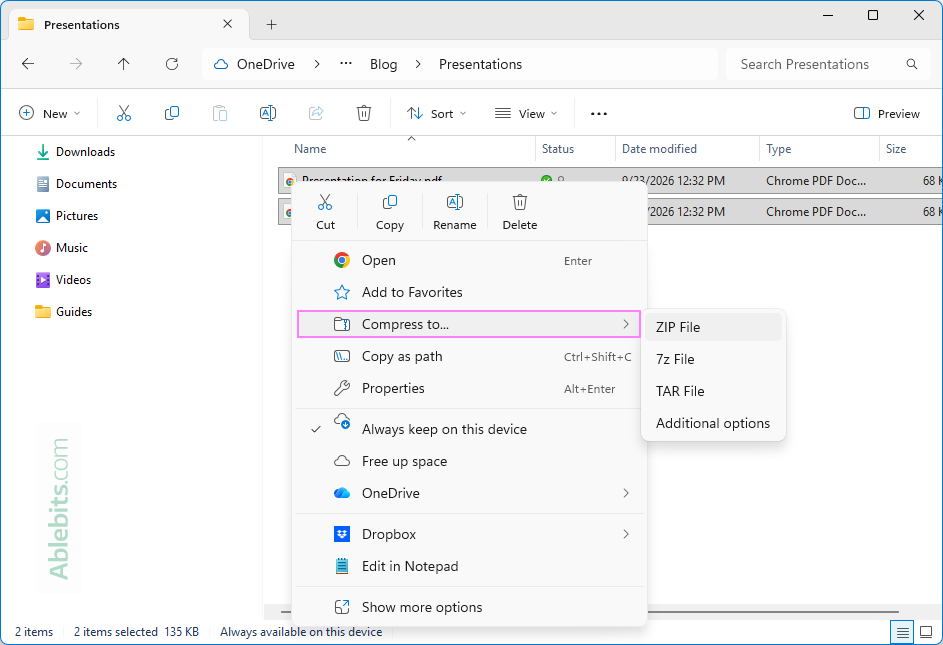
- Right-click the file (or select multiple files and right-click) and choose Compress to… .
- Select ZIP File or another option to create a compressed file.
- Once your computer generates a .zip file, simply attach it to your Outlook email as you normally would.
Note. Keep in mind that compression does not reduce every type of file equally. JPEG images, MP4 videos, and many modern document formats are already compressed, so putting them into a ZIP archive may save very little space.
Reduce the size of heavy images attached to Outlook emails
Often, an email breaches the size limit simply because it contains too many high-resolution images. Photos taken with modern phones and cameras can easily be several megabytes each. If pristine quality isn't strictly necessary, reducing a picture size can help.
Classic Outlook has a built-in option for reducing the size of large picture attachments. Here is how to use it:
- Attach pictures to your message.
- Go to File > Info.
- Under Image Attachments, select Resize large images when I send this message.
- Click the Back button to return to your email and send it.
Outlook will automatically reduce the image size when the message is sent.
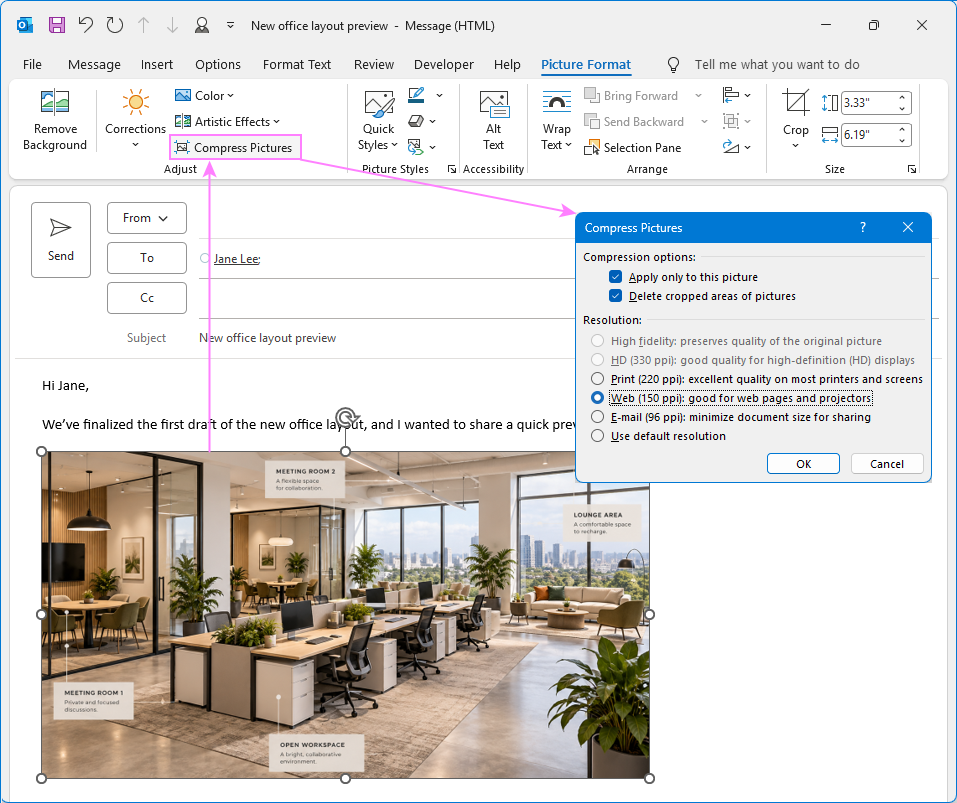
For images inserted directly into the message body in classic Outlook 365 – 2016, you can use the built-in Compression tool to shrink their file size. Compressing a picture keeps its displayed height and width but lowers its resolution. The lower the resolution, the smaller the image file, and the smaller the total size of the email, leaving more room for attachments. Keep in mind that compression reduces the amount of detail stored in the original picture. At lower resolutions, the image may look less sharp, especially when viewed at a larger size. For ordinary illustrations displayed inside an email, the difference is often minor. Notes: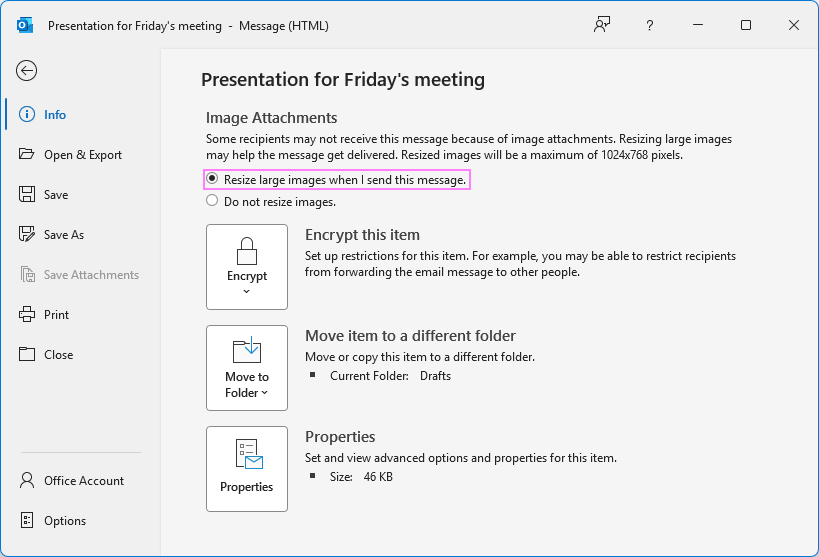
Compress embedded pictures to reduce email size
Why Outlook is not sending attached files?
If your email is sitting stubbornly in your Outbox or bouncing back with an error notification, the attachment itself isn't always the problem. One of these common issues is likely responsible:
- The message exceeds the email size limit. This is one of the most common reasons. Most default Outlook accounts cap outgoing messages at 20 MB. Microsoft 365 accounts can allow messages up to 150 MB, depending on the configuration. Keep in mind that these limits apply to the entire message, not just attachments. Email encoding, message text, formatting, and inline images also increase the transmitted message size. Learn more about Outlook email size limits.
- Several small files exceed the limit together. Attachment limits apply to the total message, not just the largest individual file.
- Your account or mail server has a lower limit. Outlook isn't always the one setting the restriction. Your email provider, company Exchange server, or Microsoft 365 administrator may set a smaller maximum message size. The recipient's mail server can have its own limit too, meaning a message that leaves your Outbox may still bounce back.
- You're using an older Outlook or Exchange version. Legacy Exchange environments and old Outlook versions may enforce even stricter message-size limits, capping attachments at 10 MB or less. However, the Outlook version alone doesn't determine how large a file you can send – the mail-server and account configuration matter more.
- The file type is blocked for security. Outlook automatically flags and blocks potentially unsafe file types such as .exe, .bat, or specific database files. Because malware and viruses commonly disguise themselves within executable files, Outlook prevents them from being attached or transmitted.
- Your internet connection is slow or unstable. Large attachments take longer to upload, so even a brief connection drop can interrupt the process. If a smaller file sends without trouble but a large one keeps getting stuck, try a more stable connection or upload the file to OneDrive and send a link instead.
- Your mailbox is full. If you've reached your mailbox storage quota, Outlook halts both incoming and outgoing mail processing. This frequently affects free Outlook.com and Hotmail accounts. For more information, see How to check Outlook mailbox size.
- The recipient's side is blocking delivery. Even if the message leaves your Outbox successfully, it may still be rejected by the recipient's mail system. Their mailbox may be full, their server may have a smaller attachment threshold, or security policies and spam filters may block certain file types. In some cases, antivirus software can also interfere with large attachment transfers. Check the non-delivery report to get a clue about what caused the failure.
Frequently asked questions on sending large attachments in Outlook
Still unsure how large a file Outlook can handle or which method to use? Here are quick answers to the most common questions about sending big attachments.
What is the maximum attachment size in Outlook?
There is no single limit for every Outlook account. Outlook.com allows attachments up to 25 MB per message. For Microsoft 365 work or school accounts, the default maximum outgoing message size is 35 MB, although administrators can configure it up to 150 MB. Remember that these limits apply to the entire message, not just the attached file.
For more details, see Max attachment size limits in Outlook.
How do I send a file larger than 25 MB in Outlook?
Upload the file to OneDrive, SharePoint, or another cloud storage service and send a sharing link instead of attaching the file itself.
Can I send several large files in one Outlook email?
Yes, but if you attach them normally, their combined size counts toward the message limit. Several files that are individually small enough can still make the entire email too big.
To email a group of files, you can compress them into a ZIP archive or upload them to OneDrive and share links.
Does a OneDrive link count toward the Outlook attachment limit?
No. The actual file remains in OneDrive rather than becoming part of the message, therefore it does not count toward the email-size limit.
Is it better to attach a file or send a OneDrive link?
For small files, a regular attachment is perfectly fine. A OneDrive link makes more sense for large files, documents being edited collaboratively, or anything close to your email-size limit. A cloud link lets everyone work with the same file instead of receiving separate copies, and you can control who can view or edit it.
Why cannot recipients open the OneDrive link that I sent?
The most common reason is missing access permission. Check the file's sharing settings and make sure the people receiving your email are allowed to view or edit it.
Outlook may also warn you if one or more recipients don't currently have access to a linked OneDrive or SharePoint file. In new Outlook and web, you can adjust the permissions directly from the message.
Can the Outlook attachment limit be increased?
In some cases, yes. In classic desktop version of Outlook 2024 – 2010, the local attachment limit can be changed through the MaximumAttachmentSize registry value. However, this changes only Outlook's internal limit. It does not override restrictions imposed by your mail server, ISP, recipient's server, or another email provider. If the server accepts messages only up to 25 MB, configuring Outlook to allow 50 MB attachments won't make a 50 MB message go through.
For Exchange Online mailboxes, including Microsoft 365 work or school accounts, message-size limits are controlled by your organization.
For most users, sharing a large file through OneDrive is simpler and more reliable than changing attachment-size settings.
To explore this in more detail, see How to increase Outlook email attachment size limit.
These are the main ways to send large files through Outlook. Choosing the right method comes down to how much over the limit you are. For a quick trim, a ZIP folder or image resize works perfectly, but for truly massive files like videos or software packages, using a cloud link is always the most practical way.