 by
by Learn how to create a branded email signature directly in Outlook. This step-by-step tutorial shows how to structure the layout, add contact details, insert clickable images and social media icons.
While many online email signature generators offer a variety of templates, few let you export signatures to Outlook for free. The good news is that you don't need them. With just a little time and effort, you can create an attractive email signature directly in Outlook, complete with your contact details, photo or company logo, and clickable social media icons.
How to create a professional signature in Outlook
This section explains how to make a signature that looks clear and well-organized in different Outlook versions. To keep all elements neatly aligned, we are going to design the signature using a table, which gives you better control over spacing and layout.
In classic Outlook (365 — 2016), you can create the table directly in an email window, and then copy the finished design into the Edit signature box.
Tip. Since Outlook's signature editor has limited formatting options, especially in the new Outlook and web app, you can build your signature in Microsoft Word, and then copy it into Outlook.
Here's how to create a business-ready email signature in Outlook:
- Create a new message. In classic Outlook, start by clicking the New Email button on the Home tab.
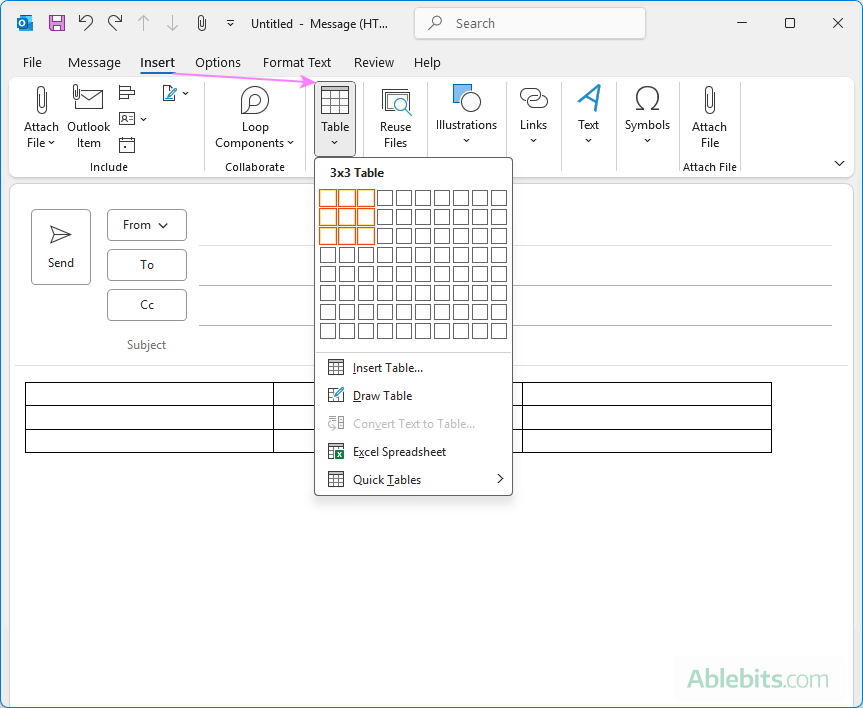
- Insert a table to structure your signature. In the new message window, switch to the Insert tab, click Table, and select the number of rows and columns based on your planned signature layout. The table will help you align the graphic and text elements and bring harmony to your design. If you are unsure how many rows and columns you'll need, start with a simple 3×3 table. You can always add or remove rows and columns later as your layout takes shape.
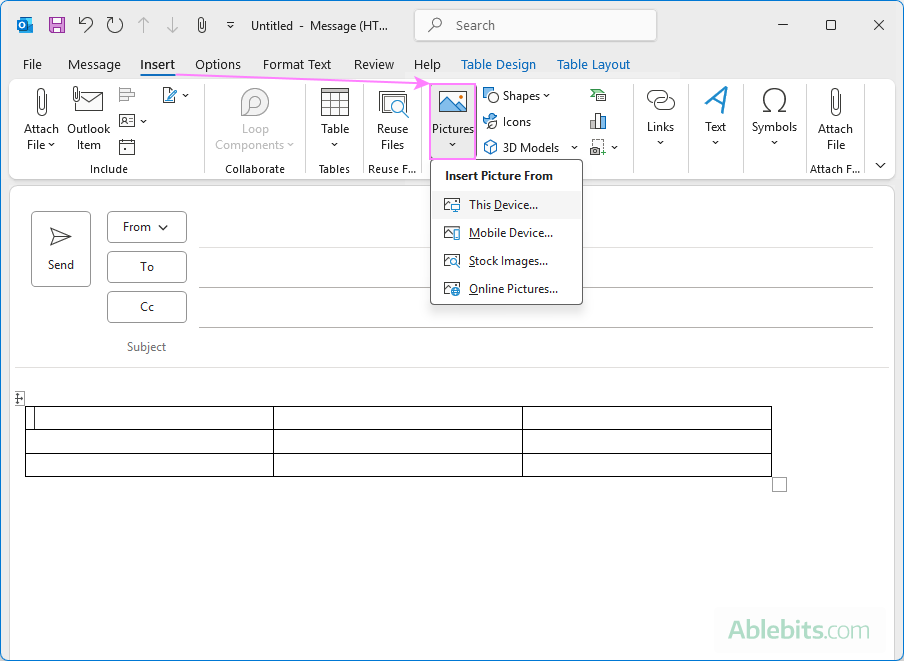
- Insert a logo or personal photo. Put the cursor into the cell where you want to add an image and click the Pictures button on the Insert tab. Browse for an image on your computer, select it, and click the Insert button.
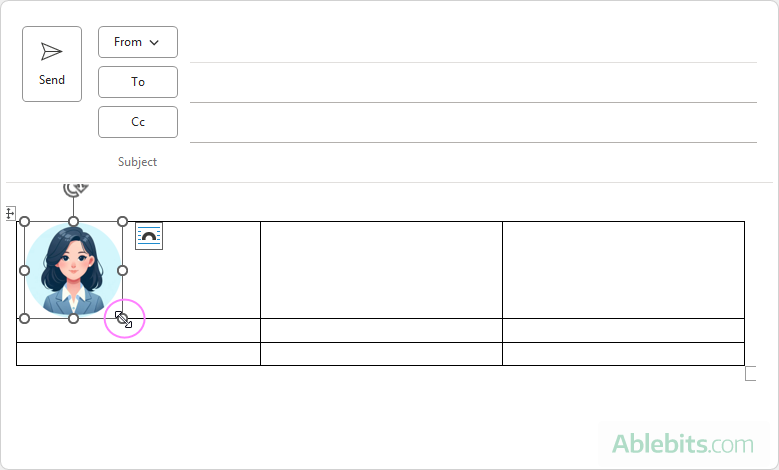
- Adjust the image size. If necessary, resize the image by dragging the diagonal double-headed arrow in the corner.
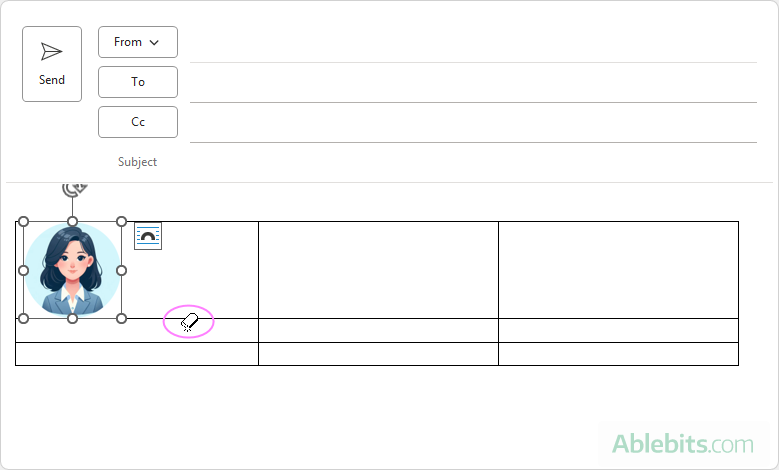
- Erase unnecessary row borders. If you don't plan to include any additional text or images in the column where your picture is placed, you can clean up the layout by removing unnecessary borders. To do this, go to the Table Layout tab > Draw group, and apply the Eraser tool. Then, use the Alignment options to position your image as you like.
- Add contact details. Enter details such as your name, job title, company name, and phone numbers in other cells and format them using different fonts and colors.
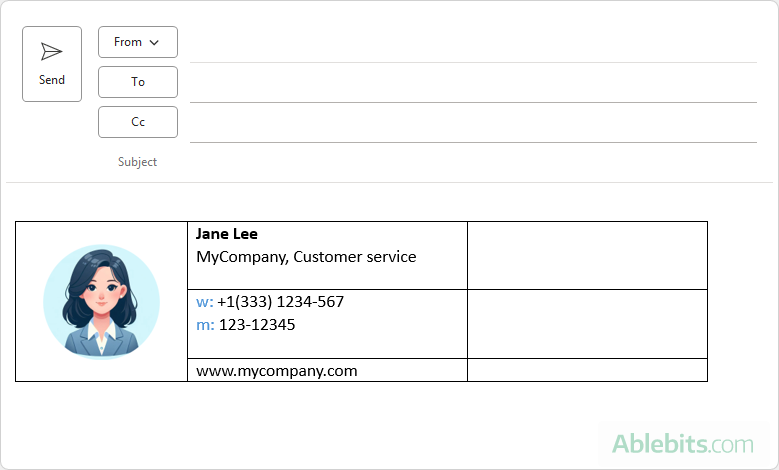
- Include social media icons. You can grab social media icons from various online sources or directly from this page. Right-click each icon individually and click Save image as to download it to your computer as a .png file. Once saved, insert the icons into your signature table by placing them in the appropriate cells.


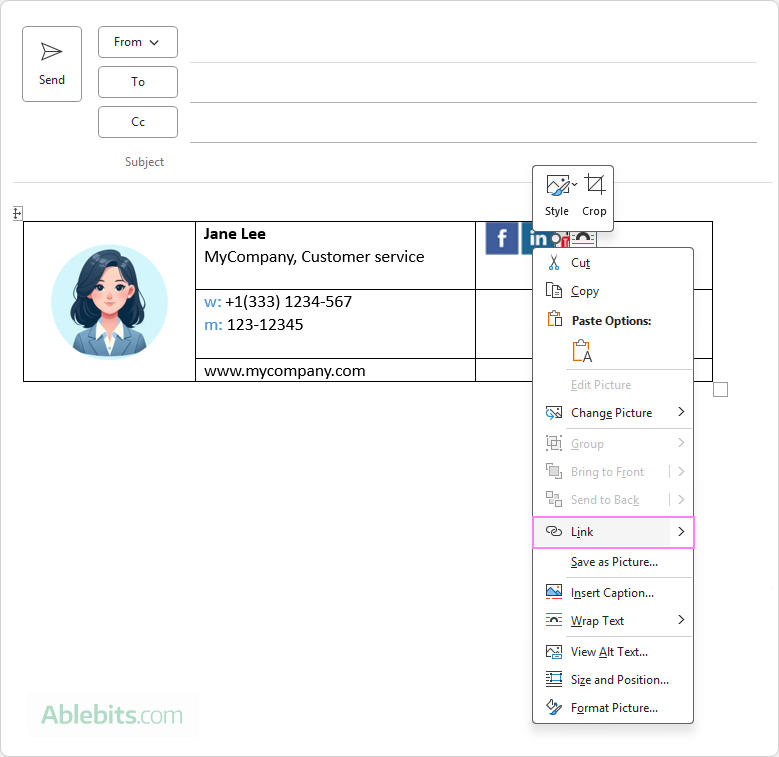
- Add links to images and text. To make the social media icons clickable, right-click each icon, and then click Link. In the Insert Hyperlink dialog box, paste the URL and click OK.
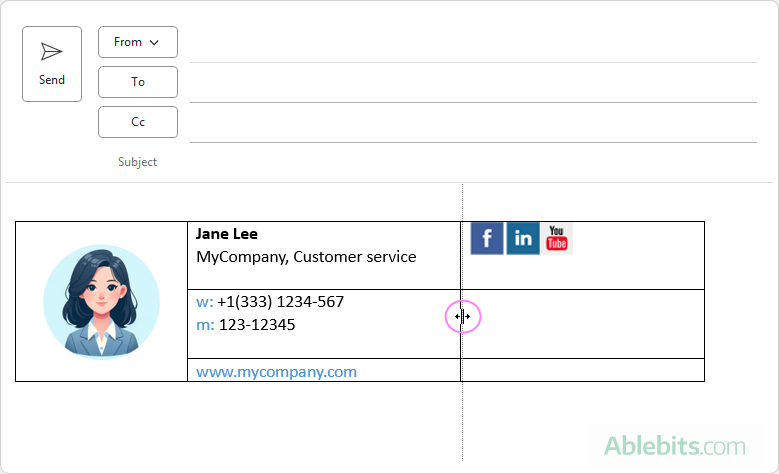
- Resize table columns. Drag to resize the table columns to remove or add extra room in cells.
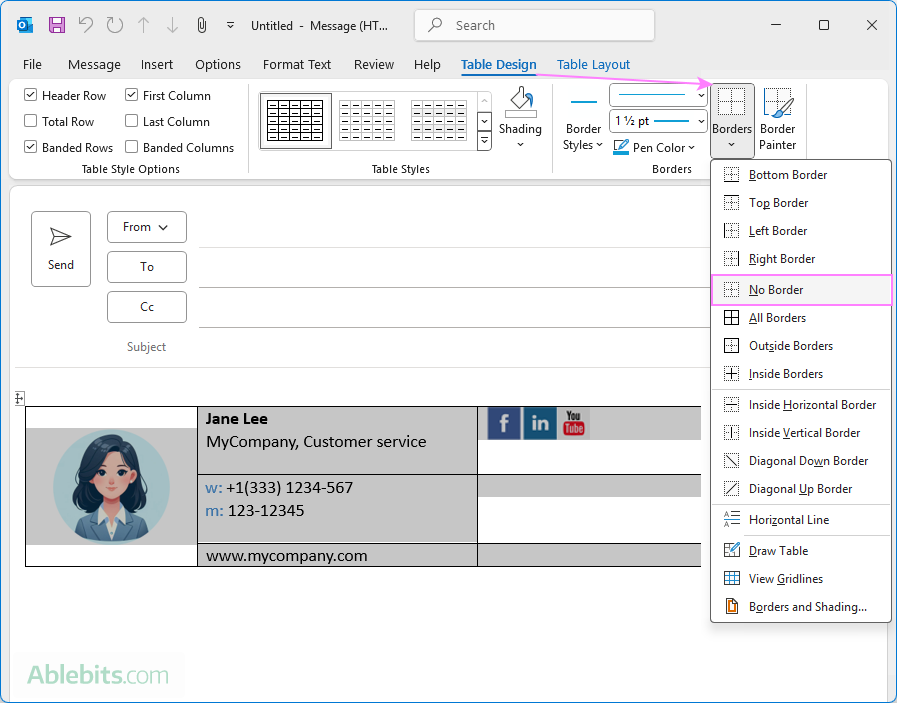
- Remove table borders. Select the whole table, go to the Table Design tab, click Borders, and select No Border.
- Add dividers. Our Outlook email signature is almost finished. As a final touch, you can add dividers to separate different sections. Use the Border Painter tool to draw vertical or horizontal lines and select a Pen Color that matches your design. For a more polished look, experiment with different Line Styles and Line Weights to make the dividers thinner or thicker.
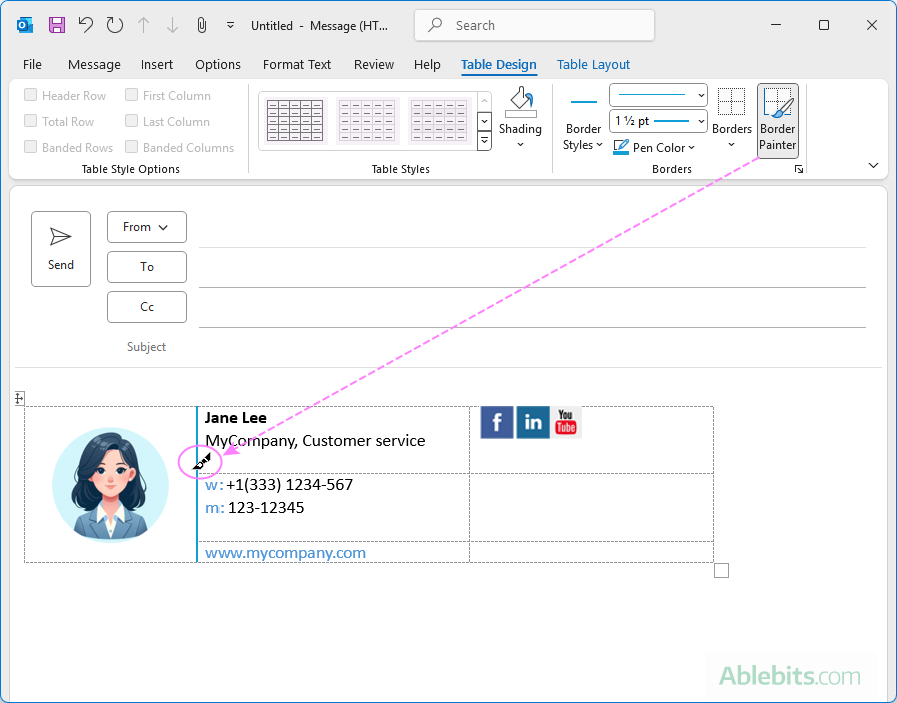
- Copy the signature. When you are happy with the design of your Outlook email signature, select the entire table, and press Ctrl + C to copy it to the clipboard (or right-click and select Copy).
- Set up a new signature. Go to the Insert tab and click Signature > Signatures… > New. In the Edit signature box, paste the copied signature using the Ctrl + V shortcut or right-click and select Paste from the context menu.
And that's it! You've successfully created a professional Outlook email signature with a photo, hyperlinks, as well as clickable images and social media icons.
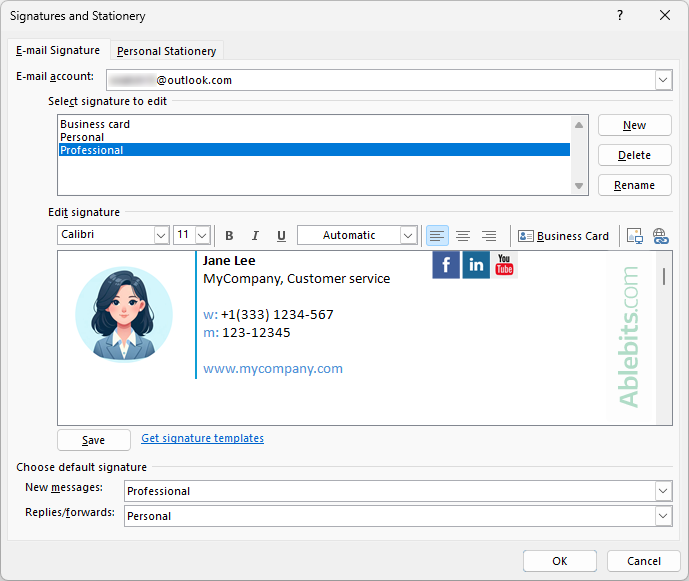
Tip. After creating a beautiful html signature, you may also want to customize the plain text version to ensure your signature remains clear for recipients who view emails in plain text format.
Make a polished Outlook signature with template
If making an email signature from scratch feels a bit time-consuming or tricky, you can take a simpler route. Use a ready-made template or customize it to suit your preferences.
Our Shared Email Templates add-on for Outlook also includes Email Signature Templates that lets you design a sleek HTML signature in a visual editor, without getting into code. The add-on works across all Outlook versions and platforms: desktop and web, classic and new, on Windows and Mac.
The process is straightforward and intuitive, just follow these steps:
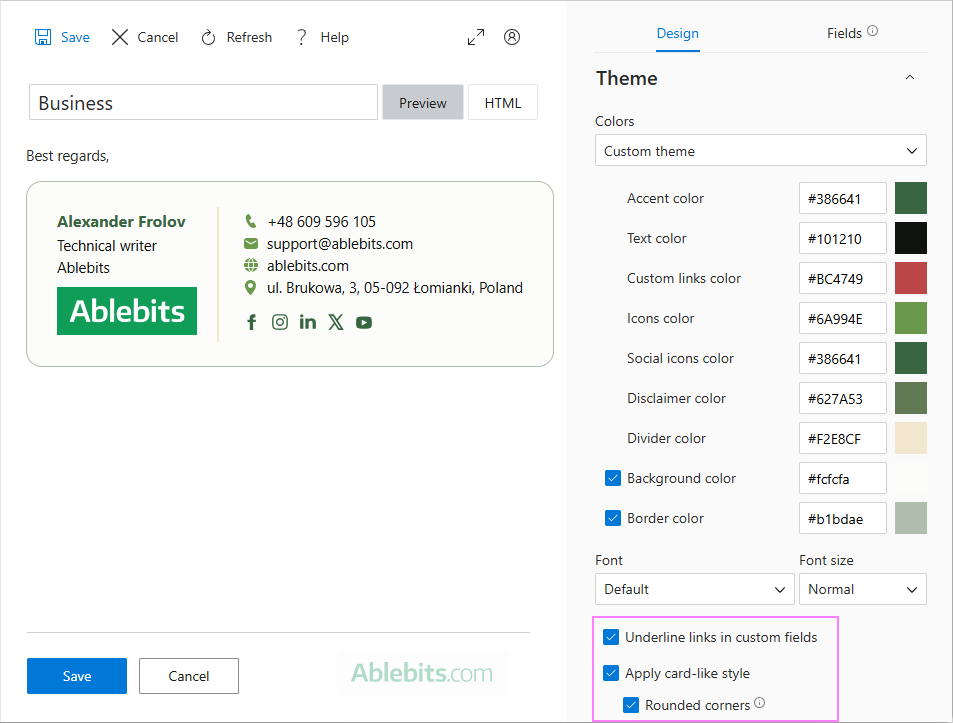
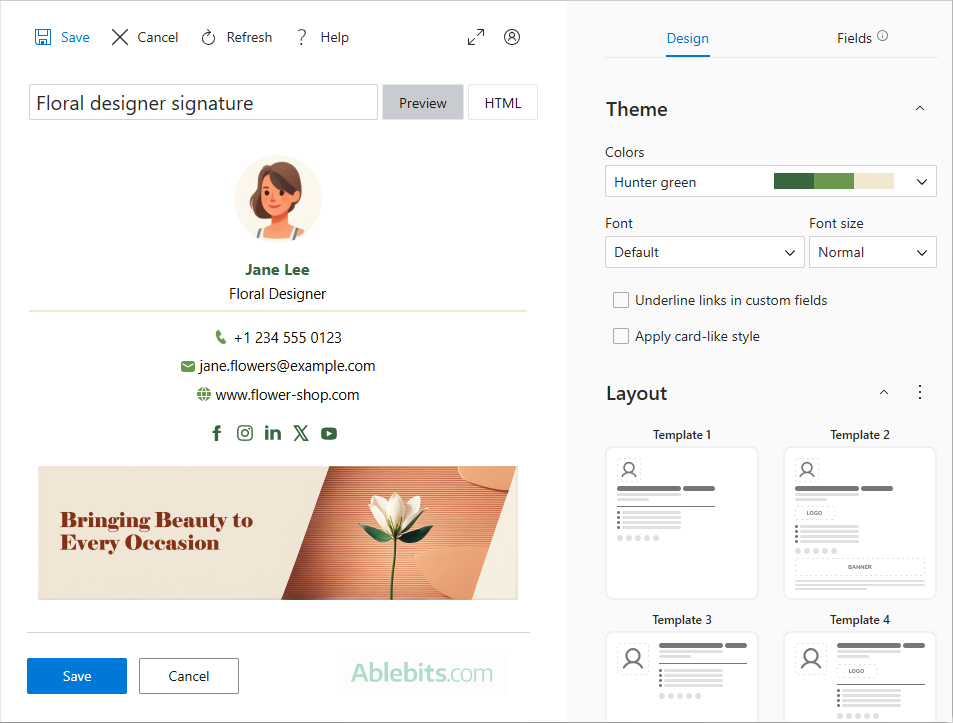
- Choose a color theme. Pick from a range of predefined color themes or set your own colors for different elements.
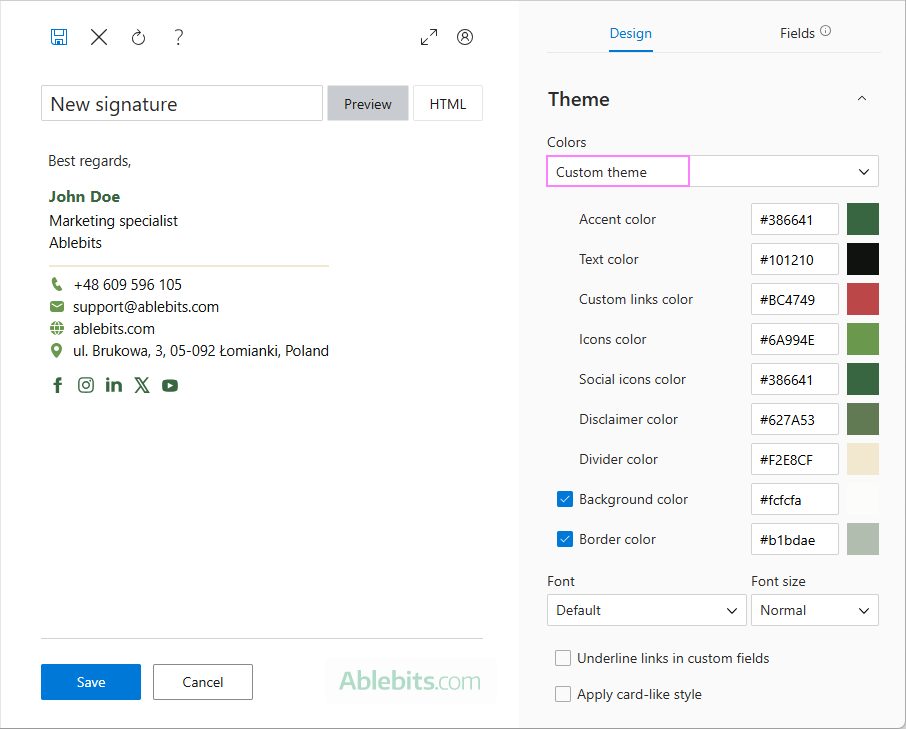
- Select a layout. Select one of the available layouts as a starting point. From there, you can remove any fields you don't need and add custom ones.
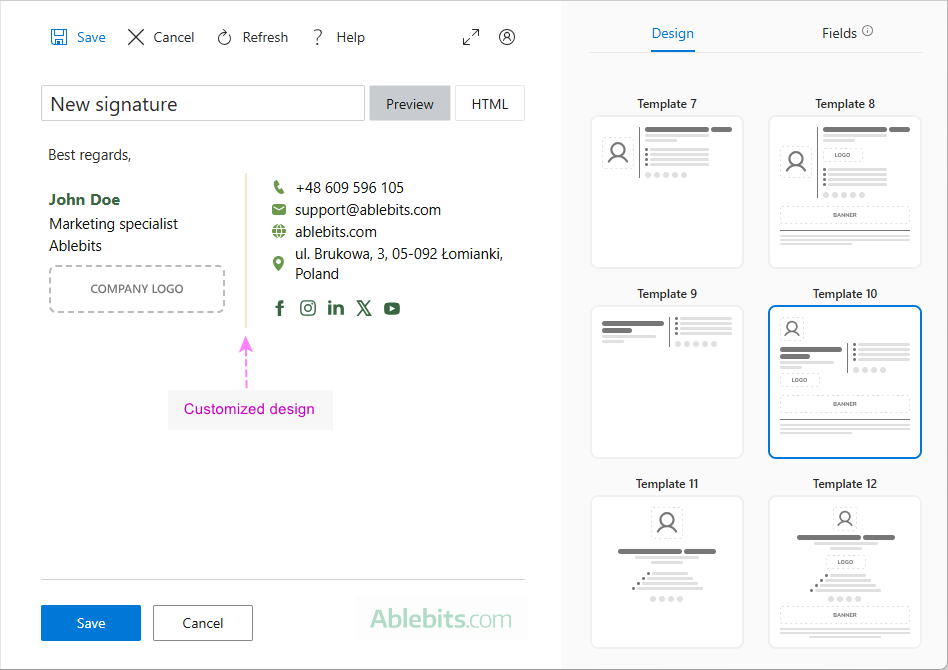
- Add your details. Fill in details such as your name, title, contact information, social media links, photo, logo, etc. Your changes will show up instantly in the preview.
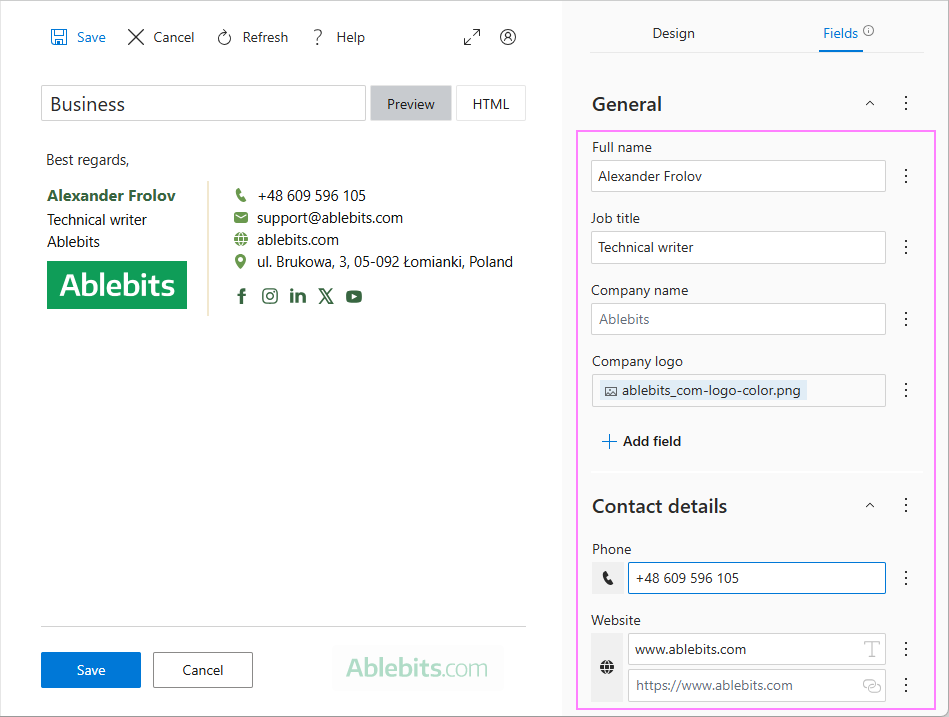
- Finish and save the signature. Add some finishing touches, such as applying a card-like style, and save your signature.
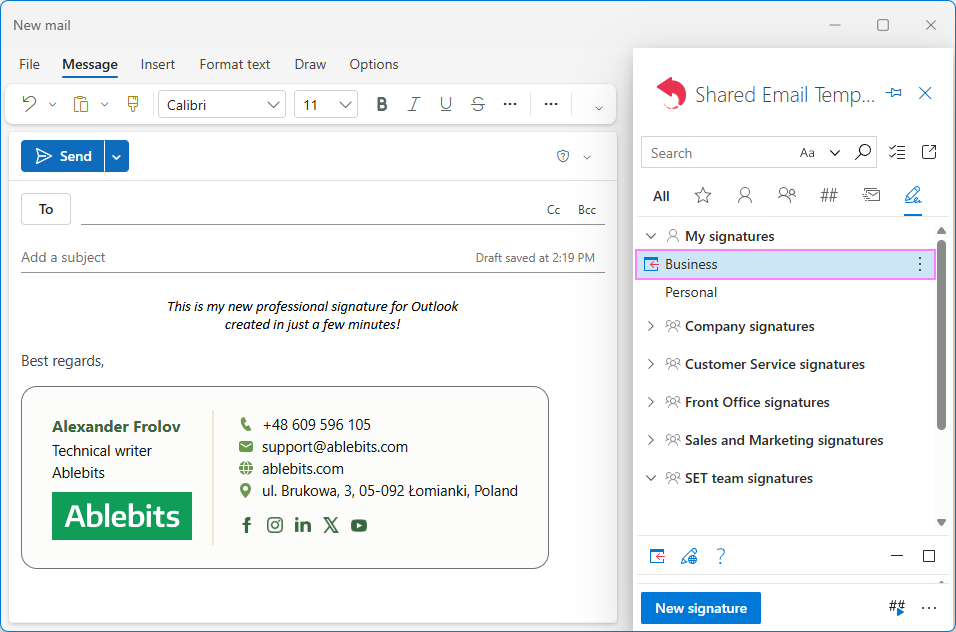
- Insert the signature into an email. To add your new signature to an Outlook email, just double-click it in the Shared Email Templates pane. You can also set it as your default signature, so it's automatically included in all new messages, replies, and forwards.
That's how you can effortlessly create:
- Personal email signature for yourself
- Team signature for your team-mates
- Company-wide signature for the whole company
Easy, stylish, and ready to impress! You can try it yourself by installing the free version from Microsoft App Source and see how it works for your email signatures.
Professional Outlook signature examples
Below are a few examples to give ideas for your own signature design. Each one uses a slightly different approach, so you can see how layout, colors, and elements come together in practice.
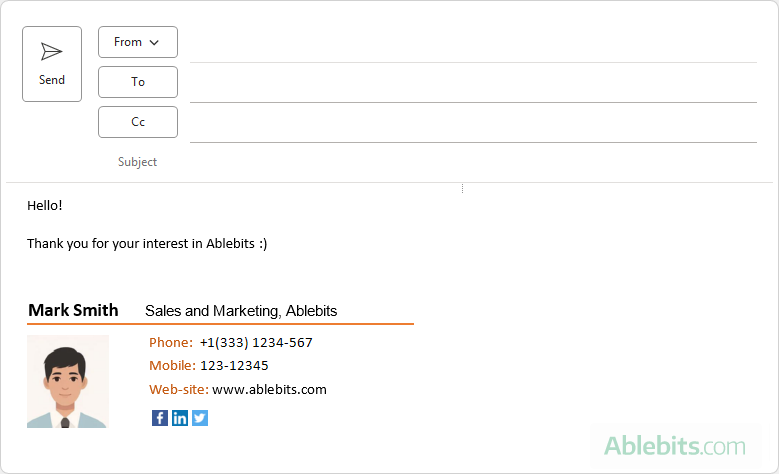
Example 1. Classic business signature
This signature with a structured layout and a balanced color palette was created in Outlook 365 using the table method (2 columns and 2 rows). It keeps the focus on essential contact details while maintaining a minimalistic and professional look.
Example 2. Work signature with soft design
This signature uses one of the built-in color schemes from Shared Signature Templates. The soft colors create a friendly feel, while the one-column layout keeps everything clear and easy to read. A promotional banner at the bottom adds a practical touch — it can be updated for seasonal campaigns or special offers to direct readers to your website.
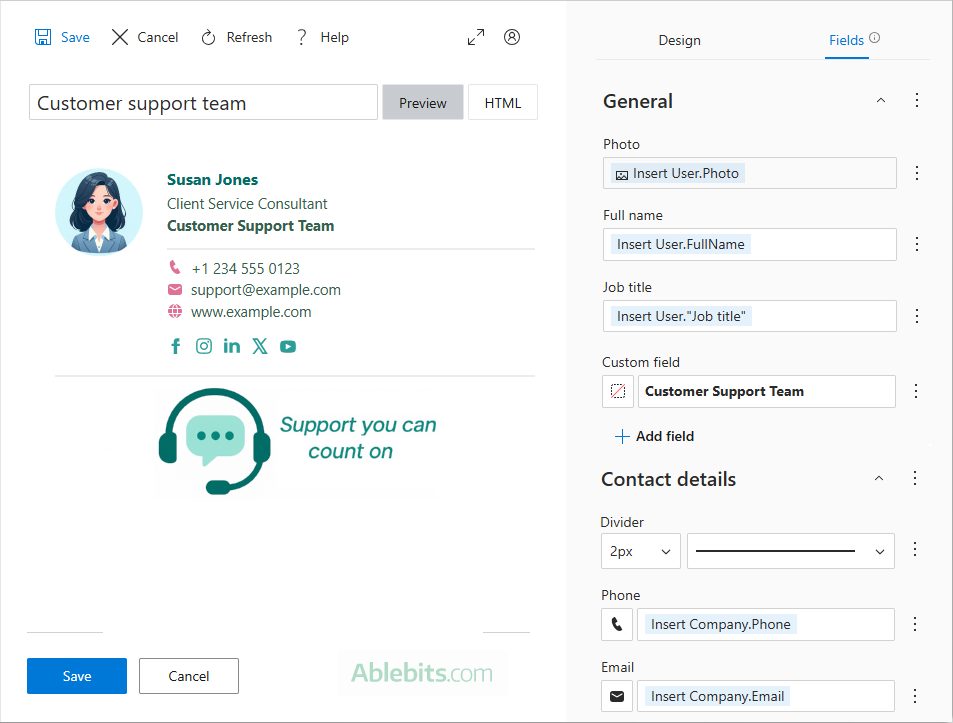
Example 3. Team signature for Outlook
This Outlook email signature was created for a technical support team using the Shared Signature Templates online designer. It combines both personal and team information, including the team name and logo. The signature is set up so that each user's personal details are filled in automatically from their profile, while shared company information is pulled from central company properties.
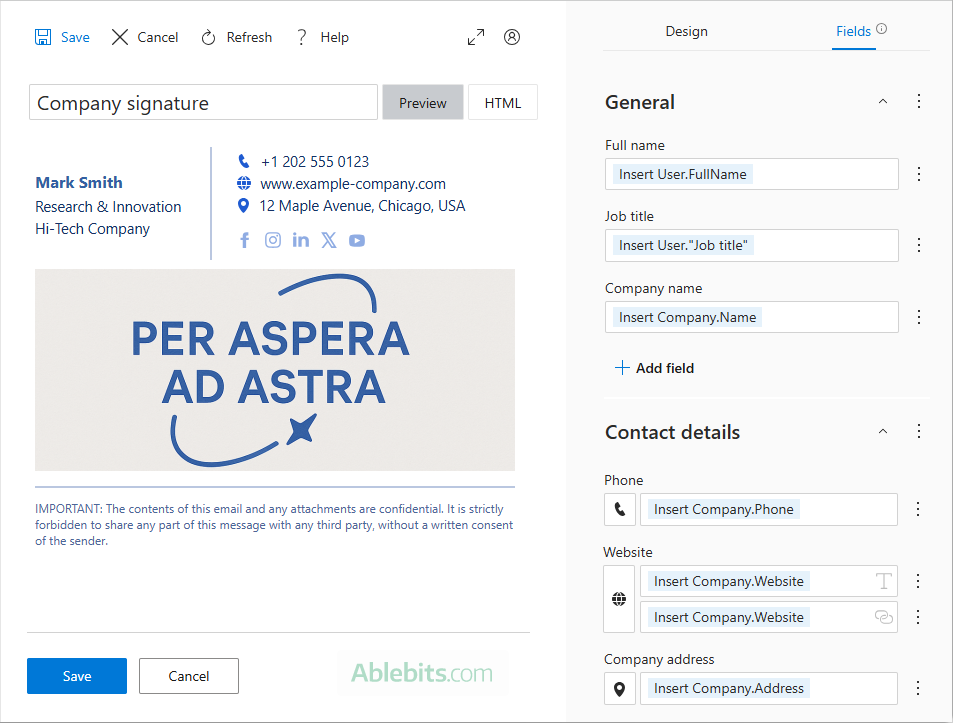
Example 4. Corporate signature for Outlook
This corporate signature for a high-tech company uses a subtle, understated color palette that gives it a modern and professional feel. Both personal and company details are populated automatically for each user from their respective properties, so every employee gets a consistent yet personalized signature without manual editing.
These signature examples show that even simple layouts can look effective with the right structure and attention to detail.
Now that you've know different ways to create a professional Outlook signature, you can choose the approach that fits your needs best. Keep it balanced, aim for clarity, and your recipients will thank you 😊
Latest comments
How do you even open Email Templates? I don't know where to look in Outlook and the app that allegedly downloaded successfully in the Microsoft store.
Hello Chelsea!
Thank you for your comment. The location of Shared Email Templates varies depending on your version of Outlook. This page shows where to find it in each version: How to open the add-in pane in Outlook.
And here's our troubleshooting page, just in case.