Remove, extract, replace & add
Manage multiple substrings in Google Sheets
Substring Batch Toolkit from Power Tools lets you manipulate multiple substrings within multiple Google Sheets cells at once: extract & remove substrings, replace multiple values with other words, or add pieces of info before or after certain substrings.
Before you start
Of ranges
Besides the range you'd like to modify with the tools, you will need to supply an additional range: with the values to add/remove/extract/replace specifically.
Of formats
If you use the tools to process cells formatted as dates, time, currencies, etc., Google Sheets may change the format of the resulting cells according to their new contents.
How to handle multiple substrings at a time
Run Substring Batch Toolkit
- In the Google Sheets menu, go to Extensions > Power Tools > Start:

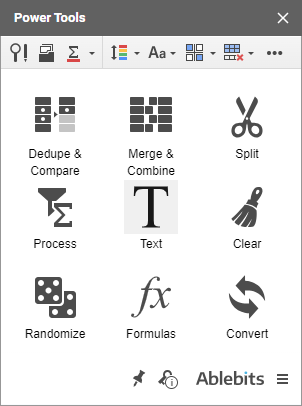
- Find the Text group:
- And then open Substring Batch Toolkit:
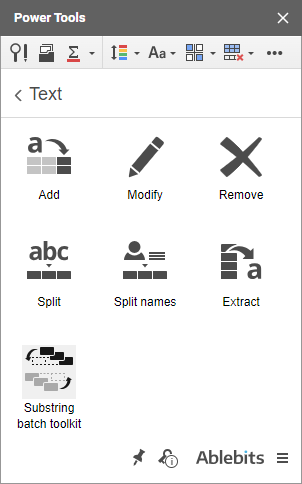
You'll see 4 different ways to process your data. All deal with multiple substrings in one go: remove, extract, replace and add. Pick the required group to proceed.
Remove multiple substrings
This first tool will search the selected range for the substrings from your list of values. If found, they will be removed from the range completely.
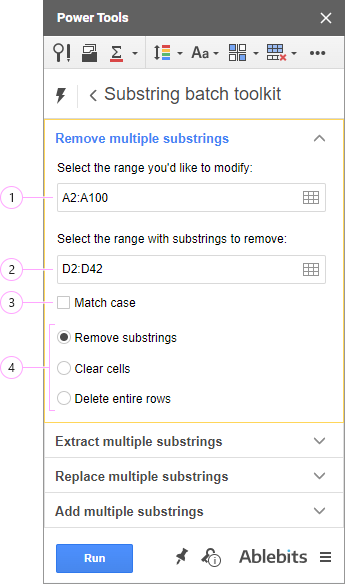
- Enter the range where you'd like to remove multiple substrings.
- Enter the range with substrings to remove. It's basically a list of all those values you'd like to find and remove in the selected range.
- You can modify the range by clicking the Get selection icon to insert the currently selected cells, or using the rectangle icon to automatically detect the entire table.
- If it's important to remove the substrings of a certain text case only, tick off the Match case box.
- Decide on the exact way to get rid of the found values:
- Remove substrings will simply delete these exact words from cells leaving other contents intact.
- If cells contain at least one substring you wish to remove, Clear cells will erase all cell contents whatsoever leaving blanks behind.
- Delete entire rows will completely delete the rows containing at least one substring to remove.
Once you're ready, hit Run.
Extract multiple substrings
The next add-on will look for the words from your list in the selected range and cut them out. Each cut word will be placed in its own new column to the right.
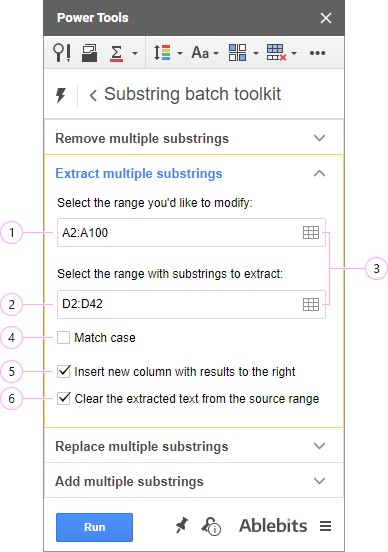
- Enter the range you'd like to modify.
- Enter the range with substrings you'd like to extract.
- Click the Get selection icon to select the ranges directly from the sheets or make the tool pick them up automatically using the rectangle icon to detect the entire table.
- If the substrings may occur in different text cases, you may want to use the Match case option.
- By default, the add-on retrieves values and puts them into the column(s) to the right of the selected range: each word to a separate column. If there's existing data in those columns, it will be replaced by the extracted substrings.
To prevent overwriting, check this box, and new columns will be inserted for the extracted substrings.
- The last checkbox controls whether the add-on only copies or completely cuts the found substrings from the selected range.
When you're happy with the settings, press Run.
Replace multiple substrings
Here you will find multiple substrings & replace them with other special words — all in one go.
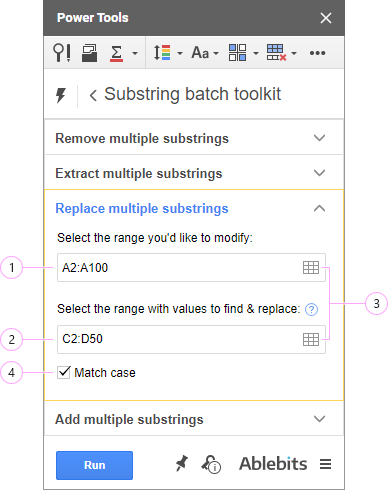
- Enter the range where you need to find & replace substrings.
- Enter the range containing the exact substrings you'd like to find & replace.
Note. This range must contain 2 neighboring columns:
- Values to find — in the 1st (leftmost) column.
- Their corresponding replacements — in the 2nd (rightmost) column.

- Make use of the icons in both fields to set the ranges automatically:
- Click the Get selection icon to use your current selection.
- Pick a single cell in the table and use the rectangle icon to select the whole table.
- If the text case matters, select Match case to consider it.
Click Run to find & replace all substrings.
Add multiple substrings
Adding substrings after/before certain words is yet another operation you can do in a batch:
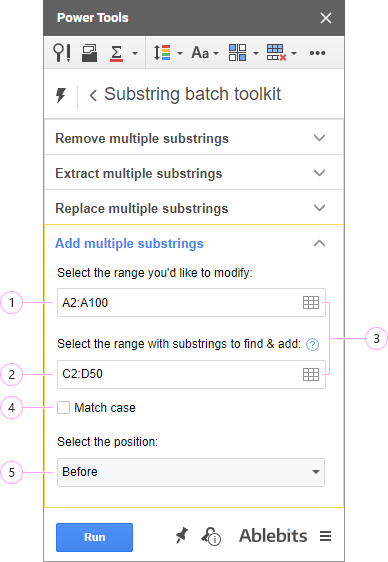
- Select the data range where you intend to add substrings.
- Set up a 2-column range containing the following:
- Substrings to find in the 1st column. Your values will be added right before or after them.
- Related values to add in the 2nd column.

- Use the icons in both fields to select the ranges automatically:
- Click the Get selection icon to use your current selection.
- Select any cell within your table and click the rectangle icon to auto-select the entire table.
- Tick off Match case to consider the text case of your substrings.
- Choose either Before or After from the drop-down menu to add substrings to the found values accordingly.
Hit Run to add the corresponding records before or after the found substrings.
Please contact us here