Shared Email Templates & Signatures for Gmail
Google Drive integration: attachments, images, and links
While the Outlook version relies on OneDrive or SharePoint, the Gmail add-on is fully integrated with Google Drive to make managing your assets fast and secure. This page explains the specific details you need to know when working with Google Drive in Shared Email Templates & Signatures for Gmail.
Note: Since the core workflow is nearly identical in both Outlook and Gmail, please refer to the following guides for general information on working with attachments, images, or links:
Attachments
In this section, we’ll show you how to link Google Drive files and folders to your templates in Shared Email Templates for Gmail.
Before you start
Pay attention to the following points:
- There are two ways to attach files: with the Message attachments button in the template editor and by using the Attach macro. These are two different processes, so files that you attach with the help of the Attach macro won't be shown in the Message attachments dialog.
- You might face limitations on the size and number of attachments. If you see an error message saying that your attachment can't be added, please check the size of your file and try to decrease it.
- When attaching a file from Google Drive in a template that is shared with other users, make sure that your teammates have access to the corresponding file or folder in Google Drive. For example, you can create a special folder in your Google Drive, share it with all your teammates, and collect all the documents that you share in templates there. For detailed information on managing access in Google Drive, visit the Share files from Google Drive page on the official Google Drive Help.
- When you use a template with the Attach macro to attach a file from Google Drive, you will be prompted to sign in to your Google account so that the macro has access to the file.
- When attaching a file from a URL in a template that is shared with other users, make sure that your teammates have access to the specified URL.
Attach a file from Google Drive
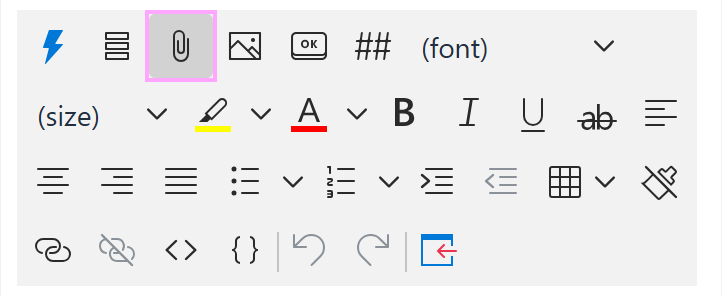
- When creating or editing a template, click the Message attachments button.
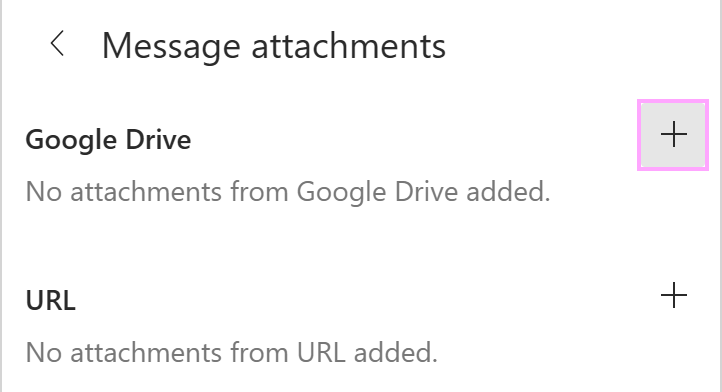
- Click the plus sign to the right of Google Drive.
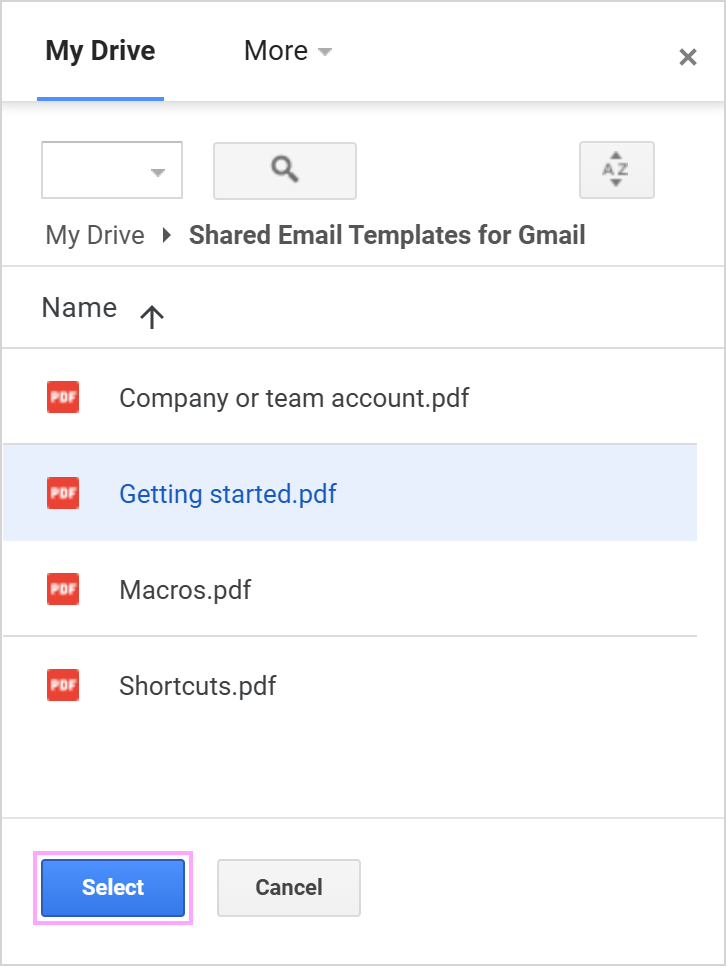
- Select a file.
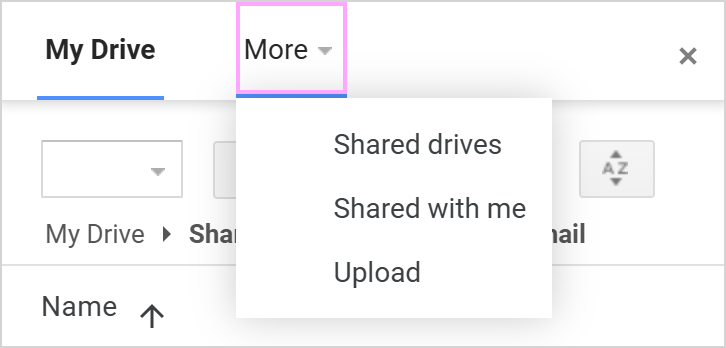
Tip: Click More next to My Drive to look for files in Shared drives or Folders and Files shared with you, or click Upload to upload a file from your local storage to Google Drive:
- Close the Message attachments dialog.
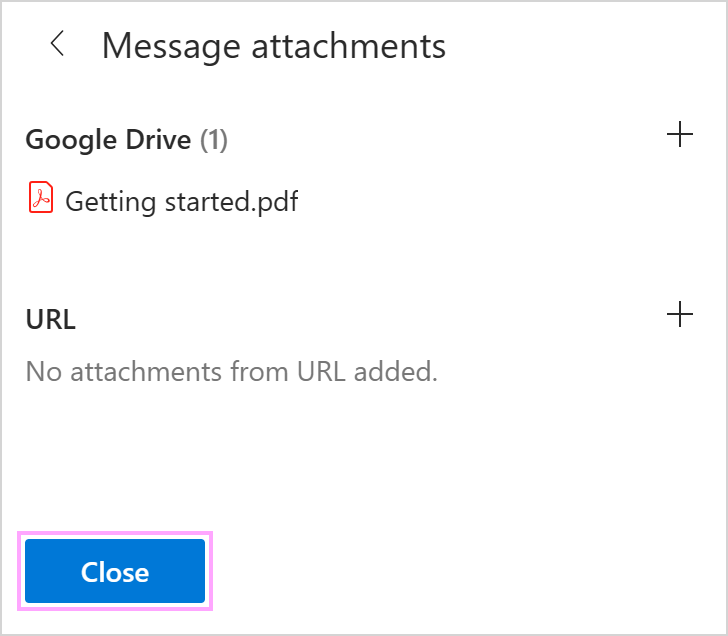
A blue dot will appear on the Message attachments button:  Don't forget to save the changes.
To add another attachment, to see what attachment(s) you've already added, or to delete an attachment, click the Message attachments button again.
Attach all files from a Google Drive folder
- When creating or editing a template, click the Insert macro button.
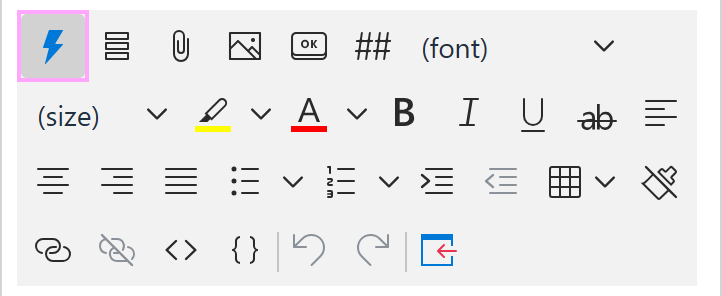
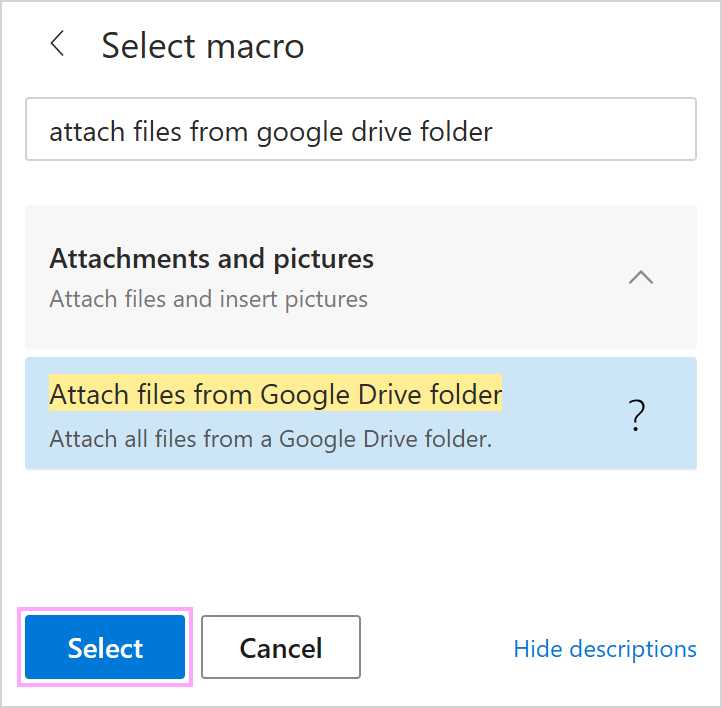
- Select Attach from Google Drive folder.
- Pick a folder that contains the files you'd like to attach, and click Select.
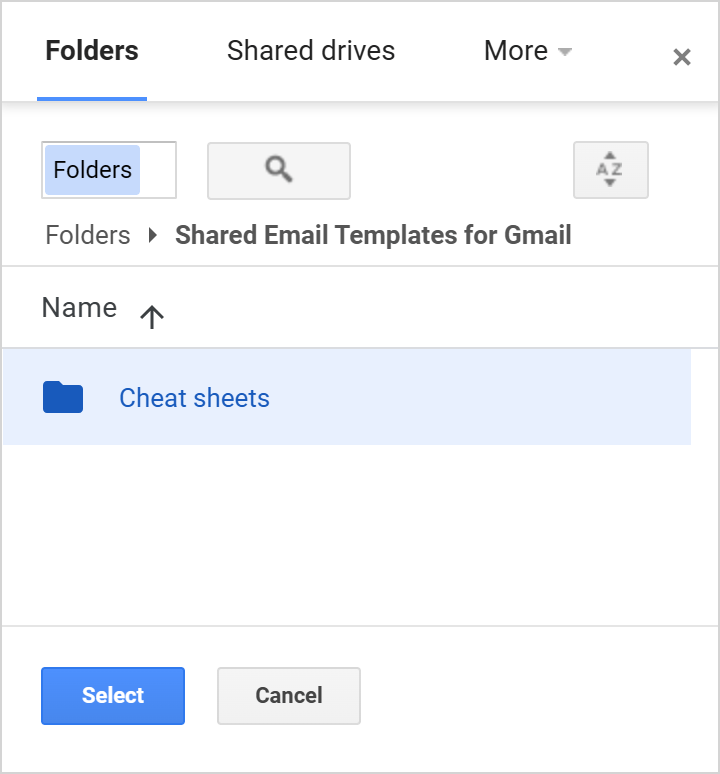
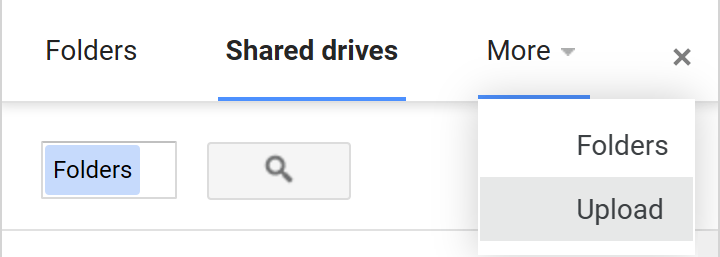
Tip. Use the options next to My Drive tab to look for the folders in Shared drives or attach Shared folders. Or click Upload to upload a folder from your local storage to Google Drive:
- Save your template.
Pictures
In this section, we’ll show you how to use the Google Drive integration to insert images into your templates.
Before you start
Before adding images in Shared Email Templates, read the notes below.
- When inserting a picture from Google Drive with the InsertPicture macro in a template that is shared with other users, make sure that your teammates have access to the corresponding file or folder in Google Drive. For example, you can create a special folder in your Google Drive, share it with all your teammates, and collect all the images you share in templates there. For detailed information on managing access in Google Drive, visit the Share files from Google Drive page on the official Google Drive Help.
- When you use a template containing the InsertPicture macro to insert an image from Google Drive, you will be prompted to sign in to your Google account so that the macro has access to the file.
- If you see an error message saying that your attached picture can't be added, please check the size of the picture and try to decrease it.
Insert a picture from Google Drive
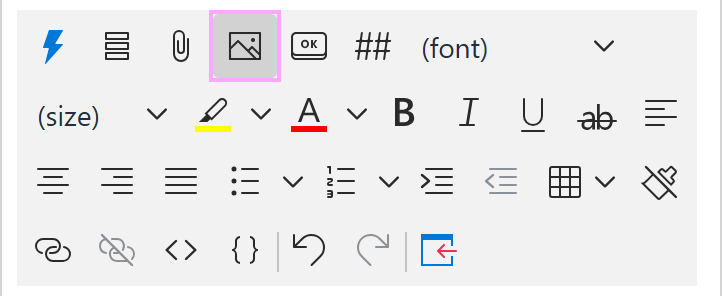
- On the template editor toolbar, click the Insert picture button.
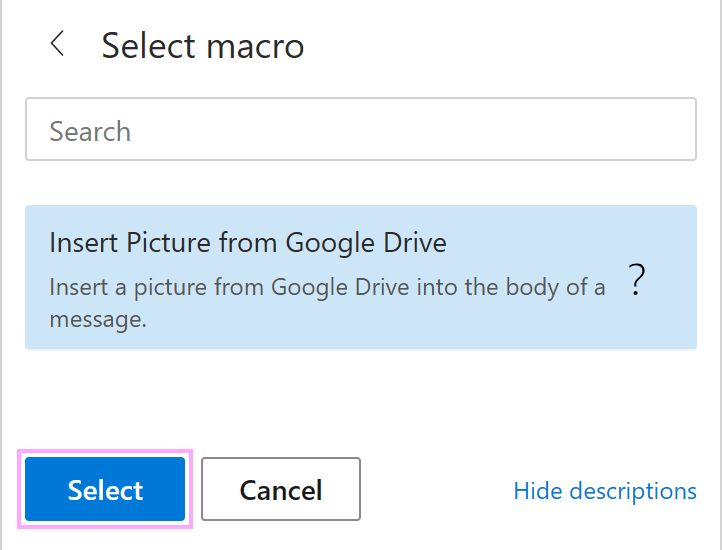
- Select Insert picture from Google Drive.
- Use a Google Accounts dialog that may appear to confirm your Google account and granted permissions.
- Select a picture you want to insert.
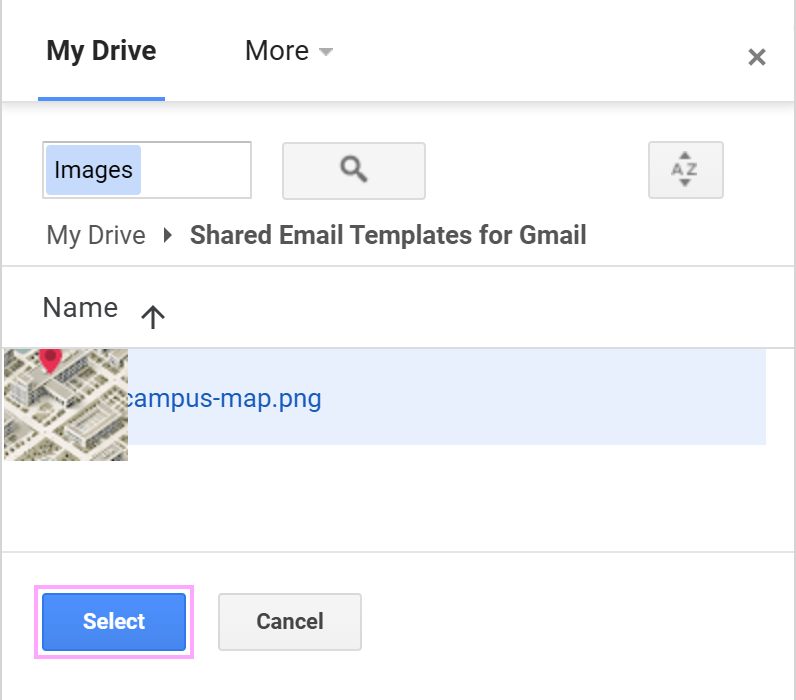
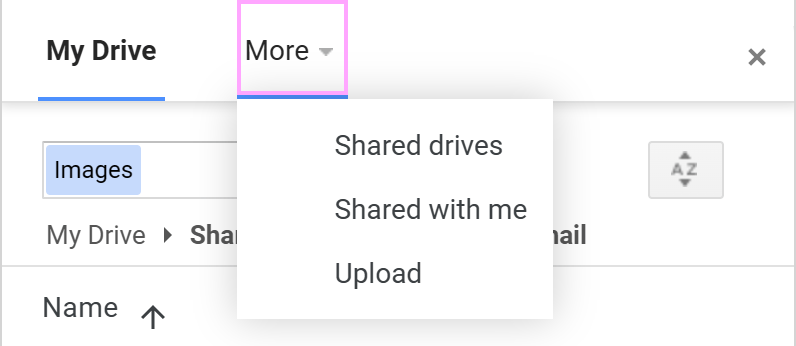
Tip. Click More next to My Drive to look for pictures in Shared drives or Folders/Files shared with you, or click Upload to upload a picture from your local storage to Google Drive.
- You can adjust the picture size or keep its original dimensions. Additionally, you have the option to enter a link URL and title, but these fields can be left blank if not needed. Once everything is set, click OK.
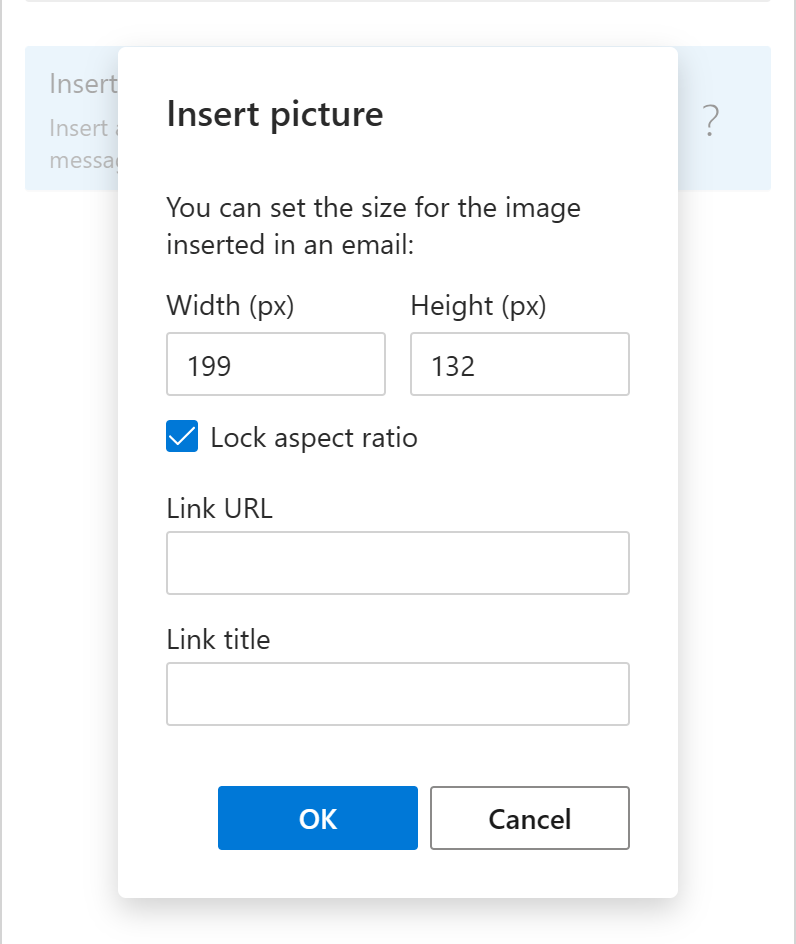
Note. By default, the Lock aspect ratio checkbox is enabled to maintain the original proportions of the image when resizing.
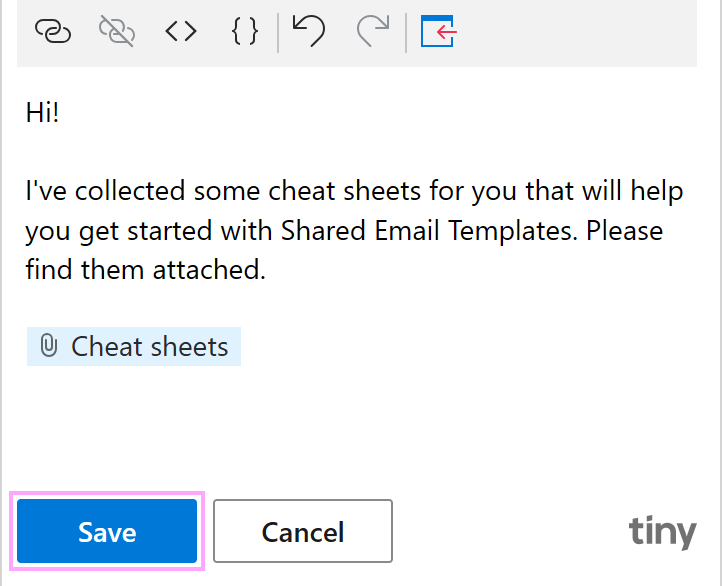
- The InsertPicture macro placeholder will appear in your template. Click Save.
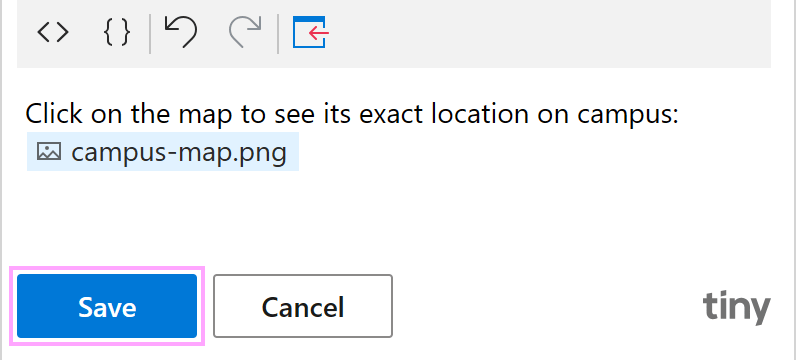
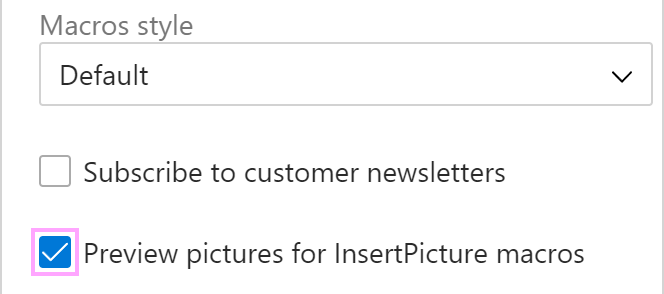
Tip. To see the pictures inserted from Google Drive rather than macro placeholders in templates, go to Profile > Edit account and check the box Preview pictures for InsertPicture macros.
Links
Linking to files instead of attaching them is the best way to share large documents or files without hitting email size limits. This section explains how to insert Google Drive links into your templates.
Before you start
Please keep the following in mind before adding links to Google Drive files:
- When you link to a Google Drive file in a shared template, the add-in doesn't automatically grant access to that file for your teammates. You must manually set the file's sharing settings in Google Drive to "Anyone with the link" or share it specifically with your team members/group.
- When you use the Insert Link to Google Drive file macro for the first time, you will be prompted to give the add-in permission to browse your files. This is a one-time setup to ensure the add-in can generate the correct link.
- If you move the file to another folder within your Google Drive, the link will typically remain active. However, if you delete the file or revoke access, the link in your email will stop working for the recipients.
Add a link to a Google Drive file
If you want to share a large file without attaching it, or if you want to link to a collaborative document, follow these steps:
- On the template editor toolbar, click the Insert macro button.
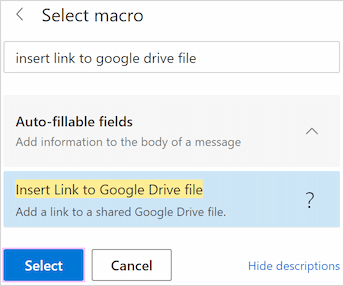
- Select Insert Link to Google Drive file.
- Give the extension permission to access your files if prompted.
- Select the desired file from your Drive.
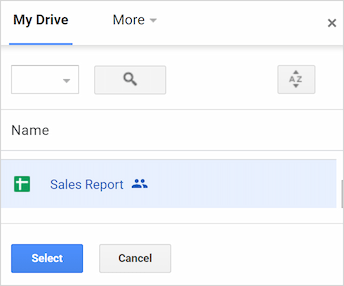
Note: Make sure the file's access permissions are set to "Anyone with the link" or shared with your team in Google Drive.
- In the dialog that appears, you can customize the link text and title.
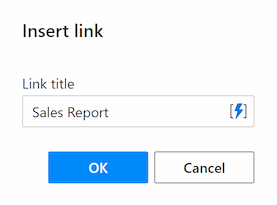
Tip: Use the Insert nested macro button within the dialog to open a list of macros that can be nested and select the one you need.
- When finished, select OK.
Please contact us here