Shared Email Templates & Signatures for Gmail
Create teams
Teams in Shared Email Templates allow you to organize your templates into shared folders and manage who can view or edit them. By setting up teams, you can collaborate with colleagues and make sure everyone is using the latest versions of your templates.
How to start a team
The process of creating a team and setting them up is almost identical to the Outlook version.
To get started, follow these steps:
- On the Shared Email Templates sidebar in Gmail, click the More (…) icon and select Company account (in older versions of the extension, the Company account option may appear as Manage account).
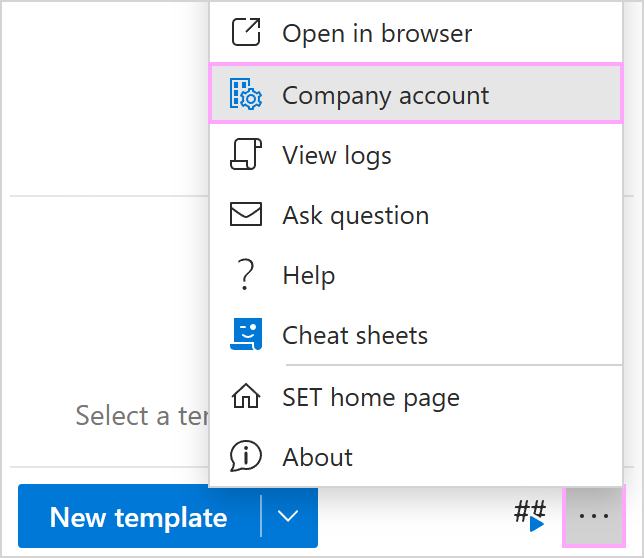
- A dashboard will open in your browser. Navigate to the Teams section and click Add team.
- Enter a name for your team.
- (Optional) You can add a description or set a team password to enable end-to-end encryption for your templates.
- Click Save.
Note: If you set a password, it cannot be changed or recovered. You will be responsible for securely sharing it with your team members.
Note: For detailed instructions on managing team properties, please refer to our manage teams guide.
Add users and grant permissions
Once your team is created, you can add existing members from your company account and decide on their permissions:
- Open the More (…) menu at the bottom of the Shared Email Templates pane and select Company account.
- After Shared Email Templates launches in your browser, find the team you want to manage, right-click it, and select Add users.
- From the list of available users, select those you want to invite to the team.
- Assign their permissions (User or Editor).
- Click Add.
Note: If you want to add new people directly from your Google Workspace Directory, please use the instructions we described in the previous guide.
Note: Unlike the Outlook version, teams in Gmail are managed via Google Workspace. Please note that Azure AD groups are not supported in the Gmail extension.
Please contact us here