 by
by In this guide, we'll look at how Outlook cloud signatures work, how to enable them in different Outlook versions, and what to do if your signatures refuse to sync.
Ever spent time creating the perfect email signature, only to discover it's missing when you switch to another computer or open Outlook in a browser? The good news is that Outlook for Microsoft 365 now has a built-in feature that can save your signatures to the cloud and make them available across different Outlook apps: classic, new and web.
What are Outlook roaming signatures?
Roaming signatures are an Outlook feature that stores your email signatures in your Microsoft 365 mailbox in the cloud, rather than on your local computer.
Traditionally, classic Outlook (2024 - 2010) stores signatures in this folder on your Windows PC:
C:\Users\{Username}\AppData\Roaming\Microsoft\Signatures
This means that signatures created on one computer aren't available on another. If you get a new laptop or use Outlook on multiple PCs, you need to export your signature files manually.
With roaming signatures enabled, Outlook 365 stores signatures in your Exchange Online mailbox, so you can use them anywhere you sign in with the same account.
The main advantages are:
- Access across different devices. Use your email signatures on different computers without manually copying files.
- Syncing between Outlook apps. Changes to cloud signatures are reflected in all supported applications, including classic Outlook 365, new Outlook, and web.
- Less manual setup. When you configure Outlook on another computer, your mailbox signatures become available automatically, so you don't have to recreate them every time you change devices.
Note. In classic Outlook, roaming signatures are only supported for Microsoft 365 work or school accounts hosted in Exchange Online. For accounts hosted on on-premises Exchange servers, POP/IMAP accounts, and third-party email accounts, roaming signatures are not currently supported.
How to save Outlook 365 signatures to cloud
In classic Outlook for Microsoft 365, you can choose whether to save your email signatures to your mailbox in the cloud or keep them locally on your computer.
Step 1. Enable roaming settings in Outlook
First, make sure Outlook is configured to store your settings in the cloud:
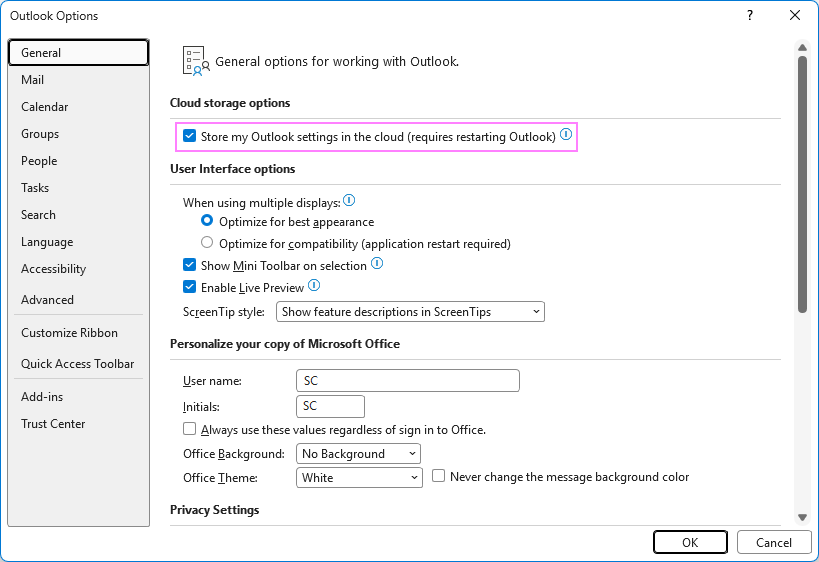
- In classic Outlook, go to File > Options > General.
- Under Cloud storage options, select the Store my Outlook settings in the cloud checkbox.
- Click OK to save your changes.
- Restart your computer for the changes to take effect.
Step 2. Create a cloud-based Outlook signature
To create a cloud-based email signature in Outlook 365:
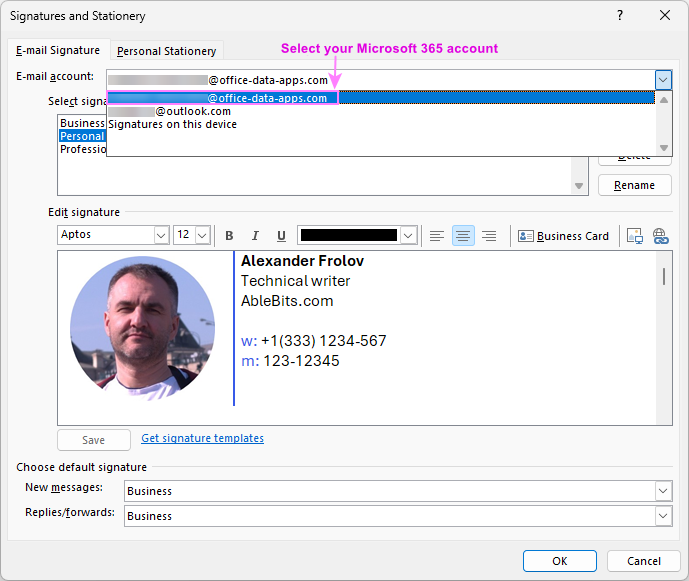
- In classic Outlook, open File > Options > Mail > Signatures.
- In the Signatures and Stationery dialog, find the email account selector above the signature list and choose your Microsoft 365 account.
- Click New and create your email signature. You can add contact details, images, links, and other elements as needed.
- Click OK to save your changes.
That's it! Your new signature is now associated with your Microsoft 365 mailbox and can automatically sync across supported Outlook applications and devices.
Notes:
- Enabled by default. For Microsoft 365 enterprise accounts, the roaming setting is enabled by default. Administrators can disable this feature using the Disable roaming settings in Outlook (L_DisableRoamingSettings) group policy template.
- Other Outlook settings are also roamed. The Cloud storage options apply to many Outlook preferences (including settings under General, Mail, Calendar, Groups, People, Tasks, etc.), not just signatures. However, device-specific settings such as Language, Customize Ribbon, Quick Access Toolbar, Add-ins, and Trust Center are not synchronized.
- Local signature files are still created. Even with roaming signatures enabled, Outlook 365 continues to create standard signature files (.htm, .rtf, and .txt) in the default signature location just as older versions did. Consider it a safety net in case cloud synchronization fails or you need to restore your signatures manually.
- Cloud option is missing. If your Outlook doesn't offer a cloud signature option, you may be using an older Outlook version, an unsupported email account, or a configuration in which roaming signatures are disabled.
How to move an existing Outlook signature to cloud
If you've been using Outlook for years, you probably already have one or more signatures saved locally. Unfortunately, there is no quick way to move them all to the cloud automatically. You can only copy your local signatures manually one by one.
To move an existing signature to the cloud:
- Go to File > Options > Mail > Signatures.
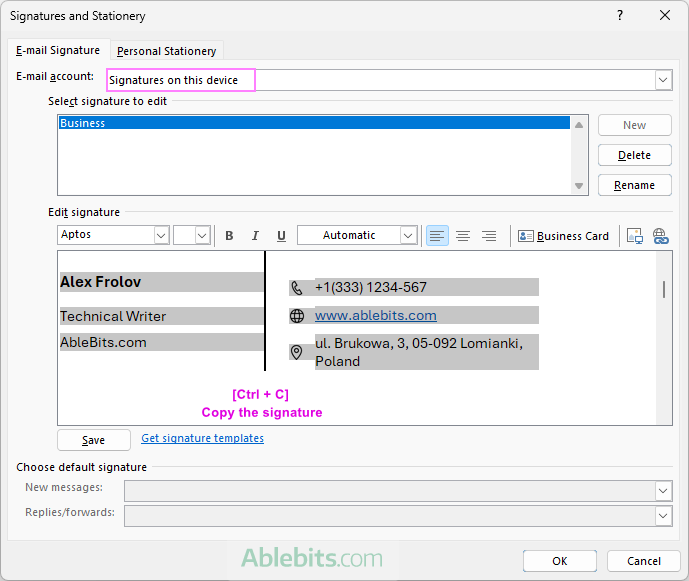
- In the account drop-down menu, choose Signatures on this device to display your locally stored signatures, if available.
- Select the signature you want to transfer.
- Copy its contents from the Edit signature box using the Ctrl + C shortcut.
- In the account drop-down menu, choose your Microsoft 365 mailbox.
- Click New, give the cloud signature a name, and paste the copied content (Ctrl + V) into the editor.
- Save the signature and assign it to new messages or replies if needed.
Tip. After transferring a signature, check that its images, hyperlinks, and formatting still look right. Keep the original local copy until you've confirmed the cloud version works correctly.
Note. You can still use your existing local signatures when writing emails, but you won't be able to edit them or create new ones under Signatures on this device. The New button stays grayed out even if you turn off roaming settings.
Cloud signatures in new Outlook and Outlook on the web
In new Outlook and Outlook on the web, all email signatures are automatically saved to the cloud. There is no separate 'Save to cloud' option.
Each signature is associated with a specific mailbox. For Microsoft 365 accounts, signatures automatically sync between new Outlook, Outlook on the web, and classic Outlook 365 with roaming settings enabled.
For a detailed guide, see How to create signatures in new Outlook and web.
Outlook signatures not syncing: how to fix
Sometimes a signature appears correctly in one Outlook application but is missing from another. Here are a few things to check.
Make sure you're using the correct account
Cloud signatures are associated with individual mailboxes. If you use several accounts in Outlook, a signature saved for one account won't be available under another (unless you've created the same signature for multiple accounts).
Open the signature settings in the affected Outlook app and verify that a valid Microsoft 365 account is selected.
Update classic Outlook to the latest version
Roaming signatures were introduced in classic Outlook for Microsoft 365 starting with version 2303. Earlier builds don't support the feature.
To check your version:
- Go to File > Office Account.
- Under Product Information, click About Outlook to check the installed version.
- If updates are available, select Update Options > Update Now.
Restart Outlook after updating, then check your signatures again.
Check whether the signature is stored locally
A signature stored under Signatures on this device won't synchronize with your mailbox.
In classic Outlook, go to File > Options > Mail > Signatures and check which storage location is assigned to your signature.
If it's saved locally, copy it to your Microsoft 365 account to enable cloud synchronization.
Check your organization's policies
Your Microsoft 365 administrator may have disabled roaming signatures through organizational policies.
If you're using a company account and cloud signatures aren't available, check with your IT department whether the feature is enabled.
How to disable roaming signatures in classic Outlook
If you prefer to keep your email signatures locally in classic Outlook 365, simply clearing the Store my Outlook settings in the cloud checkbox under File > Options > General may not be enough. In our tests with Microsoft 365 work accounts, signatures continued to sync regardless of whether this option was on or off.
You can disable cloud signature synchronization using one of these methods:
- Change a Windows Registry setting. Microsoft explains how to disable the feature by changing the DisableRoamingSignatures registry value in its Outlook roaming signatures guide.
Important: Editing the Windows Registry requires technical knowledge and care, as incorrect changes can cause problems with Outlook or other applications. If you're not comfortable making these changes, ask your IT administrator for help.
- Use Group Policy. For Microsoft 365 work or school accounts, administrators can disable roaming signatures for multiple users by deploying a registry setting through Group Policy as described in this article.
Note that this is different from the Disable roaming settings in Outlook (L_DisableRoamingSettings) policy, which controls the synchronization of Outlook preferences.
Outlook cloud signatures: frequently asked questions
Before you put your Outlook signatures in the cloud, you might have a few questions. Here are the answers to the most common ones.
Are Outlook signatures automatically saved to the cloud?
In new Outlook and Outlook on the web, signatures are saved to the cloud automatically. In classic Outlook 365, you may need to enable roaming settings first, and then select your Microsoft 365 mailbox as the signature storage location.
Do cloud signatures sync between classic and new Outlook?
Yes, provided both applications use the same Microsoft 365 mailbox and classic Outlook is configured to store signatures in the cloud.
Do signatures sync to the mobile Outlook app on my phone?
Not necessarily. Outlook for iOS and Android has its own signature settings, and desktop roaming signatures aren't guaranteed to appear automatically in the mobile apps.
Can I save Outlook signatures to OneDrive?
OneDrive cannot be used directly as storage for Outlook roaming signatures. Of course, you can manually copy your local signature files to OneDrive for backup or transfer to another computer. Just keep in mind that this won't enable automatic signature synchronization.
Are roaming signatures available in Outlook 2016, 2019, 2021, and 2024?
No. Roaming signatures are only supported in classic Outlook for Microsoft 365, starting with version 2303. Perpetual-license versions of Outlook don't support this feature.
How to check if my Outlook signatures are syncing?
The easiest way is to create a new test signature or make a small change to an existing one in classic Outlook, then sign in to Outlook on the web with the same Microsoft 365 account, and check whether the new or updated signature appears there.
If it does, synchronization is working.
If the signature is missing, give it a little time, then refresh Outlook in your browser. Cloud synchronization isn't always immediate.
In conclusion: Saving Outlook signatures to the cloud can spare you the tedious job of recreating them whenever you switch computers. Just remember that cloud signatures are a relatively new feature, and synchronization doesn't always work as expected across different Outlook versions. Before relying on your cloud-based email signatures, make sure they've synced successfully and look just as they should 😊