Shared Email Templates & Signatures for Gmail
Troubleshooting
This page contains solutions for common issues with installing, running, or using Shared Email Templates for Gmail. If your problem isn't listed here or the provided solutions don't work, please email us at support@ablebits.com and we'll do our best to help you.
Connection problems
The extension doesn't load or loads slowly
Issue: When I run Shared Email Templates, the templates do not show up and the add-in pane looks empty. A few minutes later the templates appear on the pane.

Cause(s): The network connection is poor, or you use several Internet connections.
In case of two or more connections, for example, Wi-Fi and some corporate VPN, Gmail selects a network connection in an unknown way, that is why some of your teammates may not notice the problem with loading the add-in as their Gmail is connected through Wi-Fi while for the others the add-in may not work at all because Gmail is connected through some specific connections.
Solution: Please check what network connection is currently used by your system via Control Panel → Network and Internet → Network Connections.
If your company uses some corporate network and your Gmail is connected through it, you should contact your network administrators and ask them to add an enabling rule for the following domain:
- https://cdnset.ablebits.com
Error: There is no connection to the server
Issue: I cannot access my Shared Email Templates account and am getting the error message: There is no connection to the server. Please try again later.

Cause: You have a problem with the Internet connection.
Solution: Please first try to restart your system and sign in again. If this does not help, then verify your network connection and try to use a different connection. If you still have difficulties, contact your IT specialist to check if there are any blocks to use Shared Email Templates.
If your company uses some corporate network and your Gmail is connected through it, you should contact your network administrators and ask them to add an enabling rule for the following domain:
- https://cdnset.ablebits.com
Formatting issues
Formatting is broken
Issue: Pasting text from an external source messes up the formatting.
Cause: Text from other sources may bring inconsistent formatting that affects your template appearance.
Solution: Follow the steps described below.
- Select the pasted text in your template.
- Click Clear formatting on the toolbar:

- Format your template as needed.
Missing templates
My templates have disappeared
Issue: I no longer see any (or some) templates under My templates.
Cause(s): If some of your personal templates have disappeared, you might have deleted them somehow since you're the only person with access to My templates. The other reason may be that you've moved the missing templates to another folder or team. In this case the original folder no longer contains those templates.
Solution: Please check all the folders and teams you have in Shared Email Templates to see if the templates you're looking for have been moved accidentally to another location.
Note. When you delete a personal template, it gets to the Deleted Items folder in My templates. When you or your teammate deletes a team template, it gets to the Deleted Items folder in your team. Each team has its own Deleted Items folder.
Team templates are not visible
Issue: I can't see team templates.
Cause(s): One of the reasons may be that the team is encrypted and you simply need to enter the team password to get access to the team templates. If this is the case, the key icon next to the team is red.
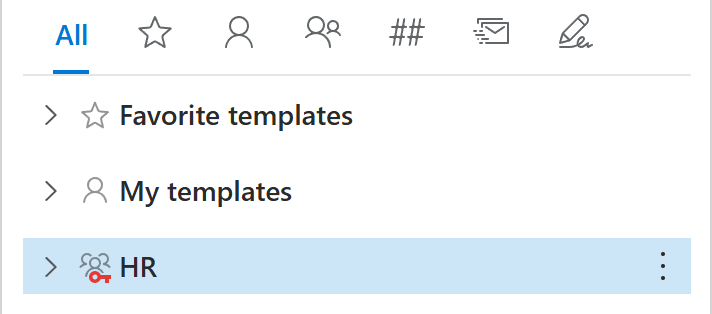
If you don't see just certain team templates, then the reason may be that they have been deleted or moved to another folder by your teammates who have the corresponding permissions.
Solution: If you need access to an encrypted team, contact your Shared Email Templates company or team account admin and ask for the team password (if you do not have it yet). Then select the team and enter the team password in the dialog that will appear on the add-in pane.
If you can't find certain templates in your team, please check the Deleted Items folder and ask your team editors whether they've deleted or moved the templates you're looking for.
Note. Each team has its own Deleted Items folder.
Please contact us here