Shared Email Templates & Signatures for Gmail
Email signatures for Gmail
With Shared Email Templates & Signatures for Gmail, you can create professional email signatures for yourself, your team, or your entire company, and set them as the default for new messages, for replies and forwards, or for both.
Before you start
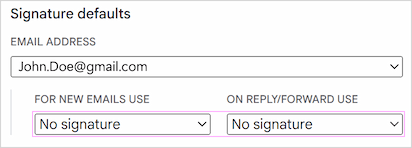
To ensure your signatures display correctly, you must disable the native automatic signatures in your Gmail settings:
- Open Gmail and go to Settings > See all settings.
- On the General tab scroll down to the Signature section.
- Select No signature for both For new emails use and On reply/forward use options.
Personal signatures
If you want to add nice professional signatures to your Gmail emails, Shared Email Templates is the best solution for you. You can create multiple email signatures, set the default ones, and control when to add them to the message body.
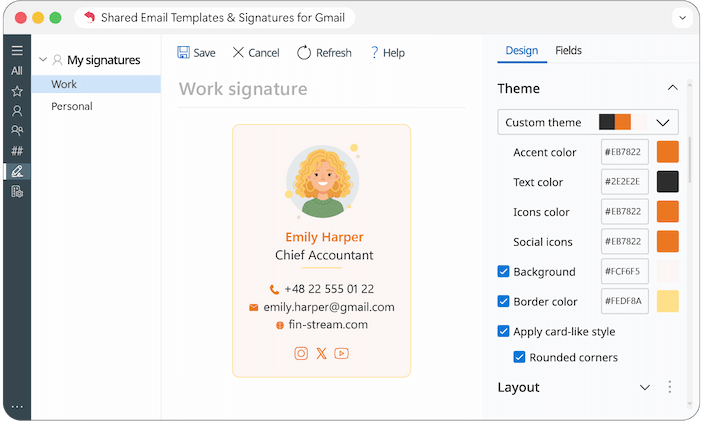
Our signature editor provides a wide range of tools to help you create a perfect layout:
- Choose from 14 pre-designed professional layouts to find the best fit for your needs.
- Select color themes, fonts, and sizes. You can even create a custom color theme.
- Apply a card-like style for a modern business card look, and choose whether to underline links in custom fields.
- Organise your information using dedicated sections:
- General: Photo, full name, job title, organization name, and logo.
- Contact details: Phone numbers, email, website, and postal address.
- Social media: Add icons and links to all your professional profiles.
- Additional: Sign-offs, promotional banners, or legal disclaimers.
- Add or remove individual fields and entire sections to keep your signature clean and relevant.
- For advanced users, there is an option to work with HTML templates for total design control.
Since signature creation is identical for Outlook and Gmail, follow this guide for setup instructions.
Note: Unlike the Outlook version, the Gmail add-in does not support Azure AD integration.
Company-wide signatures
If you have Admin rights for your Shared Email Templates company account, you can create and manage email signatures for other users.
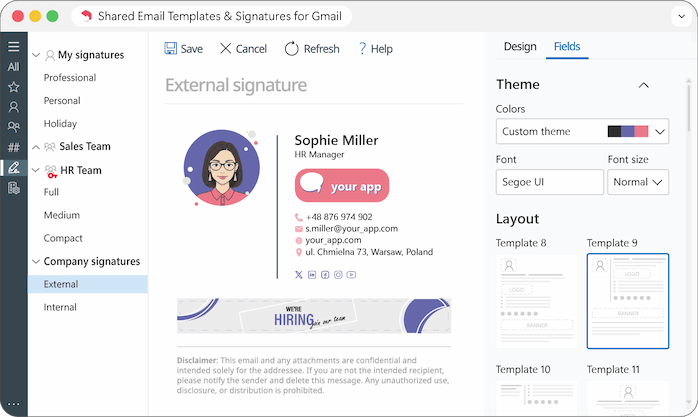
Centralized management allows you to maintain a professional brand image across all outgoing correspondence. Instead of asking every employee to update their signature manually, you can:
- Use corporate colors, logos, and a unified layout so every email looks professional and aligned with your brand book.
- Add or update promotional banners and links for the entire company to support current campaigns.
The process is quite simple, follow this guide for full step-by-step instructions.
Note:
- To automate personal details in signatures such as names or job titles, ensure the user profile properties are filled in. In the Gmail version, these properties replace the Azure AD integration used in Outlook.
- In Gmail, logos and banners are inserted from Google Drive instead of OneDrive or SharePoint.
Team signatures
This type of signature is ideal for specific departments such as Sales or Support that need different contact information or call-to-action banners. Learn more about team signatures.
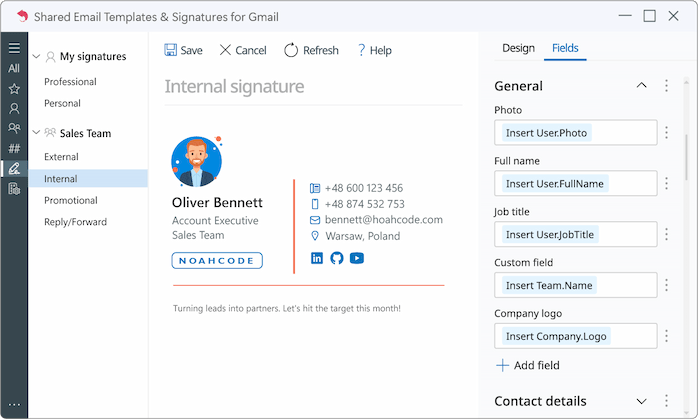
Note: To create team-wide signatures, you need Editor permissions. To check if you're an Editor in a team, open the add-in pane, select the team, and look for your name in the list of team members. If there's a check mark under "Editor" next to your name, it means that you have the required permissions.

Note: Like company signatures, there is no Azure AD integration. Instead, use team or user properties for personal info and Google Drive for media files.
Please contact us here