Shared Email Templates & Signatures for Gmail
Use macros in templates
On this page, you’ll find information on how to use macros in Shared Email Templates to avoid repetitive actions.
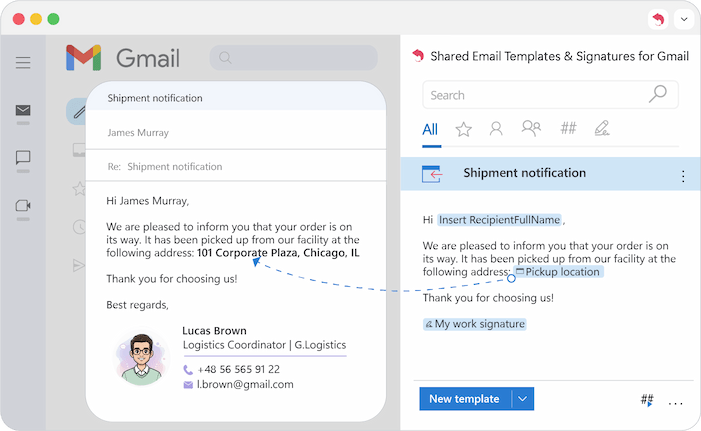
Macros turn static text into dynamic conversations, helping you automate almost every part of your email: pre-fill fields, insert personal details, add dates, or link data from Google Sheets.
Getting started: insert a macro
Adding automation to your emails is as simple as a few clicks.
- Start creating a new template or select an existing one and click Edit.
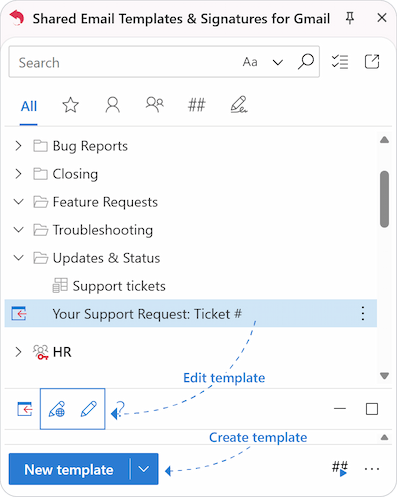
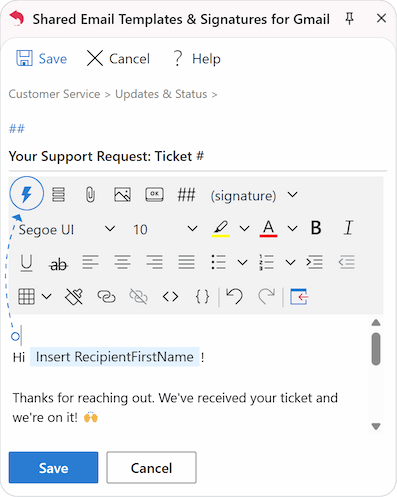
- Select a place in the template where you want to insert a macro and click the Insert macro (blue lightning bolt) icon on the editor's toolbar.
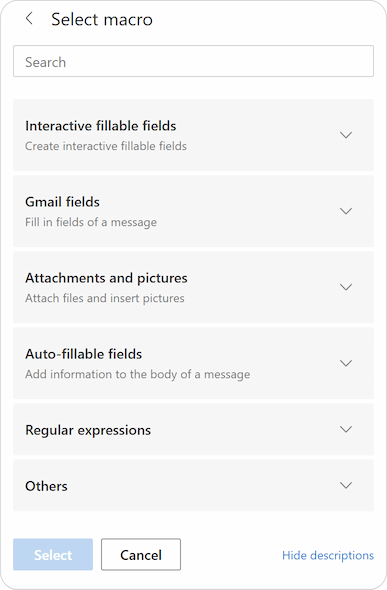
- A full list of macros will open, organized into logical categories for your convenience.
- Select your macro, use the search box for finding the right command in seconds, and click Select to add it to your template.
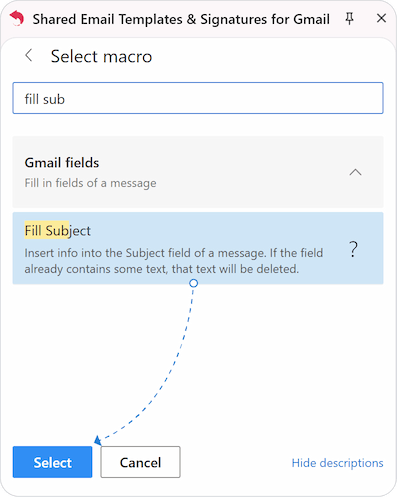
Tip: To make two macros work together, you can simply nest one within another:
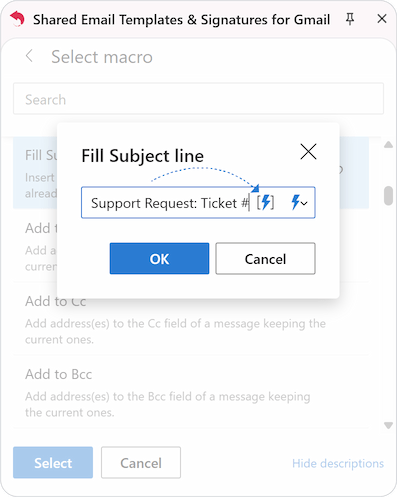
An inserted macro will appear as a placeholder in the template text.
Automatically insert the recipient's name
To make every email feel personal, use macros to automatically insert the recipient’s name:
- While editing the template, position your cursor where the name should appear.
- Click the Insert macro icon on the toolbar.
- In the macro list, search for "recipient" and select first name, full name, or last name.
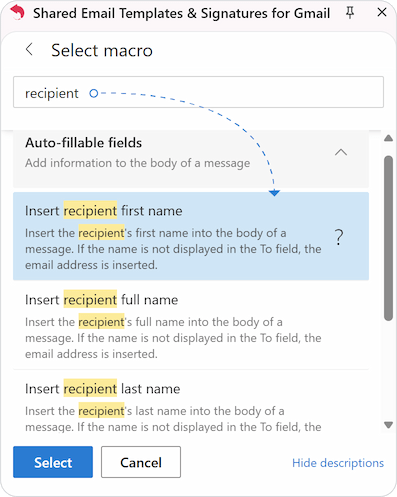
- Save your changes.
When you use the template, the add-on automatically detects the recipient's details and inserts the name into the email.
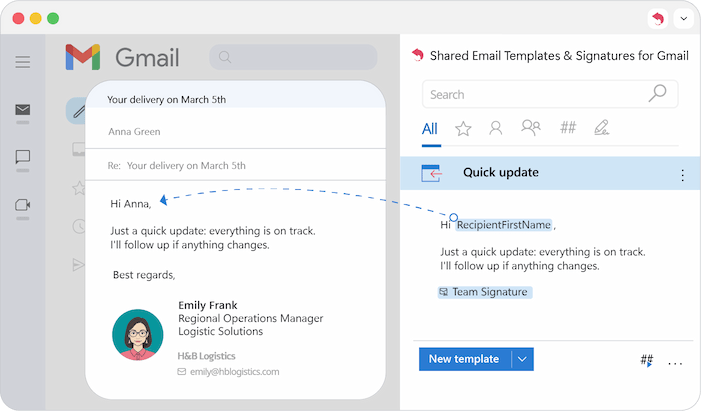
Automatically adjust greetings to the number of recipients
Use this macro to automatically change your greeting depending on whether you are writing to one person or a group.
- Position your cursor where the greeting should appear.
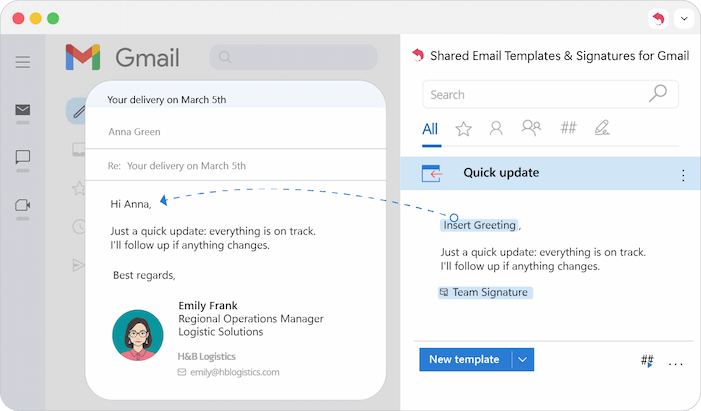
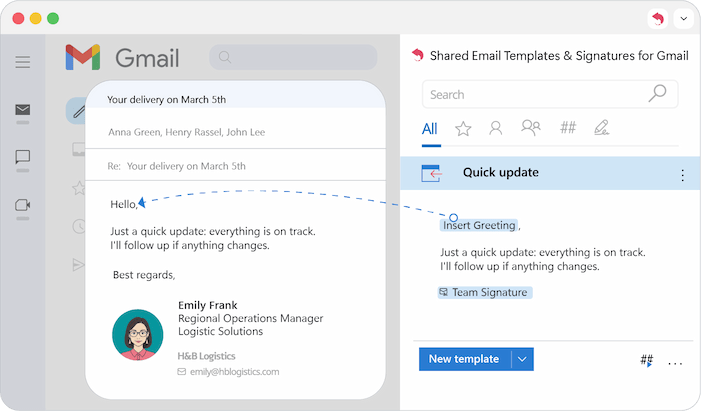
- Click Insert macro and select Insert greeting from the macro list.
- In the pop-up window, enter the text for a single recipient and for multiple recipients.
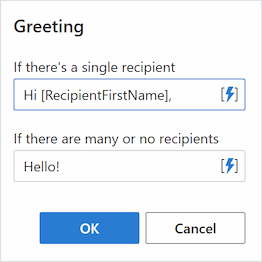
- Click OK and save your template.
Tip: Use nested macros within these fields for even greater customization.
If there’s a single recipient, the add-on inserts the first option:
If there are several, it switches to the group version automatically:
Automatically fill in the To, Cc, and Bcc fields
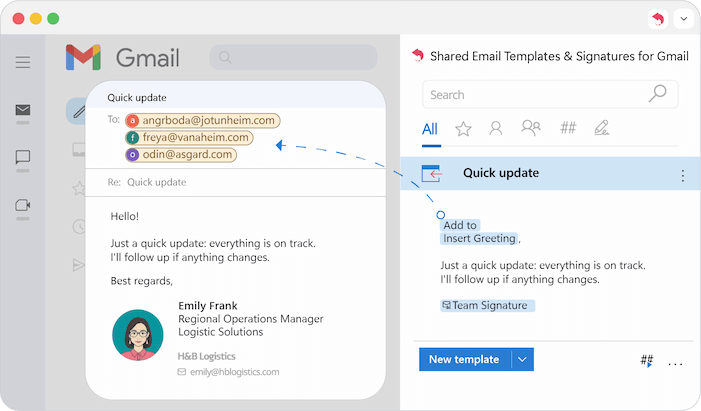
You can automatically add specific email addresses to the To, Cc, or Bcc fields without overwriting the addresses already there.
- While editing, click the Insert macro icon.
- Type "Add to" and select Add to To, Add to Cc, or Add to Bcc.
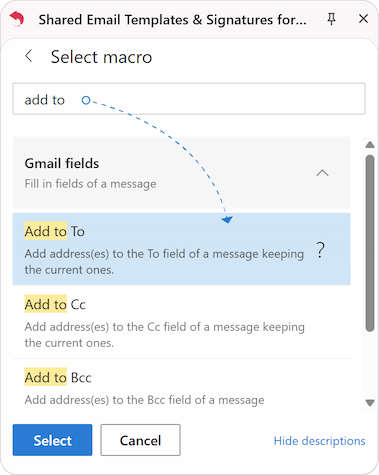
- In the pop-up, enter the email addresses (separated by semicolons or commas) and click OK.
- Save your template.
When you apply the template, new addresses are added, while existing recipients are retained.
Replace existing recipients
If you want to completely replace any current addresses in the To, Cc, or Bcc fields with new ones, you have two options:
Option 1: Use message fields
This is the fastest way to set "static" recipients for a template.
- In the template editor, click the Message fields button on the toolbar.
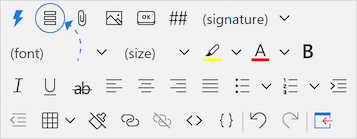
- Enter the email addresses in the To, Cc, or Bcc fields (separate them with semicolons or commas).
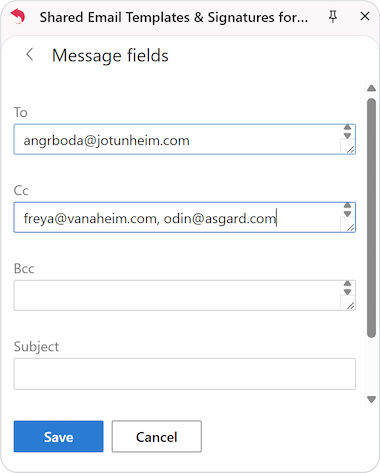
- Save your template.
Option 2: Use the Fill macro
Use this if you prefer working within the macro list or want to combine this action with other logic.
- Position your cursor anywhere in the editor.
- Click the Insert macro icon and search for "Fill" in the macro list
- Select the appropriate option: Fill To, Fill Cc, or Fill Bcc.
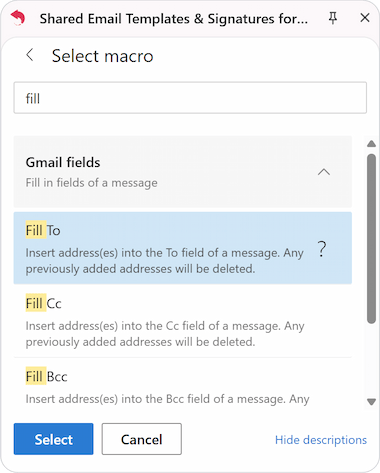
- In the pop-up, enter the email addresses and click OK.
- Save your template.
Unlike the "Add to" macro, these options will clear any existing addresses in the specified field and replace them with your predefined ones.
Automatically insert the date into a message
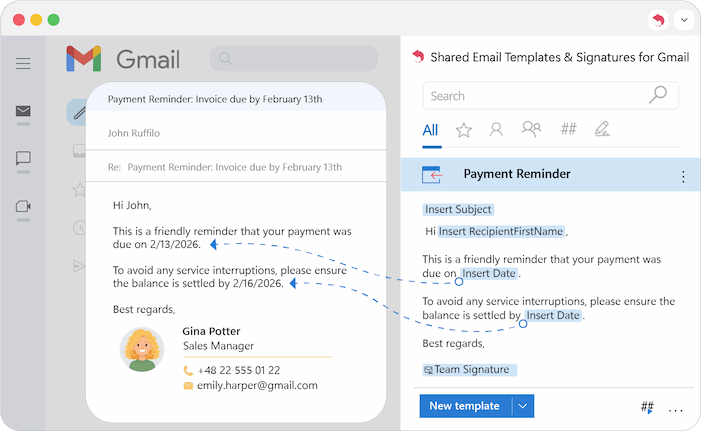
Automatically insert the current date or calculate a future/past date by a specific number of days, months, or years.
- Position your cursor where the date should appear.
- Click the Insert macro icon and select Insert date in the macro list.
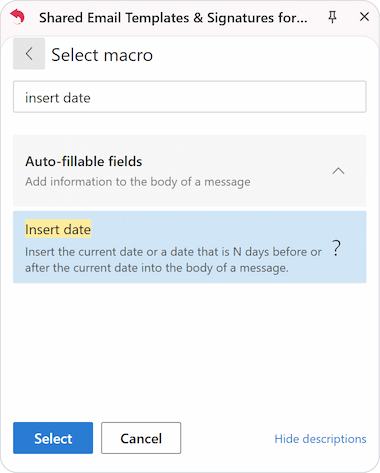
- In the General tab, select your preferred date format and language.
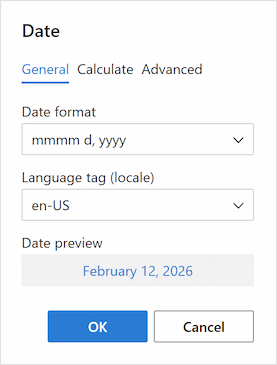
- (Optional) Use the Calculate tab to move the date forward or backward.
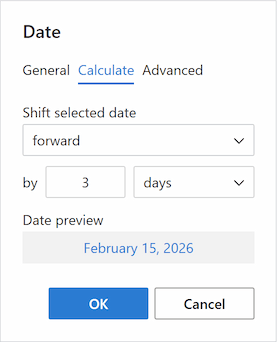
- Click OK and save your template.
Every time you use the template, the correct date is generated automatically.
Creating data entry fields (What to enter)
With the What to enter (WTE) macro, you can create fields that prompt you for specific information every time you use the template.
Text field
Use this for unique information that changes with every email.
- Position your cursor where you want the text field to appear.
- Click the Insert macro icon and select What to enter (WTE).
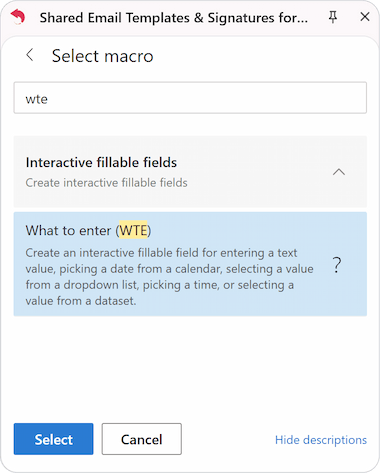
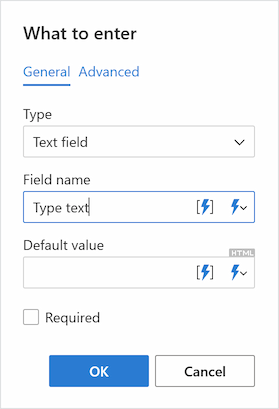
- In the window that opens, go to the General tab and select Text field from the Type dropdown.
- Configure your field:
- Field name: Give it a label so you know what to type later.
- Default value (Optional): Add text that will appear in the field by default.
- Required: Check this box if the field must be filled before the template can be inserted.
- Click OK and save your template.
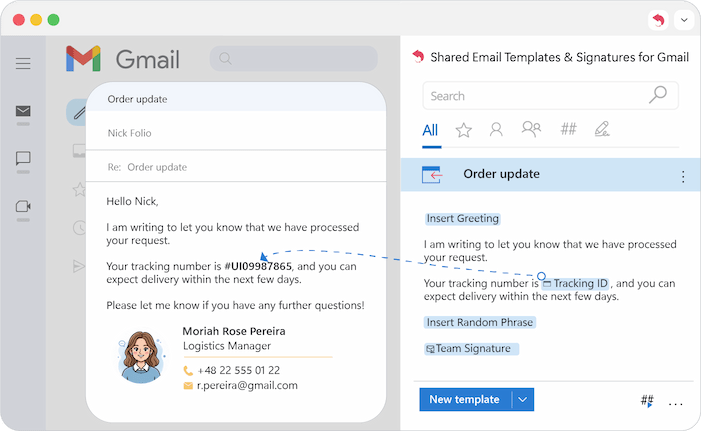
A placeholder will appear in your template. When you insert the template into a message, a dialog box will pop up. You can then enter the specific text or stick with the default value, and it will be dropped perfectly into your email.
Drop-down list
Use this macro to choose from a list of predefined options every time you send an email.
- Position your cursor where the drop-down list should appear.
- Click the Insert macro icon and select What to enter (WTE).
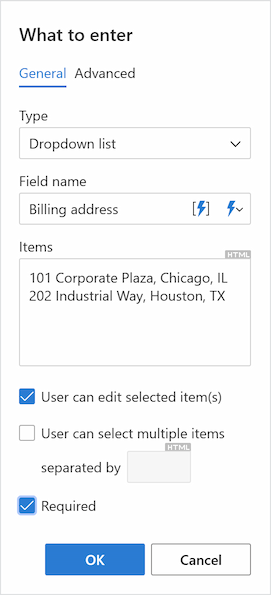
- In the pop-up, go to the General tab and select Dropdown list from the Type dropdown.
- Configure your list:
- Field name: Give the list a label.
- Items: Enter your options, ensuring each one is on a separate line.
- User can edit selected item(s): Allows you to manually tweak the chosen option before inserting it.
- User can select multiple items separated by: Lets you pick more than one option from the list.
- Required: Prevents the template from being inserted until a selection is made.
- Click OK and save your template.
- A placeholder will appear in your template. When you use the template, a dialog box will pop up.
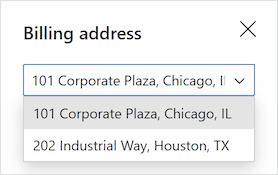
Simply select the item(s) you need, and they will be instantly placed into your message.
Date picker
Use this macro to open an interactive calendar whenever you insert your template. It’s perfect for choosing specific appointment times, delivery dates, or deadlines.
- Position your cursor where the date should appear.
- Click the Insert macro icon and select What to enter (WTE).
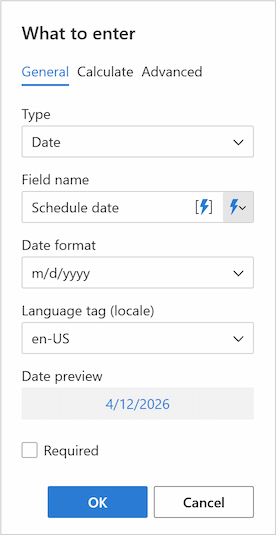
- In the pop-up, go to the General tab and select Date from the Type dropdown.
- Configure the picker:
- Field name: Give it a label.
- Format: Choose how you want the date to look.
- Required: Check the box to prevent sending an email with a missing date.
- (Optional): Use the Calculate tab if you want the calendar to move the current date forward or backward by a selected number of days, months, or years.
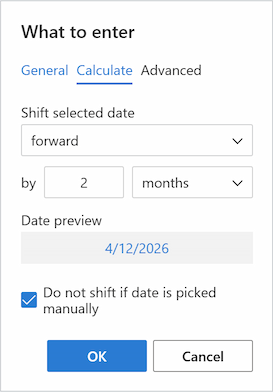
Note: The "Do not shift if date is picked manually" box ensures your manual choice isn't overwritten by the calculation.
- Click OK and save your template.
- When you use the template, a dialog box with a calendar will pop up. You can keep the default date or click to select a new one from the calendar.
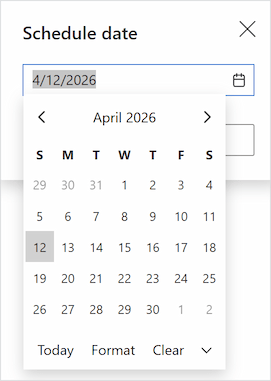
The chosen date is then instantly inserted into your email.
Time picker
Use this macro to select a specific time from a dropdown menu whenever you insert your template.
- Position your cursor where the time should appear.
- Click the Insert macro icon and select What to enter (WTE).
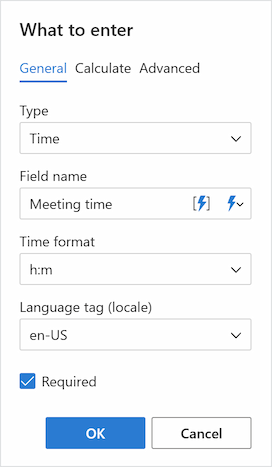
- In the pop-up, go to the General tab and select Time from the Type dropdown.
- Configure the picker:
- Field name: Give the field a label.
- Format & Language : Select time format and language tag.
- Required: Guarantees that a time is selected before the email is sent.
- (Optional): Use the Calculate tab to suggest a specific time by moving the current time forward or backward.
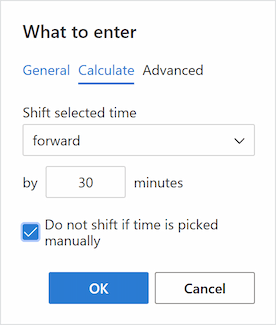
Note: The "Do not shift if time is picked manually" box ensures your manual choice isn't overwritten by the calculation.
- Click OK and save your template.
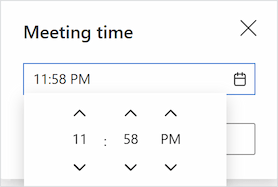
- When you apply the template, a dialog box appears with a time selector. You can either keep the suggested time or pick a different one from the list.
Instead of manually searching for dates and typing out times, you get a finished email where the data is accurately inserted by macros.
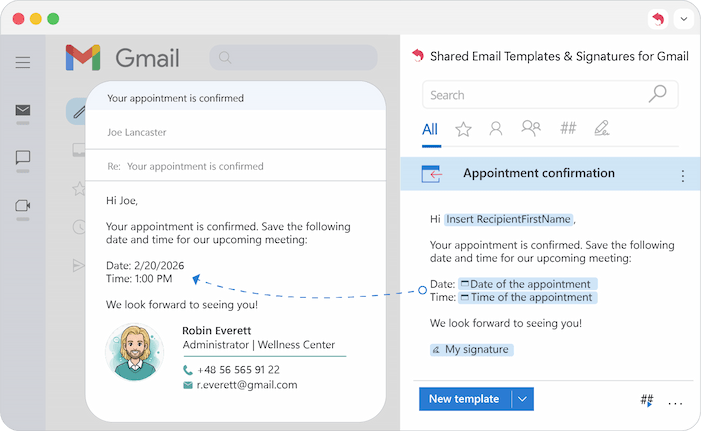
Use macros for any dynamic data for perfect customization.
Note: Since macros work similarly in Outlook and Gmail, you can learn more about them in our full guide.
Please contact us here