Shared Email Templates & Signatures for Gmail
Create and manage templates
With Shared Email Templates & Signatures you can create, organize, and share your templates right inside Gmail.
In this guide, we’ll show you how to move past basic templates and manual copy-pasting toward professional, on-brand emails in 3 simple steps:
Save time on routine emails in 3 simple steps
Compose & edit
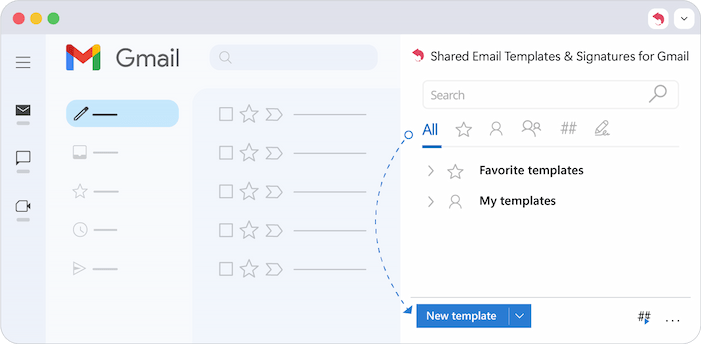
Open the Shared Email Templates & Signatures pane in Gmail and click the New Template button.
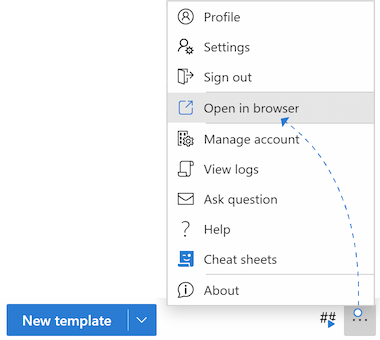
Tip: Click the three dots at the bottom of the sidebar and select Open in the browser for a better view.
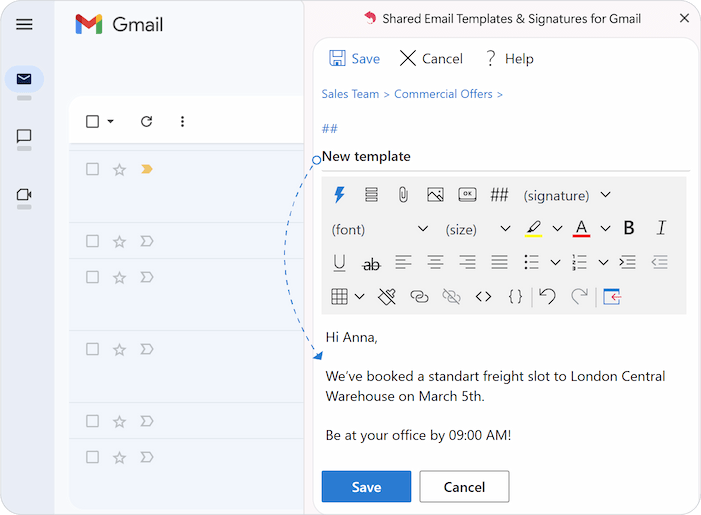
Type or paste your text into the editor in the sidebar (or in a separate tab if you’ve opted to Open in browser).
Already created your template but need to tweak the text? Just select your template and hit Edit.
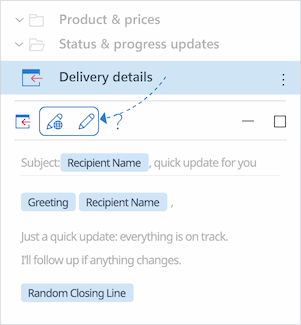
Tip: For a full-screen view, select your template and click Edit in the browser.
Customize your template. Our template editor gives you everything you need:
- Insert macros and fill in message fields
- Choose files to attach and add pictures
- Insert buttons, tables, and shortcuts
- Select a signature and clear formatting
- Add or remove hyperlinks
- View HTML and check template content
- Insert the finished template into any email
Note: Since working with the editor is identical in Outlook and Gmail, please refer to this guide for complete instructions.
Make it smart
Don't just use plain text! Use the Insert macro icon to drop in placeholders or custom fields.
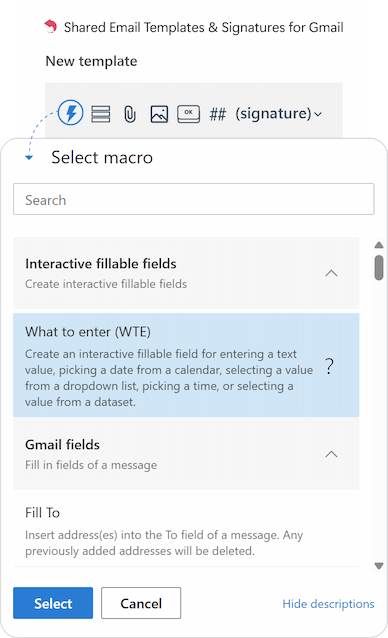
Tip: Check out this guide to see how macros can automate your daily correspondence.
You can tailor every message on the fly using interactive dropdowns, date pickers, and live data pulled directly from your Google Sheets. To ensure a truly human touch, the tool automatically personalizes greetings and can even rotate closing lines so your outreach never feels repetitive.
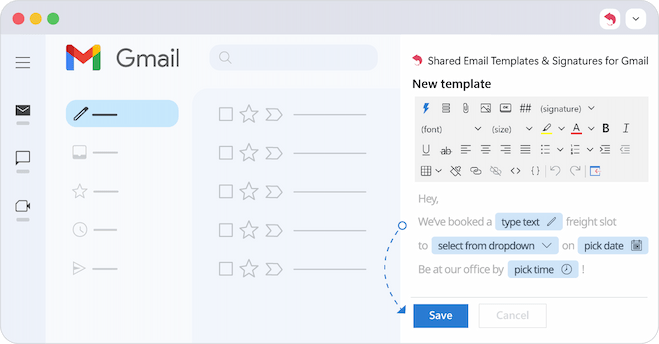
After creating your dynamic template, don’t forget to save it.
Use & reuse
Start a new email or click reply in Gmail, find your template in the add-on’s library, and insert it with a single click.
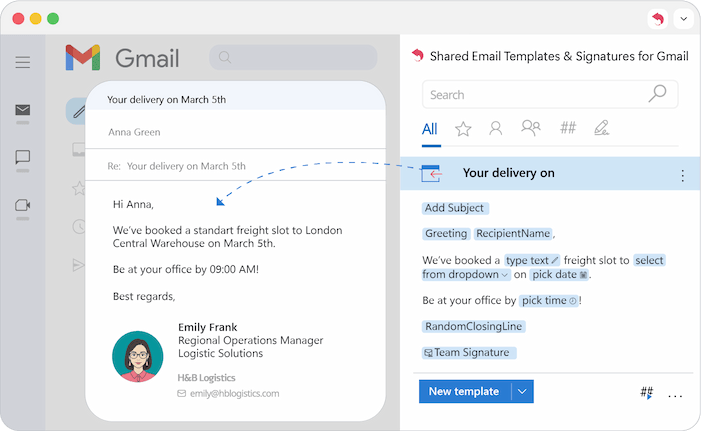
Tip: To insert only a part of the template, highlight the desired text first, then click Insert on the toolbar.
As you can see, the macros have instantly customized the template, and now your message looks tailored and ready to send.
Creating and using Shared Email Templates is easy. Create once and reuse it for polished, consistent messaging every time. For more detailed instructions on creating and managing templates, you can consult our full guide.
Note: Please keep in mind that creating templates from drafts is currently only possible in Outlook, not Gmail.
Please contact us here