Shared Email Templates & Signatures for Gmail
Accept an invitation and join a company account
If you've been invited to join a Shared Email Templates team or company account, follow this guide to get started.
If you're invited to a company or team account created via Google, your invitation email will mention that you need to sign in using your Google account credentials:
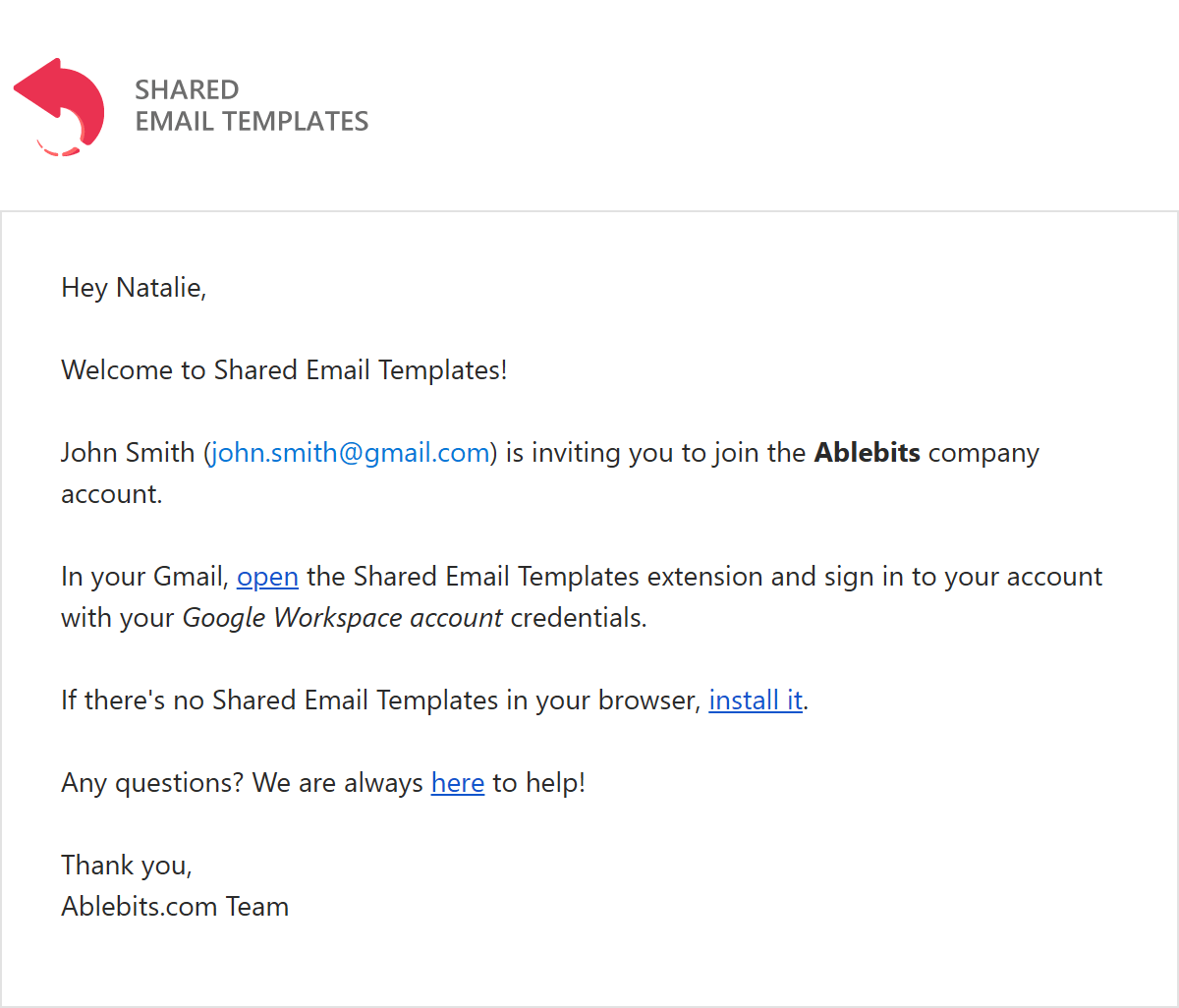
Note. If you can't find the invitation email that you were supposed to receive in your inbox, check the Spam folder for an email from the Ablebits Support Team. That email will have "You are welcome to join …" in the subject line.
Accepting an invitation
To accept an invitation to a company or team account, follow these steps:
- Install Shared Email Templates for Gmail (unless the extension is already installed in your Chrome).
- Open the Shared Email Templates sidebar in Gmail.
- Sign in with your Google account.
Note. When you sign in to your account for the first time, you'll need to read the Shared Email Templates Terms of Use and Privacy Policy and confirm that you accept them.
Please contact us here