Remove extra spaces in Excel
If extra spaces in your Excel worksheet don't let process your data correctly, use Trim Spaces, one of the text tools from Ultimate Suite for Excel. It will help you remove leading and trailing spaces or get rid of excess blanks between words. Here you will learn how to remove spaces in Excel.
Before you start
We care about your data. The add-in will back up your worksheet if you select the corresponding option.
How to trim spaces in the range
To run the tool, click the Trim Spaces icon in the Text group on the Ablebits Data tab:
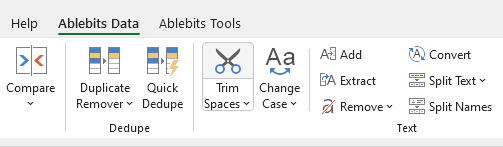
Then simply pick the needed options:
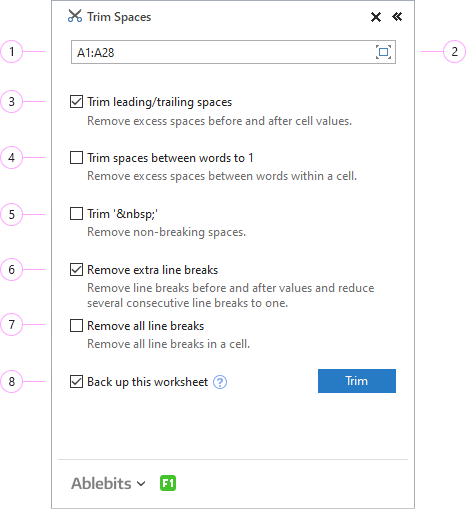
- Select the range where you want to remove extra spaces in your Excel worksheet.
- If you want to select the whole table quickly, click the Expand selection icon.
- If you pick Trim leading/trailing spaces, the spaces before and after cell values will be deleted.
- By ticking Trim spaces between words to 1, you'll have extra spaces between words within a cell removed.
- The Trim ' ' option means that non-breaking spaces ( ) in your worksheet will be deleted from the selected range.
- Opt for Remove extra line breaks to delete extra line breaks.
- Tick Remove all line breaks to get rid of absolutely all line breaks.
- We always recommend selecting the Back up this worksheet option to keep your original table intact.
Click the Trim button to remove all extra spaces in one click.
Tip. Alternatively, you can run the tool by clicking the arrow below the add-in icon and picking one of the 3 most popular options from the dropdown menu:

Please contact us here
We usually reply in a few hours. (And yes, we are real people!).