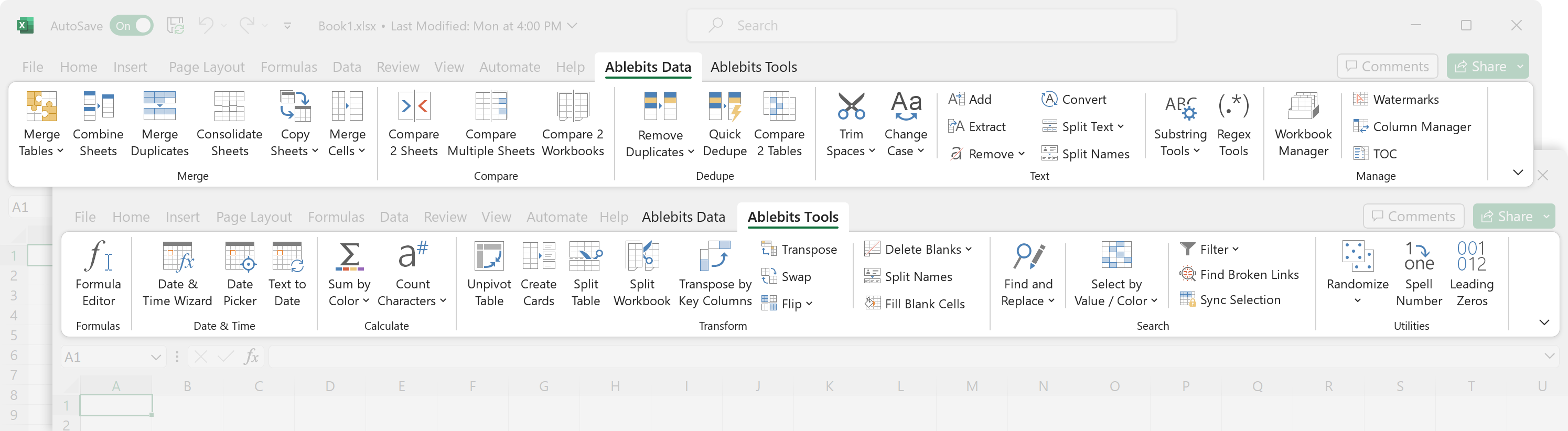
A comprehensive set of 70+ time-saving tools that cover over 300 use cases: merge tables and combine worksheets, find and remove duplicates, concatenate and split strings, trim spaces and clean data, compare two sheets for matches and differences, built custom-tailored formulas, and a lot more!
Using your own bank of fully customizable adaptive templates, you can create a professional looking email response in no time.
Use your templates individually or share with your colleagues, access from any device and all your Microsoft accounts and without limits.
Personalize repetitive emails to the fullest extent possible and enjoy an improved engagement rate!
If you often send flyers, newsletters, business proposals, or holiday greetings to your personal contacts,
Mail Merge is just the thing. To save your time, it comes with customizable templates and adaptive layouts.
You can launch your email campaign immediately or postpone it if needed. Try this tailored solution for your personal email events.
Enjoy the benefits and find no drawbacks ;)
A complete collection of tools for simpler work with spreadsheet data
Power Tools takes the burden of monotonous repetitive work in spreadsheets off your shoulders. 40+ features will streamline multiple routine operations in Google Sheets: remove duplicates, merge cells and tables, sum by color, combine sheets, perform advanced search and replacement, split names, and much more. Keep a list of your favorite tools and re-apply them to any cells any time.
Easy customizable adaptive templates for teams and individuals
Do not waste your time on typing the same replies to repetitive emails. Compose your response just once, save it as a template and reuse whenever you want.
With these time-saving tools that collectively have over 300 useful features, you can automate most of your daily tasks in Excel and increase your productivity
at least by 50%! It's many years of our experience with Office development embodied in the perfect code of solutions that work flawlessly on all Excel versions
and all data sets.
Instead of building formulas or performing intricate multi-step operations, start the add-in and have any text manipulation accomplished with a mouse click.
Trim extra spaces
Convert text to numbers
Count characters and words
Change letter case
Extract text or numbers
Remove text by its position
Add the same text to selected cells
Split cells by symbol, string, or mask
Replace unwanted characters
Eliminate leading zeros
Clean non-printing characters
Swap text in your cells
Find, extract, replace, and remove strings by means of regular expressions
Get 12 professional style sets for your Google Docs to change the look of your headings and text in a click.
Real Ablebits reviews from our customers
There are so many times that you will find yourself needing this…
It is a bit pricy for a home user, but it is more than worth it when you see how much time and energy you save with all the tools. I deal with databases and .csv files regularly and being able to transform and clean up the data for importing into other programs makes the work so much easier. I would spend hours doing manually through plain Excel what takes me moments. On top of all of this, there is one thing that sets this program apart from any other I have ever used. The customer service. They are spot-on. If I EVER have a problem, I just contact support with an email, and usually within 24 hours I get a reply from a human whom you can reply back. Ablebits for Excel is always updating and adding new features. There are so many times that you will find yourself needing this, even if you are just using Excell casually, you need this program.
These should all come standard with Excel
It boggles my mind that it took a third party to add these tools to Excel. Used Ablebits throughout its trial whenever i was hitting pain points in Excel, and it invariably made life easier and streamlined my work. I can genuinely say it's saving me at least 3 to 4 hours a week. All in all, if you work in Excel daily like me and there's no hope of your business moving away from it, Ablebits will make your life infinitely easier and it's definitely worth the money.
I've been with Ablebits since 2018
I've been with Ablebits since 4/2018. Numerous updates and new installs. No complainants at all. They are very responsive and always very professional. The software is the best Excel add-in that I've tried. If you try their Software, and need help, email them and they'll respond to help. If you've tried other Excel add-ins and felt letdown, give Ablebits a try! You'll love the software and technical support if you need it.
Excellent customer service!
I took advantage of the trial period for the full program, and I put Ablebits through everything I wanted to achieve. Wow! It worked so beautifully. When I was ready to purchase, I ran into an obstacle. It was a Saturday morning (in my country). I wrote to their customer service and within a few hours I had excellent communication as to how to resolve my issue. Reinstalled with no problems. I am so happy with my decision.
I love Ablebits because it turns a 5-hour project into 5 minutes
I love Ablebits because with the easy download (takes less than 1 minute), I have access to so many tools in Excel. I work in sales, so being able to compare tables and find duplicates is a lifesaver. I would recommend this to anyone who works with lists.
Quick response to my issue
I am a noob when it comes to using Excel. However, I started a part-time job this month with a company that uses it exclusively for their reports and general communications, so I have undertaken a crash course in learning this program. I came across the Ablebits app and gave it a test run. THANK GOODNESS I DID! I know there are many more things I am to learn but this app has given me the confidence that I will be able to keep up with the rest of the team. Not an easy task for a 68-year-old man trying to stay relevant with this younger generation.
Well worth every dollar
I've used several add-ins over my many decades of using Excel. I must say that Ablebits has given me the biggest bank for my bucks. The ability to easily parse data from other sources is worth the price of admission alone. Well worth every dollar.
I Love Ablebits
I Love Ablebits, and have used this add on tool since 2020. Working at a global company that has several data bases, compiling data from these different data bases would have driven me absolutely CRAZY, if I didn't have Ablebits! When I show coworkers how I can have reports done so fast, I show them the tools and how they work. Without fail, their response is: "That's it ?!"
Ablebits is a major time saver
Ablebits is a major time saver when doing advanced work in Excel. Merge Wizard makes merging tables a breeze. They also provide Excellent and quick customer service. I make sure that everyone on my team has able bits.
The best Excel extension package!
I found out about Ablebits about a year ago when I looked for efficient ways to combine data from different Excel sheets. After using the free trial version for a couple of weeks I realized that these useful extensions were exactly what I've been looking for, and more so! So I bought the full version, and now I really can't imagine how I could manage without it before. It just saves me so many hours of work each day, and I couldn't be more satisfied! Plus the support is great, with very short response time. Keep up the good work!
I prefer the simplistic and efficient way Ablebits handles tasks
I have been using this product for years and it does exactly what I need it to do to enhance my overall Excel experience. Other people may have coding expertise and methods to make Excel do whatever they need, but I prefer the simplistic and efficient way Ablebits handles tasks, and it helps me get the job done quickly and effectively. I feel it pays for itself after one use.
It has already paid for itself in less than 48 hours
I have used Ultimate Suite for Excel for just 48 hours now. It way exceeds the expectations I had for the product. It has already paid for itself in less than 48 hours in terms of time saved. The support team is amazing. As a newbie, I had an issue and the support team got back to me with a solution in under 6 hours, with clear instructions on how to track similar errors should I encounter them in the future. I really recommend this product to all. It is worth every cent.
Still loving it after all these years...
I've been using Ablebits for years and have always found it insanely useful for all those more complicated things you need to do in XL. Their interfaces are very user friendly (way better than MS), and the functionality greatly extends what you can do with XL. The icing on the cake is that the customer service is top notch. Not only are they super responsive, but they continue to communicate with you until your issue is resolved. Many thanks Ablebits!
Above and beyond
Bought the Ultimate Suite several years ago and found it absolutely indispensable for analyzing production data on information security control assessments as well as concepting a quantitative risk analysis approach based on this assessment data. Had to reinstall the suite on a new computer recently and had to give it another go because I didn't have a license for the latest version. Filled out the survey on why I uninstalled it (before installing the previous version) and customer service reached out with a free upgrade. Wow! Who does that? Great company, great tools, great customer service!
Perfect software
It has been my experience that it is remarkably rare that software surprises the user by simply doing, beautifully and simply, precisely what you hope it will. The Ablebits Ultimate Suite add-in for Excel is such a software. It has become an indispensable part of how I manage large Excel data files.
Ablebits is a must-have Excel toolkit for everyone
I have been using this tool for over 2 years now. This is a must have & a very hand tool for Excel users. I am glad I found this tool for my bulk action edits, multi-page edits / scrolls, and multi data / table edits in Excel. I don't think there is any other Excel tool that comes close to Ablebits. The best part is the support you receive from the team - Ekaterina has been very prompt in her response to any questions you have on the tool. Definitely recommend.
Ablebits support is second to none!
I've been using the Ablebits Excel add-in for a few years and it has helped me to quickly respond to ad hoc enquiries from my Executive team on many occasions. I use it so often I sometimes forget that it's not part of Excel! I recently had to submit a support request and was astonished at the responsiveness of their team. Absolutely first class and the problem was resolved by their initial response.
Buy this product! It's worth every penny!
Great tool that's been saving me a ton of time. I used to have to merge several cells manually and then also merge/unmerge sheets and pivot tables. This tool singlehandedly fixed all of my problems and turned what would have been an 8-hour process into a 1-hour process. If you're on the fence, buy it - definitely worth the investment.
Professional solutions!
Been using this for years and am always excited to find they already have a solution mapped out! Had an issue and had to reload Excel…emailed customer service…and WOW!! Super fast answer and was re-installed and ready to go within minutes!!! These professionals are the definition of good business!!
I wouldn't be able to do my job without Ablebits!
I wouldn't be able to do my job without Ablebits! Managing data from two different systems and maintaining accuracy in planning conferences of 1000+ people is done efficiently and easily with Ablebits. I'm not all that technical and am able to find helpful shortcuts for cleaning up data for reporting and typesetting and all sorts of projects where accuracy is key.
Fantastic program at a reasonable price
I downloaded the trial version of Ablebits and I was blown away by all of the useful features so I purchased it immediately. I often have to combine multiple spreadsheets (up to 20) into a single one and Ablebits makes it a breeze. This feature alone made it worth the money and I will use the delete blank cells and rows every day!
A+ product and service team
A few weeks ago, I was working with some consultants that were using Ablebits. I was fascinated with how fast they were getting through my data. I immediately went to the website and downloaded the free trial. The product has so many shortcuts, I love not having to type in formulas for some of the transactions I do. Download was easy and purchase even easier. Customer service followed up immediately to ensure my key activated properly. A+ product and service team.
5 Stars from me. Great add-in that I use daily
If you're looking for a way to streamline your work in Excel, look no further than Ablebits.com. Their Excel add-in is an absolute game-changer. From basic formatting to complex formulas, this add-in has everything you need to take your Excel skills to the next level. It's user-friendly making it the perfect tool for both beginners and experienced users.
Need Excel, you will want Ablebits Ultimate Suite
Excellent support when needed, though the interface and online help is easy to understand and review. The details in the online help are some of the best descriptions, instructions, and insights on the many ways to work with Excel. Ablebits continues to improve and develop a rock solid add-in with clean tips and helpful details. I have used it for years and will continue to as long as I need Excel I will want Ablebits Ultimate Suite.
Time saver and Excellent support makes Ultimate Suite a no-brainer
I have been using Ablebits Ultimate Suite for Excel for over 5 years. The product has been an absolute time saver as well as a productivity hack for me. I have recommended this tool to my colleagues who spent a lot of time working with Excel data and reports. Whenever I had an issue or a question, the support team has always been prompt to assist me. I will be a lifelong customer/subscriber of this product.
Hooked on this product
I've been using the Excel add-on program Ablebits for over a decade. It is an absolute must-have tool for me. Over the years I've shown it to many co-workers who also get hooked on how much easier it makes worksheet tasks. Combining data from other worksheets and duplicate remover are the 2 features I use the most.
I've been using the Ablebits product for several years
I've been using the Ablebits Excel product for several years. It is a lifesaver since my life revolves around data and spreadsheets. With the variety of tools and ease of use, there are no tasks I haven't been able to accomplish. Also, their customer service has always been very responsive and provide great answers, plus additional tips, or information.
Ablebits automated my entire Excel life
Ablebits Ultimate has an endless amount of features that I'm still figuring out after 6 months of use. I got tired of adding in formulas myself, multi step processes to try and merge tables, and the dreaded formatting issues I always had to deal with. Everything in Ablebits completes the automations with wizards and easy to use features. Thank you for everything and will continue to recommend this add on to everyone!
Ablebits Ultimate Suite turns Excel into what it should have always been
Ablebits Ultimate Suite turns Excel into what it should have always been. I've had this product for about 5 years and won't use Excel without it. I frequently need to take data from multiple sources and coalesce it into large import files. The Merge Table function is a gamechanger for these tasks. The Substring functions are also an exceptional piece of kit for streamlining data. There's a limit to Excel's data management capabilities, but the Ultimate Suite tools take it to a whole new level.
Inexpensive with TONS of value!
I have been an Ablebits user for many years, and while sometimes people tell me you can do everything it does natively in Excel - Ablebits makes it EASY. I can consolodate and combine things using a natural language, I can see the results of something before I do it. It is an inexpensive tool that is incredibly valuable!
Fantastic Outlook add-in
I rely upon this small add-in every single day! Shared Email Templates makes repetitive tasks so quick and with the ability to create macros, sending out meeting minutes and agendas is a breeze. I could not use Outlook anymore without this program. Don't hesitate, add this to your software portfolio today.
Can't live without it
I love the program, and I can't imagine using Excel without it! We do a lot of database management in Excel and Ultimate Suite saves us endless time. I use it a lot for merging columns, trimming spaces, merging spreadsheets, converting casing. The program pays for itself. Thank you for all your efforts and support.
Ablebits occupies a unique place for Excel users
Ablebits occupies a unique place for Excel users as there is no comparable product out there. I have found the duplicate remover and merge duplicates modules particularly useful. It is very user-friendly and the support response has been rapid and helpful when I have contacted them. There is so much information on their website explaining how to achieve outcomes in Excel. Highly recommended!
Outstanding product and support
This product is a major productivity boost for anyone who sends a lot of email messages. There is quite a bit of redundancy in the messages that we send; Shared Email Templates allows us to build customized responses using the mini-templates that we have created within the tool. Everything is macro-enabled; even the macros are macro-enabled. So instead of shuttling back and forth between your message and the add-in, it pops up mini-forms that you fill with the information to be populated to the message.
Absolutely worth every penny!!!
I use Ablebits Ultimate Suite in Excel everyday and the amount of time saved is amazing. Things that used to take 10 or 15 minutes now can be done in under a minute with this add-in. HIGHLY recommended! Customer service is quick and the staff is very knowledgeable and courteous.
Just one great product and a great company!
I have been using Ablebits since 2016 and it has been a most useful tool. And if that isn't enough, their support should be the model for all customer support throughout the industry. Over the years I have had problems or questions and they have resolved all quickly and politely without making you feel belittled. Just one great product and a great company!
Superb way to have common text and attachments
We often send out the same attachments or common information to those that our charity supports. This add in makes it easy for everyone to put them into their emails and be sure they have the right version and not need to go looking for it.
A wonderful feeling to be amazed by a product
I paid for the personal edition out of my salary for my own use. It was not purchased by my organization, and I truly think that this is money well spent. I have not had one moment of regret – just the opposite. Each time that I use Ablebits I experience pleasure that I have spent my money wisely and am getting more value for my money than I could have thought possible. What a wonderful feeling to be amazed by a product each time that I use it even after daily using it for over a year.
The Ablebits Excel add-in is an absolute must have
If you find yourself working with spreadsheets even a couple times a day then you need to stop what you are doing and buy this add in! The Ablebits Excel add in is an absolute must have. I have been using it for years now and can't even start to quantify how many hours, days, weeks, this has saved me. Adding to the awesome product is an awesome support team. Anytime I've ever had a problem or question they are prompt to reply providing nothing but useful information.
The software is the real deal
I can't tell you how many times I was scratching my head on something I needed to do in Excel and would suffer through a cumbersome way to do it, then I found Ablebits. More often than not, they have an elegant and easy solution for what I need to do. They have saved me countless hours and headaches. Their customer support is top notch too - very quick and HELPFUL. These folks are the real deal. The software is the real deal.
Best Email Templates Solution
We've been using Shared Emails Template consistently over the last few months and can already see the increase in productivity and decrease in communication errors by the team members. We're now in the phase of implementing it to other departments within the company, so we're really glad we've found Shared Email Templates. The support team is always extremely helpful and there was nothing we couldn't find a solution to, thanks team!
Great product - even better service
The Ablebits Excel addin is a real time saver. If you are doing anything complex with data sets in Excel and want to do things like de-dupe, check and cross-reference, this is a game changer. Well worth the money. Above that, the service is really Excellent. Send an email and you get a reply pretty much within the hour. Very impressed and can't recommend enough.
It's a lifesaver!
I have been using the ultimate suite for a few years and its a lifesaver!! I use it all the time to merge sheets and it saves me so much time! The support is also Excellent. They are in a different time zone than I am (I am EST) but I always hear back in less than 24 hours. The price is reasonable and the product is good. I highly reccomend it!
I would be lost without it
I use Ablebits add on for Excel several times per day and would be lost without it. For us it is especially useful for highlighting duplicates, removing duplicates, comparing tables, comparing sheets, deleting blank cells. It does much more than that, but these are the most popular uses here. It is well worth installing. Thanks!
Fantastic tool
Loving this app. It has made my work life much easier. I had a little trouble at first understanding the macros and datasets (trying to do nested macros) but now I've got it sorted and very happy. Support is also fantastic and respond in a timely manner. Thanks.
Ablebits has saved me countless hours!
Ablebits has saved me countless hours! Every time I confront a repetitive task in Excel, I look to my Ablebits tool bar for a solution. I almost always find that the geniuses at Ablebits have developed a seamlessly integrated Excel solution. I'm still discovering powerful tools in this awesome collection of widgets.
Always well within 24 hours
Besides the fact that this is impressive software that just works as you'd expect it to work (no overpromising and underdelivering), what's even more impressive is the support that has Ablebits has given me over the years. I've very seldom had to call on support (usually trivial admin matters) but when I have, their responses have been comprehensive and always well within 24 hours. Well done Ablebits!
A life and time saving tool with great customer service!
A life and time saving tool with great customer service! I have used Ablebits for quite a few years and have been truly blessed by it. I take it with me with every new computer refresh I go through, and customer service is always able to provide me with any assistance that I need, hassle free. A product could be good, but when they have great customer service, they are deserving of a five star.
Can't go without it
I have been using Ablebits since probably 2008. First with their free version and then I purchased their paid version a few years ago. I just upgraded again. The program makes it so much easier to trim spaces and perform other tasks in Excel. I'd say I probably use their Excel add-in at least weekly if not daily. I recommend them for your Excel needs.
It is a game changer!
I refuse to use Excel without Ablebits Ultimate Suite! It is a game changer! Compared to similar tools in the market, Ablebits is more user friendly and easier to understand than the others. And if you need help, their service support team is top notch and insanely fast to respond. You don't need to be an Excel geek to use this product, but you will feel like one if you do!
Abelbits is a very useful program
Abelbits is a very useful program. I use it constantly for the state function,Pivot table, transposing key columns, compare, consolidating spreadsheets, and duplicate remover. Customer support is very friendly and responds quickly especially when needing to do a new installation of a PC or upgrading. I highly recommend this product.
I highly recommend the Ablebits Ultimate Suite
I'm a business coach and number crunching is not something I do a lot. Therefore there must be a lot more value in Ablebits suite than I will ever use. I find that the tools I wish were in Excel are all in the Suite and the level of support by the Ablebits team has been very quick, thorough and complete. I highly recommend the Ablebits Ultimate Suite.
We discovered a gold mine!
When we discovered Ablebits 10 years ago, we discovered a gold mine! It provides a simple, straightforward way to work with multiple spreadsheets and Excel files without having to figure out formulas. When something happens in our system and we "lose" Ablebits, my staff nearly panics until we can get it back up and running. We consider this an essential tool in performing many, many tasks in our jobs.
This app could not be more perfect
This app could not be more perfect. It is super convenient, especially for business users that have to go through the trouble of copying and pasting the same/similar responses on a daily basis. The macros are ESPECIALLY the best part of this Add-In. Customer support is also very efficient and quick so your to-do list is not delayed.
Would recommend it to anyone who works with Excel
We have been using the Ultimate Suite for a year and really appreciate the time it has saved us in getting our lists ready for our updates. I could not believe how fast Ablebits got back to us. They are very fast to help you with a problem and showing you how to take care of it. They are very knowledgeable with their product. I would recommend them to anyone who works with Excel a lot.
Save hours of your life
This product very literally saves me HOURS in time compiling or updating information from several Excel sheets or files into one using just one matching column, and cleaning into a usable endproduct. There are so many features that simplify otherwise timeconsuming and tedious tasks that it makes working without the Add-In seem impossible. Highly recommended!
Ablebits makes magic
Ablebits is the "magic" that I use each week to help me accomplish nearly all of the tasks for which I am assigned. In a few simple clicks of a trackpad, I can create spreadsheets that help us review our impact and identify ways to continue to improve. The process is so easy and customer support has been critical; helping me make the most of this incredible tool!
I have found the Ablebits app and website to be extremely useful
My work requires that I write financial reports exceeding 200 pages based on analyses done in Excel. I have found the Ablebits app and website to be extremely useful. Some specific tools I have found useful are the "find broken links," select by color," visualize, "formula translator" (beta version), "spell number," and, best of all, the most reliable workbook manager I've ever used.
One word. PERFECT
One word. PERFECT. I have always had problems having to update my templates and then EVERYONE had to copy what I had from a google drive document just to update their own. Too much room for errors on top of wasted time. This literally solved ALL OF OUR PROBLEMS. The time saved is great on top of the room for error is gone. Everyone can access the same templates without hassle now. I suggest this whether you're a single person needing.
Extremely useful add-in with extensive functionality
I purchased and installed Ablebits for Excel. I have found it to be extremely useful in supplementing the capabilities of Excel – the functionality is very extensive. More importantly, I have found the support from Ablebits to be invaluable – patient and thorough. I definitely recommend Ablebits if you want to push the limits of your use of Excel.
Ablebits Ultimate Suite for Excel is invaluable if you work with spreadsheets
Ablebits Ultimate Suite for Excel is well worth the money. This add on has saved me countless hours of work with just a couple of the features. I have to take client lists which are often not in the format I need and make them fit into the format we use. This is invaluable for merging spreadsheets with duplicate values, as well as merging multiple cells into useable data. You will not regret this purchase.
The best add-in for anyone
The Ablebits Ultimate Suite for Excel is without question the best add-in for anyone using spread sheets! Great tech support, no glitches, works fantastically well - and it really is useful. Lots of features that should be built-in to the platform and aren't. I've used it for years with terrific results. Thanks!
Email Templates
This is the most useful tool for me and the amount of time it saves is unbelievable. I can't believe I went so long without - retyping the same responses dozens of times a day! Ekaterina is so helpful to our team! UPDATE: My templates started to give me trouble (I believe it was my computer rather than the templates). I reached out to Ekaterina and she fixed the issue for me within minutes - it was something wrong with my computer, and she was still able to fix it and get me back up and running! I am incredibly thankful to have her as a support system and she is an amazing asset to Microsoft.
Exceptional product and service
Exceptional Product and Service: I have used Ablebits for several years, solving incredibly difficult problems in Excel, problems well beyond my coding and formula development skills, and each time, Ablebits provided an easy-to-use solution. And, when I needed help, response time was practically instantaneous, not an AI chatbot, but a real person who solves real problems.
Excellent product and support!
Being a user of the "Ultimate Suite" since 2016 and processing 100'000s of datasets, I am utmost convinced of the product. And what is also Excellent: is the support. Every question asked was answered very quickly and competently. You provided a free upgrade unasked - stunning! Thank you, Ablebits team, for your Excellent product and support!
It is a productivity multiplier!
Since first installing Ablebits Ultimate Personal over 18 months ago, I have learned a whole new level of data management. It is a potent tool that's very easy to learn and use. It is a productivity multiplier!! Likewise, the Ablebits Support Team is highly professional, rapid responders, and helpful, a rare treat these days!
If that's not good service, I don't know what is
Who wants to learn VBA? I know I didn't when I was forced to learn it. Then came Ablebits, and I can never go back. Imagine someone giving you a flip phone now, in 2022. That's what it's like living without Ablebits. I had an issue where it was crashing in Excel, and I was distraught. After sending my feedback, I was greeted with an email and an updated key for the latest release, before I even made it that far in my troubleshooting. If that's not good service, I don't know what is. Can you guys just run all of our other vendors?
My Excel life changed a lot… for the better!
I believe it was around 2007-2008 when I discovered Ablebits and its table merge add-on. Since then, my "Excel life" changed a lot… for the better! I use it alongside other tools in the Ultimate Suite on a regular basis and have licensed it for people in my BD team. It is an invaluable tool!"
Excellent Add-on!
My company needed a template system for responding to online orders in a consistent and efficient way. We searched around and finally found this product. It is exactly what we needed. It is highly customizable, looks great, has Excellent integration with Outlook and my employees love it! It is easy to use, easy to set up and easy to manage. I highly recommend this product to anyone that has a need for consistent and professional communication with email.
Well worth the price of admission
Well worth the price of admission. If you're doubting it, try it out. Even uninstalling is a breeze. I got this recommended from a co-worker for helping clean up duplicate data and manage complex editing. Went for the free trial, and was blown away. Better still, I had some trouble reinstalling things when my system got wiped. Support was on top of the issue fast and had me going again in a hurry. Incredible stuff.
Ultimate Suite is a treasure chest of useful tools
Ultimate Suite is a treasure chest of useful tools. I bought the it for the "Merge Tables tool", and it is worth the purchase price just for that. The other features I use are too numerous to mention. Ablebits makes a breeze of many tasks that would take a LOT of time to do using just formulas. It has revolutionized my work flow. And customer service is Excellent.
The best tools. Exactly what I needed
Ablebits Excel tools were exactly what I needed. We even recently updated to the newest version. Before finding Ablebits, I would have to spend two to three hours comparing two different workbooks each month. Not to mention the time I would have to spend combining cells with multiple lines of text. Ablebits has saved me time effort and I'm very grateful.
Ablebits has been a huge time saver
Ablebits has been a huge time saver for cleaning up client-provided lists. With just a simple click we can quickly and efficiently trim spaces, split names, standardize case, and combine related sheets. Plus it's great to know there are so many other powerful tools in the software that are available whenever we need it.
That one program has given me years of convenience
It's been years since I was desperate to be able to do additional functions in MS Excel and could not figure out how. I did an internet search - found Ablebits and that one program has given me years of convenience. I own my own business which always has been remote and using our CRM and our client's databases all depend on MS Excel to add data. I don't know what I would have done without this program. Customer Support even now is the best I have experienced. Thank you all for being there for me when other companies don't care.
Ablebits is a dream come true for any Excel user
Ablebits is a dream come true for any Excel user working with data. I have used Ablebits for many years and thanks to regular updates the product has become a fantastic, time saving tool that no Excel user dealing with large data can do without. Your support deserve a special mention as it is prompt and always available.
This add-in is really valuable for a very reasonable cost
Ablebits Ultimate Suite for Microsoft Excel has been a time-saver and an Excellent addition for my large data requirements. Rarely do I find a product that warrants spending on Excel, but this add-in is really valuable for a very reasonable cost. It installed like a charm, is intuitive, and I found customer service to be very responsive and helpful.
We couldn't imagine being without this tool!
Managing and working with data has never been easier once we began utilizing Ablebits! The tool eliminates the need to learn complex Excel formulas and provides straightforward tools to significantly increase our efficiency. What used to take a day now takes one hour. It's easy to use and the support the Ablebits team provides is high quality. We couldn't imagine being without this tool!
Shared Email Templates User for 3+ years
This is the best template add-in that I have used. It is above the rest. This add-in has helped my team and I tremendously making our jobs MUCH MORE enjoyable. I cannot say enough good things about the add-in and customer service support. I highly recommend this to anyone that needs more automation and organization.
Just want to say that I LOVE your Ultimate Suite Excel add-on
Just want to say that I LOVE your Ultimate Suite Excel add-on and would have quit my job had a colleague not recommended it to me. It has exceeded every expectation. I also want to give a shout out to someone named Ekaterina Pechyonkina, who was a tremendous help to me when I needed to migrate (same root word as migraine) from a desktop PC to a laptop. Please know that both your product and your people are making life better for those of us working with information. Thank you!!
Easy to use and share with my team
My organisation has heaps of standardized letters and it had been super difficult to update them with every team member. Now, with a shared template system, we can update it once and ensure everyone is using the correct letter with the most recent updates. The support team for this app were great to deal with when I had a subscription issue. Replied to my query the next business day and had the exact solution ready to go. 5/5.
Love this app
We were trying to figure out how we could create more consistency in our communication to our managers. It always seemed that our emails were off by a few words. One would get updated and not everyone had the updated email. With Shared Email Templates, we don't have to worry about that anymore. All of our communication is consistent and changes are made efficiently. We are so glad that we found this. Thank you!
The best and most useful add in available with good Customer Service
For a whole year I was moving between CRM's that offer template messages and other services but non of them were of use. I needed something that I can use from a sentence base, and to have it as a seamless experience with my outlook. This app is SOOOO on spot and SOOO helpful it is literally unbelievable. Click on the side bar and choose the email/paragraph/or sentence you want to put into the email. Incredible. I have my whole team working with these templates and productivity skyrocketed. I also had a small bug in the messaging, I sent a contact request explaining it, and it got solved within the hour. I want to personally thank the developers and CS for such a great experience.
Ablebits for Excel!! All the add-ons you will ever need!
I use Ablebits at least twice a day in my work, and use it all the time for personal finances. At the point when I change occupations, one of the main things I do is get my new boss to hack up the truly sensible expense of this important programming, and I've paid for it myself more than once. It spares time and disappointment over and over… My colleagues believe I'm a wizard. All things considered, I'm only a strict client of Ablebits.
The makes working with my team SO easy! And they have AWESOME support
Shared email templates has saved me countless hours of having to update templates for each team member individually. It's a low-cost way to have professional templates in a central place where you only have to edit once and it updates for all team members. You can even paste HTML and it maintains the formatting. I ran into a couple of support issues and their support team was amazing. I used the chat available on the main Ablebits website and got a response right away with confirmation that my issue would be forwarded to the developers and then they replied by email so I didn't have to keep the chat window open. Also with my last support issue the CEO actually responded to me himself and helped me resolve the issue. This is definitely worth the small cost.
In the first 30 minutes of using Ablebits, I have already found at least ten different tools that will save me hours each month
I consider myself a high-level Excel user and often find myself reaching the outer limits of what Excel is capable of without some convoluted workaround, VBA, or writing a Python program. In the first 30 minutes of using Ablebits, I have already found at least ten different tools that will save me hours each month. I work with a lot of complex and very messy datasets, and Merge Two Tables, Combine Sheets, Merge Duplicates, Split Table, Trim Spaces, Change Case, etc. will make my life SO much easier. I am a very satisfied customer.
Your Ablebits are truly amazing
Your Ablebits are truly amazing, and better than Unix sed or awk, that is if my 73-year old memory is accurate, which is debatable! HA! It took fantasy football to get me to really explore the capabilities of Ablebits. I've won my league three of the last six years! I warned those whippersnappers that a retired IT guy with spreadsheet skills was going to be a problem!
Ablebits has allowed us to reduce timescale from hour to around 5-10 minutes
PRS use third party applications to share internal spreadsheets with a digital app based system to our staff & clients. The system primarily uses CSV format. We use Ablebits for ease of combining these type documents. Previously this task was undertaken manually (taking up to 1 hour per task). Ablebits has allowed us to reduce this timescale to around 5-10 minutes. In addition, the Ablebits team are extremely helpful & very quick to respond to queries.
This software is by far the best I have ever purchased
In my line of work, this software is by far the best of any software/addon I have ever purchased/used. There is no close competition. My personality is such I don't recommend any product/store, etc. Your product is the exception. I have recommended this product to a few and they have come back and thanked me. Keep up the good work.
This product changed my working and investing experience
As a macro strategist and investor I deal in a large volume of data which I translate to a significant number of charts which I use then to interpret macro-economic trends, markets and investment opportunities. My challenge was how could I handle the large volume of charts in way that allowed me to update, modify and review them in an efficient way. I then found Ablebits suite for Microsoft Excel. This product changed my working and investing experience. The suite I started with and now the Ultimate Suite (2020 edition) provide a flawless experience. This is a terrific product at a great price. I recommend it unreservedly.
Ablebits offers amazing services!
Their Ultimate Site is perfect for novice and advanced Excel users. Thanks to their Ultimate Suite, I can perform a number of data tasks at a click of the button! It's perfect for data cleaning. And, their staff is very prompt and responsive. Trust me, this is an add on and company that won't disappoint.
Fantastic program
The Ablebits Data Merge Tables add- on is a fantastic program. It facilitates my projects for sure saving numerous hours of drudgery not to mention reducing the chance of error in manually importing data. I would definitely recommend it to anyone who needs to pull data from one Excel file to another. It's worth every penny! I love it.
KUDOS to you guys for solving a problem that our IT department doesn't understand
After our IT department thought they know how the sales department should function and destroyed some data files. With the help of Able Bits I was able to regenerate my database in just a few short clicks. This was AWESOME. KUDOS to you guys for solving a problem that even our IT department doesn't understand. As a leader in the sales department I need my data to grow sales.
Ablebits suite has really helped me when I was in a crunch!
Having Ablebits suite has really helped me when I was in a crunch! It was intuitive and really saved me time on my job! Now that the crunch is over, I'm finding there are other capabilities in the suite that I was not really aware of initially, (I originally only needed the easy merge capability). And those other features will / are valuable time savers as well. Thanks for the product!
I love the program, and I can't imagine using Excel without it!
Thank you for your commitment to Ultimate Suite. I love the program, and I can't imagine using Excel without it! Ultimate Suite saves me many hours of effort with the projects I manage within Excel. The program paid for itself the first day I used it. You and your team have created a really great set of tools for use within Microsoft Excel. Thank you, thank you, thank you!!!
It is like having an expert at my shoulder helping me…
I really feel that Ablebits has people like me in mind with your software development. It is like having an expert at my shoulder helping me work more effectively and efficiently. Now I have more time to goof off at work - none the wiser. Uh, that last statement is not really true - I will just have a lot less stress because things will go so much smoother.
Balancing multiple email accounts can often feel like juggling countless tasks simultaneously. But what if you could direct all your Outlook mail, perhaps to your trusty Gmail account? That's exactly what we're about to explore in this article.
Picture this: you've created a perfect set of rules in Outlook to manage your emails, only to find they're not working as intended. It's like buying a watch only to realize it doesn't tell time - a frustrating experience.
If you've become accustomed to using rules to manage your email flow in classic Outlook, you'll be pleased to know that the new Outlook also includes this feature. While the setup process may differ slightly, the effectiveness of the rules remains unchanged, just as you've come to expect with the classic version.
Imagine your Outlook as a tidy room where important emails are prioritized, distractions are filtered out and everything is neatly sorted into its rightful place. That's what Outlook rules can do for you.
As your inboxes are overflowing with never-ending streams of emails and calendars are packed with numerous appointments, it's easy to feel overwhelmed. However, there's a helpful tool in Microsoft Outlook called conditional formatting.
Imagine that you are working late at night, inspired by a brilliant idea, and you write the perfect email. But hold on, it's already past midnight, and sending it now might get lost in the morning rush. What if you could make sure the message lands in the recipient's inbox exactly when they are most receptive? This is the power of scheduled email sending.
You've got your data organized in a pivot table and are ready to dig in, but there is a catch – it has a time element. Maybe it's sales figures over months or project deadlines scattered throughout the year. How do you make sense of it all without drowning in numbers? The answer is timelines!