Nov
30

Get rid of “The file is corrupt and cannot be opened” in Excel

Quick tip: learn how to access a corrupt xls. file in Excel 2010

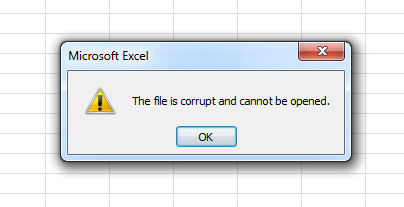
Usually when upgrading you expect nothing but improvements. So it can be really disappointing when after moving to Excel 2010 you have no chance to access your .xls file created in the application version 2003 and earlier. You understand what I’m talking about if you ever encountered “The file is corrupt and cannot be opened” error in Excel 2010. Still think you can’t open it? Actually you can!

The file is corrupt and cannot be opened in Excel 2010

Try the following to see how your precious .xls data appear in MS Excel

  1. Open the application.
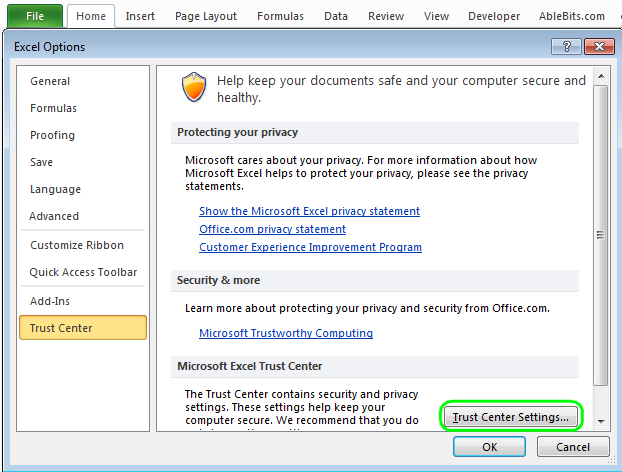
  2. Click on File -> Options.
  3. Select Trust Center and press the Trust center settings button.
    title=
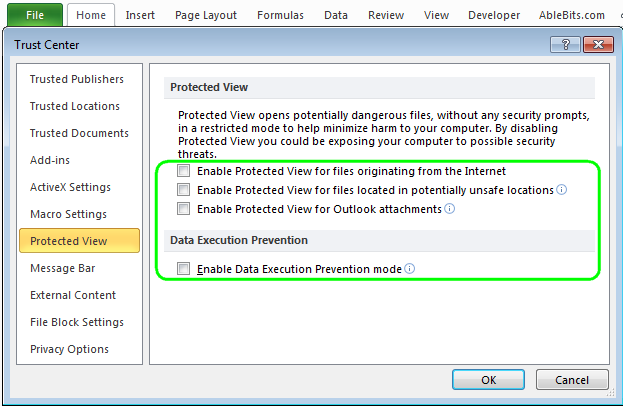
  4. Pick Protected view.
    title=
  5. Uncheck all the options under Protected View and confirm by pressing OK.
  6. Restart Excel and try to open the broken Excel documents.

For safety reasons, you should save your document with new Office format like .xlsx. You can do it this way: File > Options -> Trust Center -> Trust Center settings -> Protected View.
Check all the options again under Protected View, click OK and restart Excel.

This will set the security options back. Sure, you don’t want to open any file unsafely.

That’s it. Hope it will work for you and your documents :) .

Thanks and see you!

146 Responses to "Get rid of “The file is corrupt and cannot be opened” in Excel"

  1. RJ Acuzar says:

    Works!!!! thanks man!

  2. Vikas K says:

    its working, Thank a lot.

  3. B-C says:

    Have seen this error recently… but with a twist..
    File opens fine on Windows 7 Machines and Office 2010 (Excel)
    However file will not open and shows corrupt on XP machines running Office 2010 (Excel)

    Looking like more of a DCOM issue found here: http://goo.gl/RzqDS
    Will be testing shortly to verify

  4. B-C says:

    That or apparently 2010 SP1 – But thought these machines had that on them Possibly not..
    Currently fixed for Excel using the DCOM but Word files still show a different corrupt message

    For that the only fix thus far is unchecking the top three items leaving the Enable Data Execution Prevention Checked had no effect so left it checked.

  5. - says:

    Not working :(

  6. SahAkib Husain Rubel says:

    Thanks a lot…….Now I can use MS EXCEL

  7. Mahesh says:

    It worked for me. Thanks a lot.

  8. Ganesh says:

    Brilliant it works……. I was trying to fix this issue since 3 weeks and today it got fixed after following this steps i am really happy to say that its fixed…. Thanks A LOT :)

  9. Anonymous says:

    :)
    Thanks a lot :)

  10. Zulfiqar Ali says:

    U r such a Genius man……….wow!

  11. op manager protection one says:

    thanks alot its working …

  12. Birendra says:

    Hey ,

    Thnx friends.. really it solved my problem in excel as well as of power point where i was getting message like ” Your hard drive or floppy drive has a corrupt section (damaged track or sector).
    A temporary operating system or network failure has occurred.” etc..

    Thnx once again..

  13. Marco de Groot says:

    really great, thanks!

  14. Sam says:

    it is working. Thank you so much

  15. Philippe says:

    Thank you, its sorted.

  16. Gopinath S says:

    Super thanks man, its works.

  17. John B says:

    I’ve been pulling my hair out because I couldn’t get xls docs to open when downloaded from my local swimming club, on my new computer. Error message “Docs were corrupt and could not be opened”
    I have tried various downloads to install excel viewers. I tried uninstalling Office and re-installing it but that didn’t work.
    Delighted when i got a result by following the above procedure.
    Thank you very much. I was on the verge of taking the computer back to the shop.

  18. Steve says:

    Not working for me either.

  19. oguz says:

    Works!! Thank you..

  20. Vikram Shekhawat says:

    Thanks a lot its working

  21. GVR says:

    Thank you dear, it really works.

  22. Yo says:

    Thanks a lot..

  23. ashok says:

    working… thanks

  24. Anonymous says:

    Many thank !!!!!!!!

  25. Eze says:

    It working

  26. ALAPPUZHA says:

    ITS WORKING NOW, THANKS .

  27. Anonymous says:

    Thanks it works perfect

  28. Ankur says:

    It is working thanks

  29. Anoop says:

    Thank you so much.. it worked..!

  30. Vijay says:

    Thx dude….its working..

  31. azis.luthfi says:

    ok. thanks sir

  32. Yo! says:

    Worked for me too!!!

  33. Naresh Kumar says:

    U Solve My Problem
    Thanks dear

  34. HS says:

    Thanks – It works.

  35. Mwane says:

    Worked for me.
    Thanks for sharing

  36. tahseen says:

    workinggggggggggg Greattttttt….solved the matter in mins…. for which my IT Admin took hours and failed to solve..

  37. Arun says:

    Thanks……

  38. Anoop says:

    It works..Thank you

  39. kalees says:

    Well done guys, been driving me mad for weeks!!

    Regards,

    Keith

  40. Thinus says:

    Working … Thanx !!

  41. Lesetja says:

    Problem fixed now working, Thanks a lot

  42. Lijosh ARAMEX says:

    thank you very much dear===Its working Many more thanks 4 the helping

  43. Sid says:

    Legend mate.. absolutely legend.

  44. Bob says:

    It works again thanks alot.

  45. Rahim Baig.G says:

    Its working Thank a lot..:-)

  46. Michelle says:

    I have looked all week for a solution to my problem….this one worked! Can’t thank you enough!!!!

  47. Michelle says:

    Thanks!!!!!!!!!!!! It works !!!!!!!!!

  48. Boshko says:

    Its working very good, tnks a lot

  49. SubA says:

    Works a treat

  50. Kristen says:

    Problem solved!Thanks dude!!!!

  51. Richard says:

    Thank you man…
    Its work.
    thanx a lot

  52. Khurram says:

    Now it is working thank you

  53. dev says:

    Thanks so much …………

  54. Jdoss says:

    Works!! Thanks a million!!

  55. AAA says:

    Great Thank you!!!

  56. Shakir Karim says:

    Its working… Thanks !

    Regards – SK

  57. B says:

    Thank you so much!!!

  58. Nuwan says:

    Works for me
    Thanks Sir

  59. olusegun says:

    thanks. it worked

  60. vk says:

    Great!!! its working !!
    Thanks man :-)

  61. sunnylarabangalore says:

    yes sir its working

  62. M Srinivasa Rao says:

    working thank you

  63. stg says:

    works great! thanks for the help

  64. draude says:

    approved! this is working :)

  65. Anonymous says:

    This worked! Thank you!

  66. Deepak says:

    Excellent…Thankyou very much..

  67. deeapk says:

    thank’s boss

  68. KaviRaj says:

    It works!!!! thank a lot ppl

  69. Lee Philpott says:

    Its works but is there any permanent fix?

  70. prakash says:

    works thanks

  71. bj says:

    thanks a lot , is working file :)

  72. Michelle says:

    It works.

  73. Sumitra says:

    Thank you so much for your valued advise. It help me .

  74. JoshuaBE1969 says:

    Worked for me :)
    Thx !

  75. WORKS! says:

    someone that coudln’t open excel files he receive from extenral domain in his outlook, I tried to delete outlook temp ==> same problem.

    tried your advise, unchecked it all, works fine !
    thank you very much!

  76. Manoj says:

    Thanks a lot..
    It’s working….

  77. SANDIP NIKAM says:

    THANX DEAR

  78. DarkAngel says:

    It worked perfectly thank you very much.

  79. Marnus says:

    Thank you very much! It worked!!

  80. terrilee says:

    well you just fixed a problem that suddenly popped up two days ago – and, of course, just when I most needed the file – utterly ridiculous this should suddenly be a problem but there you go. It worked in under a minute. Wish I had the 180 minutes back that I spent reconstructing a file that existed…

  81. Anonymous says:

    works man,
    thanks a lot
    rgds
    chetan

  82. Suresh V.. says:

    its working , Thank u very much

  83. Vi says:

    Thanks a lot. It worked for me.

  84. Shamguriro says:

    Ohh it works,

    Thanks buddy.

  85. Suvendu says:

    Thanks for valuable post

  86. Fernando says:

    Worked! Thanks bro

  87. sokratis says:

    yeap! it worked here too!

  88. Bonny says:

    EXCELLENT! Great tip!

  89. Chy says:

    Awesome! THANK YOU SOOOOOO MUCH! It worked so easily.

  90. Vishnu says:

    Thanks a lot….this really works for me..

  91. B.Kolia says:

    I have spent and entire month using a flash drive to save my excel files, as I thought my microsoft outlook was corrupting them when it gave me the error message ‘The file is corrupt’. You just saved me from a heart-attack due to frustration. Thanks a million times. Wish my I.T guy could have just told me this.

  92. Sivick says:

    Finally!! Thanks a million for posting this – Microsoft is the worst user experience ever!!

  93. subhash says:

    Thank u for ur valuble information.it’s working nice.

  94. MP says:

    Awesome! Thanks

  95. kuuks says:

    not workn

  96. Kamlesh Harijan says:

    Problem wasn’t solved unless unchecking all options related to older version of excel’s in File Block Settings.

  97. Imran Hussain Mughal says:

    thanx

  98. alister moodie says:

    you are a GOD… Thanks

  99. November_rain says:

    VERY THANK.

  100. gjoe says:

    verrrrrrrrrrrrrrrrrry thanks

  101. gmyers says:

    Thank you so much! Microsoft was useless but your fix worked!

  102. Manesh says:

    Thanks a lot. The solution works

  103. Pankaj Jangra says:

    Thanks Dear ! its working fine.. :)

  104. solly says:

    Awesome. Thank you!

  105. Sathish says:

    THank u so much .. its helped me lot ..

    Sathish.K

  106. Sumit singh says:

    Waaoooo!!!! its working now…

  107. Karthik says:

    Spot on!

  108. Snr says:

    MANTAPPPPPPPP

  109. vikas says:

    thank u so so so so much sir, u r gr8 :)

  110. Shalu says:

    Thanku :)

  111. brijina says:

    wow…. it worked!!…….thank u so much :) :)

  112. Terry Wang says:

    Thank you! it works for me, I was bored by this for several days, really a good tips.

  113. yugandhar says:

    thanks a lot its working fine.but when i enable the options again i am not able to open the attachments of mails what i have sent .Can you please give me permanent solution

  114. Abha says:

    Thanks…it worked

  115. Ashish says:

    it really works..

  116. Abhimanyu says:

    Graet it’s working

  117. Subramanian says:

    Thank you so much…
    Its working super…

  118. aan says:

    thank u thank u thank u so much
    its working

  119. Rizwan says:

    Thank You very much, I had been moving docs to a different PC to Open the Excel docs. You have helped me from botheration

  120. Mike says:

    Thank you that worked.

  121. Kimmo says:

    Thank you. I have same “bug” in my PowerPoint. Now all “set up” is unsecured, and work fine! :)

  122. JohnP says:

    Works great now! Thanks!!! Thought the issues was within Outlook, but it was Excel having the issues.

  123. Anonymous says:

    thanks alot..it helped

  124. philip says:

    thnks alot..really worked…

  125. stella says:

    Vow!!!Brilliant ….was trying from a very long time…n i got much appreciations from my boss after fixing this problem, thx Mr.Alexander

  126. zola says:

    thank you

  127. Matt says:

    Awesome, thanks so much, this was driving me crazy.

  128. Prenda says:

    a big THANK YOU, i tried so many other suggestions, non worked, yours worked first time.

  129. Straton says:

    Thanks so much

  130. Carina says:

    Thank you so very very much!!

  131. DrakerDG says:

    Thank you, Works great now!

  132. Ananth says:

    Thanks a lot… It works!!!

  133. Bill says:

    Thank you! This saved me from wasting time…

  134. Lina says:

    it help, thanks alot. abit late to find this resolution. at least no more problem.

  135. Uwais says:

    Thank you so much… Its working fine

  136. dtcc says:

    Thank you so much! it worked :)

  137. Brodee says:

    Thank you! You helped me out alot!

  138. Brodee says:

    THANK YOU

  139. Sishir Kumar says:

    Thank you so much…………

  140. ricc says:

    Thank you. is works!

  141. Tallu says:

    Thank you so much, it works!!!!!

  142. Hugo says:

    WONDERFULL It works!! Thanks

  143. Philip says:

    Hailliluahhhhh!!! No thanks to microsoft troubleshoots

Post a comment