How to use Merge Two Tables for Excel
The Merge Tables Wizard add-in can match and merge data from two Excel worksheets in seconds. This smart tool is an easy-to-understand and convenient-to-use alternative to Excel Vlookup/Index+Match functions.
Video: How to merge two tables in Excel
Before you start
Excel instances
Open the Excel workbooks that contain the tables you are going to compare. Both tables should be opened in the same instance of Excel.
Hidden rows
If you have hidden rows in your main and lookup tables, they won't be processed.
Backup copies
Pay attention to the Create a backup copy of the worksheet checkbox. We recommend keeping this option selected as Excel doesn't let you cancel changes made by add-ins.
Formatting
Please note that the add-in doesn't transfer cells formatting from the lookup table.
How to use Merge Two Tables Wizard
Start Merge Two Tables
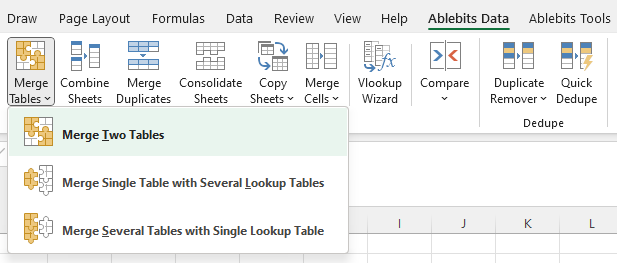
On the Ablebits Data tab, in the Merge group, click Merge Tables > Merge Two Tables:
Step 1: Select your main table
The main table is a table you merge with a lookup table. Your data will be updated only in the main table.

There are 5 ways to select the main table:
Before running the add-in:
- Select any cell in your dataset before running the add-on, and the whole table will be highlighted automatically.
- To limit the range to certain data, select your records, and the add-in will pick up your selection.
Note. If your records are formatted as a table, the add-in will always get the entire table.
After running the add-in:
- Click the Select range icon in the Merge Tables Wizard window and select your data.

- Select any cell in your dataset, and then click the Expand selection icon in the add-in window to expand the selection to the entire table.
- Type the range address in the Select your main table field manually.
Note. If you have the standard Excel auto filter option switched on, the add-in will match only the visible filtered rows. If you need to update the entire table, turn the filter off before starting the add-in.
Click the Next to continue.
Step 2: Pick your lookup table
The lookup table is a worksheet or range where you search for (look up) matching data. The add-in will pull information from this table. The lookup table remains intact after the add-in merges two tables.

On this step, you see all the open workbooks and worksheets in the Select your lookup table area. Choose the Excel worksheet with your lookup table and the add-in will highlight the used range.
Tip. You can edit the range by clicking the Select range icon or simply using your mouse cursor to select it in your table.
Click Next to continue.
Step 3: Select matching columns
Your tables may have several columns in common. Key columns are the important ones that let you identify the same records in your sheets, for example, IDs or the combination of First and Last names. Please note that the values in these columns are only compared; you will be able to select the columns to update on the next step.
Here you can see a table with a list of all the columns you have in your main sheet. Tick the checkboxes next to the columns you need to compare. Once chosen, the add-in will automatically pick a column with a matching header in a lookup table if there is one. If there is no match, please select one in the drop-down list of Lookup table columns.

- If your tables have header rows, select the Main table has headers and/or Lookup table has headers checkboxes. If your tables do not have headers, clear these boxes. In this case, the contents of the 1st row will be displayed to help you match the right records.
- If text case in the key columns is important to you, tick off the Case-sensitive matching checkbox at the top. This will instruct the Merge Tables Wizard to distinguish between uppercase and lowercase letters in the values it compares.
- Click Auto Select to get all the columns selected as matching. If you ticked the Main table has headers and/or Lookup table has headers checkboxes, only columns with corresponding headers will be selected.
- Pressing Unselect All will remove selection from all columns.
Tip. If you have a lot of columns in your tables, you can expand the wizard window by dragging the bottom-right corner down and to the right until you get a suitable size.
Click Next to continue.
Step 4: Choose the columns to update in your main table
On this step, select the columns you want to update in the main table and pick the corresponding columns from the lookup table with the new values:

You can also click the Auto Select button to select all matching columns at once. Press Unselect All to remove selection from all columns.
Tip. If you have a lot of columns in your table, the counter at the bottom of the add-in window will help you keep track of how many you select.
Click Next to proceed.
Step 5: Pick the columns to add to your main table
On this step, you can add other columns from the lookup table to the main table. You will see a list of Lookup table columns that were not selected as a source for comparison or update on the previous steps.
Tick off the checkboxes next to the columns you want to insert into your main worksheet:

Tip. Select or deselect all columns at once by using the buttons Select All and Unselect All respectively.
Click Next to proceed.
Step 6: Choose additional merging options
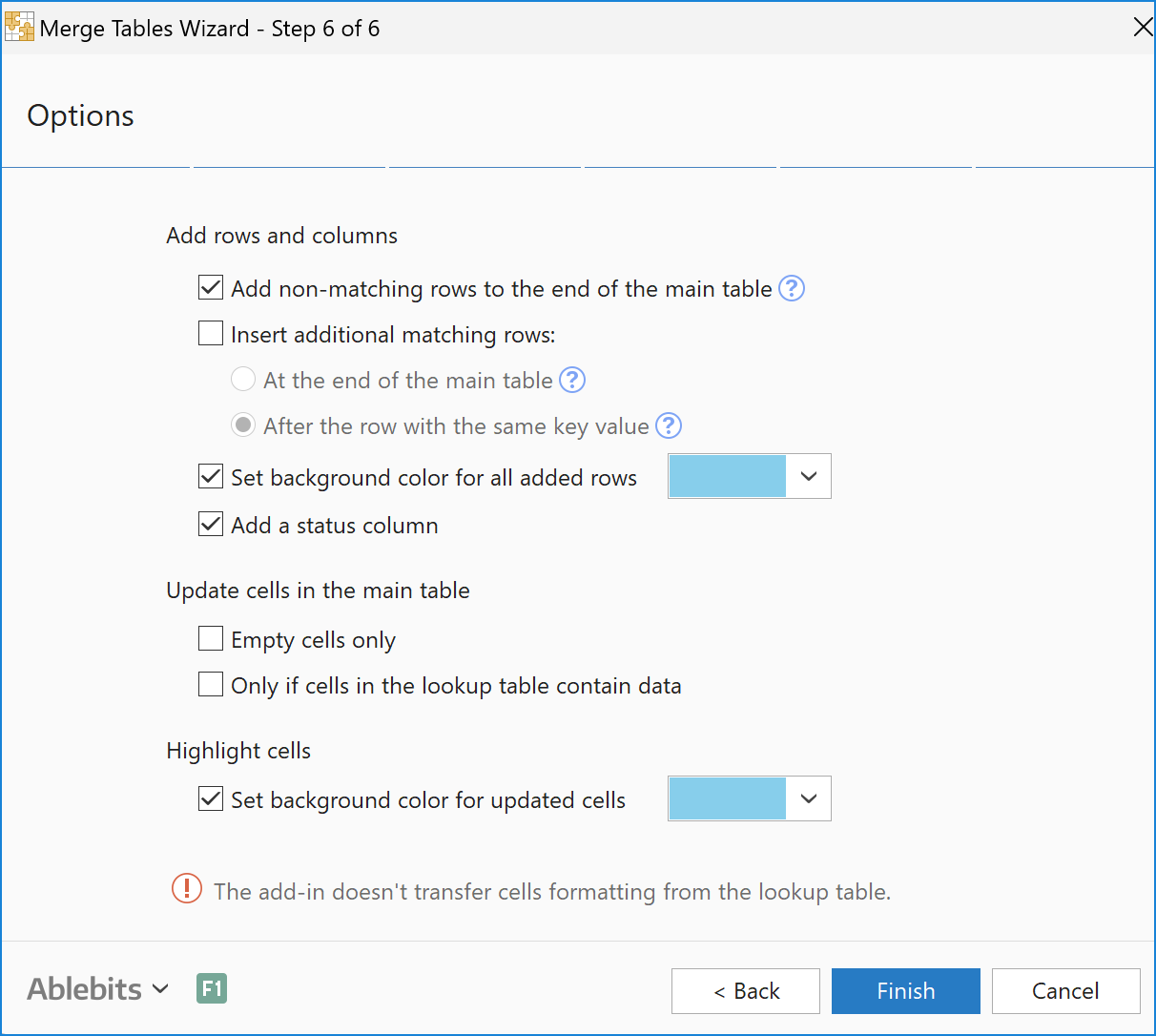
The last step offers advanced options that let you fine-tune the merge. All these options are applied to the main table:
Add rows and columns
- Add non-matching rows to the end of the main table
Non-matching are the rows with the key values that are not present in your main worksheet.For example, you match tables by the column with IDs. The main table has IDs from 1 to 15. The lookup table contains IDs from 1 to 20. So, the IDs from 16 to 20 in your lookup table are non-matching. When you choose Add non-matching rows to the end of the main table, the rows with such values will be inserted after all rows in the appropriate columns of the main table:

- Insert additional matching rows
Select this option to add rows with duplicate key values that may contain unique information in other columns. You can paste additional matching rows at the end of the table or after the row with the same value in the key column.- Attach repeated rows after all data in the main table by choosing the At the end of the main table option:

- Or insert additional rows from the lookup table right after the same key value in your main table and get all the duplicates grouped together. For this, select After the row with the same key value:
 Tip. You can run Merge Duplicates to combine these rows and keep all unique information in place.
- Attach repeated rows after all data in the main table by choosing the At the end of the main table option:
- Set background color for all added rows
Choose this option to mark the added rows with a background color. - Add a status column
If you tick this option, the add-in will add a new column to your main table and mark rows as Matching, Matching and updated, or New row.
Update cells in the main table
This group lets you specify how to deal with empty cells in the main table.
- Empty cells only
Select this option if you want to update only empty cells. The existing values in your main table will not be overwritten. - Only if cells in the lookup table contain data
Choose this option if you may have empty cells in your lookup table, and you don't want them to overwrite the existing values in your main table.
Highlight cells
You can highlight all updated records in your main table with color by ticking off this checkbox and picking an appropriate hue from the drop-down list. This way you will easily see the changes after joining tables.
Once you select all the options you need, click the Finish button and enjoy the results.

Please contact us here