How to manage columns in Excel
If you work with tables that have numerous columns, you might want to easily change their order without copying and pasting each column separately. The Column Manager tool creates a list of all columns so that you can easily navigate, autofit, and drag them.
Before you start
We strongly recommend creating a backup copy of your sheet. After moving or deleting columns, you won't be able to undo the changes.
Start Column Manager
Open the worksheet that contains the columns you want to manage. To start the add-in, click the Column Manager icon on the Ablebits Data tab, in the Manage group:

Manage your Excel columns
You can see the Column Manager pane with the list of columns in the selected table. Here you'll find your column headers under Name, Excel column letters under Column, and range addresses under Range:
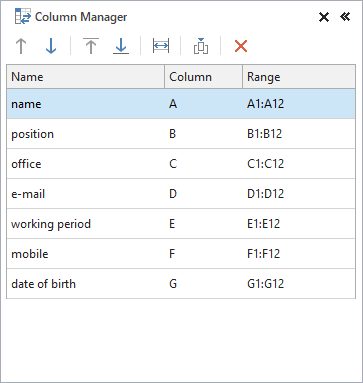
- To select a column in your table, click it in the list.
- To change the column order in your table, drag the columns to the needed position in the list.
- Alternatively, you can move the column(s) by selecting them in the add-in pane and using the Ctrl+Up arrow or Ctrl+Down arrow shortcuts.
- To make a column the first one or the last one in your table, select it in the add-in pane and use the Ctrl+Home and Ctrl+End shortcuts accordingly.
- To autofit your columns, select them in the add-in pane and press the Ctrl+Right arrow keyboard shortcut.
Tip. Press the Ctrl button on your keyboard to select several columns and manage them all at once.
Besides, you can use the icons at the top of the pane:
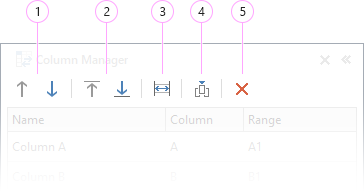
- To move the column(s) to the left or to the right, select the column(s) of interest and click the Move Up or Move Down icon.
- To move the column(s) to the far left or to the far right in your table, select them and use the Move to Top or Move to Bottom icon.
- You can make the column width automatically fit its longest entry by clicking the Auto Fit icon.
- If you need to add a column, select an existing one in the add-in pane or in the worksheet and click the Insert icon. The new column will appear to the right of the initially selected one.
- To remove a column, click on it in the add-in pane or in your worksheet and click the Delete icon.
Note. The Column Manager tool doesn't work with filtered columns so as not to break the structure of your worksheet. If you have a filter applied, remove it before using Column Manager.
Please contact us here
We usually reply in a few hours. (And yes, we are real people!).