Shared Email Templates for Outlook
Smart way to handle routine emails
If email communication is part of your daily work, there is an easy way to make it more effective and productive:
- Create reusable email templates seamlessly integrated into Outlook.
- Customize and individualize as necessary.
- Use personally or share with teams.
- Reply to emails with a click!
including Windows tablets
Outlook on the web (in browsers)
Outlook on the web (in browser)
(Outlook on the web / in browser)
(Outlook on the web / in browser)
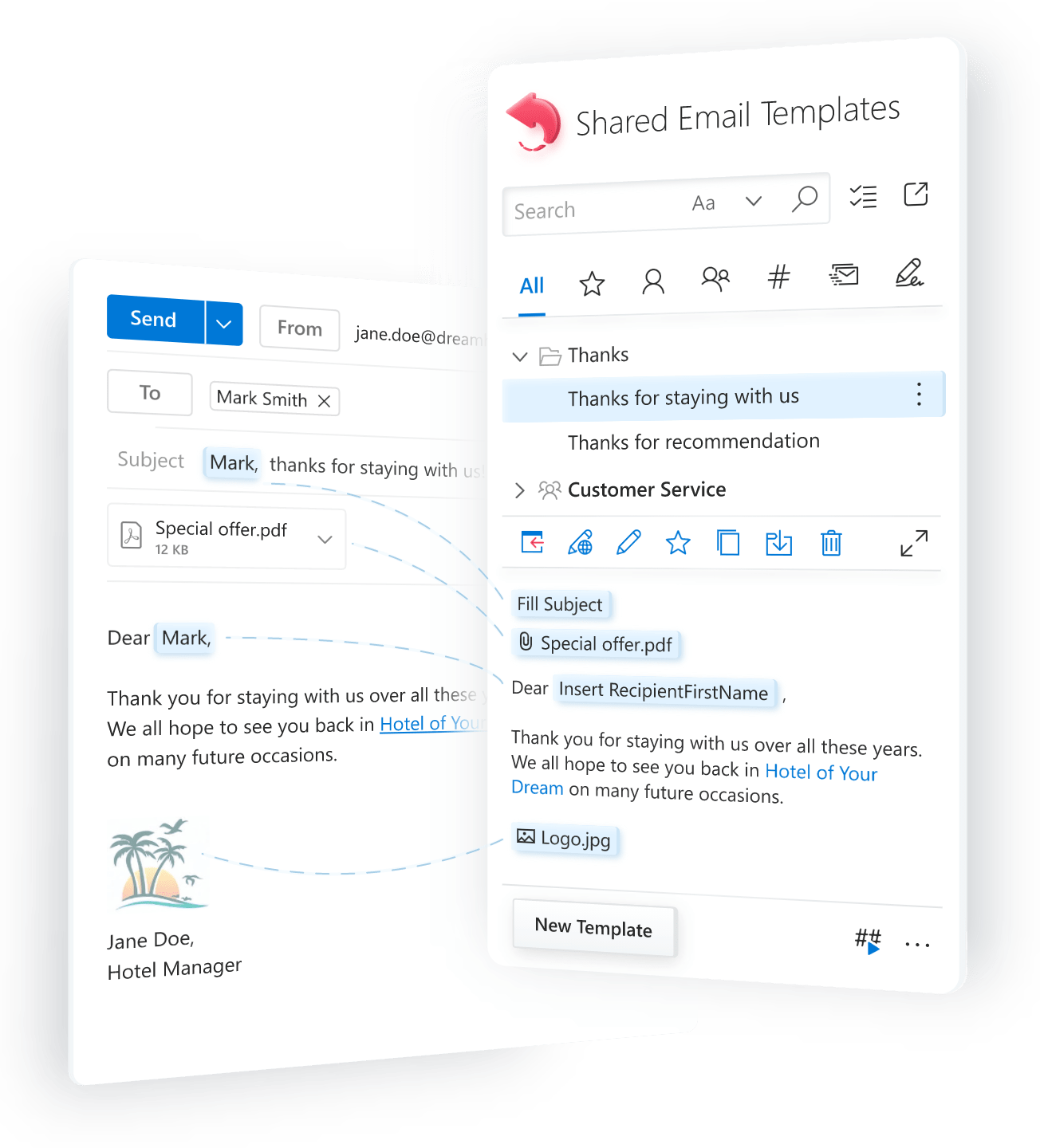
Create once, reuse any time
routine emails
personalized templates
with fillable fields
template designs
bulk mailings
management
template sharing
in mail merge campaigns
including Windows tablets
Outlook on the web (in browsers)
Outlook on the web (in browser)
(Outlook on the web / in browser)
(Outlook on the web / in browser)
What our users say

Unique features that you won't find anywhere else

Always at your fingertips
One storage for templates


Cross-device access
Routine emails made custom-tailored and personal
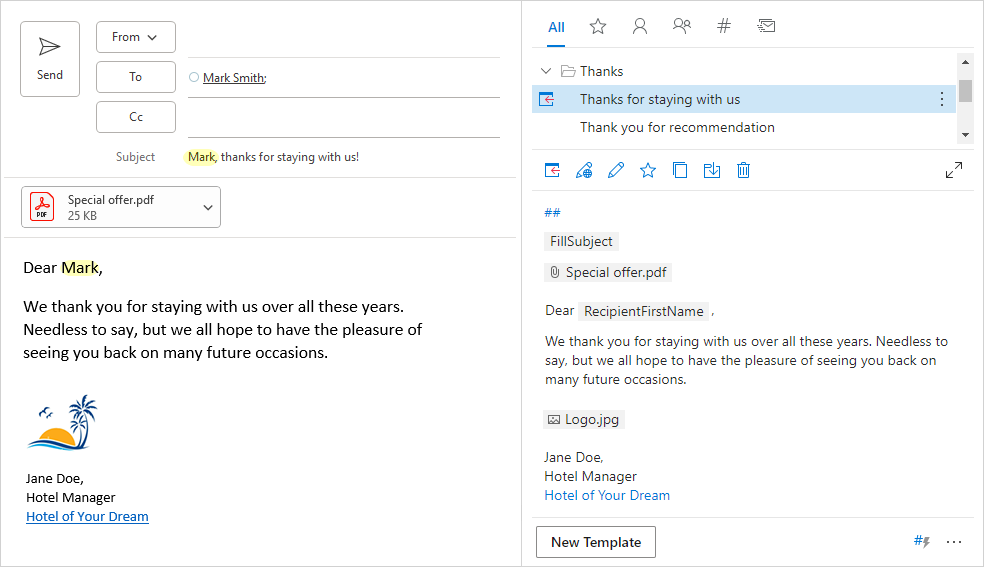
- Insert the recipient’s name anywhere in a message.
- Create a personalized subject line.
- Dynamically attach files or entire folders.
- Insert fillable text fields, date-picker calendars, and dropdown lists.
- Pull relevant data from Excel sheets.


Dynamic templates with conditions
Reuse your existing templates as building blocks for new ones, without wasting time on rewriting, updating or copy-pasting anything. Make your messages more relevant by inserting specific parts of a template only when certain conditions are met, such as when the email subject or body contains or does not contain a particular word.
Team communications kept consistent
If needed, shared folders can be password-protected and accessed only by those eligible. Extremely helpful for remote teams.


Not just email replies
Ideal for personalized mass mailings
As an extra bonus, you'll get a collection of professionally designed ready-to-use HTML-based templates (8 layouts and 14 color themes), perfectly suited for newsletters and captivating promotional messages tailored for each recipient. You can even add personalized attachments in your mail merge campaigns!


Company or team wide signatures
All your data is safe & secure
And what's more, you can take control and maximize the security of your shared email templates by following a few simple steps.


User-friendly and easy to learn
60-day free trial
Start your journey to more productive and streamlined email communication now with a risk-free trial. No credit card required.
including Windows tablets
Outlook on the web (in browsers)
Outlook on the web (in browser)
(Outlook on the web / in browser)
(Outlook on the web / in browser)
Shared Email Templates at a glance


System requirements

Microsoft Outlook
- Outlook for Microsoft 365
- Outlook 2021
- Outlook 2019
- Outlook on the web
Browsers
- Google Chrome
- Microsoft Edge
- Safari
- Firefox
Platforms
- Windows
- MacOS
- ipadOS (Outlook on the web)
- Android (Outlook on the web)
Choose your subscription plan
| Free Trial | Business | Enterprise | Mail Merge | Custom | |
|---|---|---|---|---|---|
$0.00 Free |
$3.00 per user / month billed annually |
$4.00 per user / month billed annually |
$15.00 per user / month billed annually |
custom offer for 50+ users |
|
Performance vs. limitations The limitations below are created not to impact the Outlook performance. |
Get it from | Subscribe
|
Subscribe
|
Subscribe
|
Contact us
|
|
Templates and folders
Not to impact Outlook performance,
each team has a limit to the number
Total number of folders and templates the user can use personally and in all your teams |
2,500 | 1,500 | 7,000 | 2,500 | 7,000 |
Team size (up to) Number of users in your teams |
unlimited | unlimited | unlimited | unlimited | unlimited |
Teams per user Number of teams the user can be invited to |
4 | 3 | 6 | 4 | by request |
Company account Centralized management of users, teams and subscriptions |
|||||
Managed teams Number of teams the company admin can create and manage |
unlimited | unlimited | unlimited | unlimited | unlimited |
Mail merge Free trial limitations
Use your Outlook mailbox for personalized newsletters, notifications, etc. Learn more → |
by request | ||||
Subscription duration |
60 days trial period | 12 months | 12 months | 12 months | 12 months |
Nonprofit organizations
For nonprofit organizations with a recognized legal status equivalent to IRC 501(c)(3), we offer one yearly subscription for free: up to 20 users for the Business or Enterprise plan, or up to 5 users for the Mail Merge plan. The subscription can be renewed annually at no cost if the nonprofit status is confirmed.
Educational organizations
For educational organizations, yearly Business and Enterprise subscriptions are available at a 50% discount.
Poland stands with Ukraine
We provide free yearly Business subscriptions for Ukrainian small businesses as well as nonprofit organizations and volunteers that help Ukraine. Some documents may be requested.
