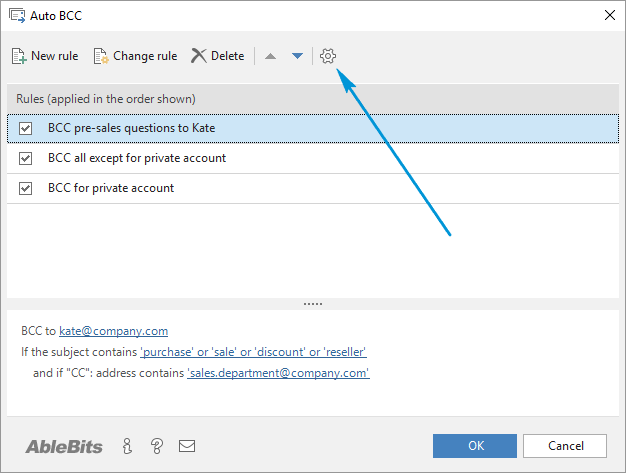
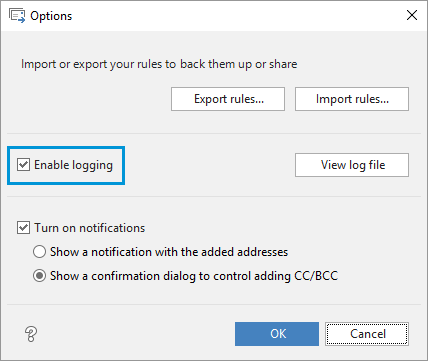
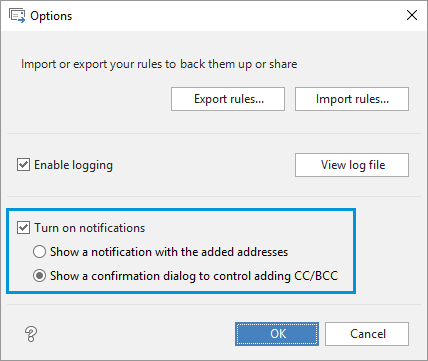

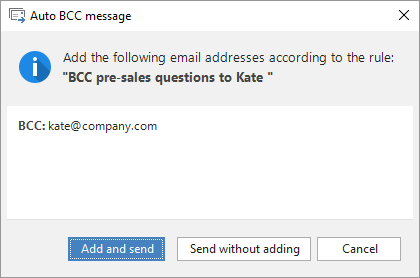
How to create a new Auto BCC rule.


Auto BCC/CC for Microsoft® Outlook®

How to create a new rule

For Microsoft Outlook 2010 (32-bit and 64-bit), Outlook 2007, Outlook 2003.


Download Now

How to create a new rule

  1. To create a new rule, open the Auto BCC/CC for Microsoft Outlook window by clicking on its icon in Outlook 2010 The Auto BCC icon I Outlook  2010 or going to Outlook menu -> tools -> Auto BCC/CC in Outlook 2003-2007.
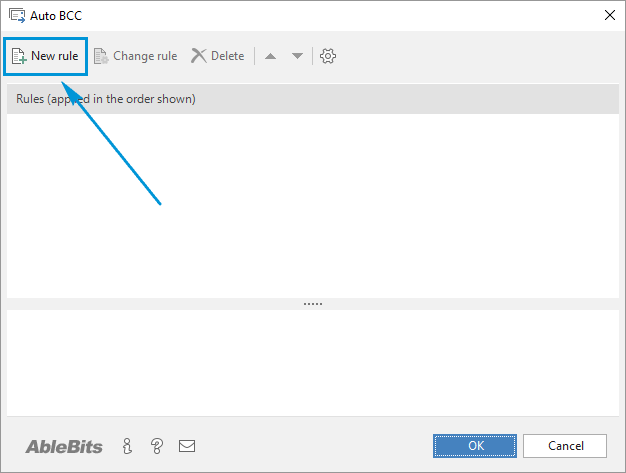
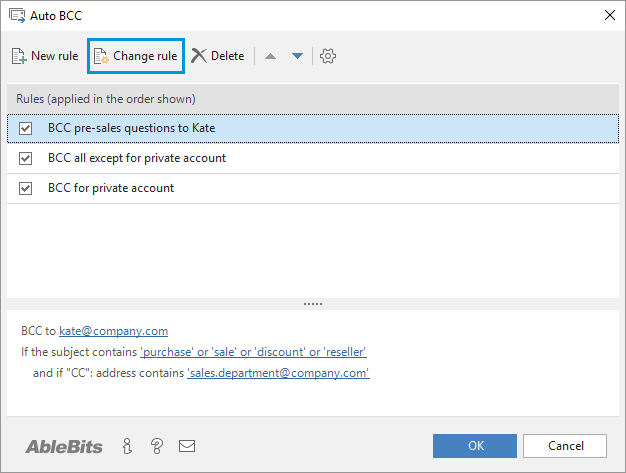
    The Auto BCC window
  2. Click the New rule button on the top toolbar or double-click on the Rules List area and you will see the Rule settings dialog box.
    Click the New Rule button to define rule settings
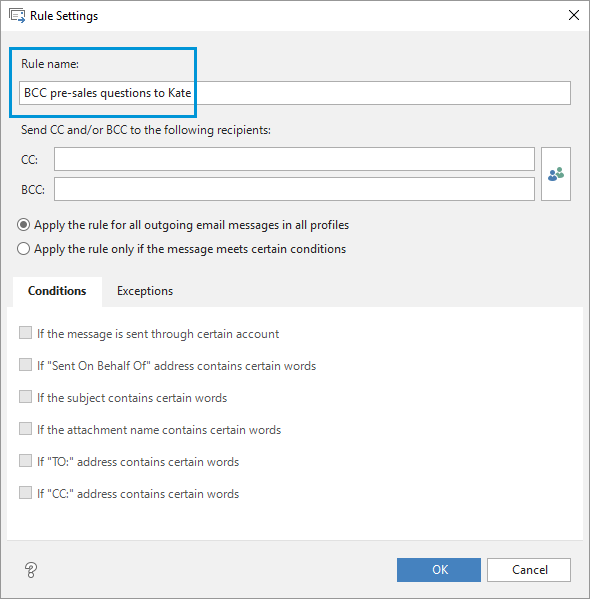
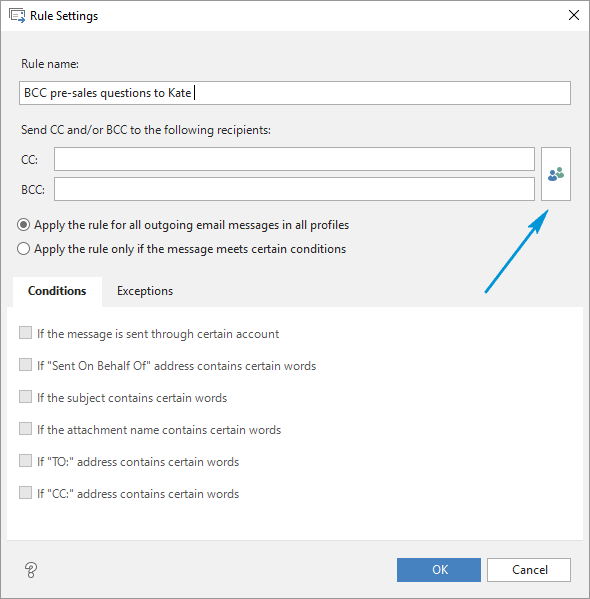
  3. Type the name of the rule in the Rule name field
    Enter the rule name here
  4. Define the rule settings:
    1. CC and/or BCC all outgoing messages
    2. CC and/or BCC certain messages

CC and/or BCC all outgoing messages

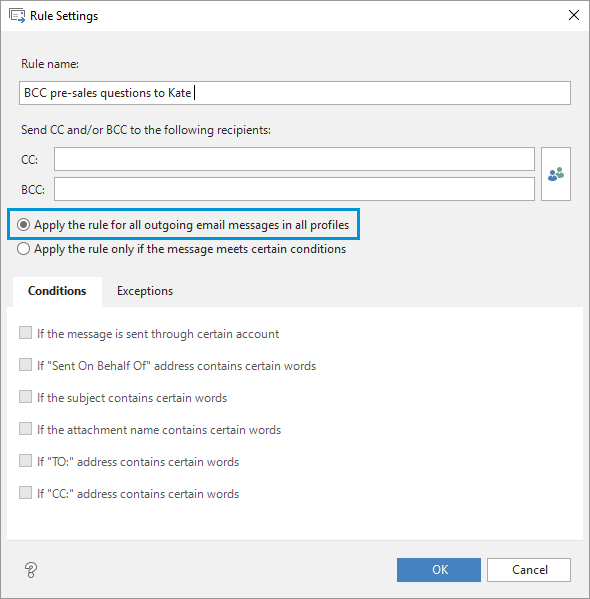
  1. Create a new rule and select the Apply the rule for all outgoing messages in all profiles radio button.
    Select to apply the rule for all outgoing messages in all profiles
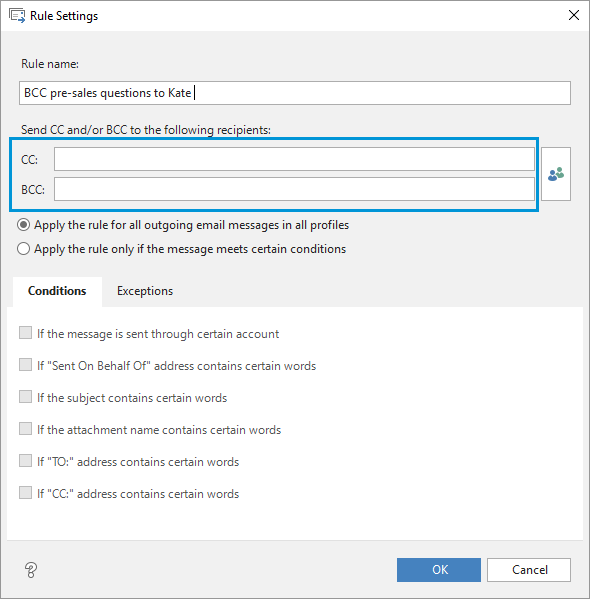
  2. Click the Select recipientsSbutton on the Rule settings dialog box to add CC/BCC addresses.
    Use select recipients button to add addressees
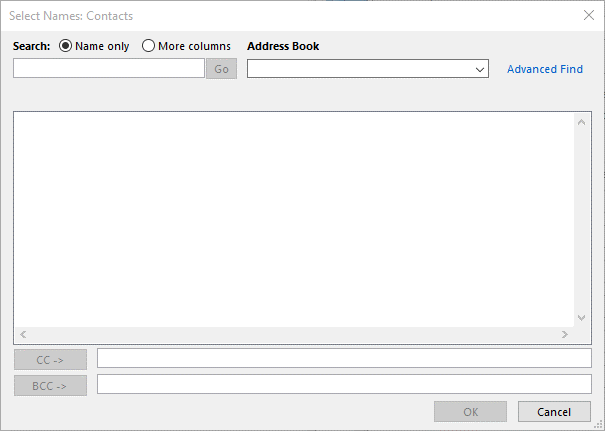
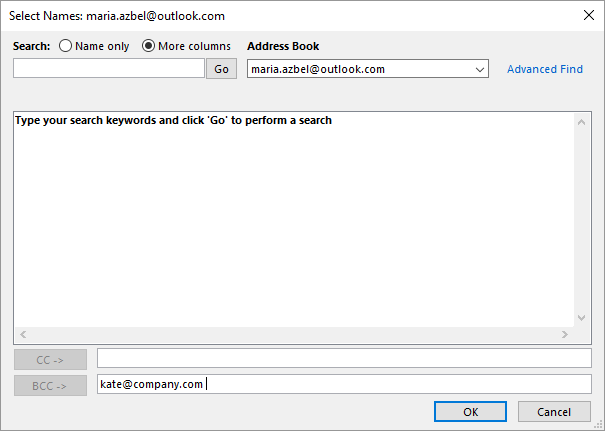
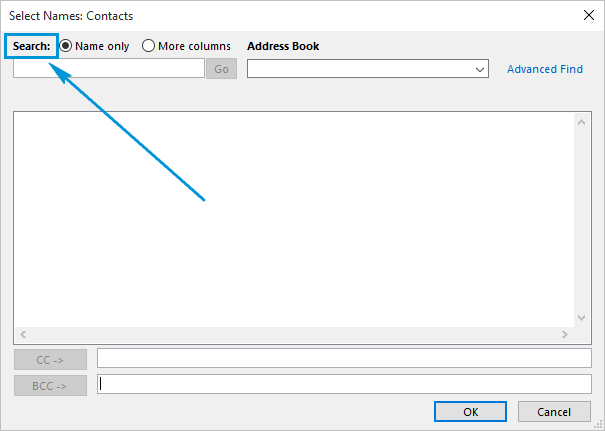
    You will see the Select Names: Contacts window.
    Select or enter the recipients in this window
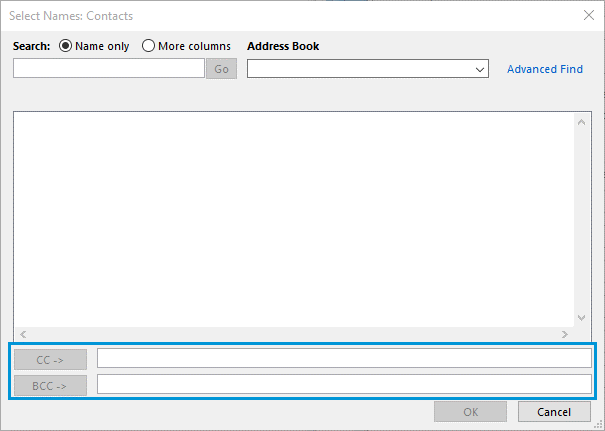
  3. You can select the contact you need from the list and click either CC -> or BCC -> button to put the address into the corresponding field.
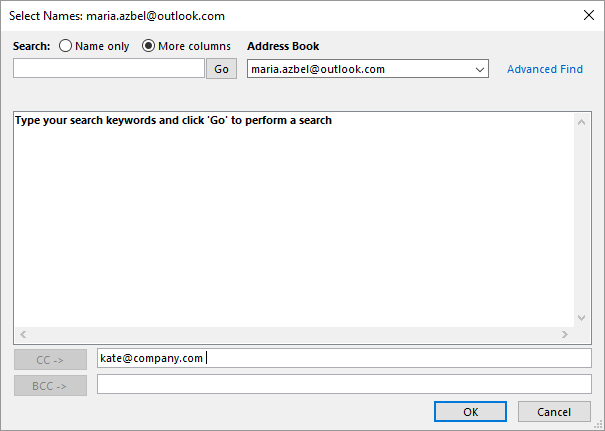
    Select CC recipients by typing their addresses in this field
    If your address book is empty, you can add CC or BCC recipients manually by typing their e-mail addresses in the CC or BCC field correspondingly.

    To choose CC recipients, enter the necessary address in the CC field at the bottom of the Select Names: Contacts dialog box.
    Select CC recipients by typing their addresses in this field
    If you need to select BCC recipient, just enter their address in the BCC field.
    Enter BCC recipient address in this field
  4. Press the OK button.

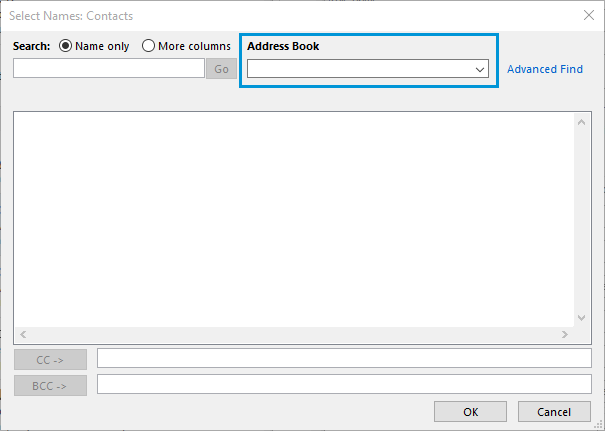
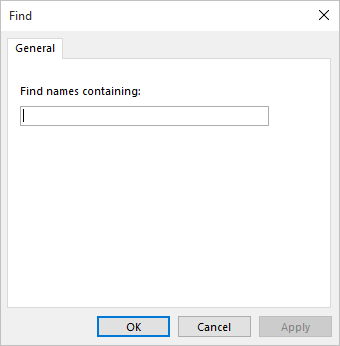
Tip: You can also use the standard Outlook Search, Address book and Advanced find options to quickly find and select CC or BCC recipient e-mail address.

CC and/or BCC certain messages

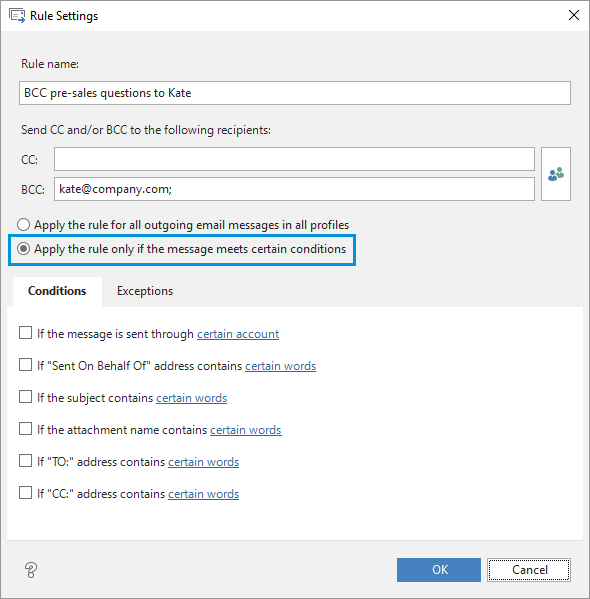
  1. Create a new rule and select the Apply the rule only if the message meets certain conditions radio button and it will enable the Conditions and Exceptions tab.
    Choose to apply the rule only if the message meets certain conditions
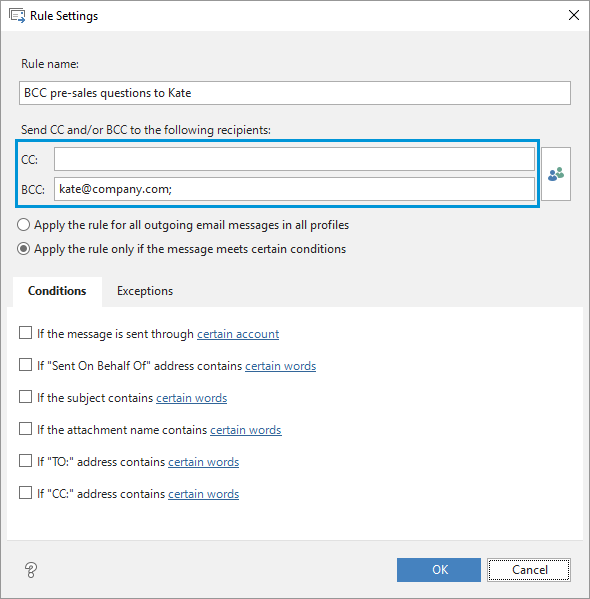
  2. Click the Select recipientsz/i> button on the Rule settings dialog box to add CC/BCC addresses.
    Click this button to add recipients
    You will see the Select Names: Contacts window. Select or enter the recipients in this window
    You can select the contact you need from the list and click either CC -> or BCC -> button to put the address into the corresponding field. Select CC recipients by typing their addresses in this field
    If your address book is empty, you can add CC or BCC recipients manually by typing their e-mail addresses in the CC or BCC field correspondingly.

    To choose CC recipients, enter the necessary address in the CC field at the bottom of the Select Names: Contacts dialog box. Select CC recipients by typing their addresses in this field
    If you need to select BCC recipient, just enter their address in the BCC field.
    Enter BCC recipient address in this field

Tip: You can also use the standard Outlook Search, Address book and Advanced find options to quickly find and select CC or BCC recipients e ?ails.

Note! The Auto BCC add-in works in such a way that if a given e-mail address is in the To, CC or BCC field, the BCC or CC rule for this address will not work. If you enter the same email address into these fields the recipient will get just one copy of the email.

Set conditions

You can create a rule using the following conditions:

  • If Account is
    Check this condition if you want to send CC or BCC copies from a certain e-mail account. Then click on a small icon next to the condition to see the Select account dialog box.
    Click on this icon to select account
    Choose the e-mail account you need by checking it in the list and click Ok.
  • If ?ent on behalf of?address contains

    If you want to CC/BCC messages that you send on behalf of someone, tick ?i>Sent on behalf of?address contains
    : and click the button next to it to add such address or its part as a condition.
    Click this button to use Sent on behalf of address as condition
    You will see the Search text dialog box.
    Specify a word to search for in Sent on Behalf of address
    Specify which address or its part needs to be considered when you send a message on Behalf of someone, click Add and click Ok.

    Tip: You can use the Address Book for quick search.

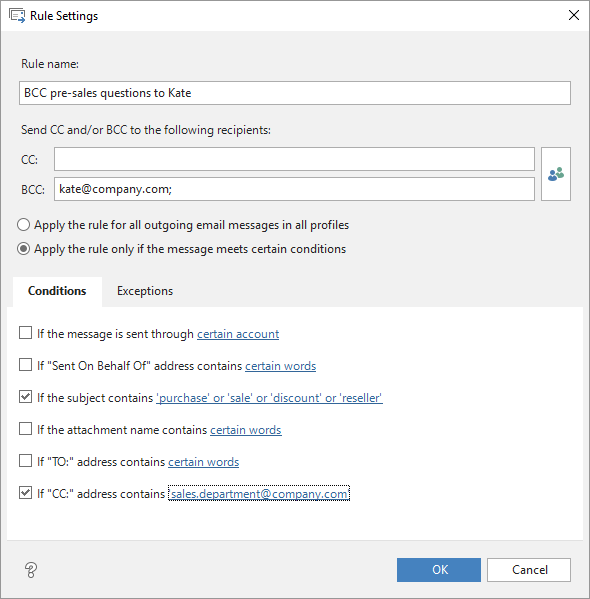
  • If subject contains
    If you need to CC/BCC messages with a certain subject, select the Subject contains: option.
    Click on this icon to add Subject contents as a condition
    Enter the necessary key word in the Search text dialog box, click Add and click Ok.
    Specify a word or phrase to search for in the subject
  • If attachment name contains
    If you need to send CC or BCC when a file with a particular name is attached, tick the Attachment name contains option.
    Click on this icon to enter attachment name
    Type possible attachment names in the Specify a word or phrase to search for in the attachment name field, click Add and click Ok.
    Specify a word or phrase to search for in the attachment name
  • If "To:" address contains
    It is also possible to use the recipient's address as a condition. Just select "To:" address contains and click on the icon next to it.
    Click on this icon to use recipient address as a condition
    Enter the recipient address or its part in the Specify a word or phrasez field.
    Define the recipient address

    Tip: You can use your Address Book for a faster search.

  • If "Cc:" address contains
    Check ?c? address contains: to create a condition based on the CC field address. Click the icon next to the condition to define the address.
    Click on this icon to define CC address for the condition
    Enter the CC address or its part in the Specify a word or phrase to search for in ?C? address field.
    Specify address or its part to search for in CC field
    You are free to combine the conditions according to your needs.

Set exceptions

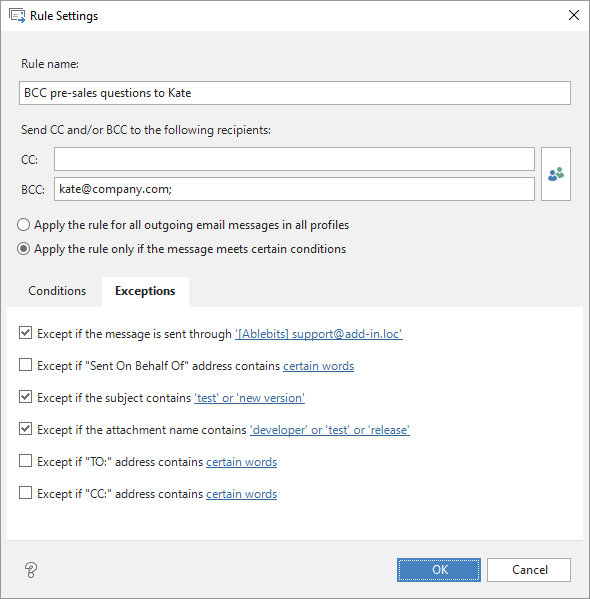
The rule can be disabled when certain exceptions are met. To set the exceptions, go to the Exceptions tab on the Rule properties dialog box.

  • If Account is
    If you want to stop sending CC or BCC copies when you send a message from a certain e-mail account, check Account is:. Then click on a small icon next to it to see the Select account dialog box.
    Click on this icon to select the account for the exception
    Choose the e-mail account you need by checking it in the list and click Ok.
  • If ?ent on behalf of?address contains
    If you want to exclude CC/BCC for the messages that you send on behalf of someone, tick ?ent on behalf of?address contains: and click the button next to it to add such address or its part as an exception.
    Click this button to use Sent on behalf of address as an exception
    You will see the Search text dialog box.
    Specify a word to search for in Sent on Behalf of address
    Specify which address or its part needs to be considered when you send a message on Behalf of someone, click Add and click Ok.

    Tip: You can use the Address Book for quick search.

  • If subject contains
    If you need to exclude CC/BCC for messages with a certain subject, select the Subject contains: option. Click on this icon to add Subject contents as an exception
    Enter the necessary key word in the Search text dialog box, click Add and click Ok.
    Specify a word or phrase to search for in the subject
  • If attachment name contains
    If you don't need to send CC or BCC when a file with a particular name is attached, tick the Attachment name contains option.
    Click on this icon to add attachment name to the exceptions
    Type the attachment names for the exception in the Specify a word or phrase to search for in the attachment name field, click Add and click Ok.
    Specify a word or phrase to search for in the attachment name
  • If "To:" address contains
    It is also possible to exclude messages sent to particular recipients. Just select "To:" address contains and click on the icon next to it.
    Click on this icon to use recipient address as an exception
    Enter the recipient address or its part in the Specify a word or phrasez field.
    Define the recipient address

    Tip: You can also use your Address Book for a faster search.

  • If "Cc:" address contains
    Check ?c? address contains: to create an exception based on the CC field address. Click the icon next to the condition to define the address
    Click on this icon to define CC address for the exception
    Enter the CC address or its part in the Specify a word or phrase to search for in ?C? address field.
    Specify address or its part to search for in CC field
    You are free to combine the conditions according to your needs.

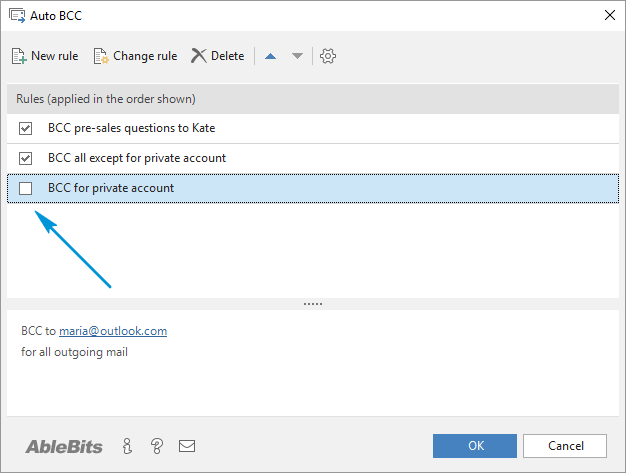
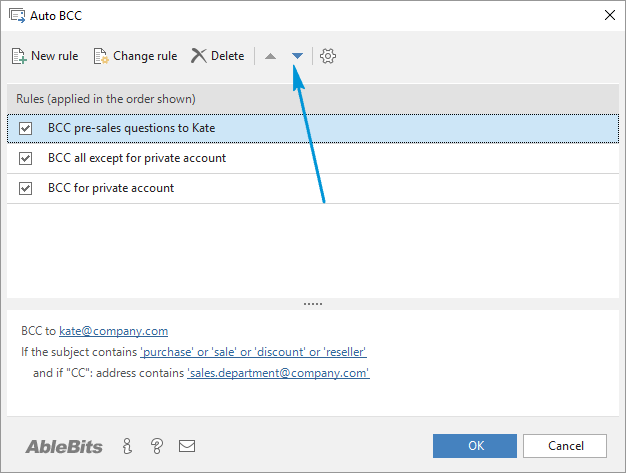
    Note! All enabled rules are applied top-down for all outgoing messages. All messages are checked for duplicates and all duplicated addresses are cut down.
    You can see the description of the rule in the Rule description area in the Auto Bcc for Microsoft Outlook window.
    You can see rule description at the bottom of the add-in window


Auto BCC/CC for Outlook is compatible with

  • Operating System: Microsoft Windows 7 (x86, x64), Windows Server 2008, Windows Vista (x86, x64),
    Windows 2003, Windows XP.
    .NET Framework 2.0 must be installed.
    If you need to install the add-in for a group of users, please see Corporate deployment.
  • Microsoft Office Outlook 2010 (32-bit and 64-bit), Outlook 2007, Outlook 2003.

Download now and see how it can help you


Order Now


Join us on Facebook

Click Like and get 15% discount on all our products right now!


Auto BCC/CC for Outlook


Ordering information


You can purchase a license of Auto BCC/CC for Outlook online with any major credit cards, bank wire transfer, check, PayPal or order by fax.

Auto BCC/CC for Outlook pricing, per license

Quantity

USD

EUR

GBP

Volume discount

1

29.95

19.95

19.95

2-4

28.45

18.95

18.95

5%

5-9

26.95

17.96

17.96

10%

10-24

23.95

15.96

15.96

20%

25-49

20.95

13.97

13.97

30%

50 & more

Contact us for a special price

Buy Now

Have a question? Feel free to ask

Your Name*

Your e-mail*

Subject

Message*

Please remember that we work from 9am to 6pm GMT this is 5:00am - 2:00pm EST, 2:00am - 11:00am PST and our public holidays may differ from yours.


Links   |   Sitemap   |   About us


Plug-ins for Microsoft Excel and Outlook

Copyright © 2003 - 2012 Add-in Express Ltd. All rights reserved.

Microsoft and the Office logo are trademarks or registered trademarks of Microsoft Corporation in the United States and/or other countries.