How to use Random Generator for Excel
The Random Generator add-in lets you quickly populate the selected cells with random records of any chosen type. With this tool, you can create random numbers without duplicate records, randomize values from your custom list, or obtain secure passwords.
So, pick your task and let's get started.
Start Random Generator
Run the add-in from the Randomize tool in the Utilities group on the Ablebits Tools tab:

You will see the Random Generator pane:
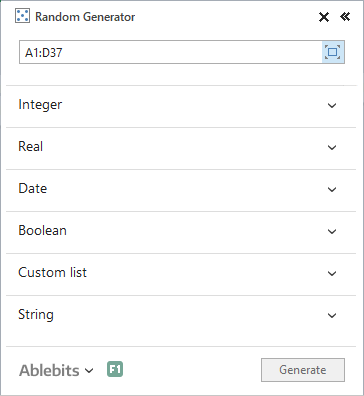
By default, the tool selects the entire data range in your sheet. You can change the range by choosing it in your table manually, entering the address into the range area using your keyboard, or by clicking the Expand selection icon (blue in the screenshot above) to get the whole table highlighted automatically.
Note. If you select the range with data, the add-in will always ask if you really want to remove the existing entries and replace them with the newly created random values.
To start adjusting the options, expand the group of interest on the Random Generator pane.
How to generate random integers
- Click on the Integer group to expand it:

- Define the minimum and maximum integers in the From and To fields. You can type in the required values manually or set them by clicking the up and down arrows in the fields.
- If you need random values without duplicates, tick the Unique values checkbox and all the created numbers will be different. You can generate unique random integers from -2147483648 to 2147483647.
- Click on the Generate button to fill your range with random integers.
How to create random real numbers in Excel
- Open the Real section by clicking on it:

- Set the minimum value in the From field and the maximum value in the To field. Enter the required values manually or set them by clicking the up and down arrows in each field. You can generate random real numbers from -99999999.9 to 99999999.9.
- If you need to make sure your random real numbers don't have repetitions, tick the Unique values checkbox and all the generated values will be different.
- Click Generate to fill your range with random real numbers.
How to fill the range with dates at random
- Click on the Date section to expand it:

- Select the initial and final dates in the From and To fields. You can enter the values manually or use the built-in calendar. To open the calendar, click the arrow in the From or To field respectively.
 Tip. Click the month name to switch to the year view; click the year to get the decade view.
 - You can get workdays and weekends generated separately. If you want to create only workdays, tick the Workday checkbox. If you want to fill the range with weekend days only, tick the Weekend checkbox. Pick both options to generate weekends and workdays at the same time.
- If you need to generate completely different random dates, tick Unique values.
- Click on the Generate button to fill your range with random dates.
Tip. If the created values don't appear as dates, please change the format of the cells using the standard Excel's Format Cells... option.
How to generate Yes/No or True/False Booleans
- Expand the Boolean section by clicking on it:

- To select a Boolean, click the arrow in the Value field and select the necessary group from the drop-down list. You can generate true/false or yes/no values.
- Click on the Generate button to fill your range with random Booleans.
Tip. If you want to change the random values in the selected range, just click Generate again and these Booleans will be automatically replaced with new values.
How to create a custom list of names, numbers, etc.
- Expand the Custom list section in the Random Generator pane:

- You will see several standard Excel custom lists as well as the ones you created. Click on the list you need to choose it.
Tip. To add your custom list, select the range with the needed items in your worksheet: it can be a column, row, or a block of cells with data, and then click the New list button. Confirm your choice by clicking OK in the dialog box.Tip. To remove a custom list, select it in the pane and click Delete. Also, you can right-click the custom list and choose Delete in the context menu.
- If you want to have random custom list values without duplicates, tick the Unique values checkbox and all the generated values will be different.
- Click Generate to fill your range with random values from your list.
How to generate passwords in Excel
- Select a range that you want to fill with random passwords in your Excel worksheet and expand the String section in Random Generator:

- Specify the character set(s) you want to use. There are letters in upper and lower case, numbers, space, certain characters like punctuation marks with some commonly used symbols, and Hexadecimals that you can choose from.
- If you need to generate random password strings with certain characters only, check the Custom box and type or copy/paste these chars. You can use this option alone or in combination with other character sets.
- Select the String length option to set the number of chars for the generated passwords. You can enter it manually or select it by using the up and down arrows. The strings can be from 1 to 99 characters long.
- Click the Generate button.
How to fill cells in Excel with random strings
If you need random alphanumeric strings, codes, random text, or other string data, use the String section in the Random Generator pane.
- If you need random alphanumeric strings, codes, random text, or other string data, click the String section to open it:

- Choose the necessary character set(s): letters in upper and lower case, numbers, space, certain characters like punctuation marks with some commonly used symbols, Hexadecimals, and/or Custom characters.
- If you need to pre-specify your codes, SKUs, or IDs, take advantage of the By mask option to set the pattern. A question mark (?) stands for one character. E.g. if you need to get a string like "F0E3-AD27-53A0", use the following mask "????-????-????".
Tip. You can also have constant symbols in your strings when generating them by mask. Here is an example: you want the first 3 characters in the strings to be "000", so all you do is type in this mask: 000-????-????
- You can also use one of the default templates. Click the arrow in the By mask field to select one of the suggested patterns.
- Click on the Generate button and get your random data strings: passwords, codes, IDs, and so on.
Please contact us here