Merge multiple Excel cells into one
Merge Cells is an add-in for Microsoft Excel that combines multiple text cells. Use it to join values from several cells to one and merge several cells, rows, or columns keeping all data.
Before you start
- A special Back up this worksheet option will create a safe copy of your original sheet.
- The add-in brings together all areas in the selection, including non-adjacent ones.
Merging options
After you select the range, you'll have to pick one of the merging options for the cells. Please see below the examples of how each of them works.
- Columns into one

- Rows into one

- Cells into one

Start Merge Cells
Run the add-in by clicking on its icon in the Merge group on the Ablebits Data tab:
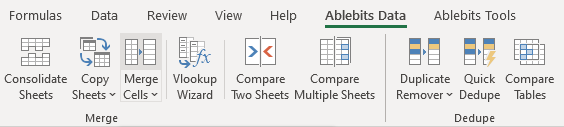
How to combine Excel cells, columns, and rows
The add-in's window lets you adjust the following options:

- Select the range in your worksheet or use the Expand selection or Select range icons on the right.
- In this dropdown, choose the merging option: Columns into one, Rows into one, Cells into one.
- Combine with offers a set of standard delimiters to use between the merged values: semicolon, comma, period, space, line break. Also, you can scroll down to select an aggregate function, please see more details in the Combine cells with aggregate Excel functions section.
Tip. You can enter any combination of characters into the field or leave it blank to stitch the values together. The separators you enter manually are saved in the drop-down list for the next time you use the add-in.
- Choose destination for the result in the Place the results to drop-down list: left or right column; top or bottom row; top-left, top-right, bottom-left, or bottom-right cell.
- Use the additional options to adapt the results to your table:
- Check the Clear the contents of the selected cells checkbox to delete the source values after merging them.
- If you want to combine the selected cells, and not only their values, choose to Merge all areas in the selection.
- Avoid getting extra separators when merging values by checking off Skip empty cells.
- Select the Wrap text option to make the joined values visible in your worksheet.
- We recommend selecting Back up this worksheet to get a copy of your current table as is.
Click the Merge button to combine values from the selected columns in Excel.
Combine cells with aggregate Excel functions
If you've got numerical data, you can not only combine values but also apply aggregate Excel functions. For this, select the function of interest in the Combine with drop-down list:

Note. For the calculations, the tool uses the standard Excel functions (AVERAGE, COUNT, COUNTA, MAX, MIN, SUM), so if you face certain difficulties, please consult a corresponding section here.
Responses

Murad says:
July 30, 2021 at 5:43 pm
What if I have hundred of rows then wanted to Merge each two together ?

Hello Murad,
Thank you for your message. For us to be able to help you better, please email us at support@ablebits.com with a small sample workbook containing an example of your source data and an example of the result you would like to get. Please shorten your tables to 10-20 rows. If you have confidential information in your records, you can replace it with some irrelevant data, just keep the format.
The result sheet is of great importance and often gives us a better understanding of your task rather than any text description. Please don't forget to include it. We'll look into your task and see if our software can help.

Trixy says:
June 26, 2020 at 10:33 am
Can I create a shortcut to do this faster?

Hello Trixy,
Unfortunately, it is not possible to create a shortcut for the add-in.

Jordan Batson says:
April 10, 2020 at 2:38 am
Hello - I am trying to mass merge cells together in column C based on unique date in column B. Is this possible?
For example: I want to merge all the dates into one cell based on the duplicate data in column to the right. Is this possible?
C B
7/8/2019 Amos Brady-Harris
3/5/2020 Ann Taylor-McClintock
12/6/2019 Anne E.-Ekberg
2/5/2020 Anne E.-Ekberg
3/20/2020 Anne E.-Ekberg
Hello Jordan,
Thank you for your interest in our software. It looks like our other tool, Merge Duplicates Wizard, can help you with your task. It combines duplicate rows into one by a key column(s). Please see the manual here.
Hope it will work for you.

Andrew says:
March 3, 2020 at 4:50 am
Hi, thanks for this excellent tool. Is there any shortcut key available for Merge Cell (Merge Row into one) ?
thnks

Ekaterina Pechyonkina (Ablebits Team) says:
March 3, 2020 at 8:36 am
Hi Andrew,
Thank you for your question. Sorry, there is no shortcut key for the add-in.

Rebecca says:
December 12, 2019 at 9:41 pm
I just started using Ablebits today so I am not familiar with the setup or some of the functions. Is there an undo function? I cannot find any icon for undoing a merge. Also, not all functions appear on the toolbar. How can I get them to appear? Finally, I merged several cells and not all of the data remained in the new cell. What happened.
Katerina Bespalaya (Ablebits Team) says:
December 13, 2019 at 11:23 am
Hello Rebecca,
Thank you for choosing our product.
Unfortunately, Excel doesn't allow us to support full-featured Undo, that's why we create backup copies of worksheets. If you tick off Create a backup copy of the worksheet in the add-in window, a copy of your table containing the original data will be created in the same workbook after using the tool. The backup sheet has the same name, but with the # sign at the beginning and the number of the backup copy at the end.
As for the missing functions on the toolbar, which ones do you mean? Please clarify.
If you get the incorrect result after merging the cells, please describe your task in detail and send us a sample workbook with your data and a screenshot of the add-in with the selected options to support@ablebits.com. We'll try to reproduce the issue on our side and find out what may be wrong.
Thank you for your time.
Rebecca says:
December 23, 2019 at 11:45 pm
When will the next version of AbleBits come out? I need the formatting to be preserved.

Hello Rebecca,
Thank you for replying. I'm sorry, but our add-in doesn't preserve the formatting of the merged cells and this functionality is unlikely to be available in the upcoming updates.

Cristina says:
November 15, 2019 at 9:58 pm
I am considering purchasing this product and I installed the trial version. However, I could not find a solution to my issue. Please let me know if this can help. My problem is as follows:
I have an excel file with 1 column 20000 rows. I need to concatenate the content of every 50 cells so that in the end I have text in only 400 cells (each of these cells contain the text of 50 original cells).
Could you help?
Thank you!
Cristina
Cristina says:
November 15, 2019 at 9:59 pm
Forgot to mention: I don't want to do it 400 times! :)
Thank you for your comments, Cristina.
We have just replied to you via email, please check your Spam/Junk/Trash email folders if you still don’t see our email in your Inbox. Thank you.

Abdallah says:
November 11, 2019 at 2:12 pm
Hi,
The merge tool does not preserve text formatting. I'm merging sells with mixed bold and italic text, and the result is all text is converted to the formatting of the first word. How can I preserve the existing formatting?
Thank you.
Hi Abdallah,
Thank you for your comment.
I'm sorry but the current version of our Merge Cells tool doesn't preserve the formatting of each and every cell. Only the formatting of the cell where you place all the records into is applied to all the values once the range is merged.

Declan says:
July 31, 2019 at 4:41 pm
If I am trying to merge two cells together, but I would like to keep the formatting of both the original cells how would I do that?
For instance A1 is normal font, A2 is Bold, and I would like them to stay this way when I combine them together.
Hello Declan,
Thank you for your comment.
I'm sorry, but our add-in doesn't preserve the formatting of the merged cells.

Ashok Verma says:
April 3, 2019 at 6:52 am
Please tell me the Shortcut key of Merge Cells
urgent please
Regards
Ashok Verma

Hello Ashok Verma,
Thank you for contacting us. I'm afraid Merge Cells does not have a shortcut key. However, you can add the utility to your Quick Access Toolbar by following these instructions.
Thank you.

Tammie says:
March 11, 2019 at 7:24 pm
How to merge cells without a space or character in between?
Hello Tammie,
Thank you for the comment.
To merge the values without any characters between them, simply leave the Separate values with filed empty. Use the Delete button on your keyboard to remove the symbols the tool offers and click the Merge button on the add-in pane.
Please feel free to contact us again with any other issues.

Michael Marcus says:
February 7, 2019 at 9:13 pm
Hello,
Today we purchased your product. We want to merge four columnbs into one. However, We we try it says " This operation cannot be applied to the selected range". It only allows us to do 3 or 4 column merges at a time. We have 20,000 plus rows. Please advise.
Hi!
Thank you for choosing our product. I am sorry about the problems you experience with it.
Please contact us at support@ablebits.com and attach a screenshot of the add-in window when you use it (for us to see the options you check), a screenshot of the error message, and, if possible, the Excel books you use. We will try to reproduce the issue and search for the ways to fix it asap.

Joseph Madzelan says:
December 7, 2018 at 1:13 pm
Where is the backup copy stored? I can't find it.
Hi, Joseph,
Thank you for contacting us.
If you tick the Backup this worksheet option, the tool will create a backup sheet in the same workbook where you merge cells. The backup sheet will have the same name as your sheet, but with the # sign at the beginning and the number of the backup copy at the end. E.g. if your sheet is named Sheet1, its backup name will be #Sheet1 (2).
Thank you.

richard kathawa says:
October 8, 2018 at 7:11 pm
hi, I am trying to merge row 2 into row 1. there are other columns in this row that I don't want affected by the merger. Also, is it possible to do this in bulk?
1001 LEBANON RD Nashville TN 372102913
1001 LEBANON RD Nashville TN 372102913 Service Nearby
Hi, Richard,
Thank you for using the Merge Cells tool.
If I understood your question correctly, the solution could be to select the columns you want to merge using the Ctrl key and to omit (not select) the columns you do not want to be merged. Please let me know if this helped!
Thank you.

ISOLINA MIRANDA/ANNA FLORES says:
June 15, 2018 at 2:05 pm
hI TODAY WE PUECHASED ABBLEBITS MERGE CELL , BUT i HAVE A hUGE REPORT AND STILL I HAVE TOMERGE THEM ONE BY ONE , CAN YOU TELL ME SOME TRICKS ?
Hi!
Thank you for using our product and for your question. Could you please describe your task in more details and send your book to support@ablebits.com? Our support team will find the most energy-saving way to solve your problem.
Post a comment
Seen by everyone, do not publish license keys and sensitive personal info!
If you have any questions or issues with this add-in, please feel free to post your concerns in the comments area. As soon as we answer, a notification message will be sent to your e-mail. If you do not want to share your thoughts in public, please contact us at support@ablebits.com.
